

How to Remove Empty Rows in Excel: Step-by-Step Guide
How to Remove Empty Rows in Excel: Step-by-Step Guide
Empty rows in Excel spreadsheets are like unwanted guests at a dinner party—they clutter your data, mess up your calculations, and make everything look unprofessional. Whether you’re working with a massive dataset or a modest little tracker, those blank rows have a sneaky way of appearing and multiplying when you least expect them. The good news? Removing them doesn’t require advanced Excel wizardry or hours of manual labor.
In this guide, we’ll walk you through multiple methods to clean up your spreadsheets efficiently. From simple manual deletion to sophisticated automated techniques, you’ll learn exactly how to remove empty rows in Excel so your data stays organized and your formulas work perfectly. We’ll cover everything from basic approaches to advanced filtering strategies that’ll make you look like an Excel pro.
Before diving into the heavy lifting, it’s worth noting that keeping your spreadsheets clean is foundational to good data management. Once you master removing empty rows, you’ll want to explore other optimization techniques. If you’re curious about related Excel skills, you might also be interested in learning how to alphabetize in Excel or discover ways to freeze cells in Excel for better spreadsheet navigation.
Understanding Why Empty Rows Appear
Before jumping into solutions, let’s understand the enemy. Empty rows materialize in your Excel files for several reasons. Sometimes they appear when you delete content but leave the row structure intact. Other times, they sneak in during data imports from external sources or when you copy-paste information between spreadsheets. Occasionally, they’re intentional formatting choices that become problematic later.
The real headache emerges when these blank rows interfere with your work. They can break your ability to add up columns in Excel accurately, cause sorting functions to behave unexpectedly, and create gaps in your data visualization. If you’re sharing spreadsheets with colleagues, empty rows make your work look sloppy and unprofessional. Recognizing the source helps you prevent future occurrences while tackling the current problem.
Some empty rows are completely invisible at first glance. They might contain formatting or hidden characters that make Excel treat them differently than truly blank cells. This distinction matters because your removal method should match the type of empty row you’re dealing with. Understanding this difference separates casual Excel users from efficient data managers.
Method 1: Manual Deletion for Small Datasets
If you’re working with a small spreadsheet containing just a handful of empty rows, the manual approach is straightforward and requires no special skills. This method works best when you can visually identify the blank rows and your dataset isn’t massive.
Step 1: Identify Empty Rows
Scroll through your spreadsheet and locate the empty rows. They’ll appear as horizontal gaps in your data. Click on the row number on the left side of the spreadsheet to select the entire row. The row will highlight in blue, confirming your selection.
Step 2: Select Multiple Rows (Optional)
If you have several empty rows scattered throughout, you can select multiple rows at once by holding down the Ctrl key (or Command on Mac) while clicking on each row number. This allows you to delete them simultaneously rather than one at a time.
Step 3: Delete the Selected Rows
Right-click on your selected row or rows, and a context menu will appear. Choose “Delete” from the menu. Excel will remove the selected rows and shift all data below upward to fill the gap. Alternatively, you can use the keyboard shortcut by right-clicking and selecting the delete option, or access it through the Home tab in the ribbon.
This method is perfect for quick fixes but becomes tedious with large datasets. For spreadsheets with dozens or hundreds of empty rows, you’ll want to graduate to more efficient techniques.
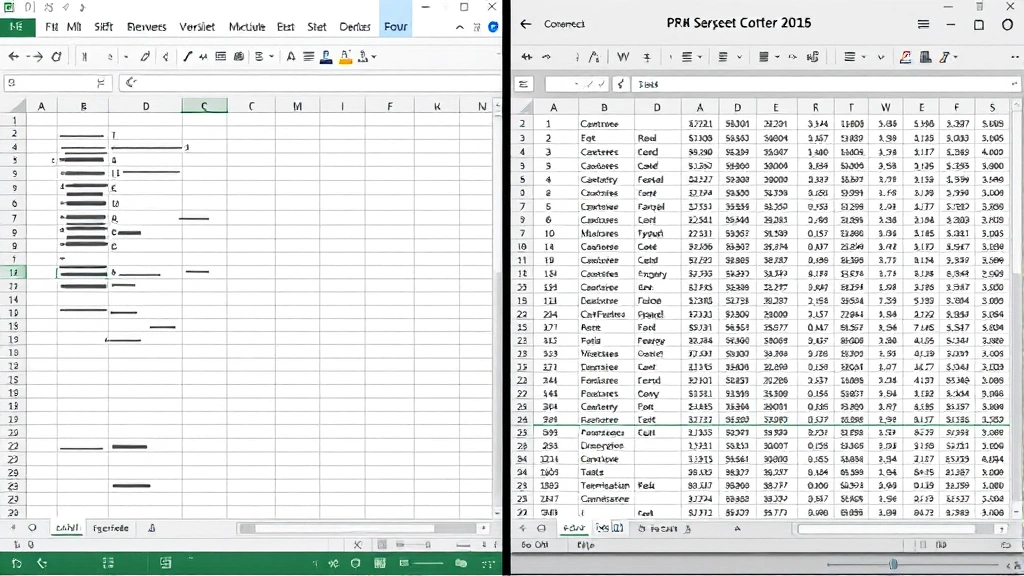
Method 2: Using Go To Special Feature
The Go To Special feature is a hidden gem in Excel that many users never discover. It’s incredibly powerful for identifying and selecting blank cells across your entire dataset in seconds.
Step 1: Select Your Data Range
First, click on any cell within your dataset. Then select all your data by pressing Ctrl+A (or Cmd+A on Mac). This selects the entire used range of your spreadsheet. If you want to work with a specific range, manually highlight it by clicking and dragging from the first cell to the last cell containing data.
Step 2: Access Go To Special
In Excel for Windows, press Ctrl+H to open Find & Replace, or navigate to the Home tab and click “Find & Select,” then choose “Go To Special.” In newer versions of Excel, you might find this under Edit menu. On Mac, the keyboard shortcut is Cmd+Option+G.
Step 3: Select Blanks
In the Go To Special dialog box, click the “Blanks” option. This will instantly select all empty cells in your selected range. The selected cells will appear highlighted, and you can see exactly how many blank cells are in your dataset.
Step 4: Delete the Empty Rows
Once blanks are selected, right-click and choose “Delete.” A dialog box will appear asking how you want to shift cells. Choose “Entire row” to remove the complete rows containing empty cells. Click OK, and Excel will remove all selected empty rows simultaneously.
This method is significantly faster than manual deletion and works wonderfully for moderately-sized datasets. It’s also more reliable because it catches empty rows you might visually miss.
Method 3: Sorting to Group Empty Rows
Sorting is an underutilized technique for managing empty rows. By sorting your data, you can group all empty rows together at the top or bottom of your spreadsheet, making bulk deletion simple and efficient.
Step 1: Select Your Data
Click on any cell in your dataset, then press Ctrl+A to select all data. Make sure your selection includes headers and all columns you want to sort.
Step 2: Open the Sort Dialog
Navigate to the Data tab in your ribbon and click “Sort.” A dialog box will open showing your data structure. Excel will recognize your headers automatically if you have them.
Step 3: Sort by Any Column
Choose any column to sort by—it doesn’t matter which one you select. The key is that sorting will automatically push all completely empty rows to the bottom (or top, depending on your sort direction). This groups them together for easy deletion.
Step 4: Delete Grouped Empty Rows
Once sorted, you’ll see all your empty rows clustered together. Select them as a group and delete them using the methods described earlier. This approach is particularly effective for large datasets where empty rows are scattered throughout.
One advantage of this method is that it works regardless of whether your empty rows contain hidden formatting or characters. The sort function treats them consistently, making it reliable and predictable.

Method 4: Using AutoFilter
AutoFilter is another powerful Excel feature that lets you hide empty rows so you can work with clean data or delete them more strategically.
Step 1: Apply AutoFilter
Select any cell in your data range. Go to the Data tab and click “AutoFilter.” Small dropdown arrows will appear in your header row for each column.
Step 2: Filter Out Empty Rows
Click the dropdown arrow in any column header. In the filter menu, you’ll see a list of all values in that column. Look for the “(Blanks)” option and uncheck it. This hides all rows where that column is empty, leaving only rows with data visible.
Step 3: Delete or Work with Visible Data
With empty rows hidden, you can work with clean data or select and delete the hidden rows. If you want to delete the hidden empty rows, first select them by clicking row numbers while they’re hidden, then delete them. When you remove the filter, those rows will be gone.
AutoFilter is excellent for situations where you want to preserve some rows while removing others. It’s also useful when you need to verify which rows are truly empty before deletion, as you can see exactly what’s being hidden.
Method 5: Find & Replace Technique
The Find & Replace feature offers a creative approach to removing empty rows, especially when they contain only whitespace or formatting.
Step 1: Open Find & Replace
Press Ctrl+H to open the Find & Replace dialog. This keyboard shortcut works in Windows Excel versions.
Step 2: Use Regular Expressions
In the Find & Replace dialog, look for an “Options” button and expand it. Check the “Regular expressions” checkbox. This enables pattern matching, which is powerful for finding empty cells.
Step 3: Search for Empty Cells
In the Find field, enter ^$ (this regular expression matches completely empty cells). Leave the Replace field empty. Click “Replace All” to remove all empty cells in your selected range.
Step 4: Handle Whitespace
If your empty rows contain spaces or invisible characters, use the regular expression ^ *$ instead. This finds cells containing only spaces. Replace them with nothing to clean up these problematic rows.
This method is particularly useful when dealing with data imported from other sources that often contains formatting artifacts or hidden characters masquerading as empty cells.
Advanced: Using Excel Macros
For users comfortable with coding, Excel macros provide the ultimate automation solution. If you regularly work with large datasets containing many empty rows, creating a macro saves tremendous time.
Creating a Basic Delete Empty Rows Macro
Open the Visual Basic Editor by pressing Alt+F11. Insert a new module and paste this simple macro code:
Sub DeleteEmptyRows()
On Error Resume Next
Columns("A:Z").SpecialCells(xlCellTypeBlanks).EntireRow.Delete
End Sub
This macro selects columns A through Z, identifies all blank cells, and deletes their entire rows. You can modify the column range to match your data.
Running Your Macro
Save your workbook as a macro-enabled file (.xlsm). Then press Alt+F8, select your macro from the list, and click Run. The macro executes instantly, removing all empty rows in your specified range.
Macros are incredibly powerful but require some technical knowledge. If you’re intimidated by Visual Basic, don’t worry—the other methods in this guide are perfectly adequate for most situations. However, learning macros opens doors to automating countless other Excel tasks.
It’s also worth noting that if you’re looking to remove blank rows in Excel, you’ll find that many of these techniques overlap significantly with the broader blank row removal process. The distinction between empty and blank rows is often semantic in practical application.
Best Practices for Preventing Empty Rows
The best solution is prevention. By implementing good spreadsheet habits, you’ll minimize empty rows from appearing in the first place.
Establish Data Entry Standards
Create guidelines for how data should be entered into your spreadsheets. Specify which fields are mandatory and which are optional. This prevents users from creating gaps by skipping rows or leaving cells blank inconsistently.
Use Data Validation
Excel’s Data Validation feature can prevent empty cells in critical columns. Select a range, go to Data > Validation, and set rules requiring entries. This catches problems before they become widespread.
Implement Regular Cleaning Schedules
Set aside time weekly or monthly to review your spreadsheets for empty rows. Regular maintenance prevents accumulation and keeps your data consistently clean.
Backup Before Bulk Deletions
Always save a backup copy of your spreadsheet before performing large-scale deletions. Accidents happen, and having a safety net provides peace of mind.
Document Your Process
If you’re working in a team environment, document which empty row removal methods you use and why. This ensures consistency and helps others understand your data management approach.
Related to data organization, you might also want to explore how to delete pages in Word for document cleanup, as similar organizational principles apply across Office applications. Additionally, understanding how to properly organize your spreadsheet structure makes tasks like freezing cells in Excel more effective for navigation and data management.
Frequently Asked Questions
What’s the difference between empty rows and blank cells?
Empty rows are entire rows with no data across any column, while blank cells are individual cells within a row that contain no data. Both can clutter your spreadsheet, but they require slightly different removal approaches. Empty rows are typically removed by deleting the entire row, whereas blank cells might be filled with placeholder values or left as-is depending on your needs.
Will removing empty rows affect my formulas?
Yes, removing empty rows can affect formulas if those formulas reference specific row numbers. Absolute references (like =A5) will point to different data after rows are deleted. Relative references and named ranges are more flexible and less likely to break. Always review formulas after bulk deletions, especially if you’re working with complex spreadsheets.
Can I undo empty row deletions?
Yes! Excel’s undo function works for row deletions. Press Ctrl+Z immediately after deletion to restore removed rows. However, undo has limitations—if you’ve saved and closed your file, you can’t undo previous sessions. This is why backing up your file before bulk operations is crucial.
How do I find empty rows in very large spreadsheets?
For massive datasets, the Go To Special feature is your best friend. It instantly identifies all blank cells regardless of spreadsheet size. Sorting is also effective for large files. Avoid manual scrolling through huge spreadsheets—it’s error-prone and inefficient.
What if my empty rows contain formatting or formulas?
Rows that appear empty but contain formatting or formulas require special handling. Use the Find & Replace method with regular expressions to catch these hidden characters. Alternatively, use the Go To Special feature, which identifies truly empty cells regardless of formatting.
Can I remove empty rows in Excel Online?
Excel Online has limited functionality compared to desktop Excel. You can manually delete rows one at a time, but advanced features like macros and Go To Special aren’t available. For complex empty row removal, download your file, process it in desktop Excel, and upload it back.
Should I remove all empty rows or keep some for formatting?
This depends on your spreadsheet’s purpose. For data analysis and reporting, remove all empty rows to maintain data integrity. For presentation documents or dashboards, you might intentionally keep spacing for visual appeal. Consider your use case and audience before deletion.

Related Posts

How Long to Boil Lobster Tails: Cooking Guide

How Long to Fly from New York to London? Travel Times
