

Pair Beats Easily: Step-by-Step Instructions
Pair Beats Easily: Step-by-Step Instructions for Pairing Mode
Beats headphones and earbuds are renowned for their superior sound quality and sleek design, making them a popular choice among music enthusiasts and casual listeners alike. However, connecting your Beats to a new device can sometimes feel confusing if you’re not familiar with the pairing process. Whether you’re setting up your first pair of Beats or reconnecting to a new smartphone, tablet, or computer, understanding how to put Beats in pairing mode is essential for seamless connectivity.
The pairing process is straightforward once you know the specific steps for your Beats model. Most Beats devices follow similar procedures, though some variations exist depending on whether you own wireless earbuds, over-ear headphones, or Beats Fit Pro. This comprehensive guide walks you through everything you need to know about entering pairing mode, troubleshooting common issues, and maintaining your Beats connection for optimal performance.
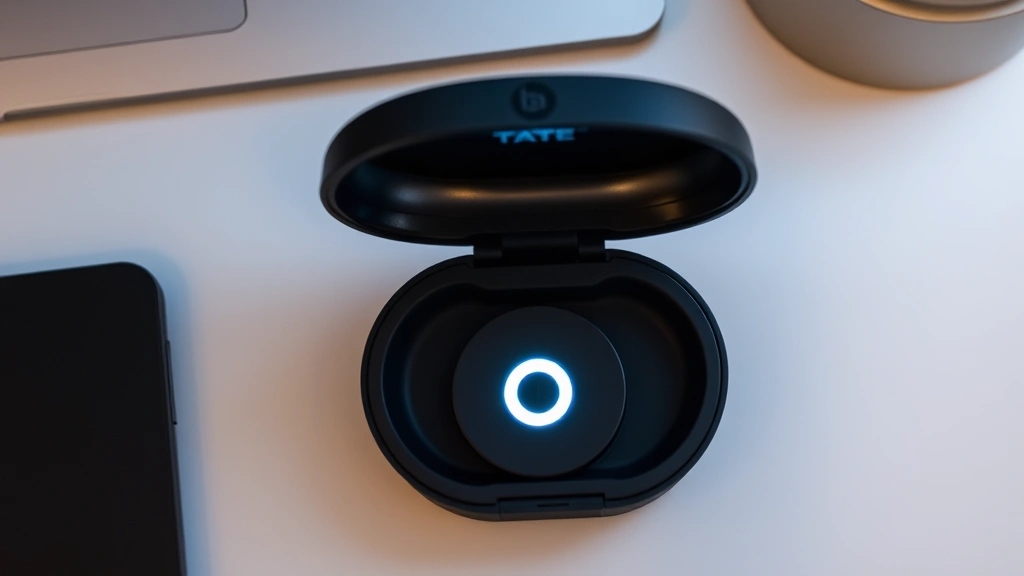
Understanding Beats Pairing Mode
Pairing mode is a special state that allows your Beats headphones to discover and connect with compatible Bluetooth devices. When your Beats are in pairing mode, they broadcast a signal that nearby devices can detect, making it possible to establish a wireless connection. Think of pairing mode as opening a temporary window of opportunity for your Beats and device to recognize each other and exchange the necessary information for future connections.
Each Beats model has a pairing mode indicator, typically shown through LED lights that flash in specific colors or patterns. Understanding these visual cues helps you confirm that your device is ready to pair. Most Beats devices will exit pairing mode automatically after a few minutes if no connection is established, or they’ll switch to pairing mode again if they haven’t been connected to any device before.
Before attempting to pair your Beats, ensure that both your Beats and the device you want to connect are fully charged or have adequate battery life. Low battery levels can sometimes interfere with the pairing process. Additionally, make sure your Beats are turned off before beginning, as this allows you to start fresh with the pairing sequence.
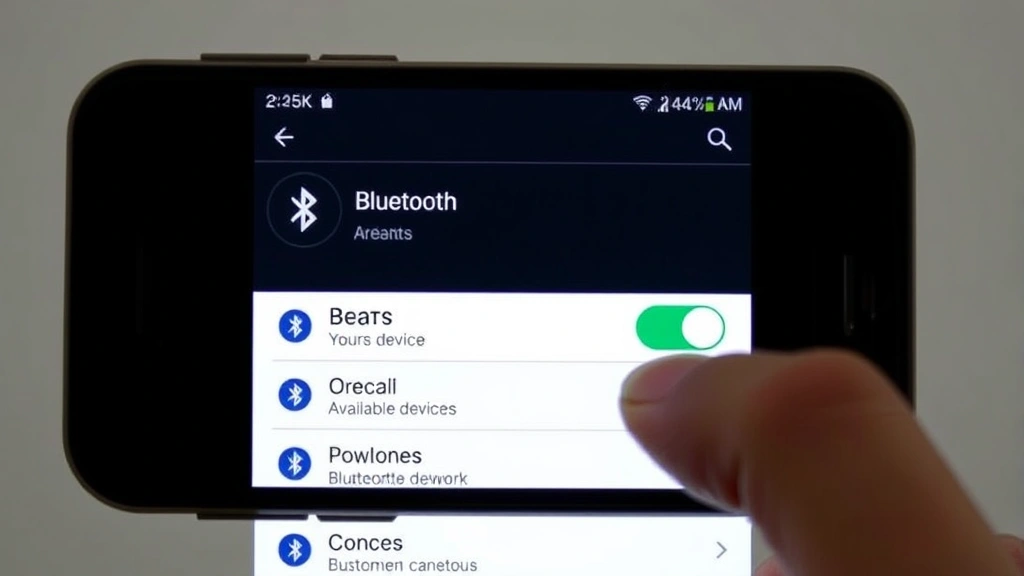
How to Put Beats in Pairing Mode: General Steps
The general process for putting most Beats models into pairing mode involves holding down the power button for an extended period. Here’s the standard approach that works for many Beats wireless headphones:
- Power Off Your Beats: If your Beats are currently on, press the power button to turn them off completely. Wait a few seconds to ensure they’ve fully shut down.
- Locate the Power Button: Find the power button on your specific Beats model. On over-ear headphones like Beats Studio Pro, this is typically located on one of the ear cups. On earbuds, it may be on the case or the earbud itself.
- Hold the Power Button: Press and hold the power button for approximately 10-15 seconds. You should see the LED indicator light begin to flash, usually in white or red colors. This flashing indicates that your Beats are entering pairing mode.
- Wait for Confirmation: Continue holding until the LED light flashes in a distinctive pattern. Different Beats models use different patterns, but the flashing light confirms that pairing mode is active.
- Access Bluetooth Settings on Your Device: On your smartphone, tablet, or computer, navigate to the Bluetooth settings menu. For iPhones and iPads, this is found in Settings > Bluetooth. For Android devices, go to Settings > Connected devices > Bluetooth or Settings > Bluetooth. On computers, access Bluetooth settings through your system preferences or control center.
- Select Your Beats Device: Once your device’s Bluetooth is enabled and scanning, you should see your Beats appear in the list of available devices. The name will typically be something like “Beats Studio Pro” or “Beats Fit Pro.” Tap or click on it to initiate the pairing process.
- Confirm the Connection: Your device may prompt you to confirm the pairing. Accept any notifications or pop-ups that appear. Once confirmed, your Beats should connect, and the LED indicator will typically change to a solid color, indicating a successful connection.
This foundational process applies to most Beats models, but some devices have specific variations worth noting.
Model-Specific Pairing Instructions
Beats Studio Pro
The Beats Studio Pro over-ear headphones feature a slightly different pairing approach. To enter pairing mode, hold the power button on the right ear cup for about 15 seconds. You’ll see the LED indicator on the right ear cup flash white and red alternately. This pattern indicates that the headphones are ready to pair. Once you select them from your device’s Bluetooth menu, the LED will turn solid white, confirming the connection.
For reconnecting to a previously paired device, simply turn on the Beats Studio Pro, and they’ll automatically reconnect to the last device they were paired with. If you want to pair with a different device, follow the full pairing mode process again.
Beats Fit Pro
Beats Fit Pro earbuds have a unique pairing method. To put them in pairing mode, place both earbuds in the charging case and leave the case open. Press and hold the pairing button on the back of the case for about 10 seconds until the LED indicator on the case flashes white. This white flashing indicates that the earbuds are in pairing mode and ready to connect to a new device.
After pairing, simply take the earbuds out of the case, and they’ll automatically connect to your device. The pairing button method is specific to Beats Fit Pro and differs from other Beats models that use the power button.
Beats Solo 3 Wireless
For the classic Beats Solo 3 Wireless headphones, hold the power button on the left ear cup for approximately 10 seconds. The LED indicator will flash red and white, indicating pairing mode is active. Once your device recognizes and connects to the Solo 3, the LED will display a solid white light.
Beats Flex
Beats Flex earbuds enter pairing mode by pressing and holding the power button on the neckband for about 10 seconds. The LED indicator will flash white, signaling that the device is ready to pair. The neckband design of Beats Flex makes it easy to locate and press the power button compared to fully wireless earbuds.
Troubleshooting Connection Problems
Sometimes, despite following the correct steps, your Beats may not enter pairing mode or may fail to connect to your device. Here are common issues and solutions:
LED Light Not Flashing
If you don’t see the LED indicator flashing after holding the power button, your Beats may not have enough battery. Connect them to a charger using the provided USB-C or Lightning cable and wait at least 15 minutes before attempting to pair again. Alternatively, if your Beats were recently paired with another device, they may automatically connect to that device instead of entering pairing mode. To reset this, visit the FixWiseHub Blog for additional troubleshooting resources or consult the official Beats support documentation.
Device Not Recognizing Beats
Ensure that your device’s Bluetooth is turned on and set to discoverable mode. On some devices, you may need to “forget” a previously paired Beats device before pairing again. This is especially important if you’re switching between multiple devices or if a previous pairing attempt was incomplete. Go to your device’s Bluetooth settings, find your Beats in the list of paired devices, and select the option to forget or unpair them.
Connection Drops Immediately After Pairing
If your Beats connect briefly but then disconnect, try restarting both your Beats and your device. Turn off your Beats completely, wait 10 seconds, and turn them back on. Simultaneously, toggle your device’s Bluetooth off and back on. This often resolves temporary connection glitches.
Pairing Mode Timeout
Beats typically remain in pairing mode for about 5-10 minutes before automatically exiting. If this happens before you can complete pairing, simply repeat the process of holding the power button to re-enter pairing mode.
Maintaining Your Beats Connection
Once you’ve successfully paired your Beats with a device, maintaining that connection is relatively straightforward. Most Beats models will automatically reconnect to your device when they’re powered on, provided that your device’s Bluetooth is enabled and the Beats are within range (typically 30 feet or 10 meters).
Managing Multiple Device Connections
Most Beats models can remember multiple paired devices, allowing you to switch between them without re-entering pairing mode each time. However, they can typically only maintain an active connection to one device at a time. If you want to connect to a different device, simply enable Bluetooth on that device and select your Beats from the available list. Your Beats will disconnect from the previous device and establish a new connection.
Resetting Your Beats to Factory Settings
If you’re experiencing persistent pairing issues or plan to give your Beats to someone else, you may want to reset them to factory settings. This process varies by model but typically involves holding both the power button and a reset button (or holding the power button for an extended period, often 15-20 seconds) until you see a specific LED pattern. Consult your Beats manual or the official Apple support website for model-specific reset instructions.
Firmware Updates
Beats devices occasionally receive firmware updates that improve connectivity and performance. To check for updates, connect your Beats to your device and open the Beats app (if available for your model) or check the Apple Support website. Keeping your Beats firmware up-to-date ensures optimal pairing performance and access to new features.
Keeping Beats Discoverable
If you frequently pair your Beats with different devices, you may want to keep them in a discoverable state. For some models, this means not connecting them to a specific device but instead allowing them to broadcast their availability. Check your Beats model’s documentation to see if this feature is available and how to enable it.
FAQ
How long does pairing mode stay active on Beats?
Most Beats models remain in pairing mode for approximately 5-10 minutes if no connection is established. If this timeout occurs, simply repeat the power button sequence to re-enter pairing mode.
Can I pair my Beats with multiple devices simultaneously?
While most Beats can be paired with multiple devices, they can only maintain an active connection to one device at a time. You can switch between paired devices by selecting your Beats from the Bluetooth menu on a different device.
Why won’t my Beats enter pairing mode?
Low battery is the most common reason. Charge your Beats for at least 15-20 minutes before attempting to pair. If the battery isn’t the issue, try resetting your Beats by holding the power button for 20+ seconds until you see a specific LED pattern.
Do I need to pair my Beats every time I use them?
No. Once you’ve successfully paired your Beats with a device, they’ll automatically reconnect whenever they’re powered on and your device’s Bluetooth is enabled. You only need to enter pairing mode when connecting to a new device for the first time.
What does it mean if the LED light is solid instead of flashing?
A solid LED light (usually white or blue) indicates that your Beats are successfully connected to a device. Flashing lights indicate pairing mode or other states like charging or low battery, depending on the color and pattern.
How do I disconnect my Beats from a device?
You can disconnect your Beats by turning them off, moving them out of Bluetooth range, or manually disconnecting them from your device’s Bluetooth settings. To completely unpair them, go to your device’s Bluetooth settings, find your Beats, and select “Forget” or “Unpair.”
Can I pair Beats with non-Apple devices?
Yes. All Beats models use standard Bluetooth technology, making them compatible with any Bluetooth-enabled device, including Android phones, tablets, computers, and gaming consoles. The pairing process remains the same regardless of the device type.
What should I do if my Beats keep disconnecting after pairing?
Try restarting both your Beats and your device. Ensure that your device is within Bluetooth range and that no other devices are trying to connect simultaneously. If the problem persists, check for firmware updates or consider resetting your Beats to factory settings.

Related Posts

Superscript in Google Docs: Expert Tips

Strikethrough in Excel: Easy Steps for Beginners
