
Leave Life360 Circle? Expert Tips Inside!
How to Leave a Life360 Circle: Expert Tips Inside
Life360 is a popular family location-sharing app that helps families stay connected and informed about each other’s whereabouts. However, there are many legitimate reasons why you might want to leave a Life360 Circle. Whether you’re concerned about privacy, seeking independence, or simply no longer need the service, understanding how to properly exit a circle is essential. Leaving a Life360 Circle is straightforward, but the process differs slightly depending on whether you’re an admin or a regular member, and whether you’re using iOS or Android.
In this comprehensive guide, we’ll walk you through every step of leaving a Life360 Circle, explain the implications of doing so, and answer common questions you might have about the process. We’ll also discuss alternatives and best practices for maintaining healthy family relationships while prioritizing your personal privacy and autonomy.
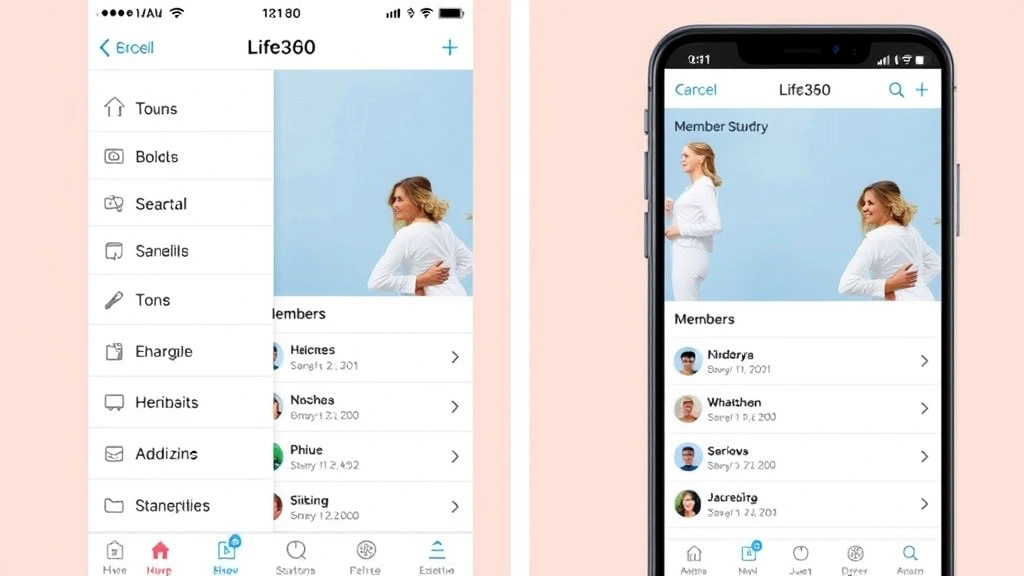
Understanding Life360 Circles
Life360 Circles are the core feature of the Life360 app, functioning as customizable groups where family members and trusted contacts can share their real-time location with one another. Each Circle typically includes a Circle Creator (admin) who establishes the group and manages its settings, along with multiple members who join and participate in location sharing. The app uses GPS technology to track member locations and provides features like crash detection, emergency assistance, and location history.
Circles are designed to be flexible and inclusive, allowing users to create multiple circles for different purposes. For example, a family might have one circle for immediate family members and another for extended family or close friends. Understanding the structure of your Circle is important before deciding to leave, as it will help you understand the implications and ensure you’re taking the right approach. If you’re uncertain about your Circle’s setup, you can review your Circle members and their roles within the app’s settings.

Reasons to Leave a Life360 Circle
People choose to leave Life360 Circles for various reasons, and most are completely valid. Privacy concerns are among the most common motivations, as constant location tracking can feel invasive to some users. Teenagers and young adults often seek to establish independence and may feel that continuous monitoring infringes on their autonomy. Technical issues such as battery drain, app crashes, or inaccurate location data can also prompt users to exit.
Other reasons include relationship changes (such as no longer living with family members), reduced need for the service, concerns about data security, or simply preferring alternative communication methods. Some users find that the constant notifications and updates create unnecessary stress or anxiety. Additionally, if you’ve experienced a change in your living situation or family dynamics, maintaining an active presence in a Circle might no longer serve your needs. Whatever your reason, leaving a Circle is your right, and the process is designed to be user-friendly.
How to Leave as a Regular Member
If you’re a regular member of a Life360 Circle (not the admin), leaving is relatively simple. Here’s the step-by-step process for both iOS and Android devices:
For iPhone Users:
- Open the Life360 app on your iPhone
- Navigate to the “Circles” tab, typically found at the bottom of your screen
- Select the specific Circle you want to leave
- Tap the settings icon (usually a gear or three dots) in the top-right corner
- Scroll down to find the “Leave Circle” option
- Confirm your decision when prompted
- Your location will no longer be shared with Circle members
Note: You may be asked to provide a reason for leaving, which helps Life360 improve their service, though this is optional.
For Android Users:
- Launch the Life360 app on your Android device
- Go to the “Circles” section
- Select the Circle you wish to exit
- Tap the menu icon (three horizontal lines or three dots)
- Look for “Leave this Circle” or similar wording
- Confirm your intention to leave
- Your location data will be removed from the Circle immediately
The process is nearly identical across both platforms, though the exact location of buttons and menu items may vary slightly depending on your app version. If you don’t see a “Leave Circle” option, ensure your app is updated to the latest version available in your device’s app store.
How to Leave as a Circle Admin
Leaving as an admin is more complex than leaving as a regular member because you have administrative responsibilities. Before you can leave a Circle as the admin, you must first transfer your admin privileges to another member. Here’s how:
Step 1: Choose a New Admin
Select a trusted Circle member who will take over administrative duties. This person should be reliable and willing to manage Circle settings, member additions and removals, and other administrative functions.
Step 2: Transfer Admin Rights
- Open Life360 and navigate to the Circle you manage
- Go to Circle settings
- Find the “Members” or “Manage Members” section
- Locate the member you’ve chosen as the new admin
- Tap on their profile and select “Make Admin” or “Transfer Admin Rights”
- Confirm the transfer
Step 3: Leave the Circle
Once admin rights have been successfully transferred, you can now leave the Circle using the same steps described for regular members. The new admin will receive notification of the transfer and will have full control moving forward.
Important: If you’re the only member in your Circle, you cannot leave without first adding another member and making them an admin. Alternatively, you can delete the Circle entirely if you’re ready to eliminate it completely.
What Happens After You Leave
Understanding the consequences of leaving helps you make an informed decision. When you leave a Life360 Circle, several things occur immediately:
- Location Sharing Stops: Your real-time location is no longer visible to other Circle members
- Notifications Cease: You will no longer receive location updates or notifications about other members’ locations
- Emergency Features Disabled: Circle members can no longer access your crash detection or emergency assistance features
- Historical Data: Depending on your Circle’s settings, previous location history may or may not be retained (check your Circle’s privacy settings before leaving if this is a concern)
- Communication Remains: You can still communicate with Circle members through other channels; leaving Life360 doesn’t block phone calls, texts, or other messaging apps
It’s worth noting that leaving a Circle is reversible. If you change your mind, you can rejoin a Circle if another member invites you back. However, you’ll need to go through the joining process again, and your previous location history with that Circle may not be fully restored depending on the app’s data retention policies.
Privacy Considerations
Privacy is a significant concern for many Life360 users, and it’s important to understand how your data is handled both while you’re in a Circle and after you leave. Life360 collects location data, device information, and usage patterns. When you leave a Circle, your location data is no longer actively shared with that group, but Life360 as a company may still retain certain information according to their privacy policy.
If you have serious privacy concerns, consider deleting your Life360 account entirely rather than just leaving a Circle. This process is more involved and will remove all your data from the platform. To delete your account, contact Life360 customer support directly through their official website. Additionally, review your device’s location permissions to ensure Life360 no longer has access to your GPS data after you’ve left all Circles.
Communicating Your Decision
Leaving a Life360 Circle, particularly a family Circle, can impact relationships if not handled thoughtfully. Here are some best practices for communicating your decision:
- Be Honest and Direct: Explain your reasons clearly and calmly. Whether it’s about privacy concerns, independence, or technical issues, honesty helps family members understand your perspective
- Choose the Right Time: Have the conversation in person or via a phone call rather than through text or app notifications, if possible
- Reassure Relationships: Make clear that leaving Life360 doesn’t mean you don’t care about your family’s safety or wellbeing; you’re simply choosing a different approach to privacy
- Offer Alternatives: Suggest other ways to stay in touch, such as regular check-in calls, scheduled video chats, or group messaging apps
- Respect Their Concerns: If family members express worry, listen to their perspective. You might find a compromise that works for everyone
For parents of teenagers or young adults, this conversation is especially important. Understanding that your child values independence while you value their safety can lead to productive discussions about privacy boundaries and trust.
Alternatives to Leaving
Before you commit to leaving a Life360 Circle entirely, consider whether one of these alternatives might better suit your needs:
Adjust Your Privacy Settings
Life360 offers various privacy controls that might address your concerns without requiring you to leave. You can adjust location update frequency, disable certain notifications, or limit which members can see your location.
Use “Ghost Mode” or Similar Features
Some Life360 subscriptions include features that allow you to temporarily hide your location without leaving the Circle. Check whether your subscription tier includes such options.
Create a Separate Circle
Instead of leaving entirely, you might create a new Circle with different members or settings that better suits your current needs while maintaining family connections.
Discuss Settings with Circle Admin
Talk to your Circle’s admin about adjusting group settings. They may be able to modify notification frequency, location update intervals, or other features that are causing your concerns. For more information about managing relationships through technology, check out our guide on how to know if someone Facebook blocked you, which discusses digital communication boundaries.
Take a Temporary Break
If you’re overwhelmed, consider temporarily deleting the app from your device while remaining a Circle member. You can reinstall it later if your circumstances change.
FAQ
Will Circle members know I’ve left?
Yes, Circle members will be notified that you’ve left. Your location will simply stop appearing on their screens, and they may receive a notification indicating your departure from the Circle.
Can I leave without notifying the Circle admin?
Technically yes, but it’s not recommended. Leaving without explanation might cause concern, especially if family members are used to seeing your location. A brief explanation prevents unnecessary worry.
What if I’m the only member besides the admin?
If you’re the only other member in a Circle with one admin, leaving would leave the admin alone in the Circle. The admin can either add another member, delete the Circle, or remain as a solo member.
Can I rejoin a Life360 Circle after leaving?
Yes, if another Circle member invites you to rejoin, you can request to join again. However, you’ll need to be re-added by an existing member.
Does leaving a Circle delete my account?
No, leaving a Circle only removes you from that specific group. Your Life360 account remains active, and you can stay in other Circles or create new ones.
Will my location history be deleted when I leave?
Your location history within that Circle may be retained depending on the Circle’s settings and Life360’s data retention policy. Check your privacy settings before leaving if historical data is a concern.
How do I leave if I forgot my password?
Use Life360’s password reset feature on the login screen. You’ll receive an email to reset your password, after which you can log in and follow the standard leave procedures.
Can parents force their child to stay in a Life360 Circle?
Technically, if a minor’s device is managed by a parent through parental controls, the parent may be able to prevent the app from being uninstalled. However, this is a family decision that should involve open communication about privacy and trust.
What if my Circle admin won’t transfer admin rights?
If the current admin refuses to transfer rights so you can leave, you may need to contact Life360 customer support for assistance. They can help mediate the situation.
Is Life360 free to leave, or are there cancellation fees?
Leaving a Circle is always free. However, if you’re on a paid Life360 subscription plan, you may want to cancel that separately through your account settings or contact customer support.

Related Posts

Superscript in Google Docs: Expert Tips

Strikethrough in Excel: Easy Steps for Beginners
