

Restart Computer? Expert Tips and Tricks
How to Restart Computer: Expert Tips and Tricks for Every Situation
Restarting your computer is one of the most fundamental troubleshooting steps, yet many users don’t fully understand the different methods available or when to use each one. Whether you’re dealing with a frozen system, installing updates, or simply performing routine maintenance, knowing how to restart your computer properly can save you time and prevent data loss. This comprehensive guide walks you through every restart method, from basic approaches to advanced techniques that IT professionals use.
A proper restart clears your system’s RAM, closes background processes, and refreshes your operating system’s core functions. Unlike simply shutting down, restarting ensures your computer goes through a complete boot cycle, which can resolve software conflicts, improve performance, and install pending updates. Understanding the nuances between different restart methods helps you choose the best approach for your specific situation.
Standard Restart Methods
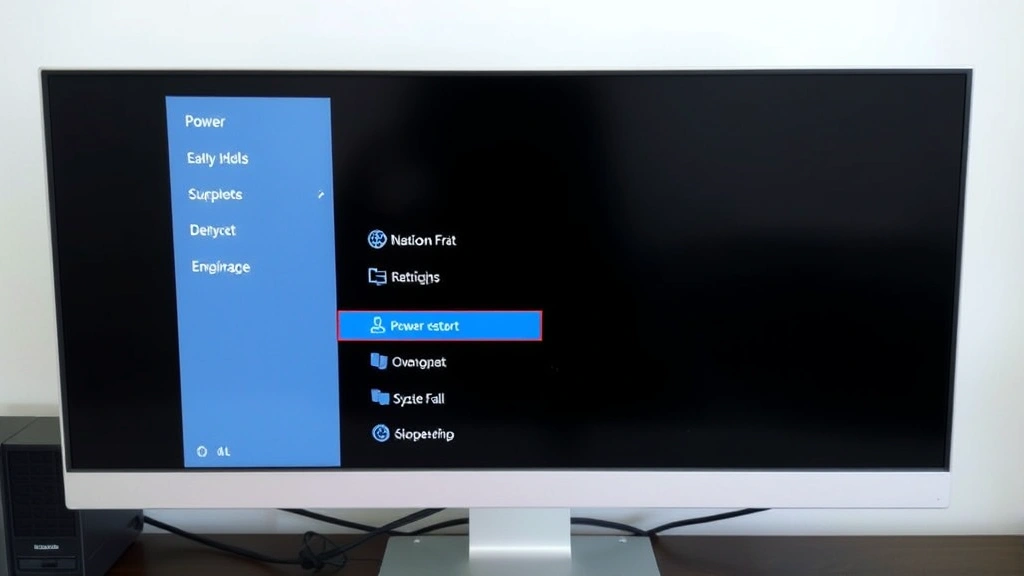
The most straightforward way to restart your computer is through the operating system’s built-in menu system. On Windows 10 and 11, click the Start button in the lower left corner, then select the Power icon. You’ll see three options: Sleep, Shut down, and Restart. Click Restart, and your computer will begin the shutdown and boot process immediately. This method ensures all open applications are properly closed and system resources are cleanly released.
For Mac users, the process is equally simple. Click the Apple menu in the top-left corner, select Shut Down, and a dialog box appears asking if you want to reopen windows when logging back in. Choose “Restart” from the dialog, or simply click the Restart button if it’s available. Mac systems also offer the option to schedule automatic restarts through System Preferences, which is useful for maintaining system health during off-hours.
On Linux systems, you can restart through the graphical interface by accessing the power menu, typically found in the system tray. Most distributions use similar layouts, though the exact location may vary. The graphical method is safest for beginners because it ensures all running processes are terminated properly before the restart occurs.
Before initiating any restart, save all open documents and close applications you’re actively using. This prevents data loss and ensures a smoother restart process. Many modern operating systems will prompt you to save unsaved work, but it’s better to be proactive. If you’re experiencing issues with a specific application, you might want to consult our troubleshooting guides for device-specific problems before restarting.
Keyboard Shortcuts for Quick Restarts
Power users and IT professionals rely on keyboard shortcuts to restart computers quickly without navigating through menus. On Windows, press Alt + F4 to close the current window, and if no applications are open, this opens the shutdown dialog. From there, you can select Restart using arrow keys and Enter. However, the fastest method is using the Run dialog: press Windows Key + R, type “shutdown /r /t 0” and press Enter. This restarts your computer immediately without any delay.
The command “shutdown /r /t 30” gives you a 30-second countdown before restart, which is useful if you need time to save work or notify others. You can adjust the number to any value in seconds. If you need to cancel a scheduled restart, simply type “shutdown /a” in the Run dialog to abort the process.
Mac users can use keyboard shortcuts to access the restart function more quickly. Press Control + Eject (or Control + Power button on newer Macs) to bring up the shutdown dialog immediately. Then press R for Restart. This method bypasses the Apple menu entirely and works from anywhere on your system.
Linux users working in GNOME or KDE desktop environments can typically press the Power button to access restart options. For those using terminal-based systems, keyboard shortcuts vary by distribution, but most follow standard command-line conventions. Learning these shortcuts demonstrates technical proficiency and significantly speeds up your workflow, much like understanding how to restart specific device types efficiently.
Command Line Restart Techniques
Command line interfaces provide the most precise control over restart operations. Windows users can open Command Prompt as Administrator (right-click and select “Run as administrator”) and use several powerful commands. The “shutdown” command is the most versatile: “shutdown /r” restarts the computer, “/s” shuts down, and “/h” hibernates. Adding “/t [seconds]” specifies a delay, and “/c [message]” displays a custom message to users.
For example, “shutdown /r /t 3600 /c ‘Computer will restart in one hour for maintenance'” schedules a restart one hour from now with a notification message. This is particularly useful in corporate environments where you need to alert users before system maintenance. The “/f” flag forces closure of running applications, though this should be used cautiously as it may cause data loss.
PowerShell, Microsoft’s more advanced command-line tool, offers additional functionality. Open PowerShell as Administrator and use the command “Restart-Computer” for immediate restart, or “Restart-Computer -ComputerName [hostname] -Force” to restart remote computers on a network. This capability makes PowerShell invaluable for system administrators managing multiple machines.
Mac and Linux users access the terminal through their respective applications. On Mac, open Terminal and type “sudo shutdown -r now” to restart immediately, or “sudo shutdown -r +30” to restart in 30 minutes. The “sudo” prefix requires administrator privileges. Linux users typically use “sudo reboot” or “sudo shutdown -r now,” with variations depending on their specific distribution and init system (systemd, SysVinit, etc.).
Command line methods provide automation possibilities that graphical interfaces cannot match. You can create scripts that restart computers at specific times, restart remote machines, or integrate restart commands into larger system administration workflows. If you’re managing smart home devices, you might also benefit from understanding how to reset and restart connected devices properly.
Forced Restart When System Freezes
Sometimes your computer becomes completely unresponsive, and normal restart methods won’t work. In these situations, a forced restart is necessary, though it should be your last resort since it may cause data loss or file corruption. Understanding when and how to force a restart properly is crucial for every computer user.
On Windows, if your keyboard and mouse are unresponsive, press Ctrl + Alt + Delete to access the security screen. From there, click the Power icon in the bottom-right corner and select Restart. If this doesn’t work, try holding the power button for 10-15 seconds until the computer shuts down completely. Wait 30 seconds, then press the power button again to restart. This hard power cycle forces the system to shut down without the normal shutdown sequence.
Mac users experiencing a frozen system should first try Command + Control + Eject to force restart. If the keyboard shortcut doesn’t respond, hold down the power button for approximately 10 seconds until the Mac shuts down. Release the button, wait a moment, and press it again to restart. Some older Mac models require holding Command + Option + Power + R for different effects, so check your specific model’s documentation.
On Linux systems, if the graphical interface is frozen, try switching to a virtual console with Ctrl + Alt + F2 through F6, then logging in and typing “sudo reboot” or “sudo shutdown -r now.” If even the virtual consoles are unresponsive, use the “magic SysRq key” combination: hold Alt + SysRq (Print Screen), then press R, E, I, S, U, B in sequence. This safely restarts Linux systems even when severely frozen.
Always wait at least 30 seconds after a forced shutdown before restarting. This allows capacitors in the power supply to fully discharge and ensures a clean boot. After a forced restart, your system will likely run a disk check or file system repair on startup, which is normal and necessary for system integrity.
Scheduled Restarts and Automation
Automating restart schedules keeps your computer running optimally without requiring manual intervention. Windows users can schedule restarts through Task Scheduler, a built-in utility that allows precise control over when and how your computer restarts. Open Task Scheduler, create a new task, set the trigger to your desired time and frequency, and set the action to run “shutdown.exe” with arguments “/r /t 0.”
For home users, Windows Update can be configured to automatically restart your computer after installing updates. Navigate to Settings > Update & Security > Windows Update > Advanced options, and you’ll find settings for active hours and restart options. Setting active hours prevents unexpected restarts during your work time while ensuring updates are installed promptly.
Mac users can access similar functionality through System Preferences > Energy Saver, where you’ll find options to schedule automatic restart times. This is particularly useful for businesses wanting to maintain consistent system maintenance schedules. Third-party applications like Macworld recommend various scheduling tools for more advanced users.
Linux systems typically use cron jobs for scheduling automated restarts. Edit your crontab file with “crontab -e” and add an entry like “0 2 * * 0 /sbin/shutdown -r +5” to restart every Sunday at 2:05 AM. This approach requires understanding cron syntax but provides maximum flexibility for system administrators.
Scheduled restarts are essential for corporate environments, servers, and any computer running 24/7. Regular restarts clear memory leaks, update system patches, and refresh network connections. Many IT departments schedule restarts during off-hours to minimize disruption while maintaining system health. If you’re managing multiple connected devices, you might want to understand how to restart smart home devices as part of your overall maintenance routine.
Troubleshooting Restart Problems
Sometimes computers refuse to restart normally, or the restart process hangs at the startup screen. These issues require systematic troubleshooting to identify and resolve. First, check if any applications are preventing shutdown by using Task Manager on Windows (Ctrl + Shift + Esc) to force-close stubborn programs before attempting restart again.
If your computer restarts repeatedly in a loop, you’re likely experiencing a startup issue. This often occurs after failed updates, driver conflicts, or hardware problems. Boot into Safe Mode with Networking (press F8 during startup on Windows) to start with minimal drivers and services. From Safe Mode, you can uninstall recent updates, roll back drivers, or run system repair utilities. This Old House and similar resources often discuss system troubleshooting principles applicable to computer maintenance.
Slow restart processes may indicate hard drive issues, too many startup programs, or malware infections. Run a full antivirus scan, disable unnecessary startup programs through Task Manager’s Startup tab, and check your hard drive health using built-in utilities like CHKDSK on Windows or Disk Utility on Mac. If your hard drive is failing, you’ll need to replace it before restart issues resolve.
If your computer won’t restart at all, try these steps in order: restart in Safe Mode, update your BIOS (if comfortable with advanced procedures), check for hardware conflicts in Device Manager, and verify your power supply is functioning correctly. If nothing works, consult professional technicians, as hardware failure may be responsible.
For servers and critical systems, implement a redundant restart procedure. Document your restart process, create backup methods, and test recovery procedures regularly. This ensures minimal downtime if primary restart methods fail. If you’re managing smart home systems alongside computers, understanding how to troubleshoot device-specific issues helps maintain your entire ecosystem.
Network connectivity issues sometimes arise after restarts, particularly if you’re using VPN or specialized network configurations. Restart your network adapter, reconnect to your network, or restart your router if internet connectivity fails post-restart. Document any restart issues you experience so you can identify patterns and implement preventative measures.
FAQ
What’s the difference between restart and shutdown?
Shutdown completely powers off your computer, while restart shuts down and immediately boots back up. Restarting clears RAM and refreshes system processes more effectively than shutdown alone. Use restart for troubleshooting and shutdown when you won’t use your computer for extended periods.
Will restarting my computer delete my files?
No, restarting only affects temporary files and RAM. All saved documents, programs, and operating system files remain intact. However, unsaved work in open applications will be lost, so save everything before restarting.
How often should I restart my computer?
Ideally, restart your computer at least once weekly, or more frequently if you use it heavily. Servers and critical systems should restart monthly during maintenance windows. Regular restarts prevent memory leaks, clear temporary files, and keep your system running optimally.
Can I restart my computer remotely?
Yes, using command line tools like PowerShell on Windows or SSH on Linux/Mac, you can restart remote computers across a network. This requires administrator access and proper network configuration, making it ideal for IT professionals managing multiple machines.
What should I do if my restart gets stuck?
If your computer gets stuck during restart, wait 5-10 minutes as some updates require extended boot time. If nothing changes, force restart by holding the power button. After force restart, your system will run disk checks automatically to ensure file system integrity.
Is it safe to force restart my computer?
Force restart should be your last resort, as it may cause file corruption or data loss. However, it’s safe to use occasionally when your system is completely unresponsive. Avoid force restarting during active file operations or updates when possible.
Why does my computer restart unexpectedly?
Unexpected restarts usually indicate Windows Update installing patches, driver conflicts, malware infections, or hardware problems. Check Windows Update settings, run antivirus scans, update drivers, and monitor your system temperature to identify the cause.

Related Posts

Superscript in Google Docs: Expert Tips

Strikethrough in Excel: Easy Steps for Beginners
