

Resetting Ring Doorbell: Expert Tips & Tricks
How to Reset Ring Doorbell: Expert Tips & Tricks
A Ring doorbell is an excellent addition to any home security system, offering real-time video monitoring and two-way communication right from your smartphone. However, like all smart devices, it occasionally needs a reset to resolve connectivity issues, forgotten passwords, or performance problems. Whether you’re experiencing lag, unable to connect to WiFi, or simply want to start fresh, knowing how to reset your Ring doorbell properly can save you time and frustration.
This comprehensive guide walks you through every reset method available, from simple soft resets to complete factory resets. We’ll also cover troubleshooting tips, common issues you might encounter, and best practices for maintaining your device after resetting. By the end, you’ll have the confidence to handle any Ring doorbell reset scenario.
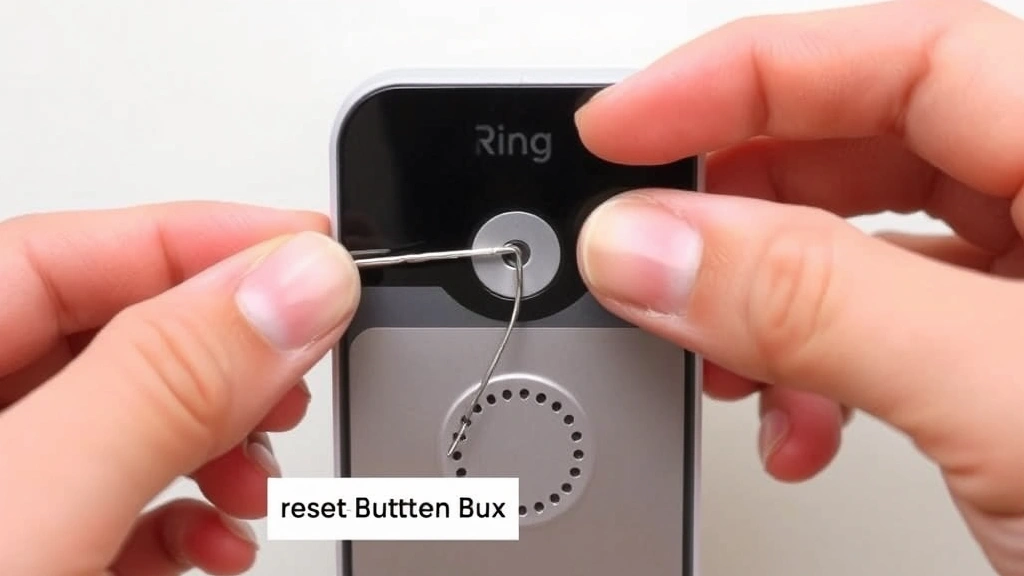
Understanding Ring Doorbell Reset Types
Before diving into the reset process, it’s important to understand that Ring doorbells offer two primary reset options, each serving different purposes. A soft reset is a quick restart that doesn’t erase any settings or data, making it the first troubleshooting step for most issues. A factory reset, on the other hand, completely wipes the device and returns it to its original state as if it just came out of the box.
Knowing which reset to perform depends on your specific situation. If your Ring doorbell is experiencing minor glitches like delayed notifications or temporary WiFi drops, a soft reset usually resolves the problem within minutes. However, if you’re selling your home, giving the device to someone else, or facing persistent connectivity issues that a soft reset can’t fix, a factory reset becomes necessary.
The reset process varies slightly depending on your Ring doorbell model—whether you have the Ring Video Doorbell, Ring Video Doorbell Pro, Ring Video Doorbell 2, or the newer Ring Video Doorbell 3 or 4. Most models follow similar procedures, though button locations and timing may differ slightly. Always consult your specific model’s documentation for precise instructions, which you can find on the official Ring website.
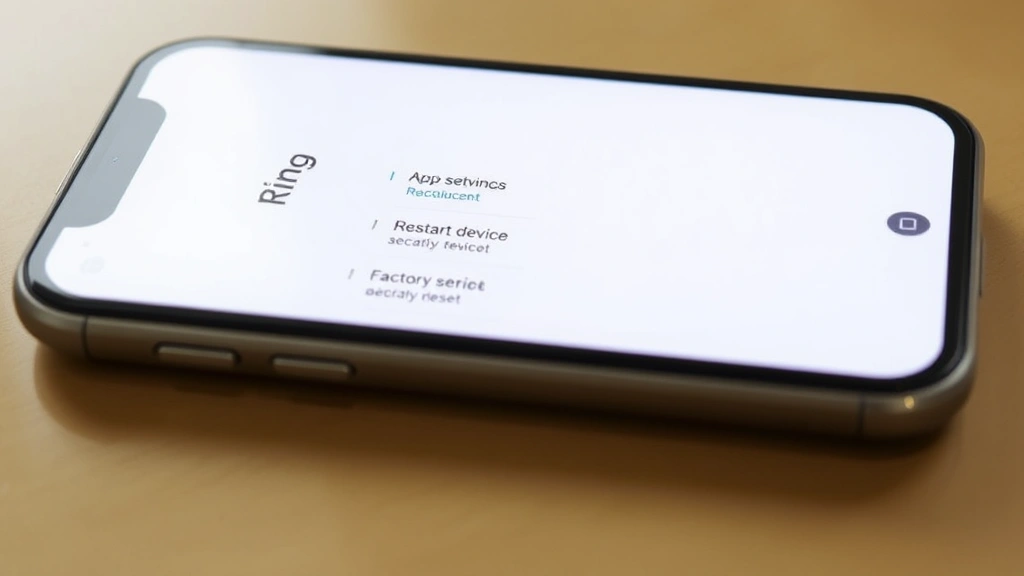
Soft Reset vs Factory Reset
Soft Reset is essentially a power cycle that refreshes your Ring doorbell’s operating system without affecting your account data, WiFi credentials, or any custom settings you’ve configured. This method works wonderfully for temporary glitches and should always be your first troubleshooting attempt. A soft reset typically takes less than five minutes and requires no technical expertise.
The benefits of a soft reset include:
- Retains all existing settings and configurations
- Preserves your WiFi connection details
- Keeps your Ring account linked
- No data loss whatsoever
- Quick process taking just a few minutes
Factory Reset is a complete wipe that erases everything—all settings, WiFi connections, and account information—returning the device to its original factory state. This is necessary when you want to transfer ownership, completely remove the device from your account, or when persistent issues remain unresolved after multiple soft resets.
The considerations for a factory reset include:
- Complete removal of all personal data and settings
- Account will be disconnected from the device
- WiFi credentials will be erased
- Requires complete reconfiguration after reset
- Takes longer than soft reset but solves most persistent problems
Step-by-Step Soft Reset Guide
Performing a soft reset on your Ring doorbell is straightforward and can be accomplished in just a few minutes. This method is ideal when your doorbell is powered but experiencing performance issues. Here’s exactly how to do it:
For Wired Ring Doorbells:
- Locate your home’s electrical panel or breaker box
- Find the breaker controlling your front door’s power circuit (typically labeled “Front Door” or “Doorbell”)
- Switch the breaker to the OFF position
- Wait for 10-15 seconds to allow the device to fully power down
- Switch the breaker back to the ON position
- Wait 2-3 minutes for the Ring doorbell to boot up completely
- Check the status light on your device—it should show normal operation
For Battery-Powered Ring Doorbells:
- Open the Ring app on your smartphone or tablet
- Navigate to the device settings for your specific Ring doorbell
- Scroll down to find “Restart Device” or “Reboot” option
- Confirm the action when prompted
- The device will disconnect briefly and reconnect within 2-3 minutes
- You’ll receive a notification once the restart is complete
If you cannot access the app, you can also perform a manual soft reset by removing the battery (if your model has a removable battery), waiting 30 seconds, and reinserting it. This achieves the same result as the app-based restart method.
After the soft reset completes, test your Ring doorbell’s functionality immediately. Try viewing the live feed through the app, triggering a test alert, and checking that two-way audio works properly. If issues persist after a soft reset, you may need to proceed with a factory reset or contact Ring support.
Complete Factory Reset Instructions
A factory reset requires physical access to your Ring doorbell and involves holding a specific button for a set duration. The exact procedure depends on your model, but the general process is similar across most Ring devices. Before starting, ensure you have physical access to your doorbell and know your WiFi password for reconnection.
For Most Ring Video Doorbell Models (2, 3, 4, Pro):
- Locate the reset button on your Ring doorbell—it’s typically a small circular button on the device’s body
- Using a straightened paperclip, toothpick, or similar small tool, press and hold the reset button
- Hold the button for 15-20 seconds continuously
- Watch for the LED light to change color—usually it will flash orange or amber, indicating the reset process has begun
- Release the button and wait for the device to restart
- The entire process takes 1-2 minutes; the LED will return to normal when complete
- The device is now in setup mode and ready for reconfiguration
For Original Ring Video Doorbell and Ring Doorbell 2:
- Find the reset button on the back of the device or behind the faceplate
- Press and hold for 10 seconds (these older models use shorter reset times)
- Release when you see the LED indicator change
- Wait for the device to fully restart before proceeding
Alternative Method Using the Ring App:
Some newer Ring models offer a factory reset option directly within the app, which is more convenient than the physical button method:
- Open the Ring app and select your doorbell device
- Tap “Device Settings” or the gear icon
- Scroll to the bottom and find “Advanced Settings”
- Select “Factory Reset” or “Reset Device”
- Confirm the action—you’ll see a warning that all data will be erased
- The app will initiate the reset process remotely
- The device will restart and enter setup mode
After factory reset, your Ring doorbell will no longer be connected to your account or any WiFi network. You’ll need to set it up from scratch, which involves adding it to the Ring app as if it’s a new device. Have your WiFi password ready and ensure you’re near the device during setup for best results.
Troubleshooting Common Reset Issues
Sometimes the reset process doesn’t go as smoothly as expected. Understanding common problems and their solutions can help you get your Ring doorbell back online quickly. If you’re experiencing issues similar to those affecting other smart home devices, you might find helpful guidance in our article on resetting smart thermostats, as many troubleshooting principles are similar.
Device Won’t Power On After Reset:
If your wired Ring doorbell won’t power on after a soft reset, the issue likely lies with your home’s electrical system. Check that the breaker is fully switched on and hasn’t tripped again. If it keeps tripping, you may have an electrical fault requiring a licensed electrician. For battery-powered models, ensure the battery has sufficient charge and is inserted correctly.
Ring Doorbell Stuck in Setup Mode:
Sometimes after a reset, the device gets stuck waiting for WiFi connection. Ensure you’re entering the correct WiFi password—passwords are case-sensitive. If the device still won’t connect, try restarting your WiFi router by unplugging it for 30 seconds and plugging it back in. Move closer to the doorbell during setup to ensure strong signal strength.
LED Light Not Responding During Reset:
If the LED doesn’t change color when you press the reset button, you may not be pressing the correct button or pressing it hard enough. Some reset buttons require firm, sustained pressure. Try using a different tool with a slightly sharper point (like a SIM card ejector) to ensure you’re actually activating the button.
App Won’t Recognize Device After Factory Reset:
After a factory reset, the Ring app may take several minutes to detect your device. Ensure your phone is on the same WiFi network as the doorbell. Close and reopen the Ring app completely. If the device still doesn’t appear, try uninstalling and reinstalling the Ring app—sometimes cached data causes connection problems.
Persistent WiFi Connection Issues:
If your Ring doorbell keeps losing WiFi connection even after reset, the problem may be environmental. Ring doorbells work best when positioned within 25 feet of your router with minimal obstructions. Consider upgrading to a mesh WiFi system or installing a WiFi extender. You might also benefit from reading about other smart home troubleshooting solutions on our main blog.
After Reset Setup and Configuration
Once your Ring doorbell has been successfully reset, whether soft or factory, you’ll need to configure it properly to restore full functionality. The setup process is straightforward but requires attention to detail to ensure optimal performance.
Adding Your Device Back to the Ring App:
- Open the Ring app on your smartphone
- Tap the menu icon (three horizontal lines) in the upper left
- Select “Set Up a Device” or the plus (+) icon
- Choose “Doorbells” from the device type list
- Select your specific Ring doorbell model
- Scan the QR code on your device or enter the setup code manually
- Follow the on-screen prompts to connect to your WiFi network
- Enter your WiFi password carefully—spacing and capitalization matter
- Wait for the device to connect and configure (typically 2-3 minutes)
Configuring Advanced Settings:
After your device connects to the app, take time to configure settings that enhance functionality and security:
- Motion Detection: Adjust sensitivity levels and define motion zones to reduce false alerts
- Recording Quality: Set video quality based on your internet speed—higher quality requires faster connections
- Night Vision: Enable infrared night vision for 24/7 monitoring
- Alerts and Notifications: Customize which events trigger notifications on your phone
- Two-Way Audio: Test the microphone and speaker to ensure clear communication
- Shared Users: Add family members or trusted contacts who should have access
Testing Device Functionality:
Before considering the reset complete, thoroughly test all features:
- View the live video feed and check image quality
- Test motion detection by walking in front of the doorbell
- Verify that notifications arrive on your phone promptly
- Test two-way audio by speaking through the app
- Check that night vision activates in low-light conditions
- Review any recorded videos in your Ring account history
If any features aren’t working properly, try restarting the device once more. If problems persist, contact Ring customer support for assistance.
Maintenance Tips for Optimal Performance
Keeping your Ring doorbell in top condition helps prevent issues that might necessitate future resets. Regular maintenance extends device lifespan and ensures reliable operation.
Regular Software Updates:
Ring regularly releases firmware updates that improve performance and security. Enable automatic updates in your device settings so your doorbell always runs the latest software. These updates are installed automatically and don’t require manual intervention.
Battery Maintenance:
If you have a battery-powered Ring doorbell, check the battery level monthly through the app. Most battery-powered models can operate for several months between charges, depending on activity level. Charge the battery during winter months or when you’ll be away from home for extended periods.
Physical Cleaning:
Dust, pollen, and weathering can affect video quality and sensor function. Clean your Ring doorbell’s lens monthly using a soft, dry cloth. Gently wipe the camera lens to remove dust and fingerprints. Avoid using liquid cleaners or abrasive materials that might damage the device.
WiFi Network Optimization:
A strong, stable WiFi connection is crucial for Ring doorbell performance. Position your router in a central location, away from obstacles. If your doorbell is far from your router, consider installing a WiFi extender or mesh system to improve signal strength. Ensure your WiFi password is secure and changed regularly.
Seasonal Considerations:
Extreme weather affects Ring doorbell performance. In winter, cold temperatures can reduce battery efficiency in battery-powered models. In summer, intense heat can affect electronic components. Ensure your doorbell is properly installed with weather protection. If you’re experiencing performance issues related to home improvements, you might also explore guides on installing protective home features.
Account Security:
Regularly review your Ring account’s shared users and connected devices. Remove access for anyone who no longer needs it. Use a strong, unique password for your Ring account and enable two-factor authentication for added security. This prevents unauthorized access to your doorbell and video history.
FAQ
How long does a Ring doorbell reset take?
A soft reset typically takes 2-5 minutes from start to finish. A factory reset takes slightly longer—usually 5-10 minutes including the reboot time. The actual button-holding portion only takes 15-20 seconds; the rest is waiting for the device to restart.
Will I lose my video history when I reset my Ring doorbell?
No, your video history is stored in the cloud on Ring’s servers and is tied to your account, not the physical device. Resetting the doorbell doesn’t affect your recorded videos or event history. You can access all previous recordings through the Ring app even after a factory reset.
Can I reset my Ring doorbell remotely?
You can initiate a soft reset remotely through the Ring app by selecting “Restart Device.” However, a factory reset typically requires physical access to the device and pressing the reset button for the specified duration. Some newer models may offer remote factory reset options within the app.
What should I do if my Ring doorbell won’t reset?
If the reset button isn’t responding, ensure you’re pressing the correct button with sufficient force. For wired models, verify the breaker is functioning properly. If you’ve tried multiple times without success, contact Ring support—your device may have a hardware issue.
Do I need to remove my Ring doorbell from my account before selling my home?
Yes, absolutely. Perform a factory reset to completely remove the device from your account and erase all personal data. This ensures the new owners can set up the doorbell with their own Ring account without any data conflicts or privacy concerns.
How often should I reset my Ring doorbell for maintenance?
You shouldn’t need to reset your Ring doorbell regularly for maintenance. Resets are troubleshooting tools, not routine maintenance procedures. Only reset when experiencing specific issues. Regular software updates and proper WiFi connectivity are better preventive measures.
Can a reset fix poor video quality?
Sometimes. A soft reset can improve performance if the issue is temporary software glitches. However, poor video quality is usually caused by insufficient WiFi signal, low lighting, or dirty lenses. Try cleaning the lens and improving your WiFi signal before resorting to a reset.
What’s the difference between restarting and resetting?
Restarting (soft reset) simply powers the device off and back on, retaining all settings. Resetting (factory reset) erases all data and returns the device to its original state. Always try restarting first before attempting a factory reset.

Related Posts

Superscript in Google Docs: Expert Tips

Strikethrough in Excel: Easy Steps for Beginners
