

Reset Honeywell Thermostat: Expert Tips Inside
How to Reset Honeywell Thermostat: Expert Tips Inside
A Honeywell thermostat is one of the most reliable climate control systems in modern homes, but like any electronic device, it occasionally needs a reset to restore proper functionality. Whether your thermostat is displaying incorrect temperatures, failing to respond to commands, or stuck in an unusual mode, knowing how to reset it can save you hundreds of dollars in service calls. This comprehensive guide walks you through multiple reset methods, troubleshooting steps, and preventative maintenance tips to keep your system running smoothly.
Resetting a Honeywell thermostat is often simpler than homeowners expect, and the process varies depending on your specific model and the type of reset you need. From soft resets that preserve your settings to factory resets that restore default configurations, we’ll cover everything you need to know to get your heating and cooling system back on track.
Understanding Your Honeywell Thermostat
Before attempting any reset, it’s important to understand what your Honeywell thermostat does and how it communicates with your HVAC system. Honeywell manufactures dozens of thermostat models ranging from simple mechanical units to advanced smart thermostats with WiFi connectivity and learning capabilities. Each model operates slightly differently, but they all share the same core function: regulating your home’s temperature by controlling heating and cooling equipment.
Your thermostat contains sensors that measure ambient temperature and compare it against your desired setpoint. When the actual temperature drifts too far from your target, the thermostat sends a signal to your furnace, air conditioner, or heat pump to activate. Over time, firmware glitches, power fluctuations, or battery depletion can cause the thermostat to behave unexpectedly, which is when a reset becomes necessary.
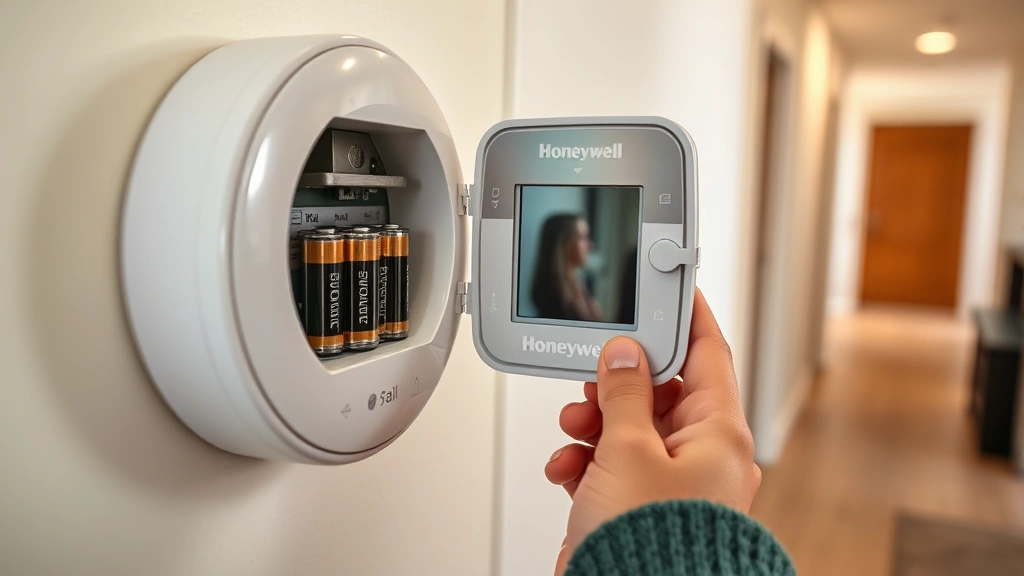
Identifying your specific Honeywell model is the first step toward successful troubleshooting. Look for the model number on the device’s back or inside the battery compartment. Common Honeywell models include the Home T9, RTH6580WF, TH8320U, and the classic RTH2300B. Each model has unique reset procedures documented in its user manual, though the general principles remain consistent across the Honeywell product line.
Soft Reset vs. Factory Reset
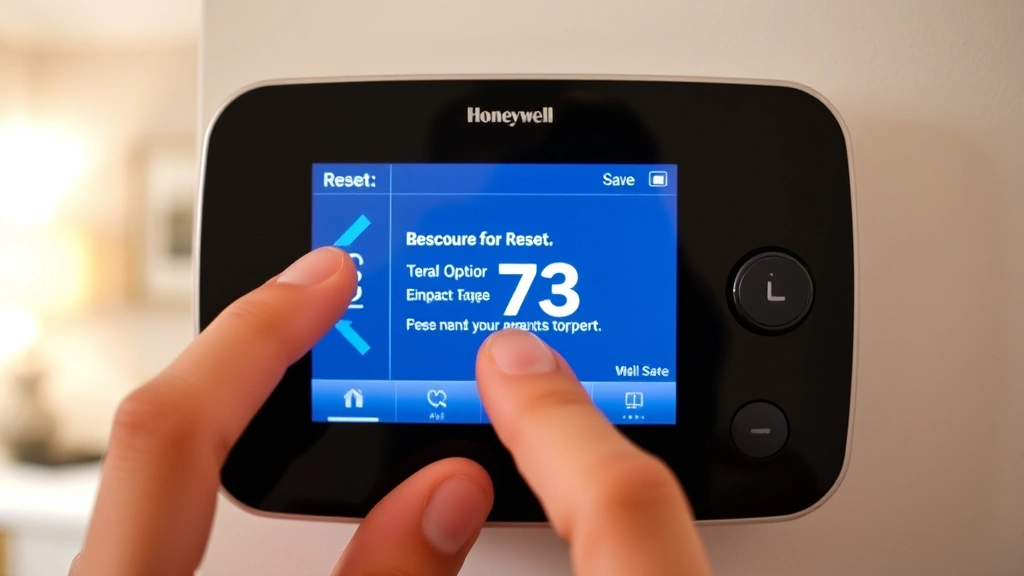
Understanding the difference between a soft reset and a factory reset is crucial before you begin. A soft reset is a gentle restart that clears temporary memory and stops any ongoing processes without erasing your programmed settings. This is your first line of defense when your thermostat misbehaves, and it solves most common problems like frozen screens or unresponsive buttons. Your custom temperature schedules, preferences, and system configurations remain intact after a soft reset.
A factory reset, by contrast, erases all stored information and returns the thermostat to its original factory settings. This is a more drastic measure reserved for situations where a soft reset fails, you’re troubleshooting persistent errors, or you’re preparing the device for sale or transfer to a new owner. After a factory reset, you’ll need to reprogram your heating and cooling schedule from scratch, which typically takes 15-30 minutes depending on your schedule complexity.
Most homeowners should start with a soft reset and only proceed to a factory reset if problems persist. This approach minimizes disruption to your comfort settings while addressing the majority of thermostat glitches. If you’re unsure which reset type you need, consult your device’s user manual or contact Honeywell customer support for guidance.
Step-by-Step Soft Reset Instructions
A soft reset is the quickest and safest way to troubleshoot your Honeywell thermostat. Follow these steps to perform a soft reset on most Honeywell models:
- Locate the power source: Most Honeywell thermostats draw power from your home’s HVAC system via low-voltage wires. Some models also contain backup batteries. Identify where your thermostat receives power before proceeding.
- Remove batteries (if applicable): For battery-powered Honeywell thermostats, open the battery compartment and remove all batteries. Wait at least 30 seconds. This clears the device’s temporary memory and stops all processes.
- Turn off power at the breaker: For hardwired models, locate your HVAC system’s circuit breaker and switch it to the OFF position. Wait 30-60 seconds. This allows capacitors to discharge and resets the thermostat’s internal circuits.
- Restore power: Reinsert batteries or flip the breaker back to ON. The thermostat screen may display a startup sequence or initialization message.
- Wait for full startup: Allow 2-3 minutes for the thermostat to complete its boot sequence. Avoid pressing buttons or making adjustments during this period.
- Test functionality: Once startup is complete, verify that the display is clear, buttons respond normally, and temperature readings appear accurate. Check that your HVAC system cycles on and off as expected.
If your thermostat remains unresponsive after a soft reset, proceed to the factory reset method described below. Document any error messages displayed during startup, as these clues help identify underlying problems that may require professional HVAC service.
How to Perform a Factory Reset
When a soft reset doesn’t resolve your issues, a factory reset provides a more comprehensive solution. This process erases all programming and returns your thermostat to original factory settings. Here’s how to factory reset your Honeywell thermostat:
For Honeywell Home T9 and WiFi-Enabled Models:
- Open the Honeywell Home app on your smartphone or navigate to the web portal if you use a computer interface.
- Select your thermostat from the device list.
- Access Settings and look for “Reset” or “Factory Reset” options.
- Confirm the factory reset request. The app will guide you through any additional steps required.
- Wait 2-3 minutes for the thermostat to reinitialize and reconnect to your WiFi network.
- Set up your thermostat again by following the initial setup wizard in the app.
For Manual/Non-WiFi Honeywell Models:
- Press and hold the MENU or SETTINGS button on your thermostat’s front panel for 5-10 seconds.
- Navigate to “Reset” using the arrow buttons and select it.
- Choose “Factory Reset” or “Clear All” from the submenu.
- Confirm your selection when prompted. The screen may display a confirmation message or countdown timer.
- The thermostat will power off and restart automatically within 1-2 minutes.
- Once restarted, follow the initial setup prompts to reprogram your temperature schedule and system settings.
If you cannot find a reset option in the menu, consult your thermostat’s user manual or visit the official Honeywell Home website for model-specific instructions. Some older models require a different approach or may need professional assistance to complete a factory reset.
Troubleshooting Common Issues
Before performing any reset, diagnose what’s actually wrong with your thermostat. Many common problems have simple solutions that don’t require a full reset. Understanding these issues helps you avoid unnecessary programming work and identify whether a reset will actually solve your problem.
Thermostat Not Responding to Button Presses: If buttons feel stuck or unresponsive, the issue is often dust or debris inside the device rather than a software glitch. Try gently cleaning around the button edges with a soft brush. If this doesn’t help, proceed with a soft reset. For persistent unresponsiveness, a factory reset may be necessary.
Incorrect Temperature Readings: When your thermostat displays temperatures that don’t match your other thermometers, the sensor may be miscalibrated or positioned incorrectly. Check that nothing is blocking airflow around the thermostat, and ensure it’s not mounted near heat sources, air vents, or direct sunlight. If readings remain inaccurate after repositioning, a soft reset often recalibrates the sensor automatically.
HVAC System Not Activating: If your furnace or air conditioner won’t turn on despite your thermostat displaying the correct settings, check that the system switch isn’t set to OFF. Verify that your HVAC equipment has power and isn’t locked in a safety shutdown mode. A soft reset can resolve communication issues between your thermostat and HVAC system.
WiFi Connectivity Problems: Smart Honeywell thermostats sometimes lose WiFi connection, preventing remote control and app functionality. Restart your WiFi router and ensure your thermostat is within range. If the thermostat still won’t connect, perform a soft reset. If problems persist, a factory reset may be necessary to re-establish WiFi credentials.
Display Freezing or Showing Errors: Frozen screens or cryptic error codes typically indicate temporary software glitches. A soft reset resolves these issues in most cases. If the display remains frozen after a soft reset, battery replacement or professional service may be required.
Resetting Specific Honeywell Models
While general reset procedures apply to most Honeywell thermostats, some models have unique reset sequences. Here are instructions for popular Honeywell models:
Honeywell RTH6580WF WiFi Thermostat: This popular WiFi-enabled model can be reset through the touchscreen menu. Press MENU, navigate to RESET, and select FACTORY RESET. Alternatively, remove the thermostat from its wall plate, locate the small reset button on the back, and press it for 10 seconds using a paperclip or similar tool.
Honeywell TH8320U Programmable Thermostat: For this traditional programmable model, press and hold SYSTEM until the screen changes, then use arrow keys to navigate to RESET. Select FACTORY RESET and confirm. Your program schedule will be erased, requiring reprogramming.
Honeywell RTH2300B Basic Thermostat: This simple mechanical thermostat has minimal electronics. To reset, turn off power at the breaker for 30 seconds, then restore power. If problems persist, the thermostat may need professional repair or replacement.
Honeywell Home T9 Smart Thermostat: Smart reset procedures vary between the mobile app and physical device. In the app, navigate to Settings > Device Settings > Reset Device. On the thermostat itself, press and hold the center button until the menu appears, then select RESET.
For models not listed here, check your user manual or contact Honeywell’s product support page for detailed reset instructions specific to your device.
Preventing Future Problems
Once your thermostat is reset and functioning properly, implement preventative maintenance to avoid future issues. Regular care extends your thermostat’s lifespan and maintains optimal HVAC performance throughout the year.
Keep Your Thermostat Clean: Dust and debris accumulate inside thermostats over time, affecting sensors and buttons. Once per season, gently clean your thermostat’s exterior with a soft, dry cloth. Avoid using water or cleaning solutions that could damage internal components. For detailed cleaning guidance, see our guide on proper maintenance of home devices.
Check Batteries Regularly: If your thermostat uses batteries, replace them annually or when the low-battery indicator appears. Fresh batteries ensure reliable operation and prevent unexpected shutdowns that could trigger error messages.
Verify Power Supply: For hardwired thermostats, ensure your HVAC system’s circuit breaker is in good condition and hasn’t tripped. Periodically check the low-voltage wires connecting your thermostat to your HVAC equipment for visible damage or loose connections.
Update Firmware When Available: WiFi-enabled Honeywell thermostats receive periodic firmware updates that fix bugs and improve performance. Check the Honeywell Home app monthly for available updates and install them promptly.
Avoid Environmental Stressors: Keep your thermostat away from direct sunlight, heating vents, air conditioners, and moisture sources. Mount it on an interior wall at eye level for accurate temperature sensing. Avoid placing furniture or objects that block airflow around the device.
Schedule Professional HVAC Service: Annual HVAC system maintenance by a certified technician prevents many problems that could affect your thermostat’s operation. During service, technicians inspect thermostat connections and calibration, catching issues before they cause comfort problems.
FAQ
How long does a Honeywell thermostat reset take?
A soft reset typically takes 2-3 minutes from power-off to full functionality. A factory reset may take 5-10 minutes if you need to reprogram your temperature schedule. WiFi-enabled models may take longer to reconnect to your network.
Will resetting my thermostat erase my schedule?
A soft reset preserves your programmed schedule. A factory reset erases all settings, including your heating and cooling schedule, requiring complete reprogramming. If you want to keep your schedule, always start with a soft reset.
What if my thermostat still doesn’t work after resetting?
If problems persist after both soft and factory resets, the issue likely involves hardware failure rather than software glitches. Contact a professional HVAC technician or Honeywell customer support. Your thermostat may need professional repair or replacement, similar to troubleshooting approaches used for other home systems like those covered in our appliance replacement guide.
Can I reset my thermostat remotely through the app?
Yes, WiFi-enabled Honeywell thermostats allow remote resets through the Honeywell Home app. You can perform soft or factory resets from anywhere with an internet connection, which is convenient for troubleshooting when you’re away from home.
How often should I reset my thermostat?
You should only reset your thermostat when problems occur. Regular, unnecessary resets aren’t beneficial and may disrupt your programmed settings. Most well-maintained Honeywell thermostats never need resetting.
Does resetting affect my HVAC warranty?
Performing a soft or factory reset on your thermostat doesn’t void your HVAC system warranty. However, if reset procedures damage internal components, warranty coverage may not apply. Follow manufacturer instructions carefully to avoid accidental damage.
What’s the difference between a hard reset and a factory reset?
In thermostat terminology, “hard reset” and “factory reset” are often used interchangeably, both referring to a complete erasure of settings. Some manufacturers use “hard reset” to describe a reset achieved by removing power for an extended period.

Related Posts

Superscript in Google Docs: Expert Tips

Strikethrough in Excel: Easy Steps for Beginners
