
How to Share Outlook Calendar: Step-by-Step Guide
How to Share Outlook Calendar: Step-by-Step Guide
Managing schedules across teams doesn’t have to feel like herding cats. Whether you’re coordinating with colleagues, sharing availability with clients, or keeping family members in the loop, Outlook’s calendar sharing features make it surprisingly straightforward. The key is knowing which method works best for your situation—and yes, there are several.
Calendar sharing in Outlook has evolved significantly, offering flexibility whether you’re working in Microsoft 365, managing Exchange Server, or using the web-based version. Each approach serves different purposes, from granting full calendar access to simply publishing your availability. We’ll walk you through all the main methods so you can choose what fits your needs.
Think of your Outlook calendar as the beating heart of your schedule. When you share it effectively, you’re not just handing over a list of appointments—you’re enabling better communication, fewer scheduling conflicts, and smoother collaboration. Let’s dive into how to make that happen.
Understanding Calendar Sharing Basics
Before jumping into the how-to steps, let’s clarify what calendar sharing actually means in Outlook. At its core, sharing your calendar means granting other people permission to view your schedule. The depth of that access varies—some folks might only see whether you’re busy or free, while others could potentially modify events or manage your entire calendar.
Outlook offers several distinct sharing models. You can share with individual colleagues, delegate full access to an assistant, or publish your calendar for broader access. The method you choose depends on your organizational structure, security requirements, and how much control you want to maintain.
One crucial distinction: sharing your calendar doesn’t automatically sync everyone’s schedules into one view. Instead, it gives people the ability to view your calendar separately, often in addition to their own. It’s collaborative without being intrusive.
Sharing Your Calendar with Specific People
This is the most common approach for most professionals. You’re essentially saying, “I want Sarah and Marcus to see my calendar.” Here’s how to make it happen in different Outlook environments.
In Outlook Desktop (Windows and Mac):
- Right-click on your calendar name in the left sidebar (usually labeled “Calendar”)
- Select “Sharing and Permissions” or “Properties” depending on your version
- Click “Permissions” tab if it appears
- Click “Add” to invite specific people
- Type the person’s name or email address
- Choose their permission level from the dropdown
- Click “OK” to confirm
In Outlook on the Web:
- Click the gear icon in the top right corner
- Select “Calendar settings” or navigate to “Settings” then “Calendar”
- Find the “Shared calendars” section
- Click the option to share your calendar
- Enter the recipient’s email address
- Select permission level and confirm
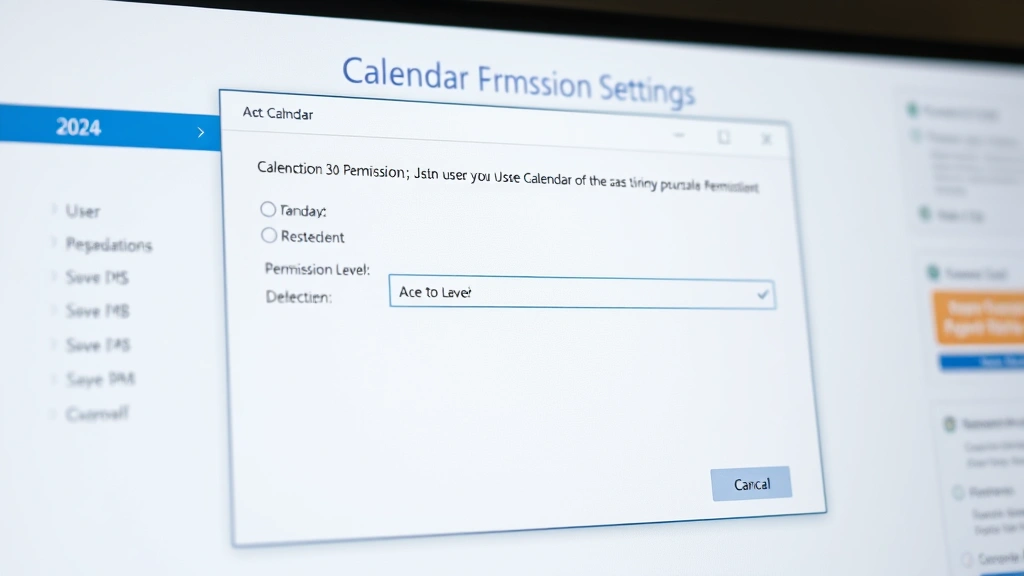
The person you’re sharing with will receive a notification and can then add your calendar to their calendar view. They’ll see your appointments displayed alongside their own, making it simple to find meeting times that work for everyone.
Delegating Calendar Access
Delegation is different from sharing. When you delegate calendar access, you’re essentially giving someone else the ability to manage your calendar on your behalf. This is perfect for executive assistants, office managers, or trusted team members who need to schedule meetings for you.
To delegate calendar access in Outlook Desktop:
- Go to File menu and select “Account Settings”
- Choose “Delegate Access”
- Click “Add”
- Search for and select the person you’re delegating to
- Check the boxes for Calendar (and other items if needed)
- Choose permission level: Editor, Reviewer, or Author
- Decide if they can view private items
- Click “OK”
When you delegate calendar access, the delegate can actually open and edit your calendar directly from their Outlook. They see it as if they’re looking at their own calendar, which streamlines scheduling significantly. You can also set up automatic out-of-office responses so people know when you’re unavailable, which works hand-in-hand with delegation.
Important note: Delegation requires that both you and the delegate are using the same Exchange Server or Microsoft 365 environment. It won’t work with consumer Outlook accounts or across different organizations.
Publishing Your Calendar
Publishing your calendar is the broadest sharing approach. Instead of inviting specific people, you’re essentially making your calendar publicly available through a link or making it accessible to your entire organization.
In Outlook on the Web:
- Right-click your calendar name
- Select “Publish calendar” or “Share calendar”
- Choose your sharing options (organization-wide or specific people)
- Outlook generates a sharing link
- Share that link with whoever needs access

Published calendars are read-only for viewers, which provides a safety layer. People can see your availability, but they can’t accidentally (or intentionally) modify your events. This approach works great for shared resource calendars, team availability boards, or when you want to broadcast your schedule to a large group without managing individual permissions.
If you’re managing communication about your schedule and need to let people know when you’re unavailable, you might also want to explore how to set out of office in Outlook alongside your calendar sharing strategy.
Understanding Permission Levels
Outlook offers several permission tiers, and choosing the right one is crucial for security and workflow. Here’s what each level means:
Reviewer (or “Can view only”): People can see your calendar but can’t make changes. They see all event details, times, and titles. This is the most restrictive option and ideal when you just want people to check your availability.
Author (or “Can edit”): People can view your calendar and create new events on it. They might not be able to modify existing events, depending on your Outlook version. Use this when team members need to add items but shouldn’t alter your existing schedule.
Editor (or “Can edit and manage”): This grants nearly full control. People can view, create, and modify all calendar items. Delegates typically get this permission level. Reserve it for people you absolutely trust.
Owner: Full control, rarely granted outside of your own account. Owners can share the calendar further and modify all permissions.
Free/Busy (or “Limited Details”): This restricted view only shows whether you’re busy or free at specific times. People don’t see event titles or details—just the time blocks when you’re occupied. Perfect for external scheduling or privacy-conscious situations.
When sharing with external organizations or clients, Free/Busy is often the sweet spot. It protects your privacy while still helping people find meeting times. For internal teams, Reviewer or Author permissions typically work well depending on how collaborative you want the process to be.
Troubleshooting Common Issues
Calendar sharing usually works smoothly, but occasionally you’ll hit a snag. Here are the most common problems and their solutions:
“Sharing and Permissions” option isn’t appearing: This typically means you’re using a consumer Outlook account rather than a work account. Calendar sharing features require Microsoft 365 or Exchange Server. Check that you’re signed in with the correct account.
The person I’m sharing with doesn’t see the calendar: First, ask them to refresh their Outlook or close and reopen it. If that doesn’t work, verify they received the sharing invitation and accepted it. In Outlook on the Web, they may need to manually add your calendar after accepting the invitation.
Changes aren’t syncing: Calendar updates usually appear within minutes, but check your internet connection and try refreshing. If you’re using Outlook desktop, restart the application. For Outlook on the Web, try clearing your browser cache.
Permission denied errors: If someone gets an error when trying to view your calendar, they might not have the right permissions set. Go back to your sharing settings and verify their permission level is appropriate. You might need to remove and re-add them.
Shared calendar shows as empty: This can happen if the person is viewing the calendar but there are no events visible in the date range they’re looking at. Ask them to navigate to different dates or check if they’re viewing the correct calendar (they might have accidentally selected a different one).
If you’re also concerned about controlling access to your messages, you might want to understand how to send encrypted email in Outlook for sensitive communications about your schedule or meetings.
Security Considerations When Sharing
Sharing your calendar is convenient, but it does expose information about your schedule and movements. Here are smart practices to maintain security and privacy:
Limit Free/Busy details for external contacts: When sharing with people outside your organization, stick with Free/Busy permission rather than full calendar access. They don’t need to know what you’re doing—just whether you’re available.
Review your shared calendars regularly: Periodically check who has access to your calendar. People change roles, leave organizations, or no longer need calendar visibility. Remove outdated access promptly.
Be cautious with sensitive meetings: If you have confidential meetings or appointments you’d rather not broadcast, consider marking them as private. In some Outlook configurations, private items won’t show up for people with limited permissions. Alternatively, use generic titles like “Client meeting” instead of specific details.
Use delegation carefully: Only delegate to people you completely trust. Delegates have significant control over your calendar and can see all your appointments, including private ones. Review and update delegate access annually.
Understand your organization’s policies: Many companies have specific guidelines about calendar sharing. Check with your IT department before sharing broadly, especially if your calendar might contain sensitive information.
Watch for shared calendar abuse: If you notice unauthorized events appearing on your shared calendar or strange scheduling patterns, someone might have inappropriate access. Change permissions immediately and contact your IT support if needed.
For additional security around your overall Outlook account, you should also know how to recall a message in Outlook in case you accidentally send sensitive scheduling information to the wrong recipient. Similarly, understanding how to retract an email in Outlook gives you a safety net for communication mishaps.
Frequently Asked Questions
Can I share my Outlook calendar with people outside my organization?
Yes, but with limitations. You can share your calendar with external contacts using Outlook on the Web by generating a sharing link. However, they’ll typically only see Free/Busy information, not detailed event titles. Some organizations restrict external calendar sharing for security reasons, so check your company policy first.
What happens if I delete an event on my calendar after sharing it?
Deleted events disappear from everyone’s view of your calendar. They won’t see the event anymore, which is usually the desired behavior. However, if someone had already copied the event details or created a related meeting, that won’t be affected by your deletion.
Can someone edit my calendar if I only give them Reviewer permission?
No. Reviewer permission is read-only. They can see your calendar but cannot make any changes. If you want them to be able to add events, you need to grant Author or Editor permission.
How do I stop sharing my calendar with someone?
Go back to your calendar sharing settings, find the person’s name, and either remove them entirely or change their permission level to “None.” They’ll lose access immediately. In Outlook on the Web, you may need to click “Remove” or “Revoke access.”
Is there a difference between sharing and delegating?
Yes, significant differences. Sharing lets people view your calendar from their own account. Delegation gives someone the ability to open and manage your calendar as if it were their own. Delegation requires both parties to be on the same Exchange Server or Microsoft 365. Sharing is more flexible and works across different email systems.
Can I share just specific events instead of my entire calendar?
Not directly through Outlook’s built-in sharing features. You either share your entire calendar or specific items by forwarding meeting details manually. However, you can use the Free/Busy permission level to share only availability information, which effectively hides event details.
Why can’t I share my calendar with a Gmail user?
Outlook’s native calendar sharing works best within Microsoft 365 and Exchange environments. Gmail users can’t directly access shared Outlook calendars. However, you can export your calendar as an ICS file and send it to them, or use third-party calendar integration tools. Alternatively, publish your calendar and share the public link.
How many people can I share my calendar with?
There’s no hard limit, but practically speaking, most people share with dozens or even hundreds of people without issues. However, sharing with very large groups might be better handled through publishing rather than individual permissions.
What if someone says they can’t see my calendar even though I shared it?
First, verify you actually sent the sharing invitation and they accepted it. Ask them to refresh Outlook or log out and back in. Check that their permission level isn’t set to “None.” If you’re sharing on the web, they may need to manually add your calendar after accepting the invitation. If problems persist, try removing and re-adding them with fresh permissions.
Can I schedule meetings directly on someone else’s shared calendar?
Only if they’ve given you Author or Editor permissions. With Reviewer permission, you can only view their calendar, not create events on it. With delegation, you have full ability to manage their calendar just as if it were your own. For scheduling meetings, most people simply check someone’s shared calendar for availability and then send them a meeting invitation.

Related Posts

How Long to Boil Lobster Tails: Cooking Guide

How Long to Fly from New York to London? Travel Times
