
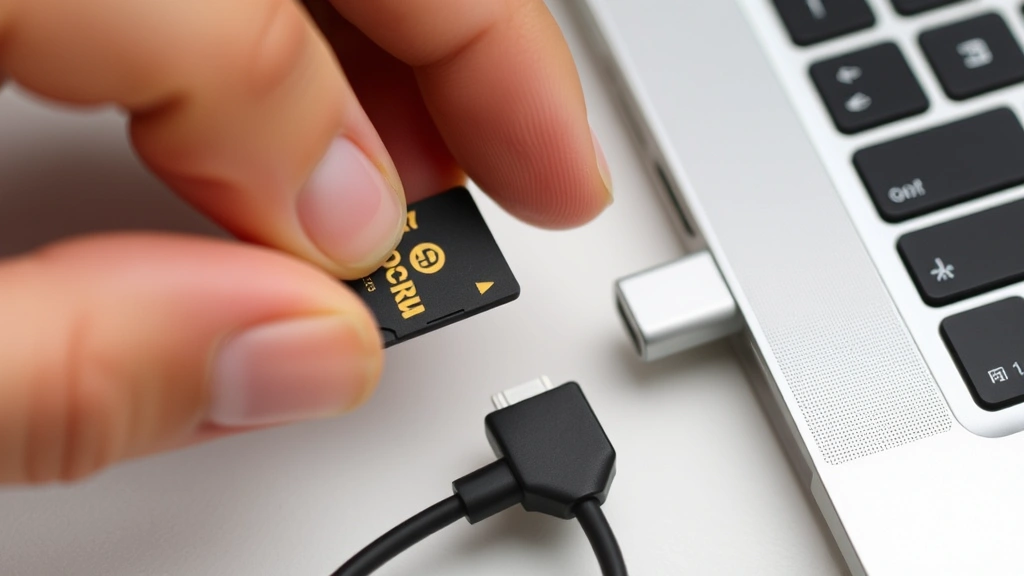
How to Reformat SD Card: Expert Guide
Your SD card has become sluggish, won’t recognize files, or you’re preparing it for a fresh start. Whatever the reason, knowing how to reformat an SD card is an essential skill that takes just minutes to master. Whether you’re a photography enthusiast, a content creator, or someone who simply needs to clear storage space, reformatting is one of those tech tasks that feels intimidating until you’ve done it once.
The beauty of reformatting is its simplicity combined with its effectiveness. Unlike deleting files one by one, reformatting completely wipes your card clean and restores it to factory settings. This process works across Windows computers, Mac machines, cameras, smartphones, and even gaming consoles. We’ll walk you through every method, from the most straightforward approaches to advanced options for troubleshooting stubborn cards.
Before we dive in, one crucial reminder: reformatting erases everything on your SD card permanently. If you have photos, videos, or documents you want to keep, back them up first. Once you’re ready to move forward, let’s get started.
Why You Should Reformat Your SD Card
Before jumping into the technical steps, let’s understand when and why reformatting matters. SD cards accumulate fragmentation over time, especially if you’re constantly adding and deleting files. This fragmentation can slow down read and write speeds, making your camera struggle to save burst photos or your phone lag when transferring videos.
Reformatting also eliminates corrupted file systems that might prevent your card from working properly. If you’re moving an SD card between different devices—say, from a professional camera to a computer to a drone—the file systems can conflict. Reformatting ensures compatibility and optimal performance across all your gadgets.
Additionally, if you’ve noticed error messages like “Card Not Recognized” or “Cannot Read Card,” reformatting is often the first solution tech support recommends. It’s also essential when you’re selling or giving away an SD card to ensure all your personal data is completely erased.
How to Reformat on Windows
Windows makes reformatting straightforward through File Explorer or Disk Management. This is the most common method for most users.
Method 1: Using File Explorer (Easiest)
- Insert your SD card into your computer’s card reader or use a USB adapter
- Open File Explorer and locate your SD card in the sidebar
- Right-click on the SD card and select “Format”
- Choose a name for your card (optional—you can leave it as “NO NAME”)
- Select the file system: FAT32 for general use, exFAT for larger files, or NTFS for Windows-specific applications
- Ensure “Quick Format” is checked for faster processing
- Click “Start” and confirm the warning message
- Wait for the process to complete—usually just a few seconds
Method 2: Using Disk Management (More Control)
For advanced users who want more control over the formatting process, Disk Management offers additional options.
- Right-click the Start button and select “Disk Management”
- Locate your SD card in the list of drives
- Right-click the SD card partition and select “Format”
- Enter a volume label and choose your file system
- Click OK to confirm
When choosing a file system, consider your needs. FAT32 is universally compatible with cameras and older devices but limits individual file sizes to 4GB. If you’re working with large video files or 4K footage, exFAT is superior. For Windows-exclusive use, NTFS provides better security and file size flexibility.
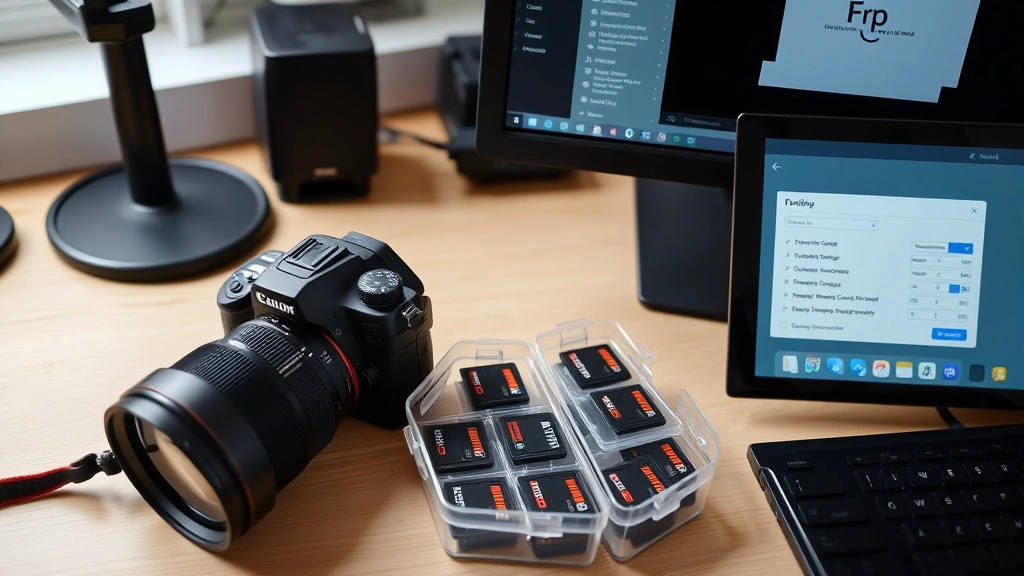
How to Reformat on Mac
Mac users have an equally simple path through Disk Utility, Apple’s built-in storage management tool.
- Insert your SD card into your Mac or use a USB card reader
- Open Disk Utility (found in Applications > Utilities)
- Select your SD card from the left sidebar
- Click the “Erase” button in the toolbar
- Enter a name for your card
- Choose the format: MS-DOS (FAT) for broad compatibility or exFAT for larger files
- Select the scheme: GUID Partition Map for most cases
- Click “Erase” to confirm
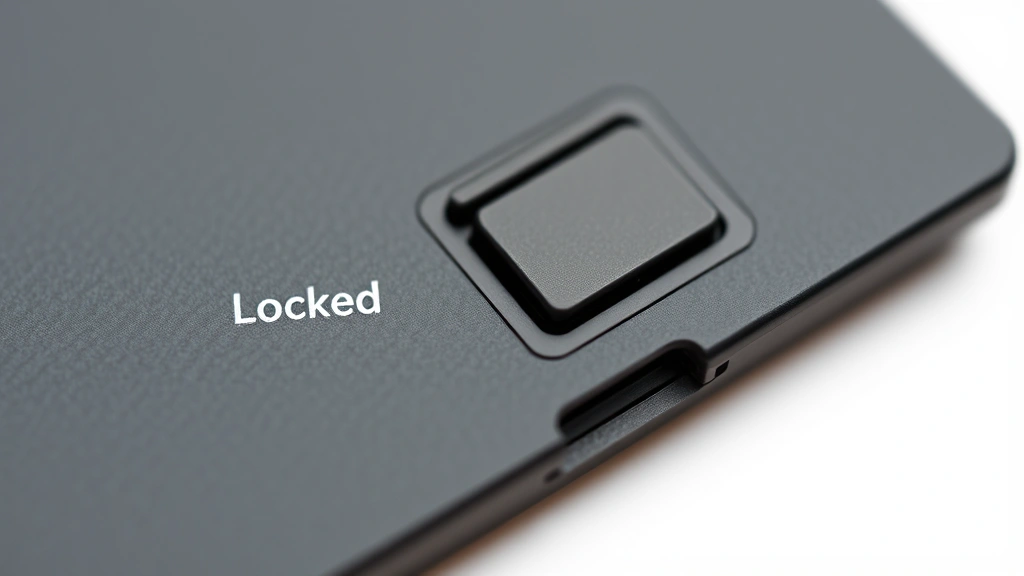
Mac users should note that Disk Utility offers more transparency throughout the process. You’ll see a progress indicator and get confirmation once the erase is complete. If your SD card appears grayed out or unselectable, it may be write-protected. Check for a small physical switch on the side of your card and ensure it’s in the unlocked position.
Reformatting Directly in Your Camera
Many photographers prefer reformatting their SD cards directly in their cameras. This ensures optimal compatibility and can sometimes resolve issues that computer-based formatting doesn’t fix.
DSLR and Mirrorless Cameras
The process varies slightly between manufacturers, but the general approach is consistent:
- Insert the SD card into your camera
- Navigate to the menu (usually a dedicated menu button)
- Look for “Setup,” “Tools,” or “Card” options
- Select “Format Card” or “Initialize Card”
- Confirm the action—your camera will typically warn you that all data will be erased
- Wait for the formatting to complete
Canon cameras typically place this in the Setup menu. Nikon users should check the Setup menu under “Format Memory Card.” Sony cameras use the Setup menu as well, while Fujifilm places it under “Camera Settings.” Consult your specific camera’s manual if you’re unsure.
Action Cameras and Smartphones
GoPro cameras, DJI drones, and smartphones follow similar logic. For a GoPro, access Settings > Camera > Format SD Card. On most Android phones, go to Settings > Storage > SD Card > Format. iPhone users should note that iPhones don’t support external SD cards, but if you’re using an external card reader, you can format through the Files app.
Reformatting on Smartphones
Mobile devices handle SD card formatting differently depending on whether you’re using Android or iOS.
Android Devices
- Open Settings and navigate to Storage or Device Storage
- Scroll down to find your SD card option
- Tap on your SD card
- Look for a menu icon (three dots) and select “Format as Internal” or “Format as Portable”
- Confirm the action
Android 6.0 and later introduced “Adoptable Storage,” which lets you format an SD card as internal storage. This is useful if your phone has limited built-in storage, but it ties the card to that specific device. If you prefer to use your card across multiple devices, choose “Format as Portable” instead.
External Card Readers on iPhone
iPhones don’t natively support SD cards, but you can use a Lightning-compatible card reader. Once connected, use the Files app to access the card. Unfortunately, iOS doesn’t provide a native formatting option, so you’ll need to format the card on a computer first.
Troubleshooting Common Issues
Sometimes reformatting isn’t as straightforward as it should be. Here are solutions for common problems.
“Card Not Recognized”
If your computer doesn’t detect your SD card, try these steps:
- Check the card reader—try a different USB port or borrow another reader
- Clean the card’s gold contacts gently with a soft, dry cloth
- Ensure the card isn’t write-protected by checking for a physical lock switch
- Update your computer’s drivers and restart
Write-Protected Card
A write-protected SD card prevents any modifications, including formatting. Most SD cards have a small switch on the side. Slide it toward the gold contacts to unlock. If there’s no physical switch, your card might be protected by software. Try formatting on a different device or using specialized software like SD Association’s formatting tools.
Formatting Takes Too Long
If formatting seems stuck, you might have a failing card. Try these approaches:
- Uncheck “Quick Format” and perform a full format—this rewrites every sector
- Use specialized formatting software like AOMEI Partition Assistant or EaseUS Partition Master
- If the card is genuinely damaged, it may be time to replace it
When considering whether to troubleshoot or replace, remember that SD cards are relatively inexpensive. If you’ve had a card for several years and it’s acting up, replacement might be more practical than hours of troubleshooting.
Best Practices for SD Card Maintenance
Reformatting is powerful, but prevention is better than cure. Here’s how to keep your SD card healthy.
Safely Eject Before Removing
Always use “Safely Remove Hardware” on Windows or “Eject” on Mac before physically removing your card. Yanking it out while data is being written can corrupt files and damage the card’s file system. This small habit prevents most SD card issues.
Use Quality Cards from Reputable Brands
Not all SD cards are created equal. Brands like SanDisk, Lexar, Kingston, and Samsung have excellent track records. Counterfeit cards are common on third-party marketplaces—buy from authorized retailers when possible. A quality card costs a bit more but lasts years longer and provides faster read/write speeds.
Don’t Mix Devices Unnecessarily
While SD cards are designed for compatibility, constantly switching between different cameras, computers, and phones can introduce file system inconsistencies. When possible, assign cards to specific devices. If you must share a card across devices, reformat it in each device before first use.
Monitor Card Health
If you’re experiencing frequent errors or slow performance, your card might be aging. Professional photographers often replace cards every 2-3 years of heavy use. Consumer users can stretch this to 5+ years. Watch for signs of degradation: slow transfer speeds, occasional read errors, or files becoming inaccessible.
For those interested in understanding how other tech components affect your system’s performance, learning how to check CPU temperature can help you identify whether your computer itself is causing slow transfers.
Backup Before Reformatting
This deserves emphasis: always back up your data. Use cloud storage like Google Drive, Dropbox, or OneDrive. External hard drives work too. The minutes spent backing up will save you heartbreak if you accidentally reformat a card with irreplaceable photos.
Frequently Asked Questions
Can I recover files after reformatting an SD card?
Yes, recovery is possible if you act quickly. Reformatting doesn’t physically destroy data; it simply marks the space as available for new files. Tools like Recuva or EaseUS Data Recovery Wizard can scan your card and restore files before new data overwrites them. However, recovery success decreases the more you use the card after reformatting, so if you need your files back, stop using the card immediately and attempt recovery right away.
What’s the difference between FAT32, exFAT, and NTFS?
FAT32 is the oldest format, universally compatible with cameras and devices, but limited to 4GB file sizes. exFAT is the modern standard for SD cards, supporting large files while maintaining broad compatibility. NTFS is Windows-specific and offers advanced features like file permissions, but cameras and many older devices won’t recognize it. For SD cards, exFAT is typically the best choice.
Should I use Quick Format or Full Format?
Quick Format simply removes the file directory, making space appear available—it takes seconds. Full Format rewrites every sector on the card, which takes longer but is more thorough for problem cards. For routine maintenance, Quick Format is fine. If your card has errors or you’re repurposing an old card, choose Full Format.
Will reformatting fix a corrupted SD card?
Often yes, but not always. If the corruption is at the file system level, reformatting resolves it. If the card has physical damage or failing memory cells, reformatting won’t help. You’ll know the card is genuinely damaged if your computer still doesn’t recognize it after reformatting attempts.
Can I reformat an SD card in my camera if it was formatted on a computer?
Absolutely. In fact, reformatting in your camera after using it on a computer is good practice. It ensures the file system matches your camera’s expectations and can sometimes improve performance. Just remember that reformatting erases everything, so back up your photos first.
How often should I reformat my SD card?
There’s no set schedule. Reformat when you notice performance issues, when moving a card to a new device, or when you want a completely fresh start. Some professionals reformat after every major project to eliminate fragmentation. Casual users might reformat once or twice a year. Listen to your card—if it’s performing well, there’s no need to reformat.
Is it safe to reformat while my camera is recording?
Never attempt to format while any device is actively using the card. Always power off your camera before reformatting in the menu, and never remove the card during the format process. This is one of the few ways you can actually damage an SD card.
If you’re dealing with other tech frustrations around your home setup, you might find solutions in guides like how to fix stick drift for gaming peripherals or how to reset Firestick remote for streaming devices.
What if my SD card still doesn’t work after reformatting?
If reformatting doesn’t resolve the issue, your card might be failing. Try these final steps: format on a different computer, use different formatting software, or attempt recovery software. If none of these work, the card has likely reached end-of-life. It’s time to invest in a replacement. For your next purchase, consider consulting B&H Photo’s SD card buying guide to choose the right replacement.
Understanding proper SD card maintenance also connects to broader tech literacy. Just as knowing how to disconnect car battery helps with vehicle troubleshooting, mastering SD card reformatting empowers you to solve storage issues independently.