
How to Record Phone Calls on iPhone: Expert Guide
How to Record Phone Calls on iPhone: Expert Guide
Recording phone calls on your iPhone can feel like navigating a maze of restrictions and workarounds. Unlike Android devices that offer built-in call recording features, Apple has intentionally limited this functionality to protect user privacy and comply with wiretapping laws. But here’s the thing: there are legitimate, legal ways to record calls on your iPhone, and we’re going to walk you through all of them.
Whether you’re documenting important business conversations, keeping records of customer interactions, or simply want to remember the details of a significant call, understanding your options is crucial. The landscape has changed considerably over the years, and iOS now offers more flexibility than ever before. We’ll break down the native features, third-party apps, and practical strategies that actually work.
Before we dive in, it’s important to note that call recording laws vary by location. In some states and countries, you need consent from all parties on a call to legally record it. Always check your local regulations before recording any conversations.
Native iPhone Call Recording Options
Apple’s approach to call recording has evolved significantly. While iOS doesn’t include a native call recording app like some Android phones do, there are built-in features that can help you capture call content in different ways.
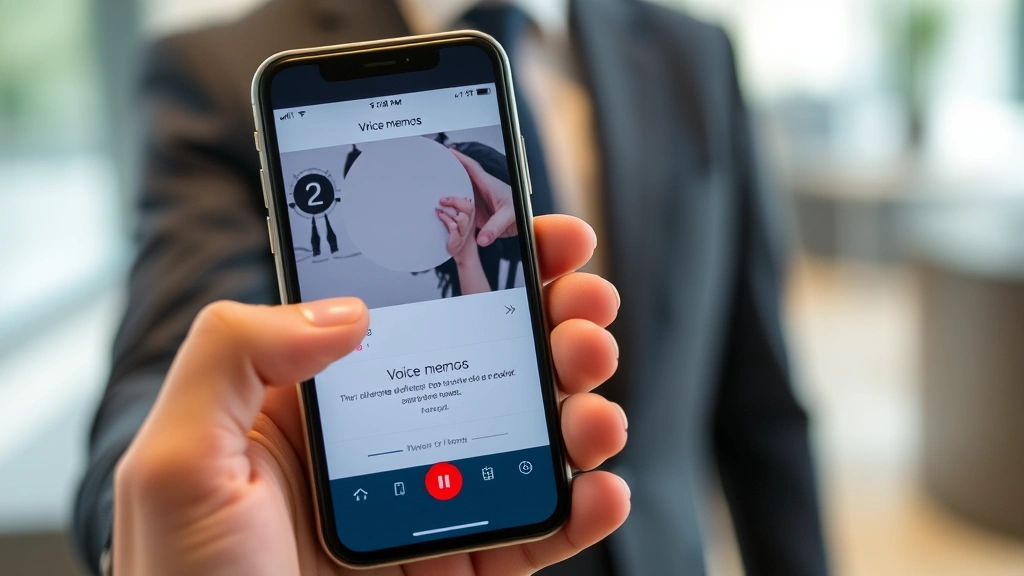
The most straightforward native option is using the Voice Memos app in combination with speaker phone mode. When you enable speaker phone during a call and simultaneously record using Voice Memos, you capture both sides of the conversation. This method is completely legitimate and doesn’t violate any Apple policies. Start by opening the Voice Memos app, then initiate your call and switch to speaker phone before pressing record in Voice Memos.
Another approach involves using FaceTime Audio, which offers more recording flexibility than traditional cellular calls. You can use screen recording to capture FaceTime Audio conversations, though the audio quality may vary depending on your iPhone model and iOS version.
If you’re managing business communications, consider that you might want to explore how to forward calls on iPhone to a dedicated business line or service that includes call recording capabilities built into the system. This approach eliminates the need for manual recording and ensures compliance with business communication standards.
Third-Party Apps for Call Recording
The App Store hosts several applications designed specifically for call recording, though their functionality varies based on iOS limitations. These apps work by using VoIP (Voice over Internet Protocol) technology rather than intercepting cellular calls directly, which sidesteps Apple’s restrictions.
Popular options include TapeACall, Google Voice, and Cube ACR. TapeACall operates as a conference bridge service, meaning it connects your call through its servers to facilitate recording. Google Voice provides call recording capabilities for calls made through its platform, offering integration with your existing Google account. Cube ACR specializes in automatic call recording and stores your recordings securely in the cloud.
When choosing a third-party app, consider these factors: Does it require the other party to use the same app? What’s the audio quality like? How are recordings stored and protected? Is there a subscription fee? Some apps offer free tiers with limited features, while others require monthly subscriptions ranging from five to fifteen dollars.
The key limitation with third-party apps is that they typically only work with VoIP calls or calls routed through their systems. Regular cellular calls require the speaker phone and Voice Memos method we discussed earlier.
Legal Considerations and Consent Laws
This is where things get serious. Recording phone calls without proper consent can result in civil lawsuits, criminal charges, and substantial fines. The legal landscape varies dramatically depending on where you live.
The United States operates under a two-party consent framework in most jurisdictions, though some states follow one-party consent rules. Two-party consent means everyone on the call must know they’re being recorded and agree to it. One-party consent means only the person doing the recording needs to consent. States like California, Florida, Illinois, and Pennsylvania are strict two-party consent states, while others like New York and Texas allow one-party recording.
Outside the U.S., regulations are even stricter. The European Union’s GDPR regulations require explicit consent and legitimate legal grounds for recording. Canada and the UK similarly require all-party consent. Before recording any call, research your specific location’s laws and the location of the person you’re calling.
The practical approach is simple: always ask for permission. Most people don’t mind being recorded if you’re transparent about it. A simple statement like “I’d like to record this call for documentation purposes—is that okay with you?” takes five seconds and protects you legally.
The Speaker Phone Recording Method
Let’s get practical. The speaker phone and Voice Memos combination is the most reliable, legal, and straightforward method for most iPhone users. Here’s exactly how to do it:
- Prepare your environment: Find a quiet space where background noise won’t interfere with your recording. Let the other party know you’re switching to speaker phone for better audio quality.
- Initiate the call: Make your phone call normally. Once connected and after informing the other party you’re recording, switch to speaker phone by tapping the speaker icon during the call.
- Open Voice Memos: Swipe up from the bottom of your screen (or swipe down from the top-right corner on newer models) to access Control Center. Tap the Voice Memos app icon, or open the Voice Memos app directly from your home screen.
- Start recording: In Voice Memos, tap the red record button. You’ll see a visual indicator showing the app is actively recording.
- Maintain the call: Keep the speaker phone active throughout the conversation. The call will continue recording even if you switch between apps, though the audio quality might diminish if you lock your screen.
- End and save: When the call ends, tap the stop button in Voice Memos. Review your recording and save it with a descriptive name for easy reference later.
The audio quality from this method is typically clear and intelligible, though not studio-grade. Both voices record at similar volumes, making it easy to transcribe or review later. For business purposes, this method is completely adequate and legally sound when all parties consent.
Best Practices for Call Recording
Recording calls effectively isn’t just about pressing the record button. Several practices will ensure you get the best results and maintain professional standards.
Test your setup beforehand. Make a test call with a friend or colleague to verify audio quality and identify any technical issues before recording something important. You might discover that certain locations have too much background noise or that your speaker phone volume needs adjustment.
Inform all parties clearly and early. State your intention to record at the beginning of the call, not halfway through. This shows respect and ensures legal compliance. Document this consent somehow—many professionals note the time the recording started and who agreed to it.
Manage file storage strategically. Voice Memos recordings consume storage space, and your iPhone’s storage is limited. Regularly back up important recordings to iCloud, a computer, or external storage. Consider using a cloud service to store critical recordings securely.
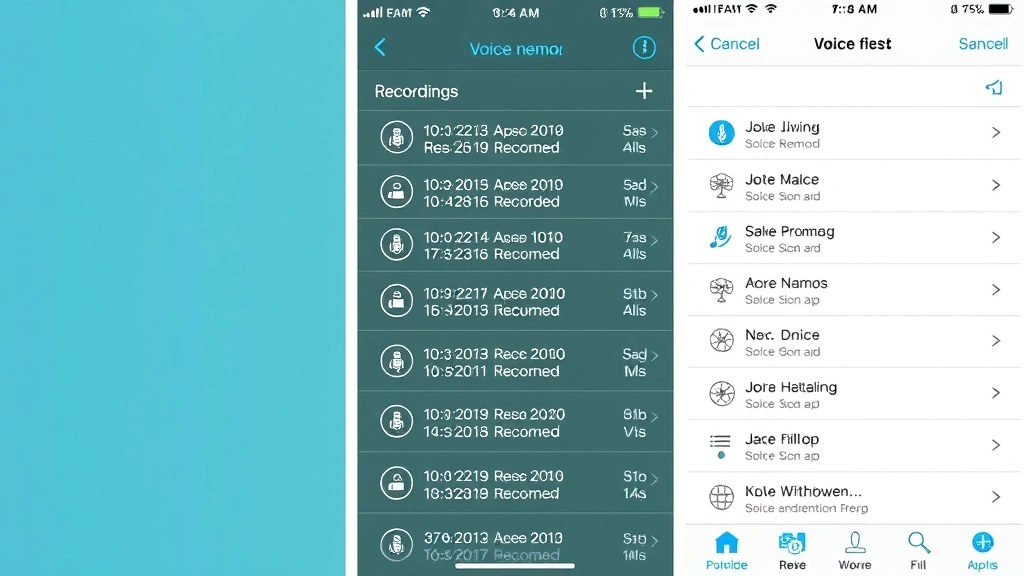
Organize and label recordings properly. Use descriptive names that include dates, participant names, and call purpose. This makes finding specific calls much easier when you need to reference them later. Avoid generic names like “Recording 1” or “Call”.
Consider audio quality enhancements. If you’re recording calls regularly, invest in a quality external microphone that connects to your iPhone. This significantly improves audio clarity compared to relying on your phone’s built-in speaker phone microphone.
If you’re also managing multiple communication channels, you might want to learn about how to block no caller ID on iPhone to screen calls before recording them. This prevents wasting storage on unwanted calls.
Troubleshooting Common Issues
Audio is too quiet or distorted. This usually happens when the speaker phone volume is too low or the microphone is too close to the speaker. Increase the volume during the call and position your phone at a slight distance from your mouth. If using Voice Memos, ensure the app has microphone permissions enabled in Settings.
Recording stops unexpectedly. Your iPhone may have entered low-power mode, which can interrupt background processes. Disable low-power mode before recording important calls. Additionally, ensure you have sufficient storage space—if your iPhone is nearly full, the recording may stop.
The other party can’t hear you well during speaker phone recording. This suggests your microphone is blocked or positioned poorly. Clean the microphone openings on your iPhone and ensure you’re speaking directly toward the device. Consider holding the phone slightly closer during recording.
Voice Memos app isn’t recording. Verify that Voice Memos has microphone access by going to Settings > Privacy > Microphone and ensuring the app is enabled. Also check that your phone isn’t in silent mode—the recording won’t work if the mute switch is activated.
Recorded audio has significant background noise. Find a quieter location for your calls. If you must record in a noisy environment, use an external microphone with noise-cancellation features or invest in a quality headset designed for call recording.
For those managing extensive communication workflows, understanding how to schedule a text on iPhone can help you coordinate follow-up messages after recorded calls. This keeps your communication organized and documented.
Frequently Asked Questions
Can I record calls on iPhone without the other person knowing?
Legally, it depends on where you live. In one-party consent states, you can record without the other person’s knowledge. However, in two-party consent states, this is illegal and can result in criminal charges. Ethically and professionally, always inform the other party that you’re recording.
What’s the best third-party app for call recording on iPhone?
TapeACall and Google Voice are among the most reliable options, though they work differently. TapeACall acts as a conference bridge, while Google Voice records calls made through its platform. Your choice depends on your specific needs and whether you want automatic or manual recording.
Can I record FaceTime calls?
Yes, you can use the screen recording feature in Control Center while on a FaceTime call. This captures both audio and video, though you should inform the other party that you’re recording. Screen recording works for both FaceTime Audio and FaceTime Video calls.
How long can I record a call on iPhone?
The duration depends on your available storage space. Most iPhone models have between 64GB and 512GB of storage. A typical phone call uses approximately 1MB of storage per minute in high quality, meaning you could theoretically record hundreds of hours of calls before running out of space.
Is it legal to record calls for business purposes?
Yes, provided you have consent from all parties and comply with local regulations. Many businesses record customer service calls for training and quality assurance purposes, but they always inform callers that recording is occurring. Always check your jurisdiction’s specific laws.
Can I record calls and keep them private?
Absolutely. Store your recordings in a secure location like an encrypted cloud service or password-protected folder. Voice Memos recordings are stored locally on your iPhone by default, but you should back them up to secure cloud storage to prevent loss due to device damage or theft.
What if I accidentally record a call without consent?
Delete the recording immediately and don’t use it. In two-party consent jurisdictions, even accidentally recording without consent can create legal liability. The safest approach is to always explicitly ask permission before recording.
Does recording affect call quality?
When using the Voice Memos method, call quality typically remains unchanged. The recording happens simultaneously with the call without degrading the connection. However, third-party apps that route calls through their servers might slightly affect audio quality depending on your internet connection.
For those managing complex communication needs, you might also find it helpful to explore how to remove yourself from a group text to keep your communication channels organized and focused on relevant conversations.
Can I transcribe recorded calls on iPhone?
Voice Memos doesn’t have built-in transcription, but you can export your recordings and use third-party transcription services like Rev, Otter, or Google Docs voice typing. Some call recording apps include transcription features as premium add-ons.
What should I do with recorded calls after I’m done with them?
Store important recordings securely in cloud storage, create backups, and delete recordings from your phone once backed up to free storage space. For sensitive business calls, consider using encrypted storage solutions. Establish a retention policy—decide how long you need to keep recordings before deleting them.
If you’re setting up a comprehensive communication system on your iPhone, learning how to share WiFi password iPhone with team members can help ensure everyone has reliable connectivity for quality call recording and communication.

Related Posts

How Long to Boil Lobster Tails: Cooking Guide

How Long to Fly from New York to London? Travel Times
