

Reboot ASUS Notebook? Expert Tips Inside
How to Reboot ASUS Notebook: Expert Tips Inside
When your ASUS notebook starts acting sluggish, freezing, or displaying unusual behavior, a simple reboot can often resolve the issue. However, knowing the right way to restart your device—whether through standard shutdown procedures, safe mode, or hard reset—ensures you maintain system integrity and protect your data. This comprehensive guide walks you through every method to reboot your ASUS notebook, from basic restarts to advanced troubleshooting techniques used by IT professionals.
Whether you’re experiencing software glitches, need to install updates, or simply want to refresh your system’s performance, understanding the nuances of rebooting your ASUS notebook is essential for any user. Different situations call for different approaches, and we’ll cover them all in detail below.
Standard Reboot Methods
The most straightforward way to reboot your ASUS notebook is through the standard shutdown and restart process. This method is ideal for routine maintenance, installing updates, or clearing temporary memory files. Start by saving all your work and closing any open applications to prevent data loss.
Access the Start menu by clicking the Windows logo in the bottom-left corner of your screen. From the menu, locate and click the power icon (typically in the lower-left area). You’ll see three options: Sleep, Shut Down, and Restart. Select Restart to initiate an immediate reboot. Your ASUS notebook will begin the shutdown sequence, close all running processes, and then power back on automatically.
If you prefer using keyboard shortcuts, you can press Alt + F4 while on the desktop to open the shutdown dialog. Use the arrow keys to select “Restart” and press Enter. This method is particularly useful when your mouse isn’t responding properly. Another keyboard-based approach involves pressing Windows key + X, which opens the quick-access menu on Windows 10 and 11 systems, where you can select the restart option directly.
For ASUS notebooks running Windows 11, you can also use the Ctrl + Alt + Delete combination to access the security screen. From there, click the power icon in the bottom-right corner and select Restart. This method is especially helpful when your system is experiencing performance issues, as it bypasses some background processes.
The command-line method offers another reliable option for rebooting. Press Windows key + R to open the Run dialog box. Type “shutdown /r /t 0” (without quotes) and press Enter. The “/r” parameter tells Windows to restart, while “/t 0” sets the countdown timer to zero seconds, initiating an immediate reboot. If you want to delay the restart, replace the “0” with the number of seconds you’d like to wait.
Safe Mode Restart
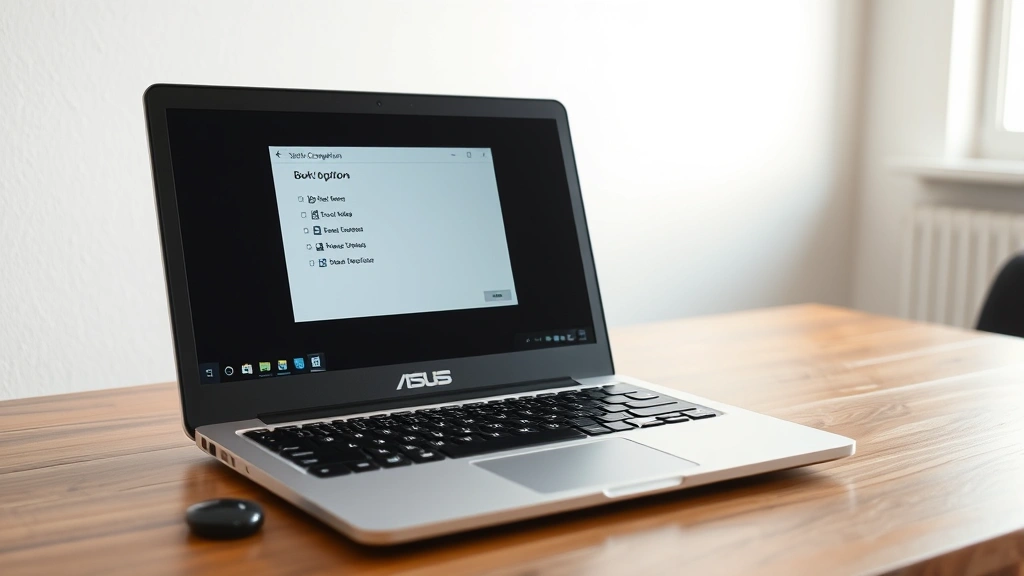
Safe Mode is a diagnostic startup option that loads only essential drivers and services, making it invaluable for troubleshooting software conflicts and removing malware. When your ASUS notebook behaves erratically, booting into Safe Mode allows you to identify whether third-party applications or drivers are causing the problem.
To restart your ASUS notebook in Safe Mode, first access the System Configuration utility. Press Windows key + R, type “msconfig,” and press Enter. In the System Configuration window, navigate to the Boot tab. Check the box labeled “Safe boot” and select your preferred Safe Mode option: Minimal (basic functionality only), Alternate shell (command prompt interface), or Network (includes network drivers for internet access).
After selecting your Safe Mode preference, click Apply and then OK. Windows will prompt you to restart your notebook. Choose “Restart” to immediately boot into Safe Mode, or “Exit Without Restarting” if you want to manually restart later. When your ASUS notebook restarts, you’ll see “Safe Mode” displayed in the corners of your screen, confirming successful boot into this diagnostic environment.
Another method to access Safe Mode involves restarting your notebook and repeatedly pressing the F8 key before the Windows logo appears. This opens the Advanced Boot Options menu, where you can select Safe Mode, Safe Mode with Networking, or Safe Mode with Command Prompt. However, this method may not work on newer ASUS models with fast boot enabled.
Once you’re in Safe Mode, you can safely uninstall problematic software, run antivirus scans, or update drivers without interference from background applications. When you’ve completed your troubleshooting, restart your ASUS notebook normally by returning to System Configuration, unchecking the Safe Boot option, and restarting again. This takes you back to your regular Windows environment with all services and drivers fully loaded.
Hard Reset Procedures
A hard reset, also known as a force restart, is necessary when your ASUS notebook is completely unresponsive or frozen. Unlike standard reboots that allow Windows to shut down gracefully, a hard reset forcefully terminates all processes immediately.
For traditional hard reset: Locate the power button on your ASUS notebook. Press and hold it for 10-15 seconds until your screen goes completely black and the device powers off. Wait 30 seconds, then press the power button again to turn it back on. This method forces your notebook to shut down without saving any open documents, so use it only when your system is completely unresponsive.
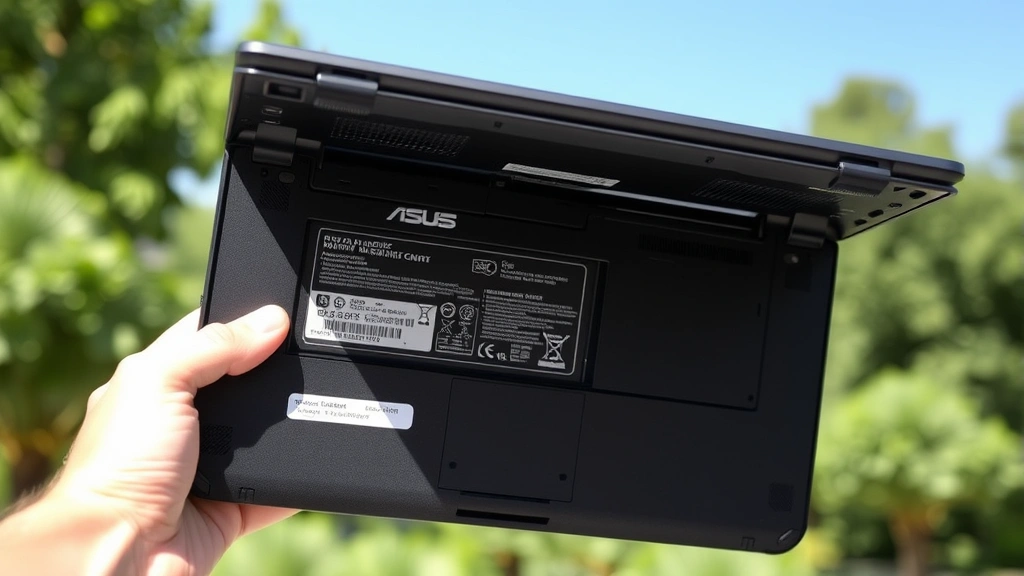
Some ASUS notebook models feature a small reset button, typically located near the battery compartment or on the side of the device. Consult your specific model’s user manual to locate it. Using a straightened paperclip or similar thin object, press and hold this reset button for 10-20 seconds to perform a hardware reset. This method is more aggressive than a standard hard restart and should only be used as a last resort.
For notebooks with removable batteries, you can perform a battery-based reset. Power off your ASUS notebook completely and unplug the power adapter. Open the battery compartment (usually on the bottom of the device) and remove the battery. Wait for 30 seconds to allow residual power to dissipate. Reinsert the battery, close the compartment, reconnect the power adapter, and press the power button to restart. This method effectively clears the CMOS memory and resets hardware configurations.
If your ASUS notebook has a non-removable battery, you can still perform a similar procedure. Power off the device, disconnect the power adapter, and press the power button repeatedly for 30 seconds. This drains residual power from the capacitors. Wait another 30 seconds, then reconnect the power adapter and power on your notebook. This approach can resolve issues related to power management and battery charging.
Troubleshooting Boot Issues
Sometimes your ASUS notebook may fail to boot normally after a restart attempt. Understanding common boot issues and their solutions helps you get back to work quickly. If your notebook gets stuck on the Windows loading screen, perform a hard reset and try booting again. If the problem persists, access the Advanced Startup Options.
To reach Advanced Startup Options, restart your ASUS notebook and watch for the Windows logo. Once it appears, hold the power button to force shutdown. Repeat this process two or three times until you see the “Preparing Automatic Repair” message. Windows will then present several recovery options including Startup Repair, System Restore, and Reset This PC.
Startup Repair automatically diagnoses and fixes common boot issues like corrupted system files or missing drivers. Click this option and allow Windows to scan and repair your system. This process may take several minutes. If Startup Repair completes successfully, your ASUS notebook will restart normally.
If Startup Repair doesn’t resolve the issue, try System Restore. This feature reverts your system to a previous point in time when everything was working correctly. Select System Restore from the recovery menu, choose a restore point from before the problem began, and follow the on-screen prompts. Your ASUS notebook will restart and return to that earlier state, hopefully resolving the boot issue.
For more persistent problems, you may need to perform a fresh Windows installation. Create a bootable USB drive using the Windows Media Creation Tool on another computer. Insert the USB drive into your ASUS notebook and restart it. Press F2 or Delete during startup to enter the BIOS menu (the key varies by model). Navigate to the Boot menu and set the USB drive as the first boot device. Save your changes and exit BIOS. Your notebook will boot from the USB drive and present Windows installation options.
Maintenance Tips
Regular reboots maintain your ASUS notebook’s performance and stability. Establish a routine of restarting your device at least once weekly, even if it’s running smoothly. This clears temporary files, refreshes system memory, and allows Windows to apply pending updates. Many security patches and software updates require a restart to take full effect.
Monitor your notebook’s startup time and performance. If restarting takes noticeably longer than usual, you may have too many startup programs running. Access the Task Manager by pressing Ctrl + Shift + Esc and navigate to the Startup tab. Disable unnecessary programs from starting automatically to improve boot speed and overall performance. Visit FixWiseHub Blog for more how-to guides on system optimization.
Keep your ASUS notebook’s BIOS updated. Visit the official ASUS support website, enter your notebook model, and download the latest BIOS version. Follow the provided instructions carefully, as improper BIOS updates can cause serious issues. Always ensure your battery is fully charged before updating BIOS.
Maintain adequate storage space on your C: drive. When your storage is nearly full, Windows struggles to perform maintenance tasks and temporary file management, which can cause boot and performance issues. Delete unnecessary files, uninstall unused programs, and consider moving large files to external storage. Aim to keep at least 10-15% of your drive capacity free.
Run regular antivirus scans to prevent malware from affecting your reboot process and system stability. Use Windows Defender (built-in) or a reputable third-party antivirus program. Schedule weekly full scans and enable real-time protection to catch threats before they impact your system. Malware can interfere with normal shutdown and restart procedures, so maintaining security is crucial.
Update all drivers regularly, especially chipset, graphics, and network drivers. Outdated drivers can cause boot loops or prevent your ASUS notebook from restarting properly. Visit the ASUS support website, download the latest drivers for your specific model, and install them. Many driver updates are released monthly, so check periodically for new versions.
Clean your ASUS notebook’s vents and fans regularly. Dust accumulation restricts airflow and causes overheating, which can trigger automatic shutdowns and restart issues. Use compressed air to blow out dust from the vents, keyboard, and ports. Perform this maintenance monthly, or more frequently if you work in dusty environments. Proper cooling ensures your system can restart safely without thermal protection activating.
If you need general system maintenance guidance, consulting comprehensive guides helps you understand preventative care. Similarly, maintaining your hardware through regular inspections keeps everything running smoothly. For additional troubleshooting resources, explore our complete guide collection.
FAQ
What’s the difference between restart and shutdown?
A restart (reboot) powers off your ASUS notebook and immediately powers it back on, refreshing all system processes and memory. A shutdown powers off your notebook completely, and you must manually press the power button to turn it back on. Restarts are better for troubleshooting, while shutdowns are preferred when you won’t use your notebook for extended periods.
How long should I wait between shutdown and restart?
Wait at least 30 seconds between powering off and powering on your ASUS notebook. This allows capacitors to discharge completely and ensures a clean restart. For hard resets after system freezes, wait a full minute to ensure all power is dissipated from the system.
Will restarting my notebook delete my files?
No, a normal restart won’t delete any files. However, unsaved work in open applications will be lost. Always save your documents before restarting. Hard resets may occasionally cause data loss if you’re in the middle of writing to disk, which is why they should only be used when your system is completely unresponsive.
Why does my ASUS notebook take so long to restart?
Slow restarts often indicate too many startup programs, insufficient storage space, or outdated drivers. Access Task Manager and disable unnecessary startup programs. Free up disk space by deleting old files and uninstalling unused software. Update your drivers and Windows through official channels to improve boot speed.
Can I schedule automatic restarts on my ASUS notebook?
Yes, you can schedule automatic restarts using Task Scheduler. Press Windows key + R, type “taskschd.msc,” and press Enter. Create a new task that runs the shutdown command with restart parameters at your desired time. This is useful for applying updates during off-hours without manual intervention.
What should I do if my ASUS notebook won’t restart?
First, try a hard reset by holding the power button for 15 seconds. If that doesn’t work, remove the battery (if removable) and power adapter, wait 30 seconds, then reconnect and try again. If your notebook still won’t restart, boot into Safe Mode to diagnose software issues. As a last resort, perform a clean Windows installation using a bootable USB drive.
Is it safe to restart my ASUS notebook during updates?
Never interrupt Windows updates by restarting your notebook. Always allow updates to complete fully, even if it takes longer than expected. Interrupting updates can corrupt system files and cause serious boot issues. If an update seems stuck, wait at least 30 minutes before considering a hard reset.

Related Posts

Superscript in Google Docs: Expert Tips

Strikethrough in Excel: Easy Steps for Beginners
