
Program Firestick Remote: Easy 5-Minute Setup Guide
Program Firestick Remote: Easy 5-Minute Setup Guide
Getting your Firestick remote programmed is one of the simplest ways to enhance your streaming experience and take full control of your entertainment system. Whether you’ve just unboxed a new Fire TV device or you’re pairing a replacement remote, the setup process takes less than five minutes and requires no technical expertise. A properly programmed remote eliminates the frustration of hunting for your device or fumbling with multiple controllers.
The beauty of Amazon’s Firestick remote programming lies in its straightforward design. Unlike older universal remotes that required manual code entry or complex pairing procedures, modern Firestick remotes use automatic pairing technology that works right out of the box. However, understanding the full range of customization options and troubleshooting steps can save you time and frustration down the road. This guide walks you through everything you need to know about programming your Firestick remote, from initial setup to advanced features.

Understanding Your Firestick Remote Types
Amazon offers several different remote models designed for their Firestick devices, and each has slightly different programming capabilities. The standard Firestick remote is the most common option that comes bundled with Fire TV devices. It features basic navigation buttons, a home button, and voice control functionality on newer models. Understanding which remote you have ensures you follow the correct pairing procedures.
The Alexa Voice Remote includes a microphone for hands-free voice commands, making it ideal for searching content and controlling smart home devices. The Fire TV Cube remote is designed specifically for the Fire TV Cube and offers unique integration with Amazon’s ecosystem. The basic infrared remote (older model) doesn’t require Bluetooth pairing and works through line-of-sight signals, making it different from newer Bluetooth-enabled remotes.
Each remote type has its own programming requirements, but the fundamental process remains similar. Before you begin, identify your remote model by checking the Amazon documentation that came with your device or visiting Amazon’s support website. Knowing your specific model helps you access the right setup instructions and understand which features your remote supports.
Initial Setup and Pairing Process
The first step in programming your Firestick remote is ensuring your Fire TV device is powered on and ready to receive pairing signals. Turn on your television and your Firestick device, then wait for the home screen to fully load. This typically takes 30-60 seconds after powering on. Having your device fully booted ensures stable pairing and reduces the risk of connection interruptions.
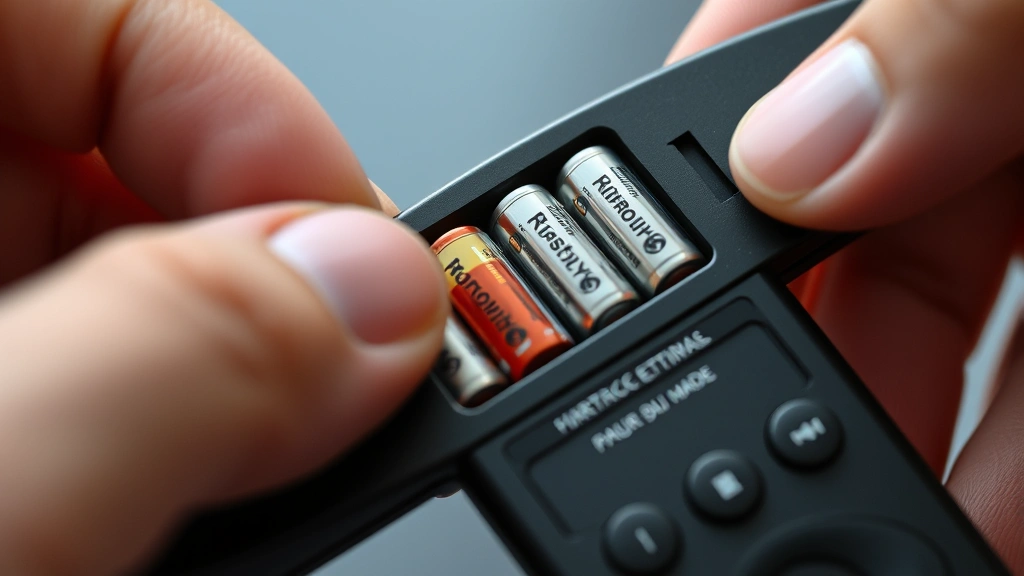
Gather your remote and check that the batteries are fresh and properly installed. Most Firestick remotes use two AA batteries located in the back compartment. Fresh batteries are crucial for successful pairing, as low battery power can prevent the remote from sending proper pairing signals to your device. Replace batteries even if they seem like they might still work, as you want maximum signal strength during initial pairing.
Position yourself within 10-15 feet of your Firestick device with a clear line of sight if using an older infrared remote. Bluetooth remotes have a longer range but still perform better with a relatively close, unobstructed connection. Remove any obstacles between the remote and the device, such as furniture or electronic equipment that might interfere with the signal.
Automatic Pairing Steps
Most modern Firestick remotes pair automatically when you first power them on near your Fire TV device. Here’s the step-by-step process for automatic pairing:
- Remove the battery cover from the back of your remote and insert two AA batteries, ensuring they’re oriented correctly with the positive (+) side facing up
- Replace the battery cover securely
- Point the remote at your Firestick device and press the Home button (the house icon)
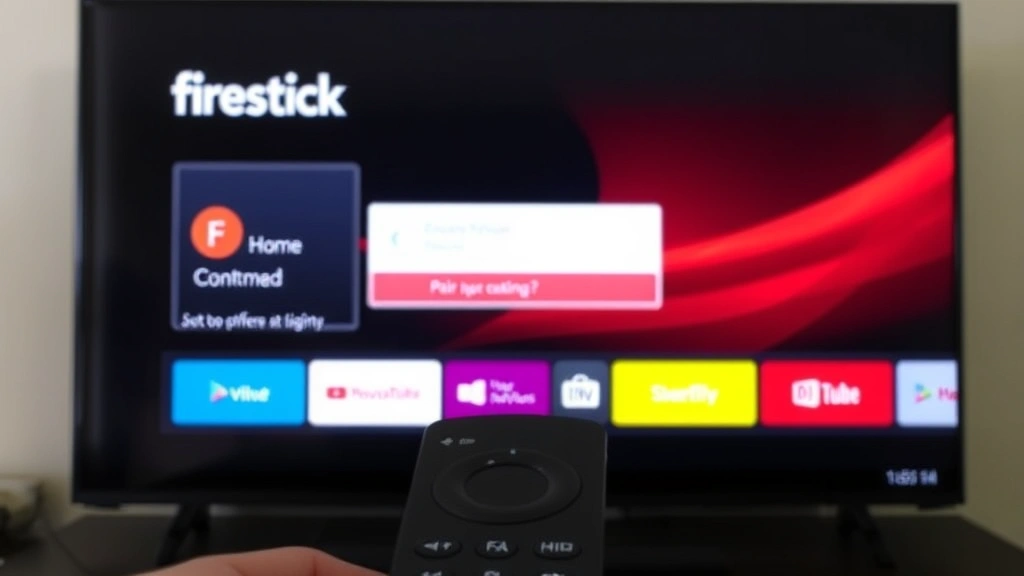
- Your Firestick will detect the remote within 30 seconds and display a pairing prompt on your television screen
- Follow any on-screen instructions to complete the pairing
- Once successfully paired, you’ll see a confirmation message and your remote is ready to use
The automatic pairing process is designed to be user-friendly and intuitive. If your remote doesn’t pair automatically, don’t worry—there are several troubleshooting steps and alternative methods you can try. The key is to ensure your remote batteries are fresh and your Firestick device is fully powered and responsive.
Manual Pairing Instructions
If automatic pairing doesn’t work after multiple attempts, manual pairing offers an alternative method. Manual pairing is particularly useful if you’re pairing a remote to a device for the first time after a factory reset or if you’re replacing a lost remote. Here’s how to manually pair your Firestick remote:
- Navigate to Settings on your Firestick home screen using the directional buttons on another remote or your mobile device
- Select Controllers & Bluetooth Devices (the exact menu name varies by device model)
- Choose Amazon Fire TV Remote or the specific remote model you’re pairing
- Select Add New Remote or Pair Remote
- Your Firestick will enter pairing mode and search for available remotes
- Hold down the Home and Back buttons simultaneously on your remote for 10-15 seconds until you see a pairing indicator light
- Wait for the pairing confirmation on your television screen
- Once paired, test the remote by pressing various buttons to ensure full functionality
Manual pairing gives you more control over the process and allows you to pair multiple remotes to a single device. This is useful if you have multiple Fire TV devices in your home or want backup remotes for different rooms. The manual method also helps when dealing with interference issues or connectivity problems.
Customizing Remote Buttons and Settings
After successfully pairing your remote, you can customize button functions and settings to match your preferences. Many Firestick remotes allow you to reassign buttons to launch specific apps or perform custom actions. Access these settings through Settings > Remotes & Bluetooth Devices > Amazon Fire TV Remote and look for customization or button mapping options.
Voice remote users can train their remote to recognize your voice commands more accurately. Go to Settings > Alexa Voice Remote > Voice Training and follow the prompts to teach your device your voice patterns. This improves response accuracy and reduces instances where the remote misunderstands your commands. Complete the voice training in a quiet environment for best results.
Consider setting up quick launch buttons for your most-used apps. Many Firestick remotes allow you to assign buttons to launch Netflix, Prime Video, or other streaming services directly. This eliminates the need to navigate through menus and saves time when you want to jump straight to your favorite content. Check your remote’s manual or the Firestick settings to see which buttons can be customized.
If you’re interested in learning more about optimizing your entertainment setup, you might also want to explore how to improve your overall home technology experience through proper maintenance and setup of various devices throughout your home.
Troubleshooting Common Issues
Sometimes your Firestick remote may not pair on the first attempt. Common issues and solutions include:
- Remote won’t pair: Check battery orientation, replace with fresh batteries, and ensure Firestick is fully powered on. Try pairing again after waiting 30 seconds.
- Intermittent connectivity: Move closer to your Firestick device, remove obstacles, and check for interference from other wireless devices like routers or microwaves.
- Buttons not responding: Clean the remote’s button contacts with a dry cloth, replace batteries, and perform a manual re-pairing through settings.
- Voice commands not working: Check microphone isn’t obstructed, ensure your device has internet connection, and complete voice training in the settings menu.
- Remote works only when close to device: This indicates weak signal. Try replacing batteries first, then check for physical obstructions or wireless interference.
If your remote still won’t work after troubleshooting, try unpair and re-pair the device. Go to Settings > Remotes & Bluetooth Devices, select your remote, and choose Remove or Unpair. Then follow the pairing process again from scratch. Sometimes a complete reset solves persistent connectivity issues.
For devices experiencing frequent problems, consider resetting your Firestick to factory settings. This clears all paired remotes and allows you to set up fresh. Access this through Settings > System > Reset to Factory Defaults. Be aware this removes all your settings and apps, so only use this as a last resort.
Using Universal Control Features
Modern Firestick remotes offer universal control capabilities, allowing them to control your television volume and power without additional setup. This feature uses infrared signals that work with most TV brands. To set up universal control:
- Navigate to Settings > Remotes & Bluetooth Devices > Amazon Fire TV Remote
- Select Program TV Remote Control or similar option
- Choose your TV brand from the provided list
- Follow on-screen instructions to complete the setup
- Test volume and power buttons to confirm they control your television
If your TV brand isn’t listed, you can manually program the remote by entering your TV’s manufacturer code. Amazon provides a list of codes for various TV brands in their support documentation. This manual method takes slightly longer but enables control of virtually any television model.
The universal control feature is incredibly convenient because it eliminates the need for a separate TV remote. You can control your Firestick device, streaming content, and television settings with a single remote. This streamlines your entertainment experience and reduces clutter on your coffee table.
Advanced Programming Tips
For advanced users, several additional programming options enhance your Firestick remote experience. If you own multiple Fire TV devices, you can program a single remote to control all of them. Some remotes support macro programming, which allows you to create custom button sequences that perform multiple actions with a single press.
The Firestick mobile app serves as an alternative remote control for your device. Download the Amazon Fire TV app on your smartphone, connect it to the same WiFi network as your Firestick, and you’ll have full remote functionality through your phone. This is particularly useful when your physical remote needs batteries or when you want to use voice commands through your phone’s microphone.
Consider exploring advanced settings documentation for your specific Firestick model, as newer versions offer increasingly sophisticated customization options. Some devices support Bluetooth device pairing for compatible gaming controllers or keyboards, expanding your Firestick’s functionality beyond basic remote control.
If you’re managing a smart home ecosystem, integrate your Firestick remote with your other smart devices through Alexa routines. Create custom routines that trigger multiple actions—like dimming lights, adjusting temperature, and launching your favorite streaming app—all with a single voice command. This level of integration transforms your Firestick remote into a central control hub for your entire entertainment and smart home setup.
Just as proper maintenance matters for other household systems—like understanding how to change car battery or how to check engine oil—keeping your Firestick remote properly programmed and maintained ensures optimal performance over time.
FAQ
How long does it take to program a Firestick remote?
Most Firestick remotes pair automatically within 30-60 seconds of pressing the Home button. The entire setup process, including battery installation and initial configuration, typically takes less than five minutes. Manual pairing may take slightly longer if you need to access settings menus.
Can I use one remote for multiple Firestick devices?
Yes, you can program a single remote to work with multiple Fire TV devices. However, each device must be paired individually. You’ll need to perform the pairing process for each Firestick you want the remote to control. Some newer models support automatic device detection, making this process more seamless.
What should I do if my remote’s batteries are dead?
Replace the batteries with fresh AA batteries and attempt pairing again. Always keep spare batteries on hand for your remote and other household devices. If your Firestick remote frequently requires battery replacement, it may indicate a power-drain issue that warrants investigation.
Why won’t my remote pair even with fresh batteries?
Try manual pairing through the Settings menu instead of automatic pairing. Ensure your Firestick is fully powered and on the home screen. Remove any obstacles between the remote and device, and wait at least 30 seconds before attempting to pair again. If issues persist, try unpair and re-pair the device.
Can I program custom buttons on my Firestick remote?
Button customization varies by remote model and Firestick device. Check your device’s settings under Remotes & Bluetooth Devices to see available customization options. Some models allow you to assign quick-launch buttons to specific apps or actions.
Is there a way to control my Firestick without a physical remote?
Yes, download the Amazon Fire TV app on your smartphone and connect it to the same WiFi network as your Firestick. You’ll have full remote functionality through the app, including voice control if your phone has a microphone. This serves as an excellent backup when your physical remote needs batteries.
How do I program my remote to control my TV volume?
Navigate to Settings > Remotes & Bluetooth Devices > Amazon Fire TV Remote and select the TV remote programming option. Choose your TV brand from the list and follow the on-screen instructions. If your brand isn’t listed, you can manually enter manufacturer codes to enable TV control.

Related Posts

Superscript in Google Docs: Expert Tips

Strikethrough in Excel: Easy Steps for Beginners
