
Make Twitter Private? Expert Tips Inside
How to Make Your Twitter Account Private: Expert Tips Inside
Your Twitter account is a digital extension of yourself, and sometimes you need to control who sees what you share. Whether you’re concerned about privacy, want to limit your audience, or simply prefer a more exclusive social media presence, making your Twitter account private is a straightforward process that gives you complete control over your visibility. This comprehensive guide walks you through every step of the process, from initial settings adjustments to understanding what changes when you go private.
Privacy settings on social media platforms have become increasingly important as users become more aware of digital footprints and online safety. Making your Twitter account private means that only approved followers can see your tweets, retweets, and other account activity. Unlike a public account where anyone can view your content without permission, a private account requires explicit approval before someone can follow you and access your posts.
Understanding Twitter Privacy Settings
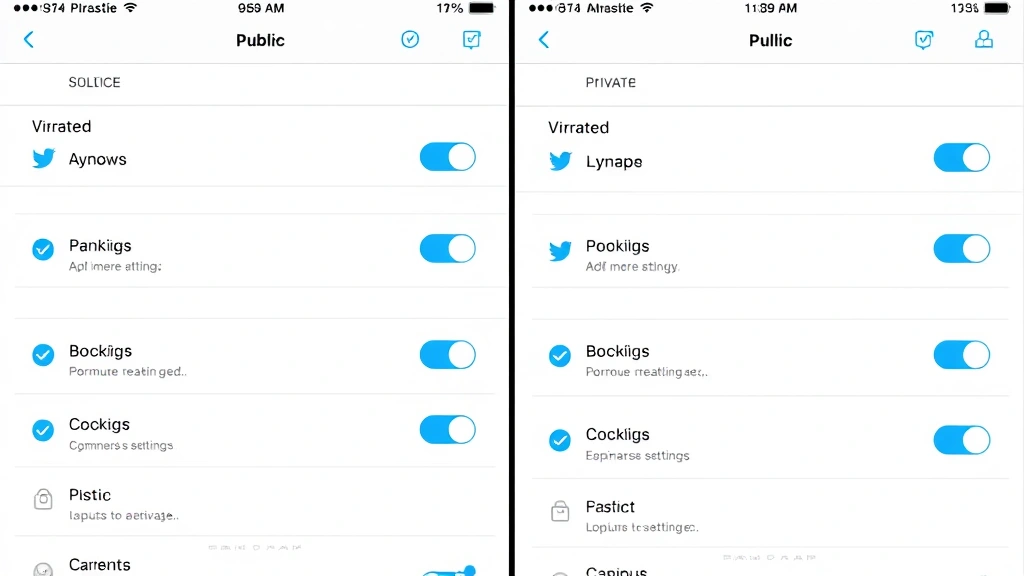
Before you make the decision to go private, it’s essential to understand what Twitter’s privacy settings actually control. Twitter offers several layers of privacy protection, and the “private account” setting is just one of them. When you enable private account protection, you’re essentially creating a gated community where you control membership.
Twitter’s privacy architecture includes account-level settings, tweet-specific privacy options, and message controls. The account privacy setting is the most comprehensive approach, affecting all your tweets retroactively. This means that even tweets you posted when your account was public will only be visible to your approved followers once you switch to private mode.
The key difference between public and private accounts comes down to discoverability and access. Public accounts allow anyone on Twitter to find you through search, see your profile, view your tweets, and read your replies. Private accounts restrict all of this—your profile appears in search results, but people cannot view your content without following you and receiving approval. Additionally, your tweets won’t appear in public conversations or trending topics in the same way.
Understanding these distinctions helps you make an informed decision about whether a completely private account is right for you, or if you might benefit from a hybrid approach using other privacy management techniques.
Step-by-Step Guide to Making Your Account Private
Making your Twitter account private is a simple process that takes just a few minutes. The steps vary slightly depending on whether you’re using the web version, mobile app, or desktop application, but the core process remains consistent. Follow this detailed walkthrough to secure your account.
On Desktop Web Version
Start by logging into your Twitter account on the web. Look for your profile icon in the top-right corner of the screen and click it to open the dropdown menu. From this menu, select “Settings and privacy.” You’ll be taken to your account settings page, where you’ll see several categories on the left sidebar.
Navigate to the “Privacy and safety” section by clicking on it. This section contains all the privacy-related controls for your account. You’ll see several options including “Privacy,” “Safety,” “Muting and blocking,” and more. Under the “Privacy” subsection, look for the option labeled “Protect your Tweets” or “Private Account.” This is the master control that makes your entire account private.
Click the toggle switch next to “Protect your Tweets” to enable private account mode. Twitter will prompt you with a confirmation dialog explaining what this change means. Read through the confirmation message carefully, as it outlines exactly how your account will function as a private account. Once you understand the implications, click “Protect” or “Confirm” to finalize the change.
On Mobile Apps (iOS and Android)
The mobile process is equally straightforward. Open the Twitter app on your iPhone or Android device and tap the menu icon (three horizontal lines) in the bottom right corner. This opens your navigation menu. Select your profile icon or username at the top of this menu to access your profile settings.
Tap on “Settings and privacy” from the profile menu. Navigate to “Privacy and safety” just as you would on the web version. Look for the “Protect your Tweets” toggle switch and tap it to turn on private account mode. The app will show you the same confirmation message as the web version, ensuring you understand the change before it takes effect.
On some versions of the mobile app, you might find this setting under “Account” instead of “Privacy and safety.” If you can’t locate it in the expected place, use the search function within settings to quickly find “Protect your Tweets.”
What Changes When You Go Private
Understanding the practical implications of going private helps you prepare for the transition and manage expectations. Several significant changes occur when you switch from a public to a private account, affecting how others interact with you and how your content is distributed.
First and most importantly, all your existing tweets become visible only to approved followers. People who previously could see your tweets without following you will no longer have access to your content. If you have a large following, some followers might lose access if you haven’t approved their follow requests yet—though most of your current followers should already be approved.
Search engine indexing changes dramatically with a private account. While your profile name and bio may still appear in search results, your individual tweets won’t be indexed by Google or other search engines. This means your tweets won’t appear in web searches anymore. If you’ve built an audience partly through search traffic, this could impact your visibility.
Direct messages and replies function differently too. While you’ll still receive direct messages from followers, non-followers cannot send you DMs unless you follow them back. Replies to your tweets will only be visible to people who follow you, reducing the visibility of conversations you participate in.
Your retweets and likes also become private. When you retweet something or like a tweet, only your followers will see that activity. This is similar to how activity on private Instagram accounts works. Consider how this impacts your engagement strategy if you use Twitter for professional networking or community participation.
It’s also worth noting that your follower list becomes private as well. People won’t be able to see who you follow or who follows you unless they’re approved followers. This adds an extra layer of privacy to your social connections.
Managing Your Private Account
Once your account is private, managing follow requests and maintaining your account requires some adjustments to your normal Twitter routine. You’ll need to approve or deny follow requests from people who want access to your account, which adds a small administrative burden but also gives you complete control.
Follow requests appear in a dedicated section of your notifications. When someone tries to follow your private account, you’ll receive a notification asking whether you want to approve or deny their request. You can review their profile before deciding, looking at their follower count, verification status, and recent tweets to determine if they’re legitimate accounts.
Consider creating guidelines for yourself about who you approve. Some people approve everyone who requests to follow them, essentially defeating the purpose of having a private account. Others are highly selective, only approving close friends and trusted colleagues. Think about your goals for going private and establish criteria that align with those goals.
You can also manually approve or deny pending follow requests by visiting your followers page. Look for the “Pending” section which shows all accounts waiting for approval. This batch management approach is helpful if you accumulate several requests before reviewing them individually.
Remember that you can always remove followers from your private account if you change your mind about someone. Click on the three-dot menu next to a follower’s name and select “Remove follower.” This instantly revokes their access to your tweets without notifying them of the removal.
Important Considerations Before Going Private
Before you flip the switch to make your account private, consider several important factors that might influence your decision. Going private is a significant change that affects how you interact with the Twitter community and how your content reaches people.
Professional and business considerations should top your list. If you use Twitter for professional networking, client communication, or brand building, a private account might hinder your goals. Potential clients or collaborators won’t be able to discover your expertise through your public tweets. Many professionals maintain public accounts specifically to establish thought leadership and attract opportunities. Evaluate whether the privacy benefits outweigh the professional disadvantages for your situation.
Content discoverability is another crucial factor. Tweets from public accounts can go viral and reach millions of people. Private accounts eliminate this possibility—your tweets can only reach your approved followers. If you enjoy the possibility of your content spreading widely or if you post content designed to inform or entertain a broad audience, privacy might feel restrictive.
Consider your follower base as well. If you have thousands of followers, transitioning to a private account means all those followers retain access, but new followers must request and receive approval. This can create a disconnect where your existing community has access but new community members cannot join easily. You might want to manage the transition gradually rather than making the switch abruptly.
The permanence of the change is worth considering too. While you can always switch back to a public account later, the temporary period of privacy might cause you to miss opportunities or interactions. Twitter engagement is often about real-time participation, and privacy can slow down how quickly new people discover and engage with your content.
Backup your important tweets before going private if you’ve built up content you’re proud of. While your tweets don’t disappear when you go private, having a record ensures you don’t lose important information if something happens to your account.
Also think about how going private affects your mentions and replies. If someone quotes or replies to your public tweet, their followers will see the quote but not your original tweet if your account is private. This can create confusing conversations where context is missing for people viewing replies.
Alternative Privacy Approaches
If you’re hesitant about making your entire account private, Twitter offers alternative privacy controls that might better suit your needs. These options provide nuance between completely public and completely private.
Tweet-level privacy controls allow you to choose who can reply to specific tweets. You can restrict replies to only your followers, accounts you mention, or accounts you follow. This approach lets you keep your account public while controlling conversation around sensitive topics.
Muting and blocking features give you control over who can interact with you without making your entire account private. You can block specific accounts, mute keywords or accounts, and control who can see you in their notifications. These tools help manage harassment or unwanted engagement while maintaining your public presence.
Consider also adjusting your discoverability settings. You can make your account harder to find without making it completely private by unchecking the “Allow others to find your account by email or phone number” option in your privacy settings. This reduces unsolicited follow requests while keeping your content public.
Switching Back to Public
If you decide that a private account isn’t working for you, switching back to public is just as easy as going private. Return to your “Settings and privacy” section, navigate to “Privacy and safety,” and toggle off “Protect your Tweets.” Confirm the change, and your account immediately becomes public again.
When you switch back to public, all your tweets become visible to everyone again, and your account becomes searchable and discoverable. However, people who were following you while your account was private will remain followers. The transition back to public is instantaneous with no waiting period or additional steps required.
Many people experiment with privacy settings to find what works best for them. Don’t feel locked into a decision—you can adjust your privacy level whenever your needs change. Some users go private during stressful periods and return to public when they’re ready to re-engage with the broader community.
Best Practices for Private Account Owners
If you do decide to make your account private, following some best practices will help you get the most out of your private Twitter presence. These practices help you manage your account effectively and maintain the privacy benefits you’re seeking.
Respond promptly to follow requests from accounts you want to approve. Slow approval times can frustrate people trying to follow you and might cause them to give up. Check your pending requests at least a few times per week.
Be consistent about your approval criteria. If you approve some accounts and deny others based on unclear standards, you might inadvertently exclude people you’d actually want to follow you. Develop clear guidelines and apply them consistently.
Communicate your privacy status to people who might want to follow you. Consider adding a note in your bio explaining that your account is private and encouraging people to send follow requests. This helps interested followers understand the situation rather than assuming your account is blocked or unavailable.
Regularly review your follower list and remove accounts that no longer align with your goals. Just because you approved someone doesn’t mean you must keep them as a follower forever. It’s perfectly acceptable to remove followers whose content or behavior no longer fits your community.
Use your private account status as an opportunity to create a more meaningful community. With a smaller, curated audience, you can share more personal thoughts or vulnerable content knowing your audience is more carefully selected. Many people find that private accounts feel safer for authentic expression.
FAQ
Can people see my profile if my account is private?
Yes, people can find your profile through search and see your profile information including your name, bio, follower count, and profile picture. However, they cannot see your tweets, retweets, likes, or follower list unless you approve their follow request.
Do my existing followers have to re-request to follow me?
No, your current followers automatically remain followers when you switch to private. They don’t need to request again—they already have access to your tweets. Only new people who want to follow you must submit a request.
Can I see who requested to follow me?
Yes, you can view all pending follow requests in your notifications or in the “Pending” section of your followers page. You can review each request and approve or deny it individually.
What happens to my old tweets when I go private?
Your old tweets don’t disappear—they just become visible only to your approved followers. They’re not deleted or archived; they’re simply restricted from public view. If you switch back to public later, they become visible to everyone again.
Will my tweets appear in Google search results?
No, tweets from private accounts do not appear in Google search results or other search engine indexes. Your profile might appear, but individual tweets won’t be searchable through web search.
Can I have a mix of public and private tweets?
No, Twitter doesn’t offer the ability to make individual tweets private while keeping your account public. It’s an all-or-nothing setting at the account level. However, you can use reply restrictions to control who can reply to specific tweets.
How do I know if someone unfollows my private account?
Twitter doesn’t notify you when someone unfollows you, whether your account is public or private. You can manually check your follower count to see if it changes, but you won’t receive a notification about who unfollowed you.
Can people screenshot my private tweets?
Yes, once someone has approved access to your private tweets, they can screenshot them just like they would with public tweets. Privacy restricts who can see your content, but it doesn’t prevent screenshots or sharing among your followers.
Is there a waiting period after I request to go private?
No, the change is instantaneous. As soon as you confirm the change, your account becomes private. There’s no waiting period or review process.
Can I approve multiple follow requests at once?
Twitter doesn’t have a bulk approve feature, but you can review and approve requests individually through the pending followers section relatively quickly if you have several requests waiting.

Related Posts

Superscript in Google Docs: Expert Tips

Strikethrough in Excel: Easy Steps for Beginners
