
Find Printer IP Address? Easy Steps Guide
How to Find Printer IP Address? Easy Steps Guide
Finding your printer’s IP address might seem technical, but it’s one of the most essential skills for network printing, troubleshooting connection issues, and accessing your printer’s web interface for advanced settings. Whether you’re setting up a new networked printer, resolving connectivity problems, or configuring print settings remotely, knowing how to locate this crucial information will save you time and frustration. This comprehensive guide walks you through multiple methods to find your printer’s IP address on Windows, Mac, and Linux systems.
Your printer’s IP address is a unique numerical identifier that allows your computer and other devices to communicate with it over your home or office network. Without this address, your devices won’t know where to send print jobs, and you won’t be able to access the printer’s administrative panel to adjust settings or troubleshoot problems. We’ll explore the easiest and most reliable ways to discover this information using built-in tools and printer-specific methods.
Understanding Printer IP Addresses
An IP address (Internet Protocol address) is a unique numerical label assigned to every device connected to a network. For printers, this address typically follows the format 192.168.1.XXX or similar, depending on your router’s configuration. Network printers use these addresses to receive print jobs from computers, smartphones, and tablets on the same network.
There are two main types of IP addresses your printer might use: dynamic and static. Dynamic addresses are automatically assigned by your router’s DHCP server and can change periodically, while static addresses remain constant. If you plan to access your printer frequently or set up advanced features, consider assigning a static IP address to ensure consistent connectivity.
Method 1: Check Your Printer’s Control Panel
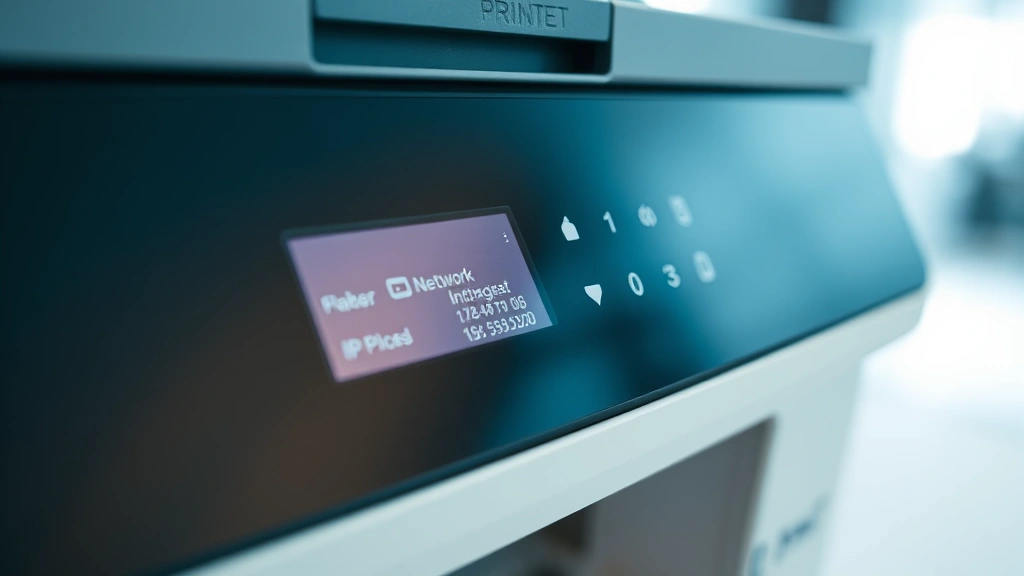
The simplest way to find your printer’s IP address is directly from the device itself. Most modern printers display this information on their built-in touchscreen or LCD display. Here’s how to locate it:
- Navigate to Settings: On your printer’s control panel, look for a “Settings,” “Menu,” or “Information” button. This is usually located near the display screen.
- Find Network Settings: Scroll through the menu options until you find “Network,” “Network Settings,” or “TCP/IP” options.
- View IP Address: The IP address should be displayed prominently. Write it down or take a photo for future reference.
- Alternative Option: Some printers have a dedicated “Information” or “Status” page that displays network details without entering the menu.
This method works for most wireless and networked printers, including popular brands like HP, Canon, Brother, and Xerox. If your printer doesn’t have a touchscreen, look for a small button labeled “Info” or check the printer’s manual for specific instructions.
Method 2: Use Windows Settings
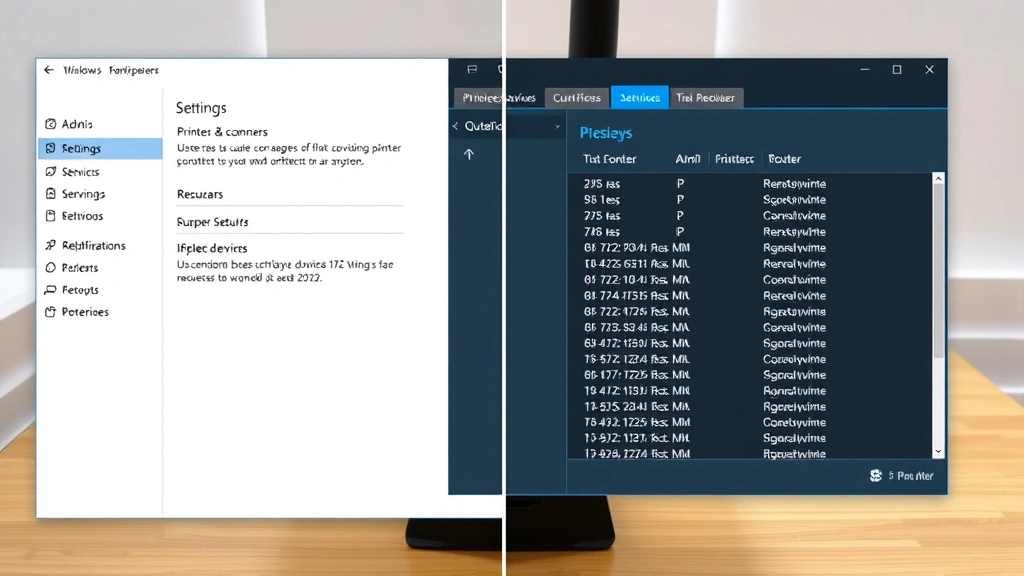
Windows provides built-in tools to discover connected printers and their IP addresses. Follow these steps to find your printer information:
- Open Settings: Press Windows Key + I to open the Settings application.
- Navigate to Devices: Click on “Devices” in the left sidebar.
- Select Printers & Scanners: Choose “Printers & scanners” from the menu options.
- Find Your Printer: Locate your printer in the list of connected devices and click on it.
- Open Printer Properties: Click “Open queue” or “Manage” to access printer properties.
- Access Device Settings: Look for “Printer properties” or “Device settings” option. The IP address should be visible in the “Ports” or “Device Settings” tab.
If the IP address isn’t immediately visible in Windows Settings, you can also access it through the Devices and Printers control panel by right-clicking your printer and selecting “Printer properties” to view detailed network information.
For more detailed network troubleshooting, you might find our guide on FixWiseHub’s comprehensive how-to guides helpful for understanding networking concepts related to device connectivity.
Method 3: Find IP Address on Mac
Mac users can discover their printer’s IP address through System Preferences or the printer’s web interface. Here’s the step-by-step process:
- Open System Preferences: Click the Apple menu and select “System Preferences” (or “System Settings” on newer macOS versions).
- Access Printers & Scanners: Click on “Printers & Scanners” in the preferences window.
- Select Your Printer: Click on your printer name from the list on the left side.
- View Printer Information: Look for a “Details” or “Printer Info” button. The IP address should be displayed as “Printer IP” or within the printer URL field.
- Alternative Method: You can also access this information by clicking the printer name and looking at the “Location” field, which often contains the IP address.
If you’re using AirPrint-enabled printers, the IP address discovery is often automatic, but you can still manually verify it using the steps above. For older Mac systems, navigate to “System Preferences” > “Printers & Scanners” > select your printer > “Supply Levels” or “Printer & Scanner” to find network details.
Method 4: Access Your Router’s Admin Panel
Your router maintains a list of all connected devices, including your printer. This is one of the most reliable methods to find your printer’s IP address:
- Open Web Browser: Launch your preferred web browser and type your router’s IP address in the address bar (typically 192.168.1.1 or 192.168.0.1).
- Log In: Enter your router’s username and password. Check the router’s sticker or manual if you don’t remember these credentials.
- Find Connected Devices: Look for a section labeled “Connected Devices,” “Device List,” “DHCP Clients,” or “Active Connections.”
- Identify Your Printer: Locate your printer in the device list by name or MAC address. The IP address will be displayed next to it.
- Note the Address: Write down the IP address for future use or configure a static IP if needed.
This method provides a comprehensive view of all networked devices and is particularly useful if you’re managing multiple printers or need to troubleshoot network connectivity issues. Different router brands (Linksys, ASUS, TP-Link, Netgear) have slightly different interfaces, but the general process remains consistent.
Method 5: Print a Network Configuration Page
Many printers can print their own network configuration information, which includes the IP address and other valuable details:
- Access Printer Menu: On your printer’s control panel, navigate to the “Settings” or “Information” menu.
- Find Configuration Page Option: Look for “Print Configuration Page,” “Network Configuration Page,” or “Status Page” option.
- Send to Print: Select this option to print the page directly from the printer.
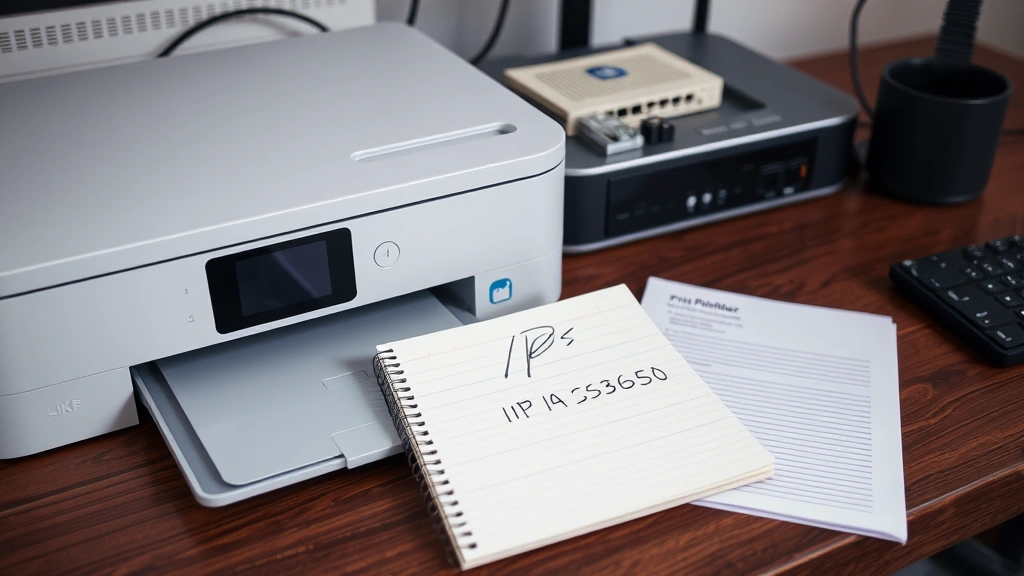
- Review the Output: The printed page will display your printer’s IP address, MAC address, network status, and other technical details.
This printed page serves as an excellent reference document. Keep it near your printer or in a file for future troubleshooting. The configuration page also shows whether your printer is properly connected to the network and displays additional information like subnet mask and gateway address that might be useful for advanced network configuration.
Using Command Line Tools
For advanced users, command-line tools provide quick access to printer IP information. These methods work across Windows, Mac, and Linux systems:
Windows Command Prompt Method:
- Press Windows Key + R and type cmd to open Command Prompt.
- Type the command: arp -a to display all devices on your network.
- Look for your printer’s name or MAC address in the list; the IP address will be shown in the first column.
- Alternatively, use ipconfig /all to see network configuration details.
Mac and Linux Terminal Method:
- Open Terminal application.
- Type: arp -a or ping printer-name.local to locate your printer.
- The IP address will be displayed in the terminal output.
- For more detailed information, use: dns-sd -B _ipp._tcp local to browse for printers on your network.
These command-line methods are particularly useful when graphical interfaces aren’t available or when you need to quickly identify multiple printers on a larger network. Learning these tools can also help you troubleshoot connectivity issues more effectively.
Accessing Your Printer’s Web Interface
Once you’ve found your printer’s IP address, you can access its web-based management interface to configure advanced settings and monitor printer status:
- Open Web Browser: Type your printer’s IP address directly into your browser’s address bar (for example: http://192.168.1.105).
- Wait for Page Load: The printer’s login page should load. This might take 10-15 seconds on first access.
- Log In: Enter the default username and password (usually “admin” and “admin” or “admin” and blank password, but check your printer manual).
- Explore Settings: Once logged in, you can view printer status, configure network settings, update firmware, and manage security settings.
- Change Password: Immediately change the default password to secure your printer from unauthorized access.
The web interface provides valuable tools for managing print jobs, viewing supply levels, configuring email alerts, and setting up advanced features like cloud printing. This is especially useful for office environments where multiple users need printer access.
Troubleshooting Common Issues
If you’re having difficulty finding your printer’s IP address, these troubleshooting tips can help:
Printer Not Showing in Device List: Ensure your printer is powered on and connected to the same network as your computer. Restart both devices and try again. Check that WiFi is enabled on the printer if using wireless connectivity.
IP Address Keeps Changing: If your printer’s IP address changes frequently, consider assigning a static IP address through your router’s DHCP settings. This ensures consistent access to your printer’s web interface and prevents connection issues.
Can’t Access Web Interface: Verify that the IP address is correct and that your printer is powered on. Try accessing the interface from a different computer or device. Clear your browser cache and try again. Ensure your firewall isn’t blocking access to the printer’s web port.
Printer Connected but Not Printing: Once you’ve found the IP address, verify that it’s correctly configured in your computer’s printer settings. Check the printer queue for stuck jobs and clear them if necessary. Restart the print spooler service on Windows or CUPS on Mac/Linux.
For more detailed troubleshooting guidance, visit Family Handyman’s printer troubleshooting guide, which covers common issues and solutions.
Understanding how to find and use your printer’s IP address opens up numerous possibilities for network management and troubleshooting. Whether you’re a home user with a single printer or managing multiple devices in an office environment, these methods will help you quickly locate the information you need. Keep your printer’s IP address written down or bookmarked for easy reference whenever you need to access advanced settings or troubleshoot connectivity problems.
If you’re interested in learning more about finding information in various contexts, check out our guide on how to find period or explore other practical how-to guides available on FixWiseHub.
FAQ
What is a printer IP address and why do I need it?
A printer IP address is a unique numerical identifier that allows your devices to communicate with your printer over a network. You need it to set up network printing, access the printer’s web interface for configuration, troubleshoot connection issues, and manage advanced printer settings. Without this address, your computer won’t know where to send print jobs on your network.
Is my printer’s IP address the same as its MAC address?
No, these are different identifiers. The IP address is a logical address used for network communication (like 192.168.1.105), while the MAC address is a physical hardware identifier unique to your printer’s network card. Both are useful for different purposes—the IP address for accessing the printer remotely and the MAC address for identifying the printer on your network.
Can I change my printer’s IP address?
Yes, you can assign a static IP address to your printer through your router’s DHCP settings or directly through the printer’s network configuration menu. This is recommended if you frequently access the printer’s web interface, as it prevents the address from changing and ensures consistent connectivity.
What should I do if my printer’s IP address keeps changing?
If your printer’s IP address changes frequently, access your router’s admin panel and assign a static IP address to your printer. This can usually be done through the DHCP settings or by creating a DHCP reservation for your printer’s MAC address. Alternatively, configure a static IP directly on the printer through its network settings menu.
Is it safe to access my printer’s web interface?
Yes, it’s safe to access your printer’s web interface through your local network. However, you should change the default username and password immediately after first access to prevent unauthorized users from accessing your printer’s settings. Avoid accessing the printer’s web interface over the internet without proper security measures like a VPN.
Why can’t I access my printer’s web interface even though I have the correct IP address?
Several issues could prevent access: the printer might be powered off or disconnected from the network, the IP address might be incorrect, your firewall might be blocking the connection, or the printer’s web server might need time to boot up. Try restarting the printer, verifying the IP address, and temporarily disabling your firewall to test connectivity.
Can I find my printer’s IP address if it’s not on my home network?
No, you can only access a printer’s IP address if it’s connected to the same network as your computer. If your printer is on a different network or not connected to any network, you won’t be able to find its IP address remotely. For remote printing, consider using cloud-based printing services like Google Cloud Print or manufacturer-specific solutions.
What’s the difference between a dynamic and static IP address for my printer?
A dynamic IP address is automatically assigned by your router and can change over time, while a static IP address remains constant. For printers you access frequently, a static IP is preferable as it ensures the address won’t change, preventing connectivity issues. Dynamic addresses are fine for occasional use but can cause problems when trying to access the printer’s web interface regularly.

Related Posts

Superscript in Google Docs: Expert Tips

Strikethrough in Excel: Easy Steps for Beginners
