

Freeze Rows in Excel: Easy Steps for Beginners
Freeze Rows in Excel: Easy Steps for Beginners
Working with large spreadsheets can be frustrating, especially when you need to reference header rows while scrolling through data. Excel’s freeze rows feature solves this common problem by keeping your column headers visible at all times, no matter how far down you scroll. Whether you’re managing a budget, tracking inventory, or organizing employee information, freezing rows helps you maintain context and work more efficiently.
This comprehensive guide walks you through everything you need to know about freezing rows in Excel, from basic techniques to advanced applications. You’ll learn multiple methods to freeze rows, troubleshoot common issues, and discover pro tips that will streamline your spreadsheet workflow. By the end of this tutorial, you’ll be able to freeze rows like an Excel expert, even if you’ve never attempted it before.
What Does Freezing Rows Mean?
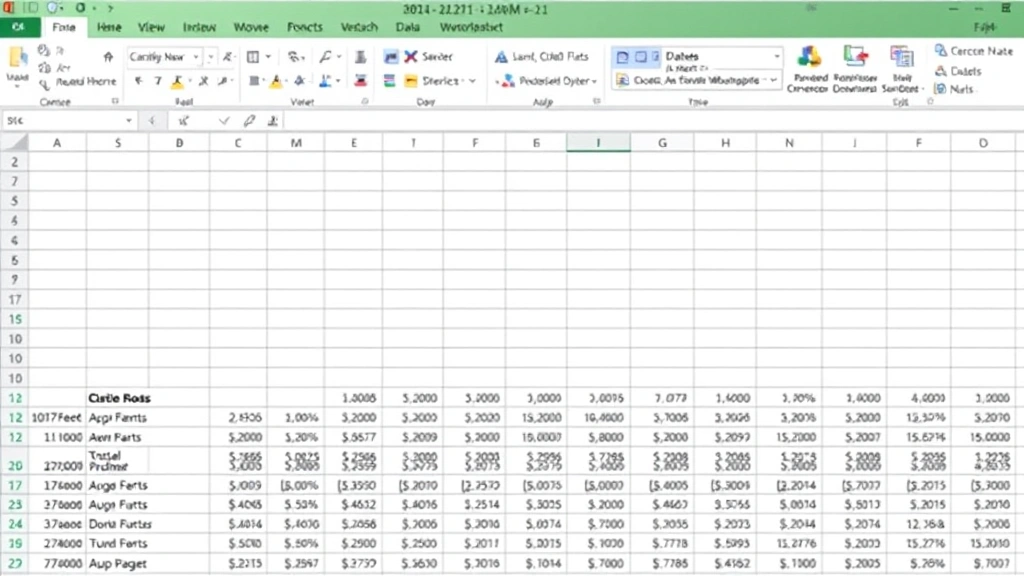
Freezing rows in Excel is a feature that locks specific rows at the top of your spreadsheet so they remain visible when you scroll down through your data. Think of it like placing a divider between your headers and your content. The frozen rows stay in place while the rest of your spreadsheet moves beneath them, creating a permanent reference point for your data.
When you freeze rows, you’re essentially telling Excel: “Keep these rows visible no matter where I scroll.” This is different from simply selecting or highlighting rows. Frozen rows create a visual and functional boundary that persists until you actively unfreeze them. The feature works seamlessly across all versions of Excel, including Excel Online, and the process is straightforward once you understand the basic concept.
The frozen rows appear with a slightly thicker border line separating them from the scrollable content below. This visual cue helps you immediately recognize which rows are frozen and which data you’re currently viewing. Many professionals use this feature daily without realizing how much time it saves them.
Why Freeze Rows in Excel?
Understanding the benefits of freezing rows helps you recognize when to use this feature effectively. Here are the primary reasons Excel users freeze rows:
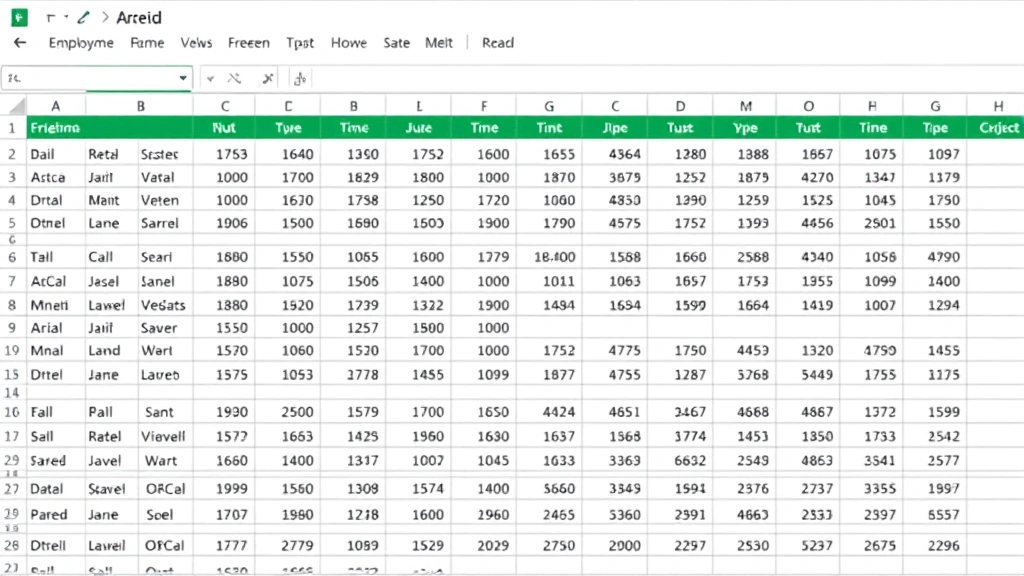
- Header Reference: Keep column headers visible while scrolling through hundreds of rows of data, eliminating the need to constantly scroll back to the top to remember what each column represents.
- Data Accuracy: Reduce errors by always seeing the context of your data. When headers remain visible, you’re less likely to input information in the wrong column.
- Improved Navigation: Work faster by avoiding repetitive scrolling. You can jump to any row in your spreadsheet without losing track of your column purposes.
- Professional Presentation: When sharing spreadsheets with colleagues or clients, frozen rows make your data more user-friendly and easier to understand.
- Multi-Level Headers: Freeze multiple rows if you have category headers, subcategories, or other important information that needs to stay visible.
- Time Efficiency: Save significant time on large projects by maintaining context throughout your work session.
Whether you’re managing a simple expense tracker or a complex financial model, freezing rows transforms your Excel experience from frustrating to efficient. This is why it’s considered one of the essential Excel skills for anyone working with data regularly.
Basic Method: Freeze Panes
The most common way to freeze rows in Excel is using the Freeze Panes feature. This method works in all modern versions of Excel and is incredibly simple once you know the steps. Here’s how to do it:
- Open your spreadsheet: Launch Excel and open the file containing the data you want to work with. Make sure your spreadsheet has headers in the first row.
- Click on the row below what you want to freeze: If you want to freeze the first row, click on the row number “2” on the left side of your spreadsheet. This selection tells Excel exactly where to create the freeze line.
- Navigate to the View tab: In the top menu bar, click on the “View” tab. This opens a ribbon with various viewing options.
- Select Freeze Panes: Look for the “Freeze Panes” button in the View ribbon. Click on it to open a dropdown menu with freeze options.
- Choose your freeze option: Select “Freeze Panes” from the dropdown menu. Excel immediately creates a freeze line below your selected row.
- Test your freeze: Scroll down through your spreadsheet to verify that your header row remains visible at the top while the rest of your data scrolls normally.
That’s it! You’ve successfully frozen your rows. The entire process takes less than thirty seconds once you’re familiar with the steps. Notice the slightly thicker border line that appears below your frozen row—this is your visual indicator that the freeze is active.
Freeze First Row Only
The most common scenario involves freezing just the first row, which typically contains your column headers. This is the simplest freeze configuration and works perfectly for most spreadsheets. Here’s the streamlined process:
- Click anywhere in your spreadsheet: You don’t need to select any specific cells. Simply click anywhere within your data.
- Go to View menu: Click on the View tab in the Excel ribbon.
- Click Freeze Panes dropdown: Find the Freeze Panes button and click the small arrow next to it.
- Select “Freeze Top Row”: Excel provides a convenient shortcut called “Freeze Top Row” that automatically freezes your first row without any additional steps.
This quick method is perfect when you have a standard single-row header and want to get back to work immediately. Excel handles all the positioning automatically, so you don’t need to worry about selecting the correct row. Many users prefer this method because it’s the fastest way to freeze headers.
Once you’ve frozen the top row, you’ll notice that scrolling down no longer moves your header row. Try clicking on a cell in row 50 or row 100—your header row stays exactly where it is. This makes it incredibly easy to work with large datasets because you always know what each column represents.
Freeze Multiple Rows
Sometimes your spreadsheet has more than one header row. You might have a main category header in row 1 and subcategory headers in row 2, or you might have additional information rows that need to stay visible. Freezing multiple rows follows the same principle as freezing a single row, with one important difference:
- Identify all rows to freeze: Determine exactly how many rows you need to keep visible. Count from the top of your spreadsheet.
- Click on the first row below your freeze area: This is the crucial step. If you want to freeze rows 1 and 2, you must click on row 3. If you want to freeze rows 1, 2, and 3, click on row 4.
- Access View menu: Click on the View tab in the ribbon.
- Click Freeze Panes: Select the main “Freeze Panes” option (not the “Freeze Top Row” shortcut).
- Verify your freeze: Scroll down to confirm that all intended rows remain visible while the rest of your data scrolls.
The key principle here is that Excel freezes everything above your selected row. If you click on row 5 and freeze panes, rows 1-4 will be frozen. Understanding this relationship prevents mistakes and ensures you freeze exactly what you intend.
Let’s say you have a sales spreadsheet with a main header row and a subheader row with units and pricing information. You’d click on row 3, then freeze panes. Now both your main headers and subheaders stay visible as you scroll through your sales data. This configuration is common in professional financial and analytical spreadsheets.
Freeze Columns and Rows Together
Advanced spreadsheets sometimes require freezing both rows and columns. This is particularly useful when you have data organized in a large grid format where you need to keep both headers and the first column visible. This might happen in a schedule where you want to see employee names (first column) and time periods (header row) at all times.
- Select the cell at the intersection point: Click on the cell that is one row below and one column to the right of what you want to freeze. For example, if you want to freeze the first row and first column, click on cell B2.
- Open the View tab: Click on View in the ribbon menu.
- Click Freeze Panes: Select the “Freeze Panes” option from the dropdown.
- Test both directions: Scroll both down and to the right to ensure both your header row and first column remain visible.
This technique is invaluable for large tables where you need contextual information from both directions. Imagine a sports statistics spreadsheet where you need to keep player names visible on the left while scrolling through monthly performance data across the top. Freezing both rows and columns makes this navigation seamless.
The technical principle remains the same: Excel freezes everything above and to the left of your selected cell. By choosing the right cell, you control exactly what stays visible when you scroll in any direction. This flexibility makes Excel a powerful tool for complex data organization.
How to Unfreeze Rows
You might eventually need to remove your freeze to see your entire spreadsheet without the frozen row division. Unfreezing is just as simple as freezing. Here’s how:
- Click on the View tab: Go to the View menu in the Excel ribbon.
- Click on Freeze Panes: Click the Freeze Panes button or its dropdown arrow.
- Select Unfreeze Panes: Choose the “Unfreeze Panes” option. Excel immediately removes all freeze settings from your spreadsheet.
That’s all there is to it. Your frozen rows are now unfrozen, and your spreadsheet returns to normal scrolling behavior. The freeze line disappears, and all rows scroll together as they did before. You can refreeze at any time by following the same process, so there’s no permanent commitment to your freeze settings.
One helpful tip: if you’re unsure whether your spreadsheet currently has frozen rows, look at the View tab. If “Unfreeze Panes” is available in the Freeze Panes dropdown, your spreadsheet is currently frozen. If only “Freeze Panes” options are available, nothing is currently frozen.
Troubleshooting Common Issues
While freezing rows is generally straightforward, you might encounter occasional issues. Here are solutions to the most common problems:
Freeze Panes option is grayed out: This usually means you’re on a sheet that’s protected or you don’t have the proper permissions. Check if your sheet is password-protected and unprotect it if possible. If you’re working on a shared file, you may need administrative access.
Freeze isn’t working as expected: Make sure you clicked on the correct row before freezing. Remember, Excel freezes everything above your selected row. If you want to freeze row 1, you must select row 2 before freezing. Review your selection and try again.
Frozen rows are blocking important data: You can adjust your freeze by unfreezing and then freezing at a different position. There’s no limit to how many times you can adjust your freeze settings, so experiment until you find the perfect configuration for your needs.
Freeze disappeared after saving: This is extremely rare, but if it happens, your freeze settings should persist when you reopen the file. If they don’t, simply refreeze your rows. The settings are saved as part of your spreadsheet file.
Multiple sheets with different freeze settings: Each sheet in your workbook can have independent freeze settings. This is a feature, not a bug. You can freeze different rows on different sheets without affecting each other.
Advanced Tips and Tricks
Once you’ve mastered basic row freezing, these advanced techniques will enhance your Excel productivity even further:
Combine with filtering: Freeze your header rows, then apply filters to your columns. Your filter dropdown arrows stay visible while you scroll through filtered results, making data analysis much more efficient.
Print with frozen rows: When you print a spreadsheet with frozen rows, those rows print on every page. This is incredibly useful for reports where you want headers to appear on each printed page. Check your print preview to ensure this is working correctly.
Use split view instead: For some workflows, Excel’s split view feature might work better than freezing. This allows you to view two different parts of your spreadsheet simultaneously in separate windows. Access this through the View tab as well.
Freeze in Excel Online: The freeze feature works identically in Excel Online as it does in desktop Excel. Click View, then select Freeze Panes. The online version provides the same functionality for cloud-based spreadsheets.
Template with pre-frozen rows: Create a spreadsheet template with your preferred freeze settings already in place. When you save this as a template, any new spreadsheets created from it will have the same freeze configuration, saving time on repetitive setup.
These advanced applications demonstrate why freezing rows is such a valued Excel feature across professional settings. When combined with other Excel functionality like data analysis techniques, freezing becomes part of a comprehensive data management strategy.
FAQ
Can I freeze rows in Google Sheets?
Yes! Google Sheets has a similar feature. Click on View in the menu, then select “Freeze” and choose how many rows you want to freeze. The process is slightly different but accomplishes the same goal. Google Sheets also allows you to freeze both rows and columns simultaneously.
Will frozen rows print?
Yes, when you print a spreadsheet with frozen rows, those rows will print on every page of your printed document. This is actually a desired feature for many reports and documents. You can verify this in print preview before actually printing.
Can I freeze rows and columns in Excel Online?
Absolutely. Excel Online supports the freeze feature with the same functionality as desktop Excel. Open your file in Excel Online, go to the View tab, and use Freeze Panes exactly as you would in the desktop version.
How many rows can I freeze?
Technically, you can freeze any number of rows up to the last row in your spreadsheet, though freezing more than a few rows is rarely practical. Most users freeze between 1-5 rows. The more rows you freeze, the less screen space you have for your actual data.
What’s the difference between Freeze Panes and Split?
Freeze Panes keeps specific rows visible when scrolling and creates a permanent division. Split creates two independent scrolling windows that you can move separately. For most users, Freeze Panes is simpler and more intuitive. Split is useful when you want to view two distant parts of the same spreadsheet simultaneously.
Can I freeze rows on a protected sheet?
You can freeze rows on a protected sheet, but the protection settings might prevent it. If the Freeze Panes option is unavailable, unprotect the sheet first. Go to Review tab, click Unprotect Sheet, and enter the password if required.
Do frozen rows affect formulas or calculations?
No. Freezing rows is purely a visual feature. It doesn’t change your data, formulas, or calculations in any way. All your spreadsheet functions work identically whether rows are frozen or not.
Can I save my freeze settings?
Yes. Your freeze settings are saved automatically when you save your spreadsheet file. When you reopen the file, your frozen rows will remain exactly as you left them.

Related Posts

Superscript in Google Docs: Expert Tips

Strikethrough in Excel: Easy Steps for Beginners
