

Archiving Amazon Orders: A Simple Tutorial
Archiving Amazon Orders: A Simple Tutorial
Managing your Amazon account effectively means keeping your order history organized and easy to navigate. Whether you’re decluttering your active orders or simply want to keep your dashboard clean, archiving Amazon orders is one of the most underutilized features available to Prime members and regular shoppers alike. This simple yet powerful function allows you to hide completed purchases from your main order list without permanently deleting them, ensuring you can still access order details whenever needed.
Many Amazon users don’t realize they can customize their shopping experience by organizing orders into archived status. Unlike deleting orders, archiving preserves all your purchase information, receipts, and return windows while removing visual clutter from your account. In this comprehensive guide, we’ll walk you through every step of the archiving process, explore why you might want to archive orders, and answer common questions about managing your Amazon purchase history effectively.
Why Archive Your Amazon Orders?
Understanding the benefits of archiving helps you make the most of this organizational feature. When you archive orders on Amazon, you’re essentially creating a cleaner, more manageable shopping experience. Your active order list remains focused on recent purchases, current deliveries, and items you might need to reference quickly. This is particularly valuable if you’re a frequent Amazon shopper who places multiple orders weekly or monthly.
Archiving orders serves several practical purposes. First, it reduces cognitive load when browsing your order history. Instead of scrolling through months or years of purchases, you see only what matters right now. Second, it helps protect your privacy by keeping old orders out of immediate view if you share your device or account access with family members. Third, it maintains a cleaner account interface, making it easier to find recent transactions if you need to process returns or check shipping status.
Think of archiving like organizing your home office—similar to how you’d maintain appliances by keeping your workspace organized, archiving maintains your digital shopping space. Additionally, if you want to keep track of household management across multiple domains, you might also be interested in learning practical home solutions alongside managing your digital accounts.
Step-by-Step Guide to Archiving Orders
The process of archiving Amazon orders is straightforward and can be completed in just a few clicks. Let’s break down the exact steps you need to follow to successfully archive orders on both desktop and mobile platforms.
Desktop Instructions
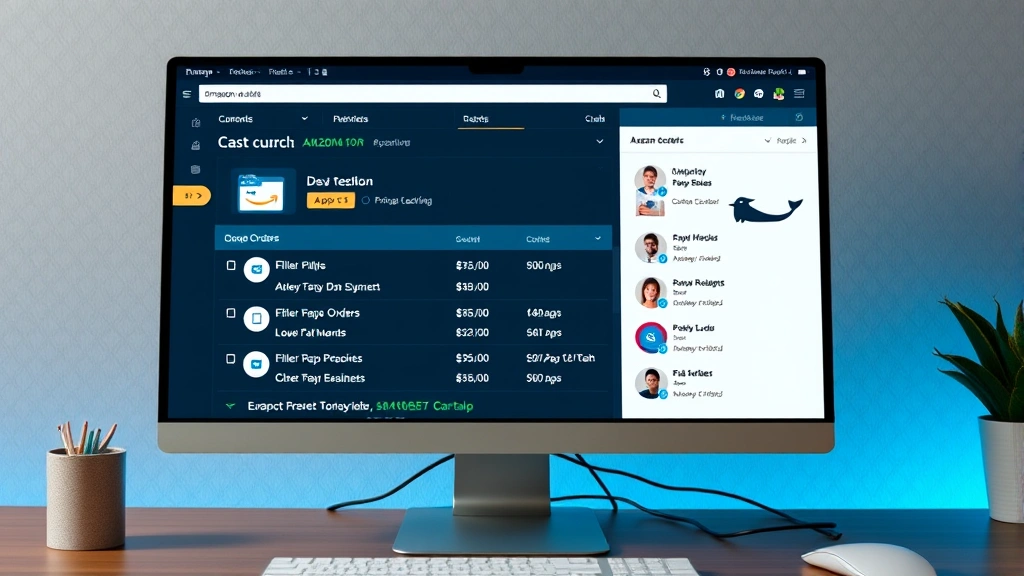
On your computer, start by logging into your Amazon account. Navigate to the Returns & Orders section, which you can find by clicking the Returns & Orders link in the main navigation menu or by going directly to your account settings. Once you’re in the Returns & Orders page, you’ll see a chronological list of all your recent purchases.
Locate the specific order you want to archive. Look for the Archive Order option, which typically appears as a link or button next to the order details. Click on this option, and Amazon will immediately move the order to your archived section. The order disappears from your main list but remains accessible through your account history. If you want to archive multiple orders at once, repeat this process for each order you wish to hide.
To verify that your order has been archived successfully, scroll down to the bottom of your Returns & Orders page where you’ll find a link that says “Archived Orders” or “Show Archived Orders.” Click this link to view all orders you’ve archived. Your archived orders appear in a separate section, keeping your active list clean and organized.
Mobile App Instructions
If you prefer managing your orders through the Amazon mobile app, the process is equally simple. Open the Amazon app and tap the menu icon (usually three horizontal lines in the top-left corner). Select Returns & Orders from the menu options. Your orders appear in a scrollable list with the most recent purchases at the top.
Find the order you want to archive and tap on it to open the order details. Look for the Archive button or option within the order details screen. Tap it, and the order will be archived immediately. The app will confirm the action, and the order will no longer appear in your main order list. To view your archived orders on mobile, return to the main Returns & Orders page and look for an option to show archived items, typically represented by a filter or settings button.

Mobile vs. Desktop: Key Differences
While the archiving process is fundamentally the same across platforms, there are some interface differences worth noting. Desktop browsing offers a more comprehensive view of your order history, with multiple orders visible simultaneously on a single screen. This makes it easier to archive multiple orders in succession without scrolling extensively. The desktop interface also provides more detailed order information at a glance, including order numbers, dates, and total amounts.
The mobile app experience is more streamlined but requires more individual taps to navigate between orders. However, the mobile interface is optimized for quick actions, and archiving is often accessible with fewer clicks once you’ve opened an order. Some users find the mobile approach faster for archiving a single order, while others prefer the desktop method for batch archiving multiple orders simultaneously.
An important consideration: archiving behavior is consistent across devices. If you archive an order on your phone, it will be archived when you check your desktop, and vice versa. This synchronization ensures your organizational preferences remain consistent regardless of how you access your account. For more information about optimizing your digital organization, you might find value in exploring comprehensive how-to guides that cover various organizational systems.
Managing Your Archived Orders
Once you’ve started archiving orders, you’ll want to understand how to manage and retrieve them as needed. Amazon makes it simple to unarchive orders if you change your mind or need to reference archived purchases. To view your archived orders, return to the Returns & Orders section and look for the option to display archived items. This option appears differently depending on your platform and interface version but is consistently available.
Unarchiving an order is just as easy as archiving it. Open your archived orders list, find the order you want to restore, and select the unarchive option. The order immediately returns to your main order list, appearing in its chronological position. You can archive and unarchive orders as many times as you want without any restrictions or penalties.
Consider developing a strategic archiving system that works for your shopping habits. Some users archive all orders older than six months, keeping only recent purchases visible. Others archive orders from specific categories or time periods. You might also want to keep certain orders unarchived—such as those with active returns or warranty concerns—to ensure you don’t accidentally overlook important action items.
If you’re managing multiple household purchases and want to keep things organized, learning about household management and similar organizational topics can help create a comprehensive approach to home and digital organization. Additionally, exploring personal care routines shows how organizational skills apply across different life areas.
Troubleshooting Common Issues
While archiving orders is generally a seamless process, you might occasionally encounter issues or have questions about specific situations. Here are solutions to common problems users face when managing their archived orders.
Archive Option Not Appearing
If you don’t see an archive option next to your orders, verify that you’re logged into the correct Amazon account. Some accounts, particularly those associated with business purchases or special programs, may have different order management features. Additionally, ensure you’re looking at completed orders—Amazon typically only allows archiving of orders that have been delivered and are no longer in active status.
If the option still doesn’t appear, try clearing your browser cache and cookies, then log back in. Sometimes interface glitches prevent certain options from displaying correctly. If problems persist, contact Amazon Customer Service through the Contact Us option in your account settings.
Archived Orders Reappearing
Occasionally, users notice that archived orders reappear in their main list. This usually happens when you initiate a return or contact Amazon about an order. When an order becomes active again due to a return window or customer service interaction, Amazon automatically moves it back to your main list. Once the action is complete, you can archive it again.
Unable to Unarchive Orders
If you’re having trouble unarchiving orders, make sure you’re accessing the archived orders section correctly. On desktop, look for the specific link to view archived orders. On mobile, check your filter settings to ensure archived items are being displayed. If you still can’t find your archived orders, try logging out and back in to refresh your account interface.
FAQ
Does archiving an order delete it permanently?
No, archiving orders does not delete them. Your order information, receipts, tracking details, and return eligibility remain intact. Archiving simply hides the order from your main list, making it visible only when you specifically view your archived orders section. You can unarchive any order at any time.
Can I archive orders that are still being delivered?
Amazon typically doesn’t allow archiving of orders that are still in active delivery status. You can only archive orders that have been completed and delivered. If you try to archive an order that’s currently in transit, the archive option won’t appear. Wait until the order has been delivered before archiving it.
Will archiving affect my return window?
Archiving has no impact on your return eligibility or return window. Amazon’s return policies remain in effect regardless of whether an order is archived or displayed in your main list. Your return window is determined by the order date, not by its archived status.
Can I archive multiple orders at once?
Currently, Amazon doesn’t offer a bulk archive feature that allows you to archive multiple orders simultaneously. You’ll need to archive each order individually. However, the process is quick, so archiving several orders takes only a few minutes.
What happens if I archive an order with an active return?
If you archive an order while a return is in progress, Amazon will automatically unarchive it to keep it visible during the return process. Once the return is complete and the order is finalized, you can archive it again if you wish.
Is there a limit to how many orders I can archive?
No, there is no limit to the number of orders you can archive. You can archive as many orders as you want, and they’ll all be accessible in your archived orders section whenever you need to reference them.
Can I search within my archived orders?
Yes, Amazon’s search functionality works across both active and archived orders. If you search for a specific product or order number, results will include archived orders. This makes it easy to find information about past purchases even after archiving them.
For additional guidance on organizing various aspects of your life, check out comprehensive resources on skill development and organization. You can also refer to external resources like Amazon’s official help section for account management features, comprehensive account management guides, or consumer guides for broader shopping recommendations.
By mastering the archiving feature, you’ll create a more organized and efficient Amazon shopping experience. Whether you’re a casual shopper or a frequent buyer, taking time to archive old orders keeps your account clean and makes it easier to manage your purchase history. Start archiving today and enjoy a cleaner, more focused order management interface.

Related Posts

Superscript in Google Docs: Expert Tips

Strikethrough in Excel: Easy Steps for Beginners
