
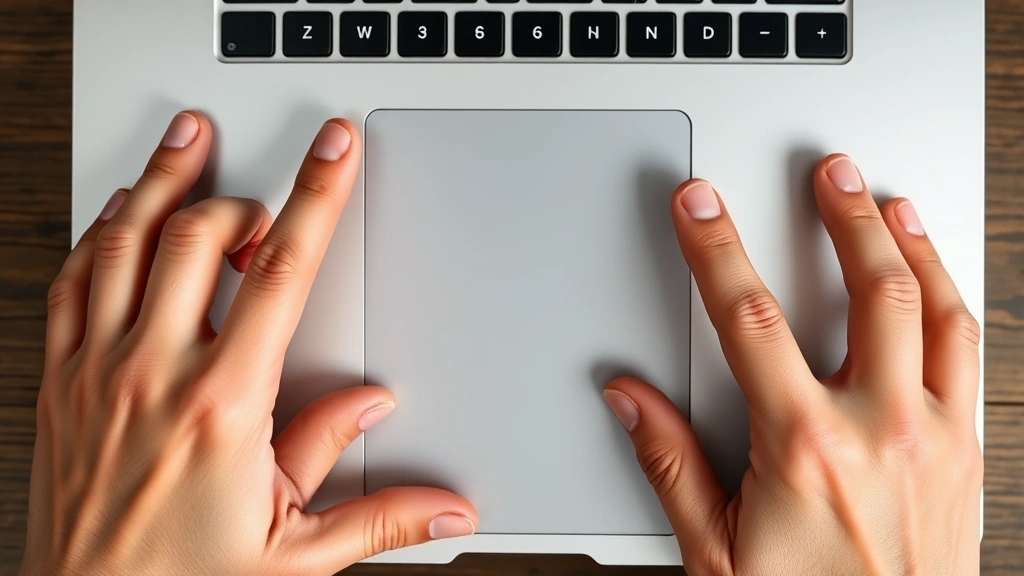
Right Click on Laptop? Easy Methods Explained
How to Right Click on a Laptop: Easy Methods Explained
Right-clicking is one of the most fundamental computer skills, yet many laptop users struggle with this basic function. Whether you’re using a built-in trackpad, external mouse, or keyboard shortcuts, understanding how to right-click on your laptop opens up a world of contextual menus and hidden options that can significantly enhance your productivity. This comprehensive guide walks you through every method available, from traditional mouse techniques to advanced keyboard alternatives.
If you’ve ever felt frustrated trying to access a context menu on your laptop, you’re not alone. Many people don’t realize there are multiple ways to right-click depending on your device type and preferences. Learning these methods will make your computing experience smoother and more efficient, whether you’re working on documents, browsing the web, or managing files.
Understanding Right-Click Functionality
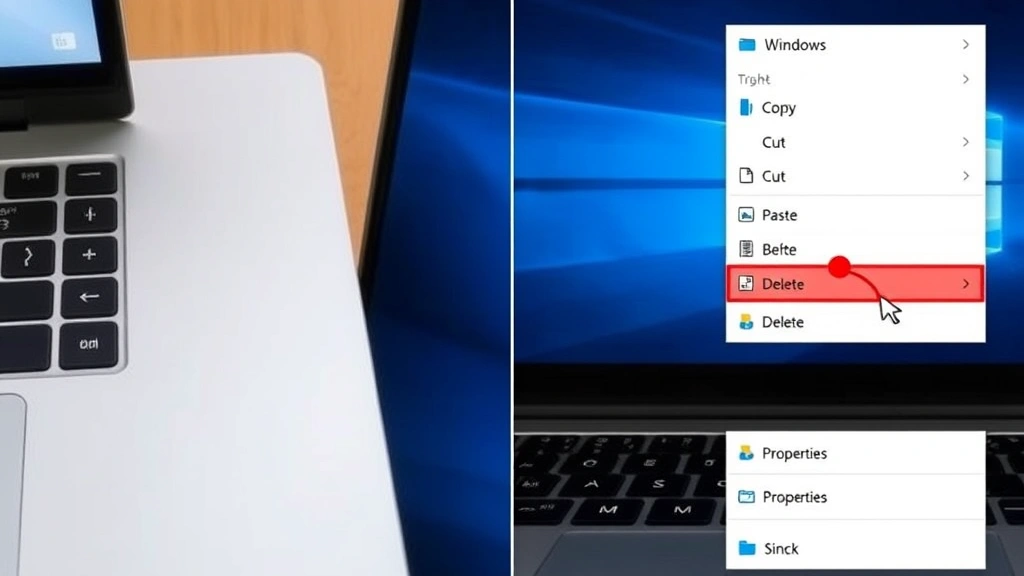
Right-clicking is a secondary mouse action that displays a context menu with options specific to whatever you’ve clicked on. This menu changes depending on your location—right-clicking on a file offers different options than right-clicking on text or an empty desktop area. Understanding what right-click does helps you become a more efficient computer user.
The context menu appeared with graphical user interfaces and has become essential to modern computing. When you right-click, your system analyzes what you’ve targeted and displays relevant actions you can perform. This might include editing, copying, deleting, opening with different programs, or accessing properties. If you’re new to laptops or switching from a different device, mastering right-click techniques will dramatically improve your workflow.
Many laptop users don’t realize they’ve been missing out on powerful features simply because they haven’t learned all the right-click methods available to them. From basic file management to advanced system functions, the context menu is your gateway to countless options that aren’t visible in the main interface.
Right-Clicking with an External Mouse
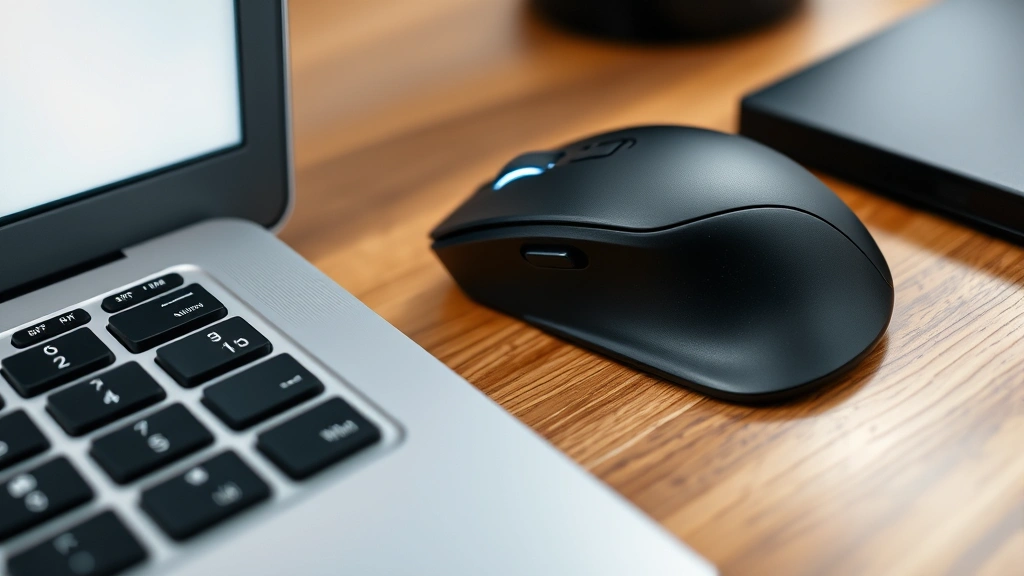
Using an external mouse is the most straightforward way to right-click on your laptop. Most external mice have dedicated right-click buttons, making this method intuitive and reliable for most users.
Basic Right-Click with External Mouse:
- Connect your external mouse to your laptop via USB or Bluetooth
- Position your cursor over the item you want to right-click
- Press the right mouse button (typically on the right side of the mouse)
- The context menu appears immediately below your cursor
- Click any option from the menu to perform that action
External mice offer superior ergonomics and precision compared to trackpads, especially for users who spend extended periods at their laptops. If you’re experiencing trackpad difficulties or prefer a more traditional computing experience, investing in a quality external mouse can resolve many right-click challenges. Understanding how to restart your computer becomes easier when you have reliable input devices.
Many external mice also include programmable buttons that you can customize for specific functions. Some gaming mice or productivity-focused models allow you to assign right-click functionality to additional buttons, creating personalized workflows tailored to your needs.
Right-Clicking on Windows Trackpads
Windows laptops come with various trackpad designs, and right-clicking methods can differ depending on your specific model. Most modern Windows trackpads support multiple right-click techniques.
Two-Finger Tap Method (Most Common):
This is the primary right-click method on most Windows trackpads. Place two fingers on the trackpad simultaneously and tap with both fingers. This gesture registers as a right-click and displays the context menu. This method works on nearly all modern Windows laptops and is often the easiest approach once you develop the muscle memory.
Bottom-Right Corner Click:
Many Windows trackpads designate the bottom-right corner as a right-click zone. Simply click in this specific area of your trackpad, and the system registers it as a right-click. This method doesn’t require multiple fingers and can be easier for users with mobility challenges or those who prefer single-finger clicking.
Pressure-Based Right-Click:
Some advanced trackpads use pressure sensitivity to distinguish between left and right clicks. Press harder while clicking to activate a right-click. This method requires practice but offers a more natural feel once mastered.
Troubleshooting Windows Trackpad Right-Click:
- Check your trackpad settings in Windows Settings > Devices > Touchpad
- Ensure two-finger tapping is enabled
- Update your trackpad drivers from the manufacturer’s website
- Clean your trackpad surface to improve sensitivity
- Restart your laptop if gestures suddenly stop working
If you’re having persistent issues with your trackpad, you might benefit from learning keyboard alternatives. Understanding tech tips and tricks on our main blog can help you discover alternative input methods.
Right-Clicking on Mac Trackpads
Apple’s trackpads are renowned for their precision and gesture support. Mac laptops offer several intuitive right-click methods that integrate seamlessly with macOS.
Two-Finger Tap Method:
Similar to Windows, tapping with two fingers on a Mac trackpad triggers a right-click. This is the default gesture on most MacBooks and works consistently across all applications. The two-finger tap is often easier on Mac trackpads because they’re typically more responsive than Windows alternatives.
Click in Bottom-Right Corner:
Mac trackpads allow you to enable “Click in bottom-right corner” in System Preferences > Trackpad > Point & Click. Once enabled, clicking specifically in the bottom-right corner of your trackpad registers as a right-click, providing an alternative to the two-finger gesture.
Force Click:
Modern MacBook trackpads support Force Click—a deeper press that activates different functions. You can configure Force Click to trigger right-click behavior, though this requires customization in System Preferences.
Configuring Mac Trackpad Settings:
- Click the Apple menu and select System Preferences
- Navigate to Trackpad
- Select the “Point & Click” tab
- Check “Tap to click” if you prefer tapping over clicking
- Enable “Secondary click” and choose your preferred method
- Adjust tracking speed and other preferences to your liking
Mac trackpads are often considered the gold standard for laptop input devices. Their large surface area and responsive nature make right-clicking natural and comfortable. If you’re switching from a Windows laptop to a Mac, the trackpad experience will likely feel immediately superior.
Keyboard Shortcuts for Right-Click
When trackpad or mouse right-clicking isn’t possible or convenient, keyboard shortcuts provide a reliable alternative. These methods work on both Windows and Mac systems.
Windows Right-Click Keyboard Shortcut:
Press Shift + F10 to open the context menu. This works in virtually all Windows applications and is the most reliable keyboard alternative. The context menu appears near your current selection, allowing you to navigate using arrow keys and press Enter to select an option.
Alternative Windows Shortcut:
On some keyboards, the Menu key (located between the right Alt and Ctrl keys) performs a right-click function. This key has an icon showing a menu and a cursor, making it easy to identify. Not all keyboards include this key, but it’s valuable when available.
Mac Right-Click Keyboard Shortcut:
Mac doesn’t have a direct equivalent to Windows’ Shift + F10, but you can access context menus through Control + Click. Hold the Control key and click with one finger to open the context menu. This works on both trackpads and external mice.
Using Keyboard Navigation:
- Open the context menu using your preferred method
- Use arrow keys to navigate through menu options
- Press Enter to select the highlighted option
- Press Escape to close the menu without selecting anything
- Type the first letter of an option to jump to it quickly
Keyboard shortcuts become invaluable when your trackpad or mouse malfunctions. Learning these alternatives ensures you can always access context menus and maintain productivity even when hardware fails. This knowledge is especially helpful for users who troubleshoot various devices regularly.
Troubleshooting Right-Click Issues
If right-clicking isn’t working on your laptop, several solutions can restore functionality. Start with the simplest fixes before moving to more complex troubleshooting.
Basic Troubleshooting Steps:
- Restart your laptop: Many input issues resolve with a simple restart. This refreshes your system and resets trackpad drivers
- Clean your trackpad: Dirt, dust, and oils can interfere with trackpad sensitivity. Use a soft, slightly damp cloth to gently clean the surface
- Check trackpad settings: Ensure right-click functionality is enabled in your trackpad settings. On Windows, go to Settings > Devices > Touchpad. On Mac, check System Preferences > Trackpad
- Update drivers: Outdated trackpad drivers cause many right-click problems. Visit your laptop manufacturer’s support website to download the latest drivers
- Test with external mouse: Connect an external mouse to determine if the problem is trackpad-specific. If right-click works with an external mouse, your trackpad needs attention
Advanced Troubleshooting:
If basic steps don’t resolve your issue, try these advanced solutions. Open Device Manager on Windows (press Win + X and select Device Manager) and look for trackpad-related devices. Right-click the trackpad and select “Update driver.” If updates don’t help, try uninstalling the device—your system will reinstall the driver automatically on restart.
On Mac, reset the SMC (System Management Controller) by shutting down, pressing Shift + Control + Option (all on the left side) + Power for 10 seconds, then releasing all keys and restarting normally. This resolves many hardware-related issues including trackpad problems.
When to Seek Professional Help:
- Physical damage to trackpad (cracks, unresponsive areas)
- Right-click issues persist after all troubleshooting steps
- Multiple input methods fail simultaneously
- Your laptop is under warranty and experiencing hardware issues
Professional repair services can replace trackpads or diagnose deeper hardware problems. Many manufacturers offer mail-in repair services, and local computer repair shops can often resolve issues quickly and affordably.
Advanced Right-Click Tips and Tricks
Once you’ve mastered basic right-clicking, explore these advanced techniques to enhance your productivity and unlock hidden features.
Right-Click on Text:
Right-clicking on selected text in most applications opens a menu with options like copy, cut, paste, and spelling suggestions. In browsers, right-clicking on text also reveals options to search the web for that text or open links in new tabs. This is one of the most frequently used right-click functions for everyday computing.
Right-Click on Files and Folders:
File management becomes dramatically faster with right-click proficiency. Right-click any file or folder to access options including copy, cut, delete, rename, compress, send to specific locations, or open with alternative programs. In Windows, you can also access file properties to check file size, creation date, and modify permissions.
Right-Click on Desktop:
Right-clicking on empty desktop space reveals options to create new folders, change display settings, access system properties, or refresh your view. These options vary between Windows and Mac but are essential for system management and customization.
Right-Click in Web Browsers:
Browsers offer unique right-click options including “Inspect Element” (for web developers), “View Page Source,” “Save Image As,” and “Open Link in New Tab.” These features are invaluable for web research, content curation, and web development work.
Customizing Right-Click Menus:
On Windows, you can customize your context menu by editing the registry or using third-party applications. Advanced users can add custom options to right-click menus, streamlining frequently performed tasks. This customization requires technical knowledge but can significantly boost productivity.
Many productivity applications also include right-click customizations specific to their functions. Microsoft Office applications, for example, offer unique right-click options for formatting, commenting, and document management. Exploring these options within your most-used applications can reveal powerful features you didn’t know existed.
FAQ
Why isn’t my right-click working on my laptop trackpad?
Trackpad right-click issues usually stem from disabled settings, outdated drivers, or physical dirt on the trackpad surface. Start by cleaning your trackpad with a soft, damp cloth, then check your trackpad settings to ensure right-click is enabled. If problems persist, update your trackpad drivers from your laptop manufacturer’s website. For Windows users, visit Settings > Devices > Touchpad. Mac users should check System Preferences > Trackpad > Point & Click.
Can I right-click on a Mac laptop without a mouse?
Yes, absolutely. Mac trackpads support right-clicking through the two-finger tap gesture or by clicking in the bottom-right corner of the trackpad. You can also use Control + Click with one finger. All these methods work without an external mouse. Additionally, you can use the keyboard shortcut Control + Click to access context menus in any application.
What’s the difference between left-click and right-click?
Left-click (single click with the primary mouse button) selects items and opens applications. Right-click (single click with the secondary mouse button) displays a context menu with additional options specific to what you’ve clicked. Left-click is for primary actions; right-click reveals secondary options and settings.
How do I right-click on a Chromebook?
Chromebooks use different trackpad gestures than traditional laptops. On a Chromebook, right-click by pressing Alt while clicking the trackpad, or by using the two-finger tap gesture if your Chromebook supports it. Some Chromebook models also allow right-click in the bottom-right corner of the trackpad, similar to Windows laptops.
Is there a way to right-click without using my trackpad or mouse?
Yes, keyboard shortcuts provide reliable alternatives. On Windows, press Shift + F10 or use the Menu key if your keyboard has one. On Mac, use Control + Click. These shortcuts work in virtually all applications and are essential alternatives when trackpad or mouse functionality fails.
Can I program a custom button for right-click on my laptop?
If you’re using an external mouse, many models allow button customization through manufacturer software. Gaming mice and productivity-focused mice often include programmable buttons. For trackpad-only setups, you can use third-party software to create custom gestures or keyboard shortcuts that trigger right-click functionality, though this requires technical configuration.
Why does my right-click menu look different in different applications?
Context menus are application-specific and change based on what you’ve clicked and which program is active. Right-clicking on a file in File Explorer shows file management options, while right-clicking in a word processor shows formatting options. This context-aware design makes right-click incredibly versatile and powerful across different programs.

Related Posts

Superscript in Google Docs: Expert Tips

Strikethrough in Excel: Easy Steps for Beginners
