
How to Share Outlook Calendar: Step-by-Step Guide
How to Share Outlook Calendar: Step-by-Step Guide
Managing your schedule just got a whole lot easier. Whether you’re coordinating with teammates, syncing with family, or giving your boss visibility into your availability, sharing your Outlook calendar is one of the most practical features at your fingertips. Yet surprisingly, many people either don’t know it’s possible or find the process confusing enough to avoid it altogether.
The beauty of calendar sharing in Outlook is that it’s not one-size-fits-all. You can grant different people different levels of access—some folks might see only your free and busy times, while trusted colleagues get the full picture of your appointments. You control the narrative, decide who sees what, and can revoke access whenever you need to. It’s collaboration without sacrificing privacy.
In this guide, we’ll walk you through every method to share your Outlook calendar, from the basics to advanced permissions. By the end, you’ll feel confident delegating calendar access and understanding exactly what each permission level means for your schedule.
Why Share Your Outlook Calendar
Before diving into the mechanics, let’s talk about why this matters. In today’s remote-first and hybrid work environments, calendar visibility isn’t just nice to have—it’s essential. When your team can see your availability at a glance, meeting scheduling becomes infinitely less painful. No more back-and-forth emails trying to find that mythical time slot when everyone’s free.
Beyond team coordination, sharing calendars serves practical purposes. Parents coordinate pickup times with babysitters. Project managers ensure stakeholders understand who’s doing what and when. Sales teams see who’s available for client calls. Healthcare professionals manage patient appointment visibility with administrative staff.
The key insight here: shared calendars reduce friction. They eliminate assumptions, prevent double-bookings, and create accountability. When someone can see you’re already committed during their proposed meeting time, they either find another slot or make a case for why the meeting matters more than what’s currently scheduled.
Understanding Permission Levels
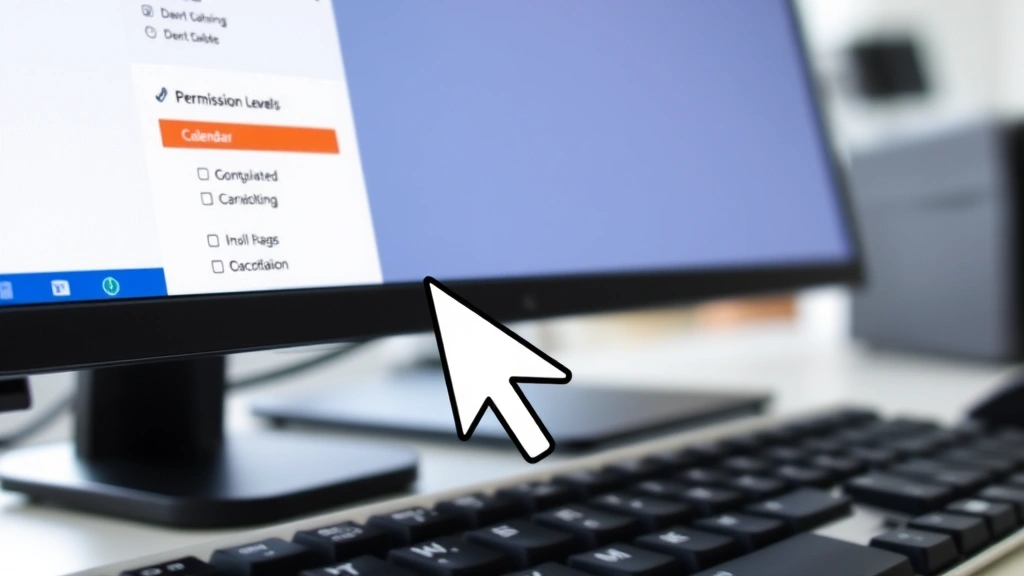
Outlook doesn’t just offer a simple on/off switch for calendar sharing. Instead, you get granular control through permission levels. Understanding these distinctions is crucial before you start granting access.
Reviewer (Free/Busy only): This is the most restrictive setting. People with Reviewer permissions see only whether you’re busy or free during time slots. They can’t see event titles, descriptions, locations, or any details. It’s perfect for external parties or when you want to protect privacy while still helping with scheduling.
Contributor (Free/Busy with subject and location): A step up from Reviewer, Contributors can see your event titles and locations, but not descriptions or attendee lists. This works well for internal teams who need scheduling visibility without full transparency into meeting content.
Editor (Full details): Editors see everything on your calendar—event titles, times, locations, descriptions, and attendees. They can also create and modify events on your behalf. Reserve this level for people you trust completely, like administrative assistants or close collaborators.
Delegate: Similar to Editor, but specifically designated for someone acting on your behalf. Delegates can manage your calendar and typically receive meeting invitations before you do, allowing them to screen and prioritize.
Owner: This is you. Full control, full responsibility. You can’t grant Owner status to anyone else.
Sharing Your Calendar in Outlook Desktop
Let’s get practical. If you’re using Outlook on your desktop (Windows or Mac), here’s exactly how to share your calendar.
Step 1: Right-Click Your Calendar In the left sidebar where your calendars are listed, find the calendar you want to share. Right-click directly on the calendar name (usually “Calendar” unless you’ve created custom calendars). A context menu appears.
Step 2: Select “Sharing Permissions” From the menu, choose “Sharing Permissions” or “Properties.” This opens a dialog box where the magic happens.
Step 3: Click “Add” In the permissions dialog, you’ll see a list of people who already have access. Click the “Add” button to invite someone new to view your calendar.
Step 4: Enter the Person’s Email Type the email address of the person you want to grant access. Make sure it’s the correct address—Outlook will look this person up in your organization’s directory.
Step 5: Set Permission Level Use the dropdown menu to select the appropriate permission level. Remember those levels we discussed? This is where you apply them. Think carefully about what each person actually needs to see.
Step 6: Click OK Confirm your choices. Outlook processes the permission change, and the person now has access to your calendar at the level you specified.
Pro Tip: You can share your calendar with multiple people at once by repeating steps 3-6 for each person. There’s no limit to how many people can access your calendar, though managing permissions gets more complex as the list grows.
Sharing Your Calendar in Outlook Web
Using Outlook on the web? The process is slightly different but equally straightforward. This method works whether you’re accessing Outlook through a browser at work or checking your personal Outlook.com account.
Step 1: Navigate to Calendar View Log into your Outlook web account and click the “Calendar” icon in the left sidebar. You’re now in your calendar interface.
Step 2: Right-Click Your Calendar Name In the left sidebar, locate your calendar (or the specific calendar you want to share if you have multiple). Right-click on it to reveal options.
Step 3: Select “Share” Choose the sharing option from the menu. This opens a sharing panel on the right side of your screen.
Step 4: Enter Email Addresses In the text field, type the email address of the person you want to share with. You can add multiple people by separating addresses with semicolons or adding them one at a time.
Step 5: Choose Permission Level Select from the dropdown which level of access they should have. The same permission levels apply here as in the desktop version.
Step 6: Send Invitation Click “Share” to send the invitation. The person receives a notification and can start viewing your calendar immediately once they accept.
Outlook Web Advantage: The web interface often feels more intuitive for sharing. You can see real-time updates about who has access, and revoking permissions is as simple as clicking an “X” next to someone’s name.
Sharing Your Calendar via Email Invitation
Sometimes the most straightforward approach is the best one. You can share your calendar by sending someone a direct email invitation, which is particularly useful when sharing with people outside your organization.
Desktop Method: Right-click your calendar, select “Share Calendar,” and choose “Email Calendar.” Outlook opens your email client with your calendar attached or linked. Add the recipient’s email, write a brief message explaining why you’re sharing, and send.
Web Method: In Outlook on the web, click the three-dot menu next to your calendar name and select “Share.” You’ll get options to generate a sharing link that you can send via email or any other communication platform. This link can be set to expire after a certain period, adding a layer of security.
External Sharing Considerations: When sharing with people outside your organization, Outlook may have restrictions based on your company’s security policies. Some organizations allow external sharing freely, while others require explicit approval. Check with your IT department if you encounter restrictions.
If you’re concerned about security while sharing calendar details, you might also want to explore how to send encrypted email in Outlook for sensitive scheduling information. Additionally, if you need to recall a message in Outlook that contained calendar details, you have that option available.
Managing Shared Calendar Permissions
Sharing is just the beginning. Effective calendar management means regularly reviewing who has access and adjusting permissions as people’s roles change.
Reviewing Current Permissions: In Outlook Desktop, right-click your calendar and select Sharing Permissions to see everyone with access. In Outlook Web, click the share icon next to your calendar name. This gives you a complete list of people and their permission levels.
Modifying Existing Permissions: If someone’s role changes or they need different access levels, you can modify their permissions. Select their name from the list and change their permission level using the dropdown. Changes take effect immediately.
Removing Access: People leave teams, projects end, and relationships change. To remove someone’s access, find their name in the permissions list and click “Remove” or the “X” button. They immediately lose access to your calendar. This is important for maintaining privacy and security.
Protecting Your Calendar: While sharing is powerful, don’t feel obligated to grant broad access. Be selective about who gets Editor or Delegate permissions. For most colleagues, Reviewer or Contributor level provides sufficient visibility without compromising your privacy.
If you want to set expectations about your availability more broadly, consider how to set OOO in Outlook to let people know when you’re unavailable. You might also want to explore how to set out of office in Outlook for extended absences, which works beautifully alongside calendar sharing to give colleagues complete visibility into your availability.
Troubleshooting Common Issues
“Permission Denied” Errors: If you can’t share your calendar, your organization’s security policies might restrict sharing. Contact your IT administrator to determine what’s allowed. Some companies only allow sharing within the organization, not externally.
Person Can’t See the Calendar: Ensure they’ve accepted the sharing invitation. Check that you’ve entered their correct email address. Sometimes there’s a slight delay before permissions fully propagate through the system—wait a few minutes and try again.
Wrong Permission Level Applied: If someone has more or less access than intended, modify their permissions by selecting their name and changing the level. You can always adjust as needed.
Shared Calendar Disappeared: If someone reports they can no longer see your calendar, you may have accidentally removed their access. Review your permissions list and re-add them if necessary.
External Recipient Can’t Access: Outlook has specific protocols for external sharing. Ensure your organization allows it, and double-check the recipient’s email address. Some organizations require a special sharing link rather than direct permissions for external users.
Calendar Sync Issues: If you share your calendar and the recipient sees outdated information, ask them to refresh their Outlook client or browser. Sometimes a full close and reopen of Outlook resolves sync delays.
For additional help with Outlook functionality, check out how to retract an email in Outlook and how to recall email in Outlook for related email management features. You can also reference Microsoft’s official Outlook calendar sharing guide for comprehensive support.
Frequently Asked Questions
Can I share my calendar with someone outside my organization?
Yes, you can share your calendar with external users, though your organization’s security policies might restrict this. When sharing externally, consider using the Reviewer permission level to protect sensitive details. You’ll typically send a sharing link rather than granting direct permissions.
What’s the difference between sharing a calendar and delegating it?
Sharing gives people access to view (and potentially edit) your calendar. Delegating specifically designates someone to manage your calendar on your behalf, and they typically receive meeting invitations before you do. Delegates can screen invitations and prioritize your schedule.
Can someone share my calendar with another person?
No. Only you, as the calendar owner, can grant sharing permissions. People with access to your calendar cannot share it further with others. This protects your privacy and ensures you maintain control over who sees your schedule.
How many people can I share my calendar with?
Technically, there’s no hard limit to how many people can access your calendar. However, managing permissions becomes complex with large groups. For team-wide access, consider creating a shared calendar instead of sharing your personal calendar.
Can I schedule recurring shared calendar access?
Outlook doesn’t natively support time-limited permissions that automatically expire. However, you can manually adjust permissions as needed. If someone needs temporary access (like a contractor or temporary team member), remember to remove their access when the project ends.
Will shared calendar changes appear in real-time?
Yes. When you add, modify, or delete events on your calendar, people with access see the changes almost immediately. There might be a brief delay of a few seconds to a minute depending on system load and internet connection.
What happens if I delete an event that’s on a shared calendar?
The event disappears from everyone’s view of your calendar. If it was a meeting with attendees, they receive a cancellation notice. This is why it’s important to be thoughtful before deleting shared events.

Related Posts

How Long to Boil Lobster Tails: Cooking Guide

How Long to Fly from New York to London? Travel Times
