
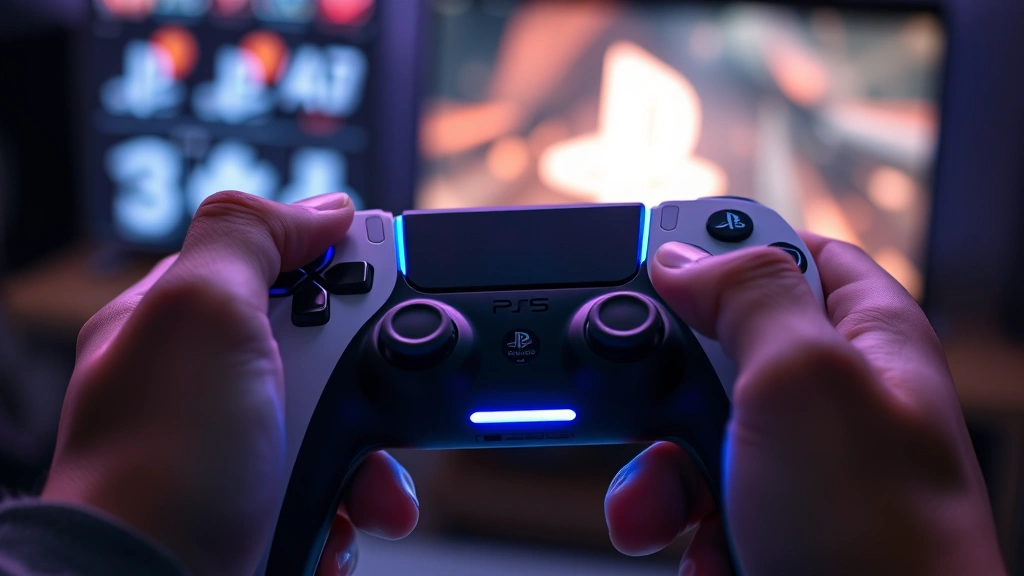
Turn Off PS5 Controller? Easy Steps Explained
The PlayStation 5 controller, officially called the DualSense, is one of the most advanced gaming peripherals available today. With its innovative haptic feedback and adaptive triggers, it offers an immersive gaming experience like no other. However, many PS5 owners struggle with a simple question: how do you actually turn off the PS5 controller? Unlike traditional controllers with power switches, the DualSense requires specific steps to properly shut down and conserve battery life.
Whether you’re looking to save battery, troubleshoot connection issues, or simply put your controller away for storage, knowing how to turn off your PS5 controller is essential. This comprehensive guide walks you through every method available, from automatic shutdown features to manual disconnection techniques. We’ll explore why proper shutdown matters, what happens when you don’t turn it off correctly, and best practices for maintaining your controller’s longevity.
Understanding PS5 Controller Power Management
The PlayStation 5 DualSense controller operates differently from previous PlayStation generations. Rather than having a traditional on/off switch, the controller uses a rechargeable lithium-ion battery that connects wirelessly to your console via Bluetooth or USB cable. Understanding how power management works is crucial before attempting to turn off your device.
Unlike controllers with physical power switches, the DualSense enters a low-power sleep mode when not actively paired with a PS5. This is by design—Sony engineered the controller to minimize battery drain even when you’re not actively using it. However, the controller doesn’t completely power down unless you take specific actions or enable automatic shutdown features.
The battery life of a fully charged DualSense controller typically lasts 4-6 hours during active gaming, depending on usage intensity and feature utilization. The haptic feedback and adaptive trigger features consume more power than standard rumble, so intensive gaming sessions will drain the battery faster. Knowing how to properly shut down your controller helps maximize battery lifespan and prevents unnecessary power consumption.
Method 1: Using the PS5 Console Menu
The most straightforward way to turn off your PS5 controller is through the console’s built-in menu system. This method ensures your controller properly disconnects and enters a dormant state while maintaining its pairing with your console.
Step-by-step instructions:
- Turn on your PlayStation 5 console and wait for the home screen to load
- Press the PlayStation button on your DualSense controller to open the control center
- Navigate to Settings from the quick menu
- Select Accessories from the settings menu
- Choose Controllers to view all paired devices
- Find your DualSense controller in the list and select it
- Look for the option labeled Disconnect or Forget Device
- Confirm your selection when prompted
This method is particularly useful when you want to disconnect a specific controller while keeping others active. It’s ideal for households with multiple controllers or when you’re transitioning between different gaming sessions. The controller will enter a low-power state and will no longer communicate with your console until you manually reconnect it.
Method 2: Automatic Controller Shutdown Settings
PlayStation 5 includes built-in features that automatically turn off your controller after a period of inactivity. This is one of the most convenient ways to manage controller power without manual intervention. Enabling automatic shutdown ensures your battery won’t drain unnecessarily when you forget to disconnect your controller.
How to enable automatic controller shutdown:
- From the PS5 home screen, select Settings
- Navigate to System settings
- Scroll down and select Power Saving
- Choose Controller Power Saving from the submenu
- Set the idle time before automatic shutdown (options typically range from 10 to 60 minutes)
- Enable the feature by toggling it on
Most users find that setting automatic controller shutdown to 15-30 minutes works best. This timeframe is long enough to prevent accidental disconnections during brief pauses but short enough to conserve battery during extended breaks. You can adjust these settings at any time based on your gaming habits and preferences.
Method 3: Disconnecting via Bluetooth
If you want to turn off your PS5 controller without using the console menu, you can disconnect it via Bluetooth settings on your console. This method is useful if you’re having menu navigation issues or want a quicker disconnection process.
Bluetooth disconnection process:
- On your PS5 home screen, go to Settings
- Select Accessories
- Choose Bluetooth Devices or Wireless Devices
- Find your DualSense controller in the paired devices list
- Select the controller and choose Disconnect
- Your controller will immediately lose its wireless connection
This disconnection method is instantaneous and effective. Your controller will remain powered but won’t communicate with the console. It’s perfect when you need to quickly switch to a different device or want to ensure no unintended inputs reach your PS5. The controller will maintain its charge but won’t drain battery communicating with the console.
For additional information about managing multiple devices, check out our guide on how to turn off CarPlay, which covers similar wireless disconnection principles applicable to various devices.
Method 4: Physical Reset Button Method
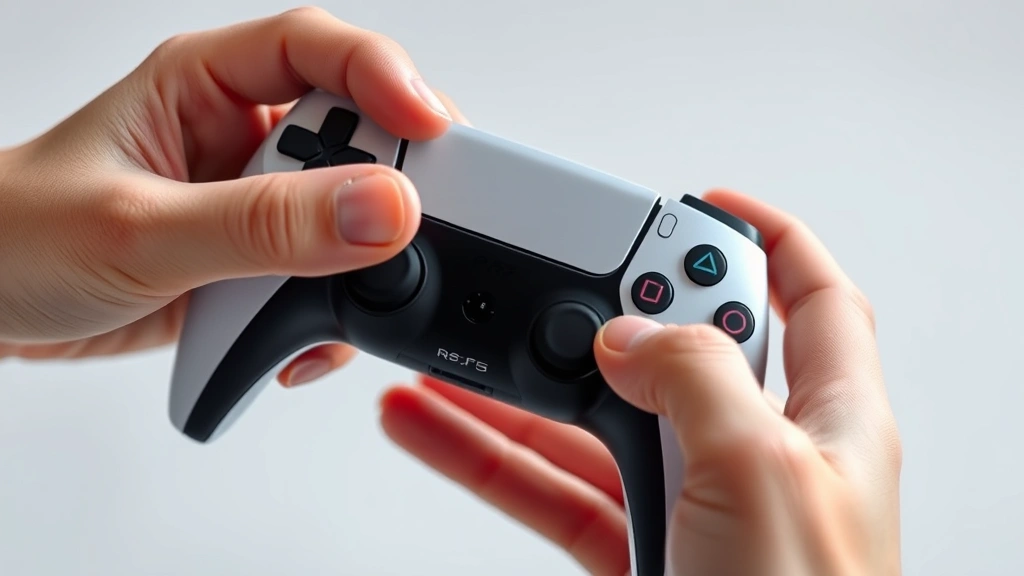
The DualSense controller includes a small reset button on the back that can help you fully reset the controller and clear its memory. While this isn’t technically a “power off” method, it’s useful when you need to completely disconnect and restart your controller’s connection with the PS5.
How to use the physical reset button:
- Locate the small circular reset button on the back of your DualSense controller, near the left shoulder button
- Use a small tool like a paperclip or SIM ejector pin to press and hold the button
- Hold the button for approximately 3-5 seconds
- Release the button and wait for the controller to reset
- Your controller’s LED will flash, indicating the reset process is complete
- Reconnect the controller to your PS5 through the Accessories menu
This method completely clears your controller’s Bluetooth pairing, which is helpful if you’re experiencing persistent connection problems. After using the reset button, you’ll need to repair your controller with your console. It’s more invasive than simple disconnection but can resolve stubborn connectivity issues that standard shutdown methods won’t fix.
Battery Saving Tips and Best Practices
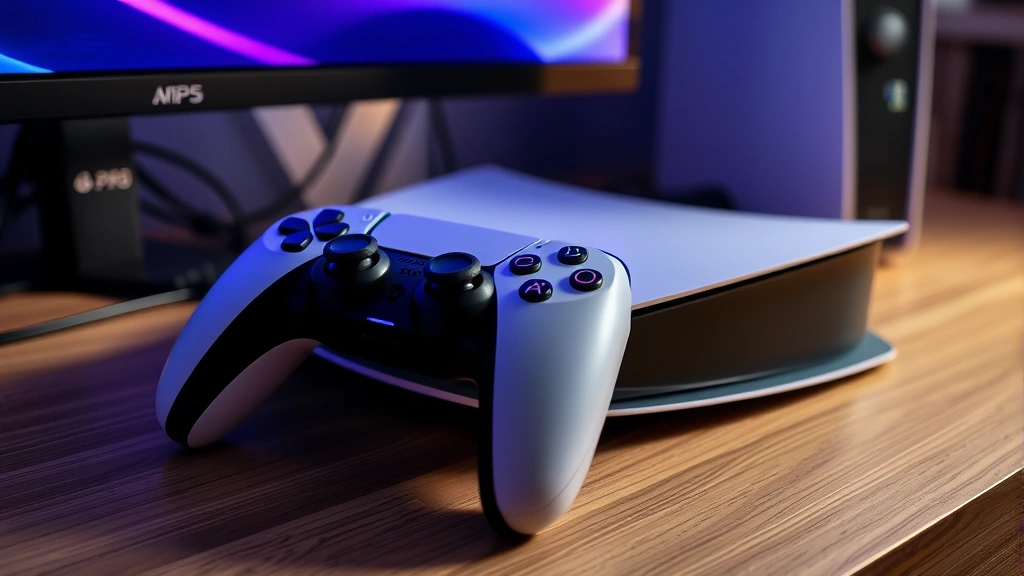
Properly turning off your PS5 controller is just one part of maintaining optimal battery health. Several additional practices can significantly extend your controller’s lifespan and improve overall performance.
Charging best practices:
- Use the official PlayStation 5 USB charging cable to charge your controller
- Avoid leaving your controller plugged in for extended periods after reaching full charge
- Charge your controller regularly rather than allowing it to completely drain
- Keep your controller away from extreme heat or cold during charging
- Store your controller in a cool, dry place when not in use for extended periods
During gameplay optimization:
- Disable haptic feedback and adaptive triggers in games where you don’t need them for enhanced battery life
- Lower the controller speaker volume if your game supports it
- Disconnect your controller from the console when taking breaks longer than 30 minutes
- Enable the automatic power-saving features we discussed earlier
- Monitor your controller’s battery percentage through the PS5 battery indicator
These practices work in conjunction with proper shutdown methods to maximize your DualSense’s lifespan. A well-maintained controller can last several years with proper care, making these habits worth developing early.
For more information on managing device settings and optimization, explore our FixWise Hub Blog – How-To Guides and Tips, which covers numerous tech maintenance topics.
Troubleshooting Common Issues
Even with proper shutdown procedures, you might encounter issues with your PS5 controller. Understanding common problems and their solutions ensures you can quickly resolve any connectivity or power management issues.
Controller won’t turn off:
If your controller continues to show activity despite using shutdown methods, try disconnecting it from Bluetooth and waiting 5-10 minutes. If it still won’t power down, hold the PlayStation button for 10 seconds to force shutdown. If this doesn’t work, your controller’s firmware might need updating through the PS5 system settings.
Controller drains battery quickly:
Excessive battery drain usually indicates either intensive feature usage or a hardware issue. Disable haptic feedback and adaptive triggers temporarily to test if these features are causing drain. If battery life doesn’t improve, your lithium-ion battery might be degraded and require replacement. Contact PlayStation Support or visit an authorized repair center for battery replacement services.
Controller won’t reconnect after shutdown:
Sometimes after disconnecting your controller, it refuses to reconnect. Press and hold the PlayStation button on the controller for 10 seconds to force a restart. Then use the PS5 Accessories menu to re-pair the device. If this fails, use the physical reset button method described earlier to fully clear the controller’s pairing memory.
LED light stays on:
If your controller’s LED light remains illuminated after disconnection, this indicates the controller is still powered. Try the physical reset button method or connect the controller to your PS5 via USB cable and update its firmware through the system settings. Persistent LED issues might indicate a hardware malfunction requiring professional repair.
For similar troubleshooting guidance on other devices, check our comprehensive article on how to reset Ring Doorbell, which covers similar diagnostic and reset procedures.
When dealing with stubborn controller issues, consulting official PlayStation Support resources provides manufacturer-backed solutions and warranty information. Additionally, the PS5 subreddit community offers peer support and user-tested solutions for common problems.
FAQ
Does turning off my PS5 controller save battery?
Yes, properly disconnecting your DualSense controller completely stops Bluetooth communication and reduces power consumption to minimal levels. This significantly extends battery life compared to leaving your controller idle but still paired with the console.
Can I turn off my PS5 controller with the power button?
The DualSense doesn’t have a traditional power button. Instead, you disconnect it through the console menu, Bluetooth settings, or enable automatic shutdown features. The controller automatically enters a low-power state when disconnected.
How long does a PS5 controller last on a full charge?
A fully charged DualSense typically lasts 4-6 hours during active gaming. Battery life varies based on feature usage, game intensity, and whether haptic feedback and adaptive triggers are enabled. Light gaming with features disabled can extend battery life to 8+ hours.
Is it bad to leave my PS5 controller charging overnight?
Occasionally leaving your controller charging overnight won’t cause damage, but it’s not recommended as a regular practice. Modern lithium-ion batteries benefit from avoiding prolonged charging sessions. For optimal battery health, charge your controller to 100% and then disconnect it from power.
What’s the difference between sleep mode and turning off the controller?
Sleep mode keeps your controller paired with the console but reduces power consumption to minimal levels. Turning off your controller completely disconnects it from the PS5, eliminating Bluetooth communication entirely and further reducing battery drain. Turning off is more effective for long-term storage.
Can I turn off my PS5 controller while in the middle of a game?
Yes, you can disconnect your controller while gaming, but doing so will interrupt your game session. The PS5 will pause your game and prompt you to reconnect a controller. For brief breaks during gaming, relying on automatic shutdown features is better than manual disconnection.
Does the PS5 controller turn off automatically?
The PS5 controller enters a low-power sleep mode after a period of inactivity, but it doesn’t completely turn off unless you manually disconnect it or enable automatic shutdown features through the console settings. These features ensure the controller powers down after 10-60 minutes of idle time.
How do I know if my PS5 controller is off?
When your controller is properly disconnected, the LED light on the touchpad will stop glowing. The controller will no longer respond to button presses or communicate with the console. You can verify disconnection status through the PS5 Accessories menu, which will show the controller as “disconnected” or “not connected.”

Related Posts

Superscript in Google Docs: Expert Tips

Strikethrough in Excel: Easy Steps for Beginners
