

Stop Spam Emails: Expert Email Management Tips
Stop Spam Emails: Expert Email Management Tips
Spam emails clog your inbox, waste your time, and pose serious security risks to your personal information. Whether you’re dealing with marketing emails, phishing attempts, or outright scams, learning how to stop getting spam emails is essential for maintaining a clean and secure digital life. The good news is that with the right strategies and tools, you can dramatically reduce unwanted emails and reclaim control of your inbox.
This comprehensive guide walks you through proven methods to eliminate spam, protect your email address, and set up filters that work automatically. From understanding why you receive spam in the first place to implementing advanced email management techniques, you’ll discover practical solutions that work across all major email providers like Gmail, Outlook, and Yahoo Mail.
Why You’re Getting Spam Emails
Understanding the root causes of spam is the first step toward prevention. Spammers obtain email addresses through various methods, including data breaches, website forms, public directories, and even purchasing lists from unethical sources. Once your email enters the spam ecosystem, it becomes a target for countless unwanted messages.
Many people unknowingly enable spam by signing up for services without reading the fine print, posting their email publicly on websites, or using the same email address across multiple platforms. Additionally, if your email has been compromised in a data breach, you may experience a sudden surge in spam. Visit Have I Been Pwned to check if your email was exposed in any known breaches.
The motivation behind spam is simple: profit. Spammers send millions of emails hoping that even a tiny percentage of recipients will click links, purchase products, or fall for scams. This low-cost, high-volume approach makes spam an attractive tactic for cybercriminals and unethical marketers alike.
Use Email Filters and Rules
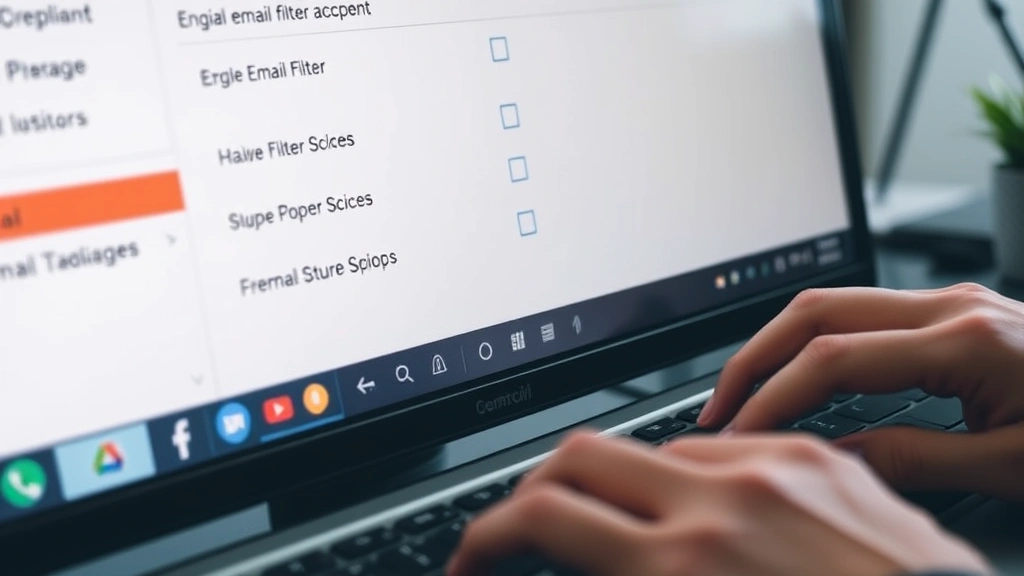
Email filters are your first line of defense against spam. Most email providers offer built-in filtering capabilities that automatically sort, delete, or flag suspicious messages. Learning to configure these filters effectively can eliminate a significant portion of unwanted emails without manual intervention.
Gmail Filters: Gmail’s filtering system is remarkably powerful. Access filters by clicking the search dropdown arrow in Gmail and selecting “Create filter.” You can filter by sender address, subject line, keywords, or even attachment type. Once you’ve defined your criteria, choose an action like archive, delete, or apply a label. For instance, you can create a filter that automatically deletes all emails containing “viagra” or other common spam keywords.
Outlook Filters: Outlook users should navigate to Settings > Mail > Junk Email to configure rules. You can add senders to your blocked list, designate trusted senders, or create rules that automatically move emails to specific folders. Outlook also offers a “Safe Senders” list where you can whitelist important contacts.
Yahoo Mail Filters: Yahoo Mail allows you to create filters under Settings > Filters. You can set rules based on sender, subject, or content, directing matching emails to your spam folder or deleting them entirely. Yahoo also offers a “Block List” feature for permanently blocking specific senders.
The key to effective filtering is regularly reviewing your spam folder to ensure legitimate emails aren’t being caught by overly aggressive rules. Adjust your filters as needed to maintain accuracy.
Unsubscribe from Legitimate Mailing Lists
Not all unwanted emails are spam—many are legitimate marketing messages from companies you’ve interacted with. These emails often include an unsubscribe link at the bottom, typically in small gray text. Clicking this link removes you from the sender’s mailing list.
How to Unsubscribe Safely: Look for the unsubscribe option in the email footer. Legitimate companies are legally required to include this under the CAN-SPAM Act and similar regulations. Clicking unsubscribe should remove you from future emails within 10 business days. Avoid clicking unsubscribe on emails from unknown senders, as this confirms your email is active and may increase spam.
For bulk unsubscribes, consider using a service like Unroll.me, which helps you mass-unsubscribe from mailing lists and consolidate subscriptions into a single digest email. This approach is particularly useful if you’ve accumulated subscriptions over years of online shopping and sign-ups.
Keep in mind that unsubscribing from legitimate marketing emails differs from reporting actual spam. Marketing emails from established companies are not spam if you previously agreed to receive them, even if you no longer want them.
Protect Your Email Address Online
Prevention is more effective than reaction. The fewer places your email address appears online, the lower your spam risk. Adopt these practices to minimize exposure:
- Avoid Posting Your Email Publicly: Don’t share your primary email address in forum posts, social media, or public directories. Spambots crawl the internet collecting email addresses from websites.
- Use Email Masking Tools: Services like Email Me Form and browser extensions provide temporary or masked email addresses for online signups. This protects your real email while allowing you to receive confirmations.
- Be Selective with Sign-ups: Before entering your email on any website, read the privacy policy. Look for opt-in checkboxes for marketing emails and leave them unchecked if you don’t want communications.
- Use Plus Addressing: Many email providers allow plus addressing, where you add “+” and a label to your email address (example@gmail.com+shopping@gmail.com). This helps you track which services are selling your address if spam increases from that label.
- Avoid “Contact Us” Forms: When possible, use contact forms on websites instead of providing your email directly, as these don’t expose your address to scrapers.
These preventative measures require minimal effort but significantly reduce spam over time. They’re particularly important if you’re creating a new email account—establish good practices from day one.
Report and Block Spam Senders
When spam reaches your inbox despite preventative measures, report and block the senders. This helps email providers improve their spam detection algorithms and protects other users.
In Gmail: Open the spam email, click the three-dot menu, and select “Report phishing” or “Report spam.” Gmail’s machine learning system uses these reports to improve its filters. You can also hover over the sender’s name and click the block icon to prevent future emails from that address.
In Outlook: Right-click the email and select “Junk” then “Block Sender.” This moves the current email to your junk folder and automatically sends future emails from that sender to junk.
In Yahoo Mail: Click the spam button in the toolbar, or right-click the email and select “Mark as Spam.” Yahoo also allows you to add senders to your block list permanently.
Reporting spam is more effective than simply deleting it because your feedback trains the email provider’s filters. If many users report the same sender, that sender’s emails become more likely to be caught automatically for everyone.
Create Separate Email Accounts
One strategic approach is maintaining multiple email addresses for different purposes. This compartmentalization prevents your primary email from accumulating spam.
- Primary Email: Use this exclusively for important contacts—banks, employers, family, and trusted services. Share it sparingly.
- Shopping/Secondary Email: Create a separate address for online shopping, retail signups, and newsletters. This isolates marketing emails from your primary inbox.
- Disposable Email: Use temporary email services like Temp Mail or Guerrilla Mail for one-time signups or suspicious websites. These addresses automatically expire after a set period.
This strategy requires more account management but provides excellent isolation. If your shopping email becomes compromised, your primary email remains clean. It’s similar to how you might manage different areas of home maintenance—just as you’d follow different procedures when removing a tub drain versus installing a garbage disposal, you manage different email accounts for different purposes.
Use Spam Detection Tools
Beyond built-in email filters, dedicated spam detection tools offer enhanced protection. These solutions use advanced algorithms and machine learning to identify and block sophisticated spam attempts.
Email Security Software: Consider third-party tools like Mailstrom, which integrates with Gmail and helps you quickly identify and delete unwanted bulk emails. These services analyze your inbox and categorize emails by sender type, making it easy to delete entire categories at once.
Browser Extensions: Extensions like Gmail Security and Thunderbird add-ons provide real-time spam detection and phishing protection. They scan incoming emails and flag suspicious content before you open it.
Two-Factor Authentication: Enable two-factor authentication on your email account. Even if a spammer obtains your password, they can’t access your account without your phone or authentication device. This protects your email from being used to send spam or reset other accounts.
These tools work alongside your email provider’s built-in protections, creating multiple layers of defense. The combination of automatic filtering and active monitoring provides comprehensive spam prevention.
Avoid Common Spam Triggers
Certain behaviors increase your spam risk. By understanding and avoiding these triggers, you reduce incoming spam naturally.
Don’t Reply to Spam: Never respond to spam emails, even to unsubscribe if the sender is unknown. Replying confirms your email is active, encouraging more spam. This is different from legitimate unsubscribe links, which should only be used for known senders.
Avoid Clicking Unknown Links: Links in spam emails may contain malware or lead to phishing pages designed to steal your credentials. Never click links from suspicious senders.
Don’t Buy from Spammers: Purchasing products advertised in spam emails encourages more spam. These offers are often scams or involve counterfeit goods.
Avoid Entering Your Email in Public Forms: Contests, giveaways, and public signup forms often sell email addresses to spammers. Be cautious about where you provide your contact information.
Don’t Use Your Email for Accounts Requiring Verification: Some websites require an email address even if you never plan to use the account. Use a disposable email for these situations instead.
These practices form a comprehensive spam prevention strategy. They work together with the technical methods described earlier to create a multi-layered defense. Think of it like maintaining a home—you wouldn’t just fix one problem and ignore the others, much like you’d address multiple home maintenance issues systematically, such as learning about various home improvement projects from reliable guides.
For additional information on digital security and email best practices, consult the Federal Trade Commission’s consumer protection resources, which provides guidance on identifying and avoiding email scams.
FAQ
Is it safe to click unsubscribe on spam emails?
No, it’s not safe to click unsubscribe on emails from unknown senders. Unsubscribe links in legitimate marketing emails are safe, but clicking them on actual spam confirms your email is active and may increase spam. Only use unsubscribe links for emails from companies you recognize and have interacted with previously.
Why do I still get spam after unsubscribing?
Unsubscribing from legitimate marketing emails can take up to 10 business days to process. However, if you’re receiving spam from unknown senders, unsubscribing may not work because they’re not following regulations. In these cases, use your email provider’s block and report functions instead.
Can I recover my email address if it’s been compromised?
If your email has been exposed in a data breach, you can’t remove it from the dark web, but you can mitigate damage. Change your password immediately, enable two-factor authentication, and check for unauthorized account access. You may also want to create a new email address for important accounts. Use Have I Been Pwned to monitor your email for future breaches.
Should I delete my email address and start over?
Creating a new email address is a nuclear option that works but isn’t necessary for most people. Instead, use the strategies in this guide to reduce spam significantly. Only create a new address if your current one receives overwhelming spam or has been severely compromised.
What’s the difference between spam and phishing emails?
Spam is unwanted bulk email, usually marketing-related. Phishing emails are designed to trick you into revealing sensitive information like passwords or credit card numbers. Phishing is more dangerous because it targets you specifically with deceptive messages. Both should be reported and blocked, but phishing should be reported as “phishing” specifically so email providers can warn other users.
Do email filters work on mobile devices?
Yes, email filters created in your email provider’s web interface apply across all devices, including mobile apps. However, some mobile email apps offer additional filtering options. For best results, set up your primary filters in your email provider’s web interface where they’re most comprehensive.

Related Posts

Superscript in Google Docs: Expert Tips

Strikethrough in Excel: Easy Steps for Beginners
