

Can You See Blocked iPhone Messages? Expert Tips
Can You See Blocked iPhone Messages? Expert Tips for Recovering & Managing Blocked Conversations
If you’ve blocked someone on your iPhone, you might be wondering whether those blocked messages are completely gone or if there’s a way to retrieve them. The short answer is: blocked messages don’t disappear automatically, but Apple makes it intentionally difficult to access them. Understanding how iPhone blocking works and what options you have can help you manage your communications more effectively.
Whether you accidentally blocked someone, changed your mind about a contact, or need to review past messages for documentation purposes, this guide walks you through every method to see blocked messages on iPhone. We’ll also cover the technical limitations, workarounds, and best practices for managing your blocked contacts list.

How iPhone Message Blocking Actually Works
When you block someone on your iPhone, Apple’s system prevents that contact from reaching you through multiple channels simultaneously. Blocking affects Messages, FaceTime, and phone calls, creating a comprehensive communication barrier. However, the mechanics of how blocking works can be confusing because messages aren’t instantly deleted—they’re simply hidden from your active view.
The blocked contact’s messages don’t go to a special “blocked messages” folder. Instead, when a blocked person sends you a text, the message is either rejected at Apple’s server level or filtered silently on your device. Incoming calls from blocked numbers are automatically declined, and the caller hears that your phone is unavailable. This creates a seamless blocking experience for you, but it also means there’s no obvious central location where all blocked messages are stored.
One critical point: messages you received before blocking someone remain in your conversation thread. They don’t vanish when you hit the block button. The issue arises when you want to view those pre-existing messages after blocking has taken effect, or when you’re trying to understand what communication happened during the blocking period.
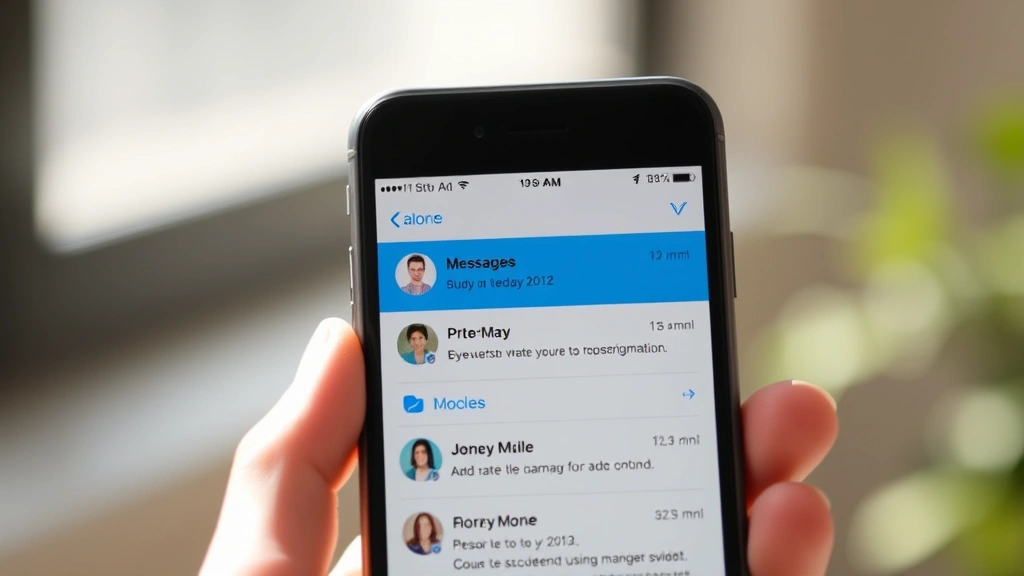
Can You See Blocked Messages After Blocking Someone?
The straightforward answer is: yes, but with limitations. Here’s the nuanced breakdown of what you can and cannot access:
- Messages received before blocking: These remain visible in your conversation thread. When you open the Messages app and look at your conversation history with that contact, all previous messages are still there.
- Messages sent while blocking is active: These are not delivered to your device. You cannot see them through normal means because they never reach your iPhone.
- Messages after unblocking: Once you unblock someone, all messages they send resume appearing normally in your conversation thread.
If you’re trying to see messages that were sent while the contact was blocked, you’re essentially trying to access something that was never delivered to your phone in the first place. This is where the situation becomes more complex and requires alternative approaches.
Visit our guide on how to restart your iPhone if you’re experiencing messaging app glitches that might be affecting your ability to view conversations.
Methods to Access Blocked Messages on iPhone
Method 1: Check Your Conversation History Before Unblocking
Before you unblock someone, open the Messages app and search for their name or number. If you have an existing conversation thread, tap on it to view all messages sent and received before the block was activated. Screenshot or note any important information while the conversation is visible. This is the easiest way to review what was said prior to blocking.
Method 2: Unblock to Receive New Messages
If you want to see messages that were sent while someone was blocked, you’ll need to unblock them. Here’s how:
- Open the Settings app on your iPhone
- Scroll down and tap Messages
- Select Blocked Contacts
- Find the contact you want to unblock and swipe left (or tap Edit then the minus sign)
- Tap Unblock to confirm
Once unblocked, any messages that were queued or stored on Apple’s servers may begin delivering to your device. However, not all messages sent during the blocking period will appear—some may have been permanently discarded after a certain timeframe.
Method 3: Check iCloud Backup Data
If you maintain regular iCloud backups, there’s a possibility that messages from before the blocking occurred are stored in your backup. To access this:
- Go to Settings > [Your Name] > iCloud
- Tap Manage Storage to view what’s backed up
- Look for Messages in your backup data
Unfortunately, you cannot selectively restore just messages from a backup without restoring your entire device to a previous state. This method is impractical for simply viewing old messages, but it’s useful to know if you’re planning a larger device recovery.
Method 4: Request Messages Through the Blocked Contact
If you need to see messages that were sent while blocking was active, the most straightforward approach is to ask the blocked contact directly. Explain that you had them blocked during a certain period and ask them to resend the important messages. This requires re-establishing communication, which may or may not be feasible depending on your situation.
Method 5: Use Third-Party Message Recovery Tools
Several third-party applications claim to recover deleted or hidden messages from iPhones. Tools like PhoneRescue, Dr.Fone, and iMobie CleanMyPhone offer data recovery features. However, these tools have significant limitations:
- They work best for recently deleted messages, not blocked ones
- They may require your iPhone to be connected to a computer
- Success rates vary depending on how much data has been overwritten
- Some require paid subscriptions for full functionality
Before using any third-party tool, research thoroughly and ensure it’s from a reputable developer. Always back up your iPhone first, as these tools occasionally cause unexpected behavior.
Unblocking a Contact to View Messages
The most reliable way to see messages is simply to unblock the contact. Here’s a comprehensive guide to the unblocking process:
Via Settings (Most Reliable Method):
- Open Settings
- Tap Messages (or Phone or FaceTime depending on where you blocked them)
- Select Blocked Contacts
- Swipe left on the contact’s name
- Tap the red Unblock button
Via Messages App (Quickest Method):
- Open the Messages app
- Find the contact in your conversation list (if visible)
- Swipe left on their name
- Tap Unblock
After unblocking, give the system a few moments to sync. You should then be able to see the conversation thread. Any new messages from that contact will now come through normally.
If you’re having trouble locating the blocked contact, try using the search feature at the top of the Messages app. Type their name or phone number to find the conversation, even if they’re blocked.
Learn more about managing your device by reading our article on how to screenshot on iPhone 16 for documenting important conversations.
Recovering Deleted Blocked Messages
If a blocked contact’s messages were deleted and you want to recover them, the situation becomes significantly more difficult. Here’s what you need to know:
Understanding Message Deletion
When you delete a conversation thread, the messages are initially marked as deleted but may still exist on your device’s storage until that space is overwritten. The longer you wait to attempt recovery, the less likely you are to successfully retrieve the data.
Steps to Attempt Recovery
- Stop using your iPhone immediately to prevent data overwriting
- Connect to a computer with recovery software installed
- Use tools like Dr.Fone or PhoneRescue
- Run a deep scan of your device storage
- Attempt to recover message data
When Recovery Isn’t Possible
In many cases, deleted messages from blocked contacts cannot be recovered. This is especially true if:
- The messages were deleted more than a few days ago
- You’ve been actively using your iPhone (which overwrites storage)
- The messages were never backed up to iCloud
- You’ve updated iOS since the deletion occurred
For critical communications, always maintain regular backups and avoid deleting important messages.
Managing Your Blocked Contacts Effectively
Rather than trying to recover blocked messages, consider implementing better practices for managing blocked contacts going forward:
Create a Blocking Log
Before blocking someone, take screenshots of important information or create a note in your Notes app documenting:
- The contact’s name and number
- The date you blocked them
- The reason for blocking
- Any relevant conversation summaries
This creates a personal record without relying on message recovery methods.
Use the Do Not Disturb Feature Instead
If you simply want to silence notifications from someone without completely blocking them, use the Do Not Disturb feature or mute notifications. This keeps messages flowing while preventing interruptions.
Organize Blocked Contacts by Category
In your blocked contacts list, you might want to organize by reason:
- Spam/Marketing numbers
- Personal conflicts
- Business disputes
- Accidental blocks (unblock these quickly)
Regularly review your blocked list to ensure you haven’t accidentally blocked someone important. Visit the FixWiseHub Blog for more iPhone management tips.
Legal and Privacy Considerations
Before attempting to access blocked messages, consider the legal implications in your jurisdiction:
When Accessing Blocked Messages is Legal
You have the right to access your own messages and communications history on your personal device. If the blocked contact is:
- Harassing you, and you need documentation for legal action
- A business contact with whom you need to review communications
- Someone you accidentally blocked and genuinely need to reconnect with
Then unblocking and reviewing messages is entirely appropriate.
When Access Becomes Problematic
Do not attempt to access blocked messages if:
- You’re using someone else’s iPhone without permission
- You’re trying to spy on a partner or family member
- You’re attempting to bypass someone’s intentional blocking of you
- You’re subject to a restraining order or legal restriction
Violating someone’s privacy or circumventing their blocking can have legal consequences depending on your location. Always respect others’ boundaries and communication preferences.
Documenting Evidence
If you need to document messages for legal purposes, take screenshots and save them with timestamps. These are more legally defensible than recovered or restored data. Consider consulting with an attorney if you’re building a case involving communications.
For additional help with iPhone features, check out our guide on how to rotate screen on Windows for managing screenshots and documents on your computer.
FAQ
Q: If I unblock someone, will I see all the messages they sent while I had them blocked?
A: Not necessarily. You’ll only see messages that were delivered to Apple’s servers and are still stored there. Messages sent during the blocking period may have been discarded after several days. New messages will definitely come through after unblocking.
Q: Is there a “blocked messages” folder on iPhone?
A: No. Apple doesn’t maintain a separate folder for blocked messages. Blocked messages are either rejected at the server level or silently filtered. Messages you received before blocking remain in the normal conversation thread.
Q: Can I see who tried to message me while I had them blocked?
A: No. There’s no notification or log showing that a blocked contact attempted to reach you. This is by design—Apple makes blocking completely invisible to the blocked person and doesn’t notify you of their attempts.
Q: Will the blocked person know I unblocked them?
A: No. Unblocking someone is silent. They won’t receive any notification that you’ve unblocked them. However, if you don’t respond to their messages, they may eventually figure it out through other means.
Q: What’s the difference between blocking and muting on iPhone?
A: Blocking prevents someone from contacting you at all—calls, texts, and FaceTime are rejected. Muting allows messages to come through but silences notifications. You still see the messages; they just don’t alert you.
Q: Can I block someone from blocking me?
A: No. Each person has the right to block anyone else on their device. If someone blocks you, there’s no way to prevent it or know it’s happened unless they tell you or you try to contact them and notice the lack of response.
Q: Are blocked messages backed up to iCloud?
A: Messages you received before blocking are backed up to iCloud normally. However, messages sent while someone is blocked are not delivered, so they don’t exist in your backup. If you restore from an older backup before the block was activated, you might see older messages from that contact.
Q: Can I recover messages from someone I blocked and then deleted the conversation with?
A: It’s possible but difficult. You’d need to use third-party data recovery software and act quickly before the storage space is overwritten. Success depends on how recently the conversation was deleted and how much you’ve used your iPhone since.
Q: What should I do if I accidentally blocked someone important?
A: Unblock them immediately using the Settings > Messages > Blocked Contacts method described above. Then, consider sending them a message explaining the accidental block and apologizing for any missed messages. Check our guide on how to schedule send in Outlook for managing important communications professionally.
Q: Is blocking different on iPhone than on other platforms?
A: Yes. iPhone blocking is more comprehensive than most other platforms because it affects Messages, FaceTime, and Phone calls simultaneously. Other platforms like iMessage have their own blocking systems that may function differently.

Related Posts

Superscript in Google Docs: Expert Tips

Strikethrough in Excel: Easy Steps for Beginners
