

Schedule Emails in Outlook: Expert Instructions
Schedule Emails in Outlook: Expert Instructions for Perfect Timing
Managing your inbox efficiently means sending messages at the right time, not necessarily when you write them. Scheduling emails in Outlook is a powerful productivity feature that lets you compose messages now and deliver them later—whether that’s in five minutes, tomorrow morning, or next week. This capability is invaluable for professionals juggling multiple time zones, teams working across different schedules, or anyone who wants to maintain consistent communication without being glued to their computer.
Whether you’re using Outlook on the web, Outlook desktop application, or Outlook mobile, scheduling emails has become increasingly intuitive. The feature works seamlessly across all platforms, though the exact steps vary slightly depending on which version you’re using. In this comprehensive guide, we’ll walk you through every method to schedule your emails like a pro, plus troubleshooting tips and best practices to ensure your messages arrive exactly when you want them to.
How to Schedule Emails in Outlook on the Web
Outlook on the web (also called Outlook.com or Outlook.office.com) provides one of the most straightforward interfaces for scheduling emails. This method works whether you’re accessing Outlook through a browser on your computer or mobile device. The process takes just a few clicks and requires no additional software installation.
Step-by-step instructions for web-based scheduling:
- Open Outlook on the web and click the New message button to start composing your email
- Fill in the recipient’s email address in the To field
- Enter your subject line and compose the body of your message
- Look for the Send button dropdown menu (usually indicated by a small arrow next to the Send button)
- Click on Schedule send from the dropdown options
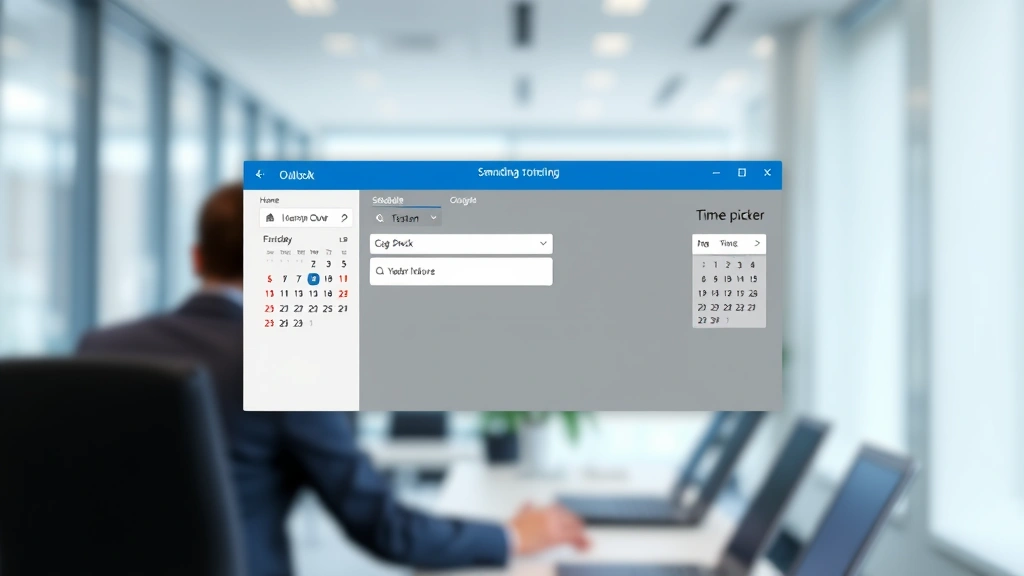
- A scheduling panel will appear on the right side of your screen
- Select your preferred delivery date and time from the calendar and time picker
- Choose from preset options like Tomorrow 9 AM, Tomorrow 6 PM, or Next Monday 9 AM for quick scheduling
- Click Schedule to confirm and your email will be queued for delivery
One major advantage of using Outlook on the web is that your scheduled emails are stored on Microsoft’s servers. This means they’ll send even if you close your browser or shut down your computer. The email remains in your Drafts folder with a special indicator showing it’s scheduled, allowing you to edit or delete it before the scheduled send time if needed.
If you want to reschedule an email after setting it up, simply open the message from your Drafts folder, click the Schedule send dropdown again, and select a new time. You can modify the recipient, subject, or body content before the new scheduled time arrives.

Scheduling Emails in Outlook Desktop Application
The Outlook desktop application (available for both Windows and Mac) includes robust email scheduling capabilities that integrate seamlessly with your local mailbox and calendar. This version offers slightly different navigation but provides equally powerful functionality for scheduling send in Outlook on your computer.
For Outlook on Windows:
- Open Outlook and create a new email message by clicking New Email or pressing Ctrl+N
- Compose your message with the recipient address, subject, and body text
- Instead of clicking the standard Send button, locate the Send dropdown arrow
- Select Delay Delivery or Schedule Send from the menu (exact wording depends on your Outlook version)
- A dialog box will open with date and time options
- Check the box next to Do not deliver before
- Set your preferred delivery date and time using the calendar and time fields
- Click OK to save your scheduled email
For Outlook on Mac:
- Create a new email message using File → New → Email Message
- Compose your full message with all necessary details
- Click the Send dropdown menu
- Select Send Later from the available options
- Choose from suggested times or click More Options for custom scheduling
- Set your exact delivery date and time
- Confirm your selection and the email will be scheduled
Desktop Outlook versions may require your computer to remain powered on until the scheduled send time, depending on your specific version and settings. However, modern versions of Outlook (Office 365 and newer) store scheduled messages in the cloud, similar to the web version. Check your Outlook version by going to File → Office Account or About Outlook to confirm this capability.
Mobile Outlook Email Scheduling
Outlook mobile apps for iPhone, iPad, and Android devices have made it easier than ever to schedule emails on the go. Whether you’re managing work correspondence during your commute or sending messages from a client meeting, mobile scheduling keeps you organized and efficient.
iOS Outlook App Instructions:
- Open the Outlook app and tap the Compose button (pencil icon)
- Fill in the recipient, subject, and message content
- Tap the three-dot menu button at the top right of the compose screen
- Select Schedule send from the menu options
- Choose from preset times or tap Custom for specific scheduling
- Select your desired date and time
- Tap Send to schedule the email
Android Outlook App Instructions:
- Launch Outlook and tap the + icon to create a new message
- Enter the recipient’s email address and compose your message
- Tap the three-dot menu at the top of the compose window
- Look for Schedule send in the dropdown menu
- Select your preferred delivery time from the options provided
- Confirm your scheduling choice and the message will be queued
Mobile scheduling is particularly useful because scheduled emails sync across all your devices. If you schedule an email on your phone, you can view and modify it from your desktop, and vice versa. This cross-platform synchronization ensures you maintain control over your messages regardless of which device you’re using.
Advanced Scheduling Techniques
Once you’ve mastered basic email scheduling, several advanced techniques can further enhance your productivity. These strategies work well when combined with other Outlook features like productivity guides and tutorials.
Time Zone Considerations:
When scheduling emails for international recipients, always account for time zone differences. Outlook typically uses your local time zone for scheduling, so if you’re sending to someone in a different zone, calculate the appropriate time. For example, if you want your email to arrive at 9 AM in London but you’re in New York (EST), you’d schedule it for 2 PM your time during standard time (EST is 5 hours behind GMT).
Batch Scheduling Multiple Emails:
Create several emails and schedule them to send at strategic intervals throughout the day or week. This technique works well for newsletters, follow-up messages, or multi-part communications. Rather than sending everything at once, stagger your messages to maintain engagement and avoid overwhelming recipients’ inboxes.
Using Rules with Scheduled Emails:
Combine scheduled emails with Outlook rules to automatically organize sent messages. Create a rule that moves emails with specific keywords to a particular folder, helping you track scheduled messages by category or project. This integration helps maintain organization when managing numerous scheduled communications.
Integration with Calendar Events:
Schedule emails to send just before important meetings or events. For instance, schedule a reminder email to send 30 minutes before a client presentation, or schedule a follow-up message to send the morning after a major announcement. This coordination ensures timely communication tied to your calendar activities.
Recurring Scheduled Emails:
While Outlook doesn’t natively support recurring scheduled sends like some third-party tools, you can manually schedule similar emails at regular intervals. This approach works well for weekly status updates, monthly newsletters, or regular check-ins with colleagues. Simply schedule the first email, then create additional copies for subsequent weeks or months.
Troubleshooting Common Issues
Even with straightforward features, scheduling emails occasionally presents challenges. Here are solutions to the most common problems users encounter.
Email Not Sending at Scheduled Time:
If your email doesn’t send when scheduled, first check that your Outlook application or browser window remained open (for desktop versions without cloud integration). Verify your internet connection is stable and that you’re logged into your Outlook account. Check the Drafts folder to confirm the email still shows as scheduled—if it’s missing, it may have already sent. Review your email rules to ensure no filters are preventing delivery.
Schedule Send Option Not Appearing:
This feature requires a recent version of Outlook or Office 365 subscription. If you can’t find the schedule send option, update your Outlook application to the latest version. Older versions of Outlook may not support this feature. Additionally, some corporate accounts restrict scheduling based on administrator settings—contact your IT department if the option remains unavailable.
Scheduled Email Disappeared:
Scheduled emails remain in your Drafts folder until they send. If an email vanishes from Drafts, it has likely been delivered. Check your Sent folder to confirm. If you need to cancel a scheduled email that already sent, you cannot recall it through the scheduling system—instead, use Outlook’s recall feature immediately after discovering the issue.
Time Zone Errors:
Outlook displays scheduled times in your local time zone. If emails are arriving at unexpected times, verify your device’s time zone settings match your actual location. Traveling across time zones can cause confusion—adjust your device settings when moving to a new zone, and reschedule emails accordingly if needed.
Mobile Sync Issues:
If scheduled emails don’t appear on your mobile device, ensure Outlook is updated to the latest version and that you’re signed in with the correct account. Log out completely and log back in to refresh the connection. Clear the app cache in your device settings and restart the Outlook application.
Best Practices for Scheduled Emails
Mastering the technical aspects of scheduling is only half the battle. Developing strong practices ensures your scheduled emails achieve their intended impact. Think of this like maintaining your tools properly—regular care and smart usage keep everything running smoothly.
Schedule During Business Hours:
Send most professional emails during typical business hours (9 AM to 5 PM) in your recipient’s time zone. Early morning emails (8-9 AM) and mid-morning messages (10-11 AM) typically receive better engagement than late afternoon emails. However, always consider your specific audience—tech-savvy professionals might check email at any hour, while others may have strict work-hour email habits.
Avoid Over-Scheduling:
While scheduling is convenient, sending too many scheduled emails can make you appear robotic or inauthentic. Use scheduling strategically for important messages, follow-ups, and time-sensitive communications rather than scheduling every email you send. Balance automated scheduling with real-time communication to maintain genuine professional relationships.
Double-Check Before Scheduling:
Always review your message completely before confirming the schedule. Check for typos, verify recipient addresses are correct, and ensure all attachments are included. Once scheduled, you have limited time to make changes—usually only until a few minutes before the scheduled send time, depending on your Outlook version.
Use Descriptive Subject Lines:
Scheduled emails should have clear, specific subject lines that indicate urgency or importance. Vague subjects like “Update” or “Information” may get overlooked, while descriptive subjects like “Q4 Budget Report—Action Required” immediately communicate value and importance.
Consider Recipient Context:
Think about what your recipient will be doing at the scheduled send time. Scheduling a meeting reminder for 8:30 AM works perfectly if the meeting starts at 9 AM. Scheduling a casual check-in message for early Monday morning might get buried under weekend email overflow. Tailor your scheduling to match recipient behavior and context.
Track Scheduled Messages:
Create a system for tracking what you’ve scheduled. Some users maintain a spreadsheet of important scheduled emails, while others use color-coded categories in their Drafts folder. This tracking prevents accidentally scheduling duplicate messages and helps you remember what communications are pending.
Test Before Sending to Large Groups:
If scheduling emails to distribution lists or large groups, send a test message to yourself first. Verify the formatting displays correctly and all links work properly. This precaution prevents embarrassing mistakes from reaching many recipients simultaneously.
FAQ
Can I schedule emails in Outlook if I’m offline?
Outlook on the web requires an internet connection to schedule emails, as messages are stored on Microsoft’s servers. Desktop Outlook can schedule emails while offline, but the messages will send only once you reconnect to the internet. Mobile Outlook requires an active internet connection for scheduling to function properly.
What’s the maximum time in advance I can schedule an email?
Outlook allows scheduling emails up to several years in advance, though most users schedule within days, weeks, or months. There’s no practical limit, but extremely far-future scheduling isn’t typically useful for business communications.
Can recipients tell if I scheduled an email?
No, scheduled emails appear to recipients exactly like normally sent emails. The send time shown in their inbox reflects when the email was actually delivered, not when you composed it. Recipients have no way of knowing you scheduled the message in advance.
What happens to scheduled emails if I change my password?
Scheduled emails remain scheduled even after password changes. Your emails will send at the designated time as long as your account remains active and accessible. Password changes don’t affect pending scheduled messages.
Can I schedule emails with attachments?
Yes, scheduled emails work perfectly with attachments. Include your attachments while composing the message, then schedule it normally. The attachment will be included when the email sends at the scheduled time.
Is there a limit to how many emails I can schedule?
Outlook doesn’t impose a hard limit on scheduled emails, but scheduling hundreds of messages could impact performance. Most users schedule dozens without issues. If you’re scheduling large quantities, consider spacing them out across multiple days to maintain system performance.
Can I schedule emails to send at specific intervals?
Outlook doesn’t natively support automatically sending the same email at recurring intervals. However, you can manually schedule multiple copies of similar emails at different times, or use third-party automation tools that integrate with Outlook for recurring sends. Check resources like Microsoft’s Outlook features page for advanced options.
What should I do if a scheduled email sends at the wrong time?
Check your device’s time zone settings to ensure they’re correct. Verify your Outlook version is current by checking for updates. If the issue persists, contact Microsoft Support or your IT administrator. In the meantime, you can manually send follow-up messages to clarify any timing-related issues.
Can I unschedule an email before it sends?
Yes, as long as you catch it before the send time arrives, open the scheduled email in your Drafts folder and delete it. The email will not send. You can also click the schedule dropdown and select a new time to reschedule rather than cancel.
Does scheduling work with shared mailboxes?
Scheduling functionality in shared mailboxes depends on your Outlook version and configuration. Modern versions of Outlook typically support scheduling in shared mailboxes, but some older versions or corporate configurations may have limitations. Test with a non-critical email first to verify functionality.

Related Posts

Superscript in Google Docs: Expert Tips

Strikethrough in Excel: Easy Steps for Beginners
