

Master Scheduling Texts on iPhone to Boost Your Productivity
In today’s fast-paced digital world, effective communication timing can make or break your professional and personal relationships. Whether you’re coordinating with team members across different time zones, sending birthday wishes at the perfect moment, or ensuring important reminders reach recipients when they’re most likely to see them, scheduling text messages has become an essential productivity tool for iPhone users.
While Android devices have long offered native text scheduling capabilities, iPhone users have historically relied on third-party solutions to achieve this functionality. However, with the evolution of iOS and the introduction of powerful automation features, iPhone users now have multiple sophisticated options for scheduling messages that can significantly enhance their communication efficiency and overall productivity.
Understanding Text Scheduling on iPhone
Text scheduling on iPhone differs significantly from the native scheduling features found on Android devices. Apple’s approach to message scheduling relies primarily on the powerful Shortcuts app, which provides automation capabilities that extend far beyond simple message scheduling. This method offers greater flexibility and integration with other iOS features, though it requires a slightly more involved setup process.
The concept of scheduling texts revolves around creating automated workflows that trigger at specific times or under certain conditions. These workflows can be configured to send messages to individual contacts, groups, or even multiple recipients simultaneously. The scheduling system integrates seamlessly with your existing contacts, allowing for personalized messages that can include dynamic content such as the recipient’s name or current date.
Understanding the technical foundation is crucial for maximizing the effectiveness of your scheduled messaging system. The iPhone’s scheduling capabilities leverage the device’s background app refresh and notification systems to ensure messages are sent even when your device is locked or you’re using other applications. This reliability makes it an excellent tool for maintaining consistent communication patterns and never missing important messaging opportunities.
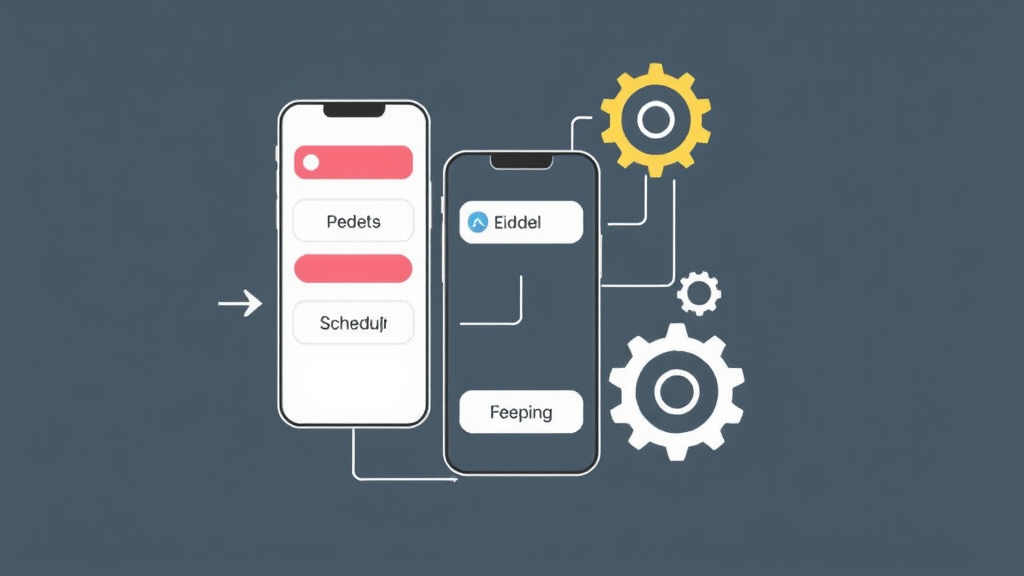
Using the Shortcuts App for Text Scheduling
The Shortcuts app serves as the primary method for scheduling text messages on iPhone, offering a native solution that doesn’t require third-party applications. To begin setting up scheduled messages, first ensure you have the Shortcuts app installed on your device, as it comes pre-installed on iOS 13 and later versions. If you’re using an older iOS version, you can download it from the App Store.
Creating your first scheduled message shortcut begins by opening the Shortcuts app and tapping the plus icon to create a new shortcut. Start by adding the “Send Message” action, which allows you to specify recipients, message content, and various sending options. You can select recipients from your contacts list or manually enter phone numbers, and the message content can be static text or include dynamic elements like the current date or recipient’s name.
The scheduling component requires adding a “Wait” action before the “Send Message” action, allowing you to specify a delay period. However, for more precise scheduling, you’ll want to use automation triggers. Navigate to the Automation tab in the Shortcuts app and create a new personal automation. Time-based triggers allow you to schedule messages for specific times, dates, or recurring intervals, providing the flexibility needed for various communication scenarios.
Advanced users can create more sophisticated shortcuts that include conditional logic, allowing messages to be sent only under specific circumstances. For example, you might create a shortcut that sends a reminder message only if you haven’t completed a specific task or if certain weather conditions are met. This level of customization, similar to how you might recall an email in Outlook for more precise communication control, makes the Shortcuts app incredibly powerful for managing complex communication workflows.
Third-Party Apps for Advanced Scheduling
While the Shortcuts app provides excellent native scheduling capabilities, several third-party applications offer enhanced features and more intuitive interfaces for users who frequently schedule messages. These apps typically provide more user-friendly interfaces, advanced scheduling options, and additional features like message templates, recipient groups, and detailed scheduling analytics.
Popular third-party scheduling apps include Scheduled, Later, and Text Timer, each offering unique approaches to message scheduling. These applications often provide calendar-style interfaces that make it easy to visualize your scheduled messages and manage multiple upcoming sends. Many also include features like message preview, editing capabilities for scheduled messages, and the ability to cancel or modify messages before they’re sent.
When selecting a third-party app, consider factors such as privacy policies, subscription costs, and integration with your existing iOS workflows. Some apps require subscription fees for advanced features, while others offer one-time purchase options. It’s important to review how these apps handle your message data and ensure they align with your privacy preferences, especially since they’ll have access to your contacts and message content.
Integration capabilities are another crucial consideration when choosing third-party solutions. The best scheduling apps work seamlessly with iOS features like Siri Shortcuts, allowing you to create voice commands for quick message scheduling. Some apps also integrate with calendar applications, automatically scheduling messages based on upcoming events or appointments, creating a comprehensive communication management system.
Integrating with iOS Automation Features
iOS automation features extend far beyond basic message scheduling, offering opportunities to create sophisticated communication workflows that respond to various triggers and conditions. The automation system can integrate with location services, calendar events, app usage patterns, and even external factors like weather conditions to create contextually aware messaging systems.
Location-based automation represents one of the most powerful scheduling applications, allowing you to send messages when you arrive at or leave specific locations. For instance, you might set up automation to send an “I’m here” message when you arrive at a meeting location, or automatically notify family members when you leave work. This type of contextual messaging eliminates the need to remember to send routine update messages manually.
Calendar integration offers another dimension of automation possibilities, enabling messages to be scheduled relative to upcoming events. You can create automations that send reminder messages to meeting participants 30 minutes before scheduled calls, or automatically notify clients about upcoming appointments. This integration ensures that your communication remains proactive and professional without requiring constant manual attention.
The system’s ability to integrate with other apps creates opportunities for complex workflow automation. For example, you might create an automation that monitors your task management app and sends progress updates to team members when specific milestones are reached. This level of integration, while requiring more setup time than simple solutions like learning how to right click on a Mac, provides tremendous value for users who manage complex communication requirements.
Best Practices and Productivity Tips
Implementing effective text scheduling requires more than just understanding the technical aspects; it demands strategic thinking about communication timing, message content, and recipient preferences. The most successful users develop systematic approaches that balance automation convenience with personal touch and consideration for recipients’ schedules and preferences.
Timing considerations should account for recipient time zones, work schedules, and cultural norms around communication. Avoid scheduling personal messages during typical work hours unless urgent, and be mindful of different time zones when communicating with contacts in other regions. Research from the UK Government’s digital communications guidance suggests that message timing significantly impacts response rates and recipient satisfaction.
Message content for scheduled texts should maintain authenticity while leveraging automation efficiency. Avoid overly generic messages that clearly appear automated, instead crafting content that feels personal and relevant to the recipient and timing. Include specific details or references that demonstrate thoughtfulness, and consider using dynamic content features to personalize messages with recipient names or relevant contextual information.
Organization and management of scheduled messages become crucial as your automation system grows more complex. Maintain clear naming conventions for your shortcuts and automations, regularly review and update scheduled messages to ensure continued relevance, and create backup systems for critical communications. Document your automation workflows to facilitate troubleshooting and future modifications.
Privacy and etiquette considerations should guide your scheduling practices. Always respect recipients’ communication preferences, avoid over-automation that might seem impersonal, and maintain transparency about automated messages when appropriate. The Federal Trade Commission’s CAN-SPAM Act compliance guide provides valuable insights into best practices for automated communication, even though it focuses on email marketing.
Troubleshooting Common Issues
Common issues with iPhone text scheduling typically relate to automation triggers, device settings, or network connectivity problems. Understanding these potential problems and their solutions can help maintain reliable message scheduling performance and prevent communication failures.
Automation failures often stem from incorrect trigger configurations or iOS system limitations. Ensure that your automation triggers are properly configured and that your device meets the necessary conditions for automation execution. Time-based automations require your device to be powered on and connected to a network at the scheduled time, while location-based triggers need location services enabled and sufficient GPS accuracy.
Device settings can significantly impact scheduling reliability, particularly background app refresh settings, Do Not Disturb configurations, and low power mode restrictions. Review these settings regularly to ensure they don’t interfere with your scheduled message automations. The iOS Focus modes can also affect automation execution, so configure them appropriately for your scheduling needs.
Network connectivity issues can prevent scheduled messages from sending at the intended time, particularly when relying on cellular data or unstable Wi-Fi connections. Consider setting up backup automations or manual verification processes for critical messages, and monitor your automation execution to identify patterns of failure that might indicate systematic issues.
For users seeking additional troubleshooting resources and productivity tips, our comprehensive blog offers detailed guides on various iOS automation and productivity topics that can complement your text scheduling setup.
Frequently Asked Questions
Can I schedule text messages natively on iPhone without third-party apps?
Yes, you can schedule text messages on iPhone using the built-in Shortcuts app and iOS automation features. While iPhone doesn’t have a simple “schedule send” button like some Android devices, the Shortcuts app provides powerful automation capabilities that can schedule messages for specific times, locations, or triggers. This native solution is free, secure, and integrates seamlessly with other iOS features.
Will scheduled messages send if my iPhone is turned off or in airplane mode?
No, scheduled messages will not send if your iPhone is completely powered off or in airplane mode when the scheduled time arrives. Your device needs to be powered on and have network connectivity (cellular or Wi-Fi) for automations to execute. However, if your phone is simply locked or you’re using other apps, scheduled messages will still send as planned through background processing.
Can I edit or cancel a scheduled message before it sends?
The ability to edit or cancel scheduled messages depends on your chosen method. Using the Shortcuts app, you can disable or modify automations before they execute, but this requires accessing the Shortcuts app and making changes manually. Third-party scheduling apps typically offer more user-friendly interfaces for editing or canceling scheduled messages, often including features like message queues and easy modification options.
Is there a limit to how many messages I can schedule on iPhone?
There’s no specific limit imposed by iOS on the number of scheduled messages, but practical limitations exist based on device storage, processing power, and the complexity of your automations. The Shortcuts app can handle numerous automations, but having too many complex automations running simultaneously might impact device performance. Most users can comfortably manage dozens of scheduled messages without issues.
Do scheduled messages work with group texts and iMessage?
Yes, scheduled messages work with both individual contacts and group messages, and they support both SMS and iMessage depending on the recipient’s device and your settings. The Shortcuts app allows you to select multiple recipients for group messages, and the system will automatically use iMessage when communicating with other iPhone users or SMS for non-iPhone recipients, just like manual messaging.
What happens if the recipient’s phone is off when my scheduled message sends?
When a scheduled message sends, it behaves exactly like a manually sent message. If the recipient’s phone is off or out of service range, the message will be delivered by the carrier’s messaging system once their device reconnects to the network. This standard SMS/iMessage delivery behavior ensures that scheduled messages have the same reliability as regular text messages.
Can I schedule messages to be sent from different phone numbers or Apple IDs?
Scheduled messages will be sent from your default messaging settings, using your primary phone number or Apple ID for iMessage. You cannot schedule messages to be sent from different numbers or Apple IDs using the same device, as this would require switching account settings. If you need to send from different numbers, you would need separate devices or manual switching between accounts, which defeats the automation purpose.

Related Posts

How Long to Boil Lobster Tails: Cooking Guide

How Long to Fly from New York to London? Travel Times
