
How to Reset Firestick Remote: Simple Guide
How to Reset Firestick Remote: Simple Guide
Your Firestick remote stops responding mid-binge session. Frustrating, right? Before you toss it across the room or order a replacement, take a breath. Most remote issues have surprisingly simple fixes, and a reset often does the trick. Whether your remote is acting sluggish, unresponsive, or just plain ornery, we’ve got you covered with straightforward solutions that actually work.
The good news? Resetting your Firestick remote doesn’t require a tech degree or special equipment. In fact, you probably already have everything you need sitting in your junk drawer. We’ll walk you through multiple reset methods, troubleshooting steps, and preventative tips to keep your remote in top shape. Let’s get your streaming experience back on track.
Why Your Firestick Remote Needs a Reset
Your Firestick remote communicates with your device through wireless signals, and like any electronic gadget, it can experience connection hiccups or software glitches. Think of a reset as hitting the refresh button on your streaming experience. Sometimes the remote and Firestick lose their connection, cache data builds up, or the remote’s internal settings get corrupted from regular use.
Common signs that your remote needs attention include delayed response times, buttons that don’t register, or complete unresponsiveness. If you’re experiencing these issues, don’t immediately assume the worst. A simple reset addresses about 80% of remote problems without requiring any technical expertise or replacement hardware.
Before diving into reset procedures, it’s worth understanding that your remote might also benefit from a fresh pairing with your device. If you’re dealing with persistent connection issues, our guide on how to pair Firestick remote provides detailed steps to re-establish that connection properly.
Method 1: The Quick Battery Reset
This is the simplest approach and often the most effective. Here’s what you need to do:
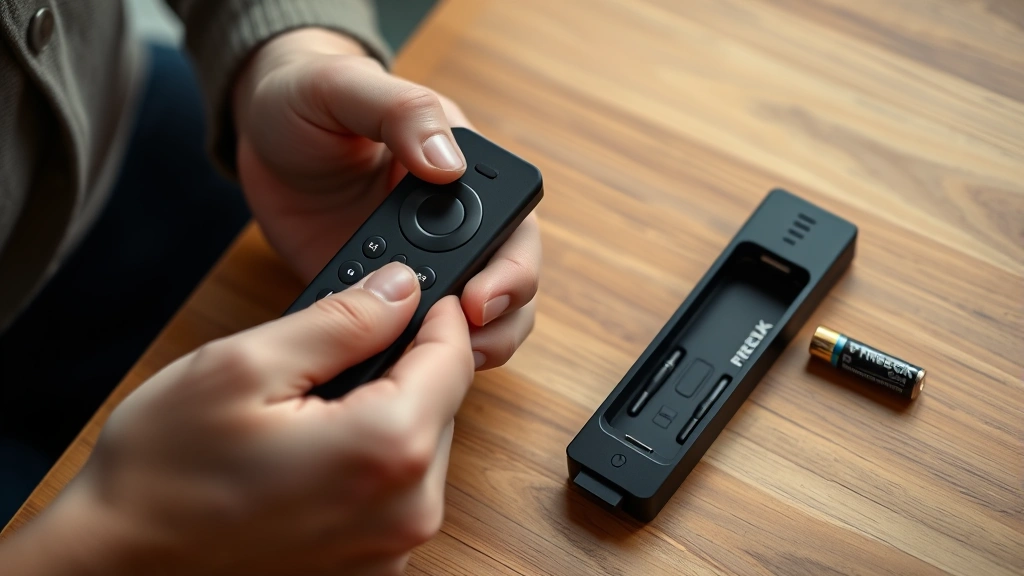
- Remove the batteries: Locate the battery compartment on the back of your remote. Slide the cover off or pop it open depending on your remote model.
- Wait 30 seconds: This pause allows any residual charge to dissipate completely. Don’t skip this step—it’s more important than it seems.
- Reinsert the batteries: Put fresh batteries back in, making sure the positive and negative ends align with the markings inside the compartment. If you’re unsure, check the Amazon Fire TV remote documentation for your specific model.
- Test the remote: Point it at your Firestick and press a few buttons. You should see immediate response.
Pro tip: Use alkaline batteries rather than rechargeable ones. Rechargeable batteries sometimes deliver inconsistent power levels that can cause intermittent connection problems. If your remote is still acting up after a battery reset, move to the next method.
Method 2: Using the Firestick Device Itself
If the battery reset didn’t work, you can perform a reset directly from your Firestick device. This approach works even if your remote is completely unresponsive.
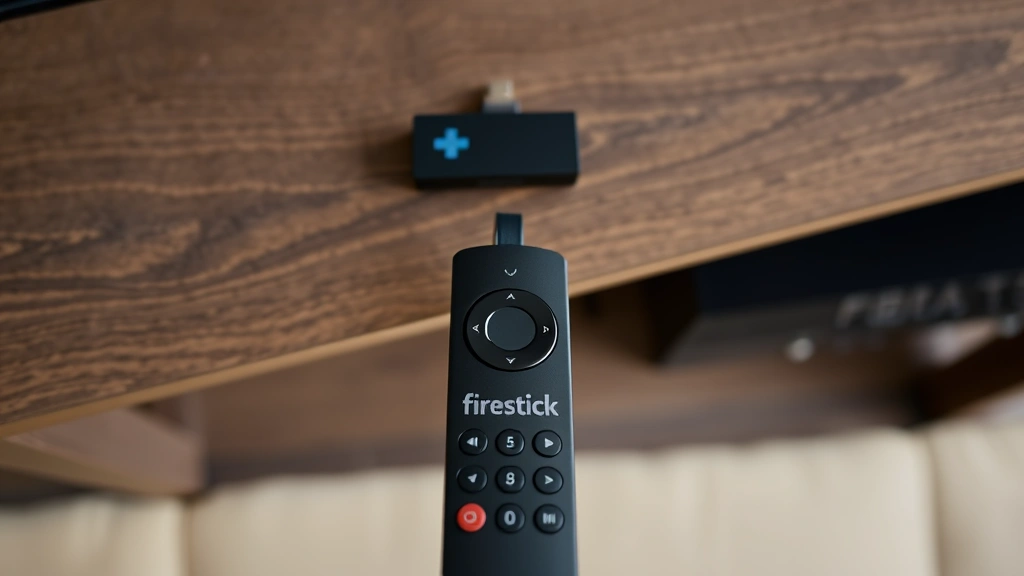
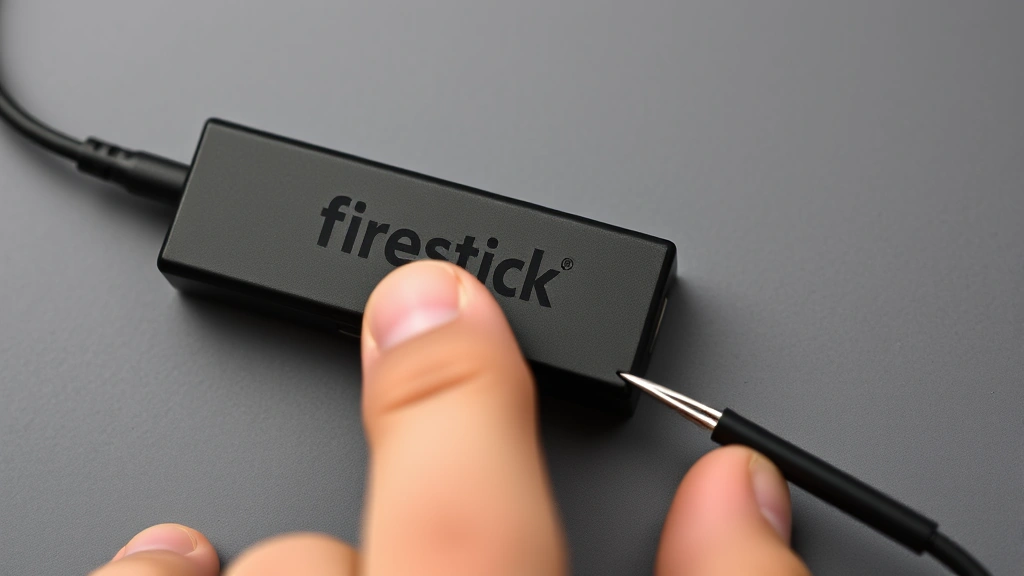
- Locate the reset button: On the back of your Firestick (usually near the power cable connection), you’ll find a small reset button recessed into the device. You’ll need a paperclip or similar thin object to press it.
- Hold the button: Press and hold the reset button for about 15 seconds. Your Firestick will begin the restart process.
- Wait for completion: The device will restart and go through its initialization sequence. This takes about 2-3 minutes.
- Re-pair your remote: Once the device boots back up, you’ll need to re-establish the connection with your remote. Follow the on-screen pairing instructions that appear.
This method performs a soft reset on your device itself, which often resolves remote connection issues. If you’re having trouble with the pairing process afterward, don’t worry—we’ll cover that in detail later.
Method 3: Factory Reset via Settings Menu
For a more thorough reset that clears all settings and data, you can perform a factory reset through your Firestick’s settings menu. This option is ideal if you’ve tried other methods without success.
- Open Settings: From your Firestick home screen, navigate to Settings (usually located in the top menu).
- Find Device Options: Look for Device & Accessories or System depending on your Firestick model.
- Select Reset: Choose the reset or factory reset option. Some models call it “Reset to Factory Defaults.”
- Confirm your choice: The system will ask you to confirm. Select yes or proceed.
- Wait for restart: Your Firestick will restart and return to its original factory state. This process takes several minutes.
Important note: A factory reset clears all your apps, settings, and preferences. You’ll need to sign back into your Amazon account and reinstall apps afterward. This is a nuclear option, but sometimes necessary for stubborn connection problems.
Pairing Your Remote After Reset
After performing any reset, your remote and Firestick need to re-establish their connection. This is similar to the process outlined in our comprehensive guide on how to pair Firestick remote, but here are the quick steps:
- Make sure batteries are fresh: Install new alkaline batteries in your remote before attempting to pair.
- Position yourself close to the device: Stand within 10 feet of your Firestick during pairing.
- Look for the pairing prompt: After reset, your Firestick should display a pairing screen automatically.
- Press and hold the home button: Hold the home button on your remote for about 10 seconds until you see a confirmation message.
- Wait for the connection: The pairing process takes 20-30 seconds. Don’t interrupt it.
Once you see a success message on your screen, you’re all set. Your remote should now respond normally to all commands.
Troubleshooting Persistent Issues
If your remote still isn’t working after trying these reset methods, a few other factors might be at play. Sometimes the issue isn’t the remote itself but rather interference or other technical complications.
Check for interference: Other wireless devices can disrupt your remote’s signal. Move WiFi routers, cordless phones, or other wireless devices away from your Firestick and try again. Even microwave ovens can cause temporary interference.
Inspect for physical damage: Look at your remote for any signs of damage, especially around the battery compartment or buttons. Water damage is a common culprit for unresponsive remotes.
Try a different remote: If you have access to another Firestick remote, borrow it temporarily to see if the problem persists. This helps identify whether the issue is device-specific or remote-specific.
Update your Firestick: Ensure your Firestick device is running the latest software version. Outdated firmware can cause compatibility issues with remotes. Check your device settings for available updates.
If you’re dealing with broader device issues, you might want to explore related troubleshooting guides. For instance, understanding how to powerwash a Chromebook teaches similar reset principles that apply to many devices. Similarly, knowing how to check CPU temp helps you understand device performance issues that might indirectly affect your streaming setup.
Prevention Tips for Long-Term Performance
Once you’ve successfully reset and restored your remote, let’s keep it working smoothly. A little preventative maintenance goes a long way.
- Replace batteries regularly: Don’t wait until your remote dies. Change batteries every 3-4 months or when you notice slower response times.
- Keep it clean: Dust and debris can accumulate in button crevices. Gently wipe your remote with a soft, slightly damp cloth monthly.
- Protect from moisture: Avoid using your remote near water sources. If it gets wet, remove batteries immediately and let it dry completely for 24 hours before reinserting them.
- Store properly: Keep your remote in a safe place away from extreme temperatures or direct sunlight. Excessive heat can damage internal components.
- Avoid dropping: While remotes are fairly durable, repeated drops can damage the internal circuitry. Handle with reasonable care.
- Keep the line of sight clear: Make sure nothing blocks the path between your remote and Firestick. IR signals need an unobstructed view to work properly.
For those managing multiple devices at home, establishing good tech maintenance habits across all your gadgets helps prevent widespread issues. Whether you’re resetting remotes or managing other device settings like turning off Find My iPhone or canceling Dashpass, consistency in your approach makes everything easier.
Frequently Asked Questions
How long does it take to reset a Firestick remote?
A battery reset takes about 2-3 minutes including the wait time. A device reset through settings takes 5-10 minutes. A factory reset can take 10-15 minutes as the device re-initializes all systems.
Will resetting my remote erase my apps and settings?
Resetting just the remote won’t erase anything. However, a factory reset of your Firestick device will clear all apps, settings, and personal data. Always back up important information before performing a factory reset.
What should I do if my remote still doesn’t work after resetting?
Try these steps in order: check for physical damage, ensure fresh batteries are installed, verify there’s no interference from other wireless devices, and try pairing with a different remote if available. If none of these work, your remote may need replacement.
Can I use any remote with my Firestick?
Amazon makes several remote models compatible with different Firestick generations. Check your device’s manual to ensure you’re using a compatible remote. Third-party remotes may work but aren’t officially supported.
How often should I reset my Firestick remote?
You shouldn’t need to reset your remote regularly. If you’re resetting more than once every few months, there might be an underlying issue worth investigating. Regular battery changes and proper maintenance usually prevent the need for frequent resets.
Why does my remote keep losing connection?
Persistent connection issues often stem from low battery power, interference from other devices, or distance from your Firestick. Try fresh batteries first, then move closer to your device and eliminate potential interference sources.
Is it safe to perform a factory reset?
Yes, factory resets are safe and designed for troubleshooting. Just remember that you’ll lose all personal settings and apps, so only use this as a last resort after trying other methods.
Need more detailed guidance on remote pairing? Our complete resource on how to pair Firestick remote covers every scenario and model variation. For additional support, check Amazon’s official Firestick support page or consult Family Handyman’s Firestick troubleshooting guide for additional troubleshooting steps.

Related Posts

How Long to Boil Lobster Tails: Cooking Guide

How Long to Fly from New York to London? Travel Times
