
Reset Firestick Remote: Expert Tips & Guide
How to Reset a Firestick Remote: Expert Tips & Complete Guide
Your Firestick remote is essential for navigating your entertainment system, but like any electronic device, it can occasionally malfunction or lose its connection to your Fire TV device. Whether your remote isn’t responding, the buttons feel unresponsive, or it has completely disconnected from your Firestick, knowing how to reset it properly can save you time and frustration. A reset can resolve most common issues without requiring a trip to the store or expensive technical support.
In this comprehensive guide, we’ll walk you through multiple methods to reset your Firestick remote, from simple troubleshooting steps to complete factory resets. We’ll also cover preventative maintenance tips to keep your remote functioning smoothly, similar to how you’d maintain other home devices like keeping your coffee maker clean for optimal performance. By the end of this article, you’ll be equipped with the knowledge to handle virtually any Firestick remote issue.
Why Your Firestick Remote Needs Resetting
Understanding why your remote might need a reset helps you prevent future issues. Firestick remotes use Bluetooth technology to communicate with your Fire TV device, and various factors can disrupt this connection. Software glitches, battery issues, interference from other devices, or simple user error can all cause your remote to stop working properly. When your remote becomes unresponsive or erratic, a reset is often the fastest solution.
The good news is that resetting your Firestick remote is a straightforward process that requires no special tools or technical expertise. Whether you own an older Fire TV Stick or the latest 4K model, the reset procedures remain largely consistent. Think of it like troubleshooting other home systems—sometimes the simplest solution is the most effective. Just as you’d address a clogged drain before calling a plumber, resetting your remote should be your first step before considering replacement.
Quick Troubleshooting Steps Before Resetting
Before performing a full reset, try these preliminary troubleshooting steps that often resolve remote issues without any drastic measures:
- Check the batteries: Remove the batteries from your remote and inspect them for corrosion or damage. Replace with fresh, high-quality batteries, ensuring they’re inserted correctly with proper polarity alignment.
- Clear the line of sight: Make sure nothing is blocking the infrared sensor between your remote and Firestick device. Move any obstacles like furniture or decorations that might interfere with the signal.
- Restart your Fire TV device: Unplug your Firestick from the power outlet, wait 30 seconds, and plug it back in. This simple restart often resolves temporary connection issues.
- Move closer to the device: Test whether your remote works when held closer to the Firestick, which helps identify whether distance is causing the problem.
- Check for interference: Other wireless devices like routers, microwaves, or cordless phones can interfere with Bluetooth signals. Temporarily move these devices away and test your remote.
- Clean the remote sensors: Use a soft, dry cloth to gently clean the infrared window on the front of your remote and the receiver area on your Firestick.
These preliminary steps resolve approximately 60-70% of remote connectivity issues. If your remote still isn’t functioning after trying these solutions, proceed to the reset methods outlined below.
How to Perform a Soft Reset
A soft reset is the gentlest way to restart your remote without erasing any settings or pairings. This method works well for temporary glitches and unresponsive buttons. Here’s exactly how to do it:
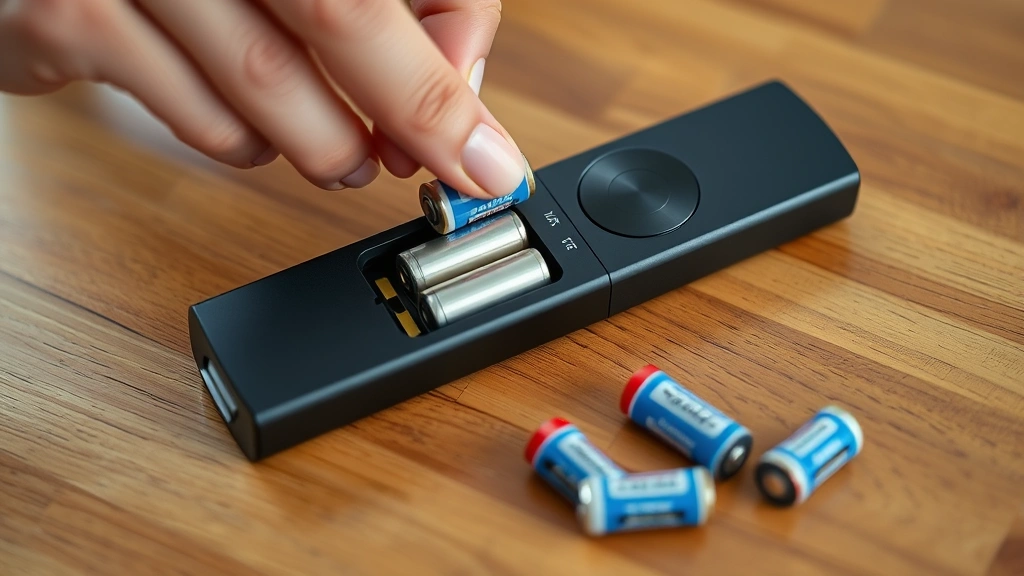
- Remove the batteries: Open the battery compartment on the back of your Firestick remote by sliding the battery door downward or pressing the release button, depending on your remote model.
- Wait for 15-20 seconds: This pause allows any residual power to drain from the remote’s circuits, effectively clearing temporary memory glitches.
- Reinsert the batteries: Place your batteries back into the compartment, ensuring correct polarity (+ and – signs align with the battery compartment markings).
- Test the remote: Point the remote at your Fire TV device and press several buttons to confirm it’s responding. Check both directional buttons and action buttons.
- Restart your Firestick if needed: If the remote still isn’t working, unplug your Firestick for 30 seconds and plug it back in while the remote batteries are installed.
The soft reset typically takes less than five minutes and should be your first reset attempt. Many users find that this simple procedure resolves their remote issues completely. If a soft reset doesn’t work, you can safely proceed to a factory reset without worry—you can always re-pair your remote afterward.
Complete Factory Reset Method
When a soft reset doesn’t solve your problem, a factory reset returns your remote to its original settings. This more thorough reset clears any corrupted data or problematic configurations. Follow these steps carefully:
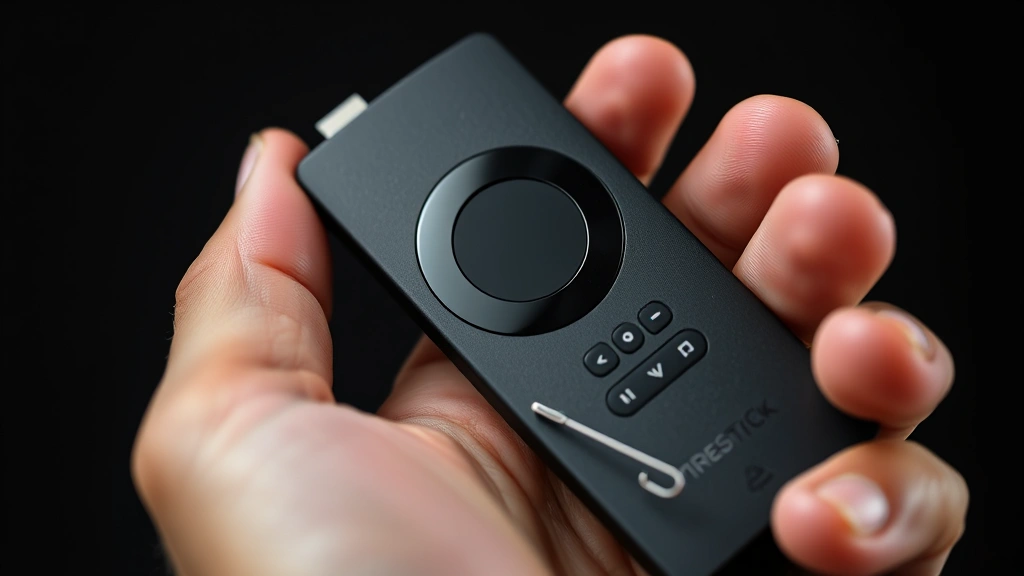
- Locate the reset button: On most Firestick remotes, the reset button is located on the back near the battery compartment. It’s typically a small, recessed button that requires a straightened paperclip or similar tool to press.
- Prepare your tools: Grab a straightened paperclip, a small pin, or a ballpoint pen that you can use to press the recessed reset button.
- Ensure the batteries are installed: Make sure your remote has fresh batteries inserted before attempting the reset, as the reset process requires power.
- Press and hold the reset button: Press the reset button firmly and hold it for 10-15 seconds. You may see the LED light on the remote blink or change color, indicating the reset is in progress.
- Release the button: After the 15-second hold, release the reset button and wait for the remote to complete its restart cycle, which may take another 10-15 seconds.
- Test basic functions: Try pressing the Home button and other basic controls to confirm the remote has completed its reset.
Different Firestick remote models may have slightly different reset procedures. For example, Alexa Voice Remote models might require holding the Home and Back buttons simultaneously for 10 seconds instead of using a physical reset button. Check your specific remote model’s documentation if the standard method doesn’t work. Amazon’s official support site provides model-specific instructions for all Firestick remotes.
Re-pairing Your Remote After Reset
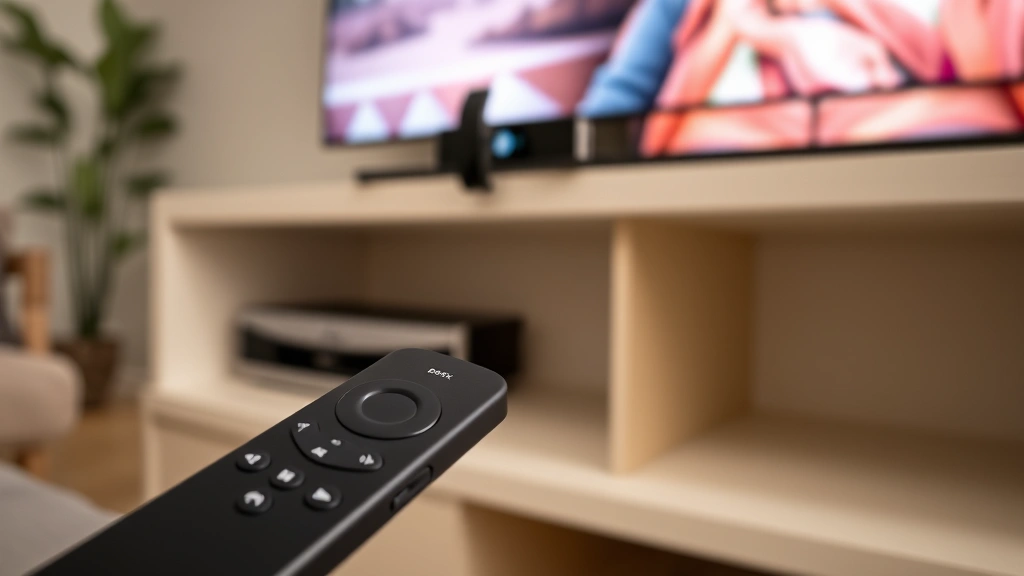
After performing a factory reset, your remote will need to be re-paired with your Fire TV device. This process is straightforward and similar to the initial setup you performed when you first got your Firestick. Here’s how to re-pair:
- Navigate to Settings: Using your Fire TV device’s remote or the Fire TV app on your smartphone, go to Settings on your Firestick’s home screen.
- Access Controllers & Bluetooth Devices: In the Settings menu, find and select “Controllers & Bluetooth Devices” or “Remotes & Bluetooth Devices,” depending on your Fire TV model and software version.
- Select “Pair Bluetooth Device”: Choose this option to put your Firestick into pairing mode, which typically lasts for 30 seconds.
- Activate pairing on your remote: Press and hold the Home button on your reset remote for 10 seconds until the LED indicator blinks, signaling that the remote is in pairing mode.
- Wait for confirmation: Your Firestick should recognize the remote and display a confirmation message on your television screen.
- Test all functions: Once paired, test all buttons including navigation, selection, volume, and voice functions to ensure everything works correctly.
The re-pairing process usually completes within 30-60 seconds. If your remote doesn’t pair on the first attempt, repeat steps 1-4. If pairing continues to fail, try removing any other Bluetooth devices from your Firestick that might be causing interference, much like how you’d eliminate competing signals when troubleshooting home technology issues.
Advanced Troubleshooting Techniques
If standard reset methods haven’t resolved your remote issues, these advanced techniques can help identify and fix more complex problems:
Using the Fire TV App as a Temporary Remote: Download the Fire TV app on your smartphone and use it as a temporary remote while troubleshooting. This allows you to navigate your Firestick and access settings even if your physical remote isn’t working. You can then perform resets and re-pairing procedures through the app interface.
Checking for Software Updates: Navigate to Settings → My Fire TV → About, then check for available software updates. Outdated software can cause compatibility issues with your remote. Install any available updates and restart your device. This is similar to maintaining other smart home devices—keeping software current prevents many problems before they start.
Resetting Your Firestick Device: If your remote still won’t pair after a factory reset, the issue might be with your Firestick itself rather than the remote. Access Settings → My Fire TV → Reset to Factory Defaults. Warning: This will erase all your apps, settings, and login information, so only use this as a last resort.
Testing with a Different Remote: If you have access to another compatible Firestick remote, test whether it pairs and functions correctly with your device. If another remote works fine, your original remote likely has a hardware problem requiring replacement.
Checking USB Port Power: If your Firestick is powered through a USB port on your television, ensure the port is providing adequate power. Some TV USB ports don’t supply consistent power. Try using a dedicated power adapter instead.
Preventative Maintenance Tips
Keeping your Firestick remote in excellent condition prevents most reset-requiring issues. These maintenance practices extend your remote’s lifespan and reliability:
- Replace batteries proactively: Don’t wait until batteries are completely dead. Replace them every 4-6 months, or immediately if you notice reduced responsiveness. Keep spare batteries on hand so you always have fresh ones available.
- Store in a safe location: Keep your remote away from extreme temperatures, humidity, and direct sunlight. Avoid storing it in damp areas like bathrooms, where moisture can damage internal components. Think of it like protecting other home items—proper storage prevents damage just as proper care prevents rust on stainless steel.
- Protect from physical damage: Use a protective case or silicone sleeve to shield your remote from drops, spills, and accidental damage. Many affordable cases are available that don’t interfere with button operation or sensor function.
- Clean regularly: Gently wipe your remote with a soft, dry cloth weekly to prevent dust and debris buildup. For stubborn spots, use a slightly damp cloth with water only—never use harsh chemicals.
- Avoid liquid exposure: Keep beverages away from your entertainment area. Even small spills can cause permanent damage to your remote’s internal circuitry.
- Manage interference sources: Position your router, cordless phones, and microwave away from your entertainment setup. These devices emit signals that can interfere with your remote’s Bluetooth connection.
- Keep your Firestick updated: Regularly check for software updates, as manufacturers often release patches that improve remote compatibility and responsiveness.
Implementing these maintenance practices significantly reduces the likelihood of needing to reset your remote. Just as regular maintenance on home systems prevents costly repairs, taking care of your remote prevents frustrating downtime.
FAQ
How long does a Firestick remote factory reset take?
A factory reset typically completes within 15-30 seconds. You’ll usually see the LED light on your remote blink during the process. After the reset finishes, you may need to re-pair the remote with your Firestick, which adds another 2-3 minutes to the total process.
Will resetting my remote erase my apps and settings on my Firestick?
No. Resetting your remote only affects the remote device itself. Your Firestick’s apps, subscriptions, login information, and settings remain completely unchanged. A remote reset is entirely separate from a Firestick device reset.
Can I use my smartphone as a Firestick remote permanently?
Yes, the Fire TV app on your smartphone can serve as a permanent remote replacement if you prefer. However, most users prefer the dedicated remote for its physical buttons and direct Bluetooth connection, which doesn’t require WiFi like the smartphone app does.
Why does my remote keep disconnecting from my Firestick?
Frequent disconnections usually result from battery issues, interference from other devices, or distance from the Firestick. Start by replacing batteries with fresh ones, then try moving closer to your device. If disconnections persist, perform a soft reset as outlined in this guide.
What should I do if the reset button is stuck or won’t respond?
If the reset button feels stuck, don’t force it. Try using a different tool with a finer tip, like a sewing needle or SIM card ejector tool. If the button remains unresponsive, your remote may have a hardware defect requiring replacement.
Is there a way to reset my remote without the reset button?
Yes. Alexa Voice Remote models can be reset by holding the Home and Back buttons simultaneously for 10 seconds. Some older remote models may also support this button combination reset method. Refer to your specific remote’s manual for alternative reset methods.
How often should I reset my Firestick remote?
You should only need to reset your remote when it’s malfunctioning. Regular resets aren’t necessary for maintenance. If you’re resetting your remote more than once every few months, investigate underlying causes like battery quality, environmental interference, or hardware defects.
Can I reset my remote without removing the batteries?
A soft reset typically requires removing batteries, but a factory reset using the physical reset button can be performed with batteries installed. In fact, batteries must be installed for the factory reset to work properly, as the device needs power to complete the reset process.
What external resources can help with Firestick remote issues?
Amazon’s official customer support provides comprehensive troubleshooting guides for all Firestick models and remote types. Additionally, community forums dedicated to Firestick devices offer peer support from experienced users who may have encountered similar issues. For hardware problems, major electronics retailers can assess whether replacement is necessary.
Will factory resetting my remote void any warranty?
No. Performing a factory reset on your Firestick remote is a standard troubleshooting procedure recommended by Amazon and doesn’t void your warranty. The warranty covers hardware defects, not user-initiated resets.

Related Posts

Superscript in Google Docs: Expert Tips

Strikethrough in Excel: Easy Steps for Beginners
