

How to Remove Yourself from a Group Text: Easy Steps
How to Remove Yourself from a Group Text: Easy Steps
Group texts can be a blessing and a curse. One moment you’re coordinating weekend plans with friends, and the next you’re drowning in notifications about a conversation you have zero interest in. Whether it’s an endless chain about fantasy football stats, your cousin’s debate about pineapple on pizza, or work-related messages that won’t quit, sometimes you just need out. The good news? Removing yourself from a group text is simpler than you might think, and it varies depending on your device and the messaging platform you’re using.
The frustration of being stuck in an unwanted group chat is real. You silence notifications, mute the conversation, or just ignore it entirely—but deep down, you know you’re still technically part of it. The real solution is knowing how to properly exit the conversation, and we’re here to walk you through every method available to you.
Let’s break down the exact steps to free yourself from group text purgatory, whether you’re using an iPhone, Android device, or a third-party messaging app. By the end of this guide, you’ll have the knowledge to gracefully bow out of any group conversation without drama or confusion.
Remove Yourself from Group Text on iPhone (iMessage)
If you’re an iPhone user, removing yourself from an iMessage group text is straightforward—but only if certain conditions are met. Apple’s iMessage platform allows you to exit group conversations, but there’s a catch: everyone in the group must be using iMessage or FaceTime. If even one person is using regular SMS or MMS messaging, you won’t see the exit option.
Here’s how to do it:
- Open the Messages app on your iPhone
- Find the group text you want to leave
- Tap “Edit” in the upper-left corner (or swipe left on the conversation)
- Tap the red minus icon that appears next to the group text
- Select “Delete” to confirm
Wait—that method just deletes the conversation from your inbox, not the actual group. For a true exit from an iMessage group, follow these steps instead:
- Open the group text conversation
- Tap the group name or “Details” at the top of the screen
- Scroll down and look for “Leave this Conversation” option
- Tap it and confirm
If you don’t see the “Leave this Conversation” option, it means the group contains at least one non-iMessage user. In that case, you’re technically stuck—but don’t worry, we’ll cover workarounds in a moment. You can still mute notifications or use other strategies to reduce the annoyance. If you need to manage other iPhone settings while you’re at it, learning how to turn off Do Not Disturb might help you control which notifications actually reach you.

Remove Yourself from Group Text on Android
Android users have a bit more flexibility when it comes to exiting group texts, though the exact steps depend on which messaging app you’re using. Most Android devices come with a default SMS/MMS app, and the process is relatively simple.
For standard Android SMS/MMS:
- Open your default messaging app (Google Messages, Samsung Messages, or similar)
- Long-press on the group conversation you want to leave
- Look for options like “Delete,” “Remove,” or “Exit Group”
- Select the appropriate option to remove yourself
The tricky part with Android is that not all devices have the same messaging app, and not all carriers support the same features. Some Android phones with older SMS systems don’t have a built-in “leave group” function. If you’re in this situation, you might need to use a third-party messaging app instead.
The good news is that if you’re using modern versions of Android with RCS (Rich Communication Services) enabled, you should have a proper exit option. Understanding how to remove someone from a group text is related to managing group dynamics, and the same principles apply when you’re the one trying to leave.
Pro tip: If your default messaging app doesn’t offer an exit option, consider switching to Google Messages, which consistently supports group chat management features across Android devices.
Exit Group Conversations on Facebook Messenger
Facebook Messenger groups are different from standard SMS group texts, and leaving them is refreshingly straightforward. Whether you’re on mobile or desktop, the process is nearly identical.
On mobile:
- Open Facebook Messenger and locate the group chat
- Swipe left on the group (iOS) or long-press it (Android)
- Tap “Leave Chat” or similar option
- Confirm your decision
On desktop:
- Go to Facebook Messenger in your web browser
- Right-click on the group conversation
- Select “Leave Chat” from the context menu
- Confirm when prompted
One thing to note: when you leave a Facebook Messenger group, you won’t receive notifications about future messages, but the conversation may still appear in your chat history depending on your settings. If you want a completely clean break, you can also mute the conversation or archive it for a cleaner inbox.
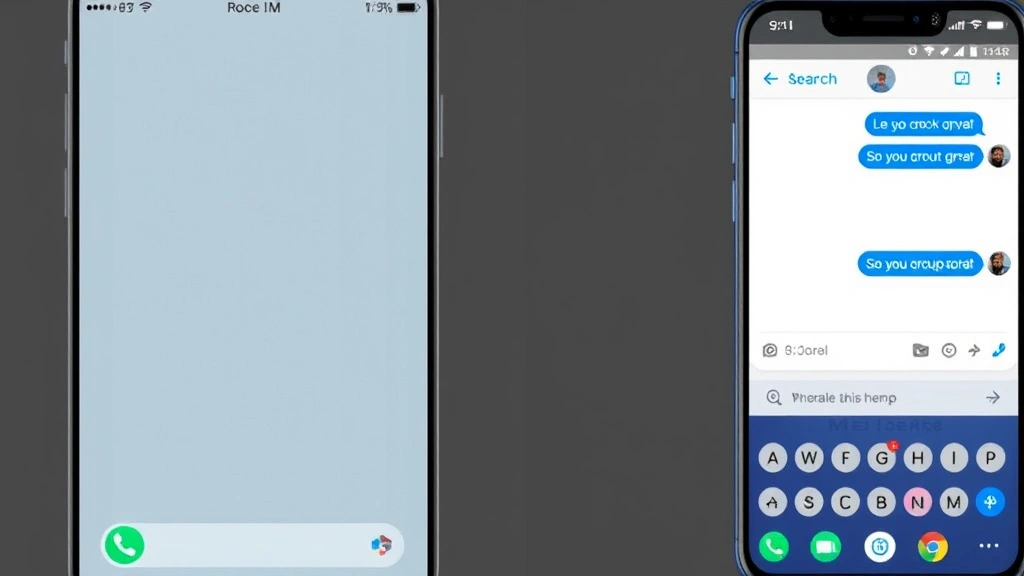
Leave WhatsApp and Telegram Groups
WhatsApp and Telegram have become increasingly popular for group communication, and thankfully, both platforms make it easy to leave groups.
WhatsApp:
- Open WhatsApp and find the group you want to leave
- Tap and hold the group conversation (or swipe left on iOS)
- Select “Leave Group” from the menu
- Confirm your exit
When you leave a WhatsApp group, everyone in the group will be notified that you’ve left. Your message history will remain on your device, but you won’t receive future messages.
Telegram:
- Open Telegram and locate the group
- Open the group and tap the group name at the top
- Scroll down to find “Leave Group”
- Confirm your decision
Telegram also notifies group members when you leave, so don’t expect your departure to go unnoticed. However, Telegram gives you more control over your privacy settings, so you can adjust who sees that you’ve left if privacy is a concern.
If you’re concerned about staying reachable for important messages, you might want to explore options like learning how to schedule a text on iPhone so you can send a farewell message before leaving, or understanding how to block No Caller ID on iPhone if you want to control incoming communications more broadly.
What to Do When You Can’t Leave a Group
Sometimes, despite your best efforts, you genuinely cannot leave a group text. This typically happens when you’re in an SMS group with mixed device types, or when you’re part of a group where the admin hasn’t enabled the leave feature. Here are your alternatives:
Mute Notifications: Most messaging apps allow you to silence notifications from specific conversations without actually leaving. You’ll still be part of the group, but you won’t be bombarded with alerts. On iPhone, you can swipe left and tap “Mute,” while on Android, long-press the conversation and select mute options.
Archive the Conversation: Both iOS and Android allow you to archive conversations, which removes them from your main chat list without deleting them. The conversation still exists if you ever need to reference it, but it won’t clutter your inbox.
Mute and Ignore: If you absolutely cannot leave, simply let the conversation fade into the background. Stop engaging, and eventually, people will stop directing messages at you specifically. It’s not ideal, but it works.
Switch to a Different Messaging App: If the group is using a platform that doesn’t support leaving, suggest moving the conversation to an app that does. Most people are open to this if it improves communication for everyone.
If you need to handle other contact management issues, such as unblocking a number on iPhone, you have similar workaround options when the standard methods don’t apply.
Group Text Etiquette Tips
Before you vanish from that group chat, consider the human element. Here are some etiquette tips to keep things smooth:
Give a heads-up: If the group is active and you’re a regular participant, send a quick message letting people know you’re leaving. A simple “Hey everyone, I’m going to step out of this chat—take care!” goes a long way.
Don’t ghost: Silently disappearing from a group without explanation can feel rude, especially if it’s a group of close friends or colleagues. A brief goodbye is courteous and prevents confusion.
Consider muting first: If you’re on the fence about leaving, try muting notifications first. You might find that the group becomes manageable once you’re not getting constant alerts.
Leave at a natural break: If possible, leave during a natural lull in conversation rather than in the middle of an active discussion. It feels less abrupt.
Offer alternatives: If you’re leaving a work group or important circle, suggest staying in touch through other channels or apps that might work better for you.
Frequently Asked Questions
Will people know when I leave a group text?
It depends on the platform. iMessage will notify everyone that you’ve left. WhatsApp and Telegram also send notifications. Facebook Messenger and most SMS groups don’t explicitly notify everyone, but they might see that you’re no longer listed as an active participant.
Can I leave a group text without anyone knowing?
Not really, unless you simply delete the conversation from your device (which doesn’t actually remove you from the group). Most modern messaging platforms notify group members when someone leaves. Your best bet for discretion is to mute the conversation instead of leaving.
What’s the difference between muting and leaving a group?
Muting silences notifications but keeps you in the group and able to see messages. Leaving removes you from the group entirely, and you won’t receive future messages. You’re still technically a participant in a muted conversation, whereas leaving is a complete exit.
Can I rejoin a group after I leave?
On most platforms, yes—if someone re-adds you or if the group is public. On Facebook Messenger or WhatsApp, someone would need to invite you back. On SMS groups, you’d need someone to re-include your number.
Why can’t I leave my iPhone group text?
The most common reason is that at least one person in the group is using SMS or MMS instead of iMessage. Apple’s iMessage only allows you to leave if everyone is using iMessage. Check the group details to see if there’s a “Leave this Conversation” option—if not, this is likely why.
Is there a polite way to suggest someone else leave a group?
Directly asking someone to leave can be awkward. Instead, consider creating a new group without that person, or privately messaging them to ask if they’d prefer to be removed. Ultimately, it’s their choice, but a gentle conversation is better than forcing them out.

Related Posts

How Long to Boil Lobster Tails: Cooking Guide

How Long to Fly from New York to London? Travel Times
