
Remove Me from Group Text? Expert Tips Here
How to Remove Me from Group Text: Expert Tips and Complete Guide
Group texts can quickly become overwhelming, cluttered with notifications and conversations that don’t always apply to you. Whether you’re receiving constant updates from a work group, family chain messages, or friend group chats, learning how to remove me from group text is essential for maintaining your digital peace and managing notification overload. The good news is that removing yourself from a group text is straightforward across most messaging platforms, though the exact steps vary depending on your device and the application you’re using.
In this comprehensive guide, we’ll walk you through every method available on iPhone, Android, and various messaging apps to help you gracefully exit group conversations. We’ll also cover etiquette considerations, alternatives to leaving entirely, and how to manage your messaging preferences moving forward. By the end of this article, you’ll have all the knowledge you need to take control of your group messaging experience and reduce unwanted notifications from cluttering your phone.
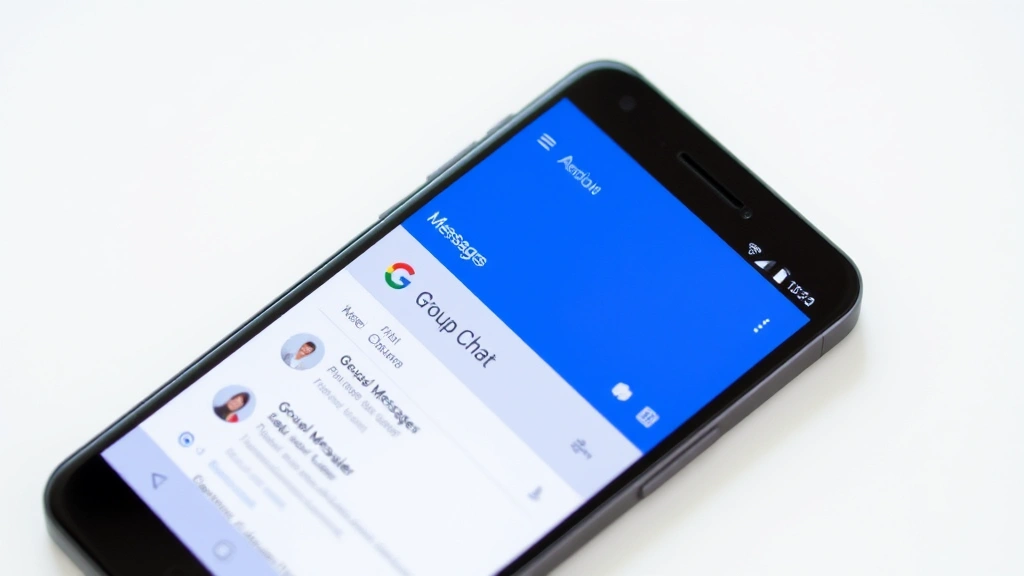
How to Remove Yourself from Group Text on iPhone
If you’re an iPhone user, Apple’s Messages app provides a built-in feature specifically designed to let you exit group conversations. This is one of the easiest and most straightforward methods available. The process works on any iPhone running iOS 8 or later, making it accessible to the vast majority of Apple device users.
Step-by-step instructions for iPhone:
- Open the Messages app on your iPhone
- Locate the group text conversation you want to leave
- Swipe left on the conversation thread (or tap and hold on older iOS versions)
- Tap “Leave” from the menu that appears
- Confirm your decision when prompted
That’s all there is to it! You’ll be immediately removed from the group conversation, and you won’t receive any further messages from that thread. The other members of the group will see a notification indicating that you’ve left the conversation, similar to how they’d see a notification if someone was added to the group.
If you want to remove yourself from a group text while you’re already viewing the conversation, you can also try this alternative method:
- Open the group text conversation
- Tap the group name or “Details” at the top of the screen
- Scroll down and tap “Leave This Conversation”
- Confirm when asked
One important note: this feature only works for group texts created with iMessage. If the group conversation is using standard SMS/MMS (green message bubbles instead of blue), you may not see the “Leave” option. In those cases, you’ll need to use notification management settings instead, which we’ll discuss later in this guide.
For users who want more control over their messaging experience, Apple also allows you to manage individual notifications from specific group texts without leaving entirely. You can mute notifications, filter messages, or set up VIP contacts so that only important messages break through your Do Not Disturb settings.
Removing Yourself from Group Text on Android
Android users have several options depending on which messaging app they use, as Android doesn’t have a single default messaging application like iOS does. The most common approach involves using Google Messages (formerly Android Messages), but we’ll also cover other popular alternatives.
Removing yourself using Google Messages:
- Open the Google Messages app
- Find the group conversation you want to leave
- Long-press (tap and hold) on the conversation
- Look for options at the top of the screen
- Tap the three-dot menu icon (more options)
- Select “Leave group” or “Remove me”
- Confirm your decision
The exact wording and menu placement can vary slightly depending on your Android version and which messaging app you’re using. If you don’t see a “Leave group” option, try opening the conversation first and looking for a menu option within the conversation details.
Alternative method for Android devices:
- Open your messaging app and select the group conversation
- Tap the group name or header at the top
- Look for group information or details
- Find the option to leave the group or remove yourself
- Confirm the action
It’s worth noting that some Android users may still be using SMS/MMS for group texts rather than data-based messaging apps. If you’re using traditional SMS group texts, you may not have a built-in “leave group” feature, similar to the limitation on older iPhone SMS groups. In these cases, you’ll need to manage notifications instead or ask the group administrator to remove you.
Third-Party Messaging Apps
Many people use third-party messaging applications beyond the default messaging apps on their devices. Apps like WhatsApp, Facebook Messenger, Telegram, and Viber have become increasingly popular for group communications. Each of these platforms has its own method for leaving group conversations, and understanding how to navigate them is important.
Leaving a group on WhatsApp:
- Open WhatsApp and go to the Chats tab
- Find the group chat you want to leave
- Swipe left on iOS or long-press on Android
- Tap “Leave Chat” or the leave icon
- Confirm your decision
Alternatively, you can open the group chat, tap the group name at the top, scroll down, and tap “Leave Group.” When you leave a WhatsApp group, other members will see a message saying “You left” in the chat history.
Exiting Facebook Messenger groups:
- Open the Messenger app
- Find the group conversation
- Swipe left on iOS or long-press on Android
- Tap “Leave” or “Leave Chat”
- Confirm when prompted
You can also open the group chat, tap the group name, scroll to the bottom, and select “Leave Group.” Facebook Messenger will notify the group that you’ve left.
Leaving Telegram groups:
- Open the Telegram app
- Find the group conversation
- Swipe left on iOS or long-press on Android
- Tap “Delete Chat” or “Leave Group”
- Confirm your action
For more information on managing your digital communication tools, check out our comprehensive guide to FixWiseHub’s how-to guides and tutorials for practical technology tips.
Leaving Viber groups:
- Open Viber and find the group chat
- Swipe left on the group (iOS) or long-press (Android)
- Tap “Leave Group”
- Confirm when asked
Each platform handles group exits slightly differently, and some provide notifications to other members while others do so silently. Understanding the specific platform you’re using will help you exit smoothly and with appropriate transparency to other group members.
Group Text Etiquette and Best Practices
Before you remove yourself from a group text, it’s worth considering the social implications and best practices for handling group conversations. Depending on the nature of the group and your relationship with its members, there may be more tactful ways to handle the situation.
When to silently leave:
For large group chats, casual friend groups, or professional group texts where your presence isn’t critical, you can typically leave without explanation. Nobody expects you to announce your departure from a large group chat, and most people won’t even notice. This is especially true for group texts that have become too active or cluttered with information that doesn’t apply to you.
When to give a heads-up:
For smaller, more intimate groups—like family group chats, close friend circles, or important work teams—it’s often better to give people a quick message before you leave. A simple “I’m going to remove myself from this group, but I’m still available if you need to reach me directly” can prevent hurt feelings and misunderstandings. This approach maintains relationships while still allowing you to opt out of constant notifications.
Professional considerations:
If you’re leaving a work-related group text, consider the context carefully. Leaving a group chat with your entire department might raise eyebrows, while leaving a casual happy hour planning group would be completely normal. If you’re unsure, it’s better to mute notifications or ask your manager about the best way to handle the situation.
Alternative approaches to leaving:
Before you commit to leaving a group text entirely, consider whether muting notifications might solve your problem instead. You can remain technically in the group while silencing all alerts, which keeps you in the loop if something important comes up but prevents constant interruptions. This middle-ground approach often works better than completely leaving, especially in family or work contexts.
Managing Notifications Instead of Leaving
Sometimes the best solution isn’t to leave a group text at all, but rather to manage how you receive notifications from it. This approach allows you to stay connected without being constantly bombarded by messages. Different platforms and devices offer various notification management tools that can be customized to your preferences.
Muting notifications on iPhone:
- Open the Messages app
- Swipe left on the group conversation
- Tap the bell icon with a slash through it to mute notifications
- Choose how long to mute: 1 hour, 8 hours, 1 day, or indefinitely
You can also open the conversation, tap “Details” at the top, and toggle “Hide Alerts” on. This keeps you in the conversation but prevents notifications from appearing on your lock screen or in your notification center.
Muting notifications on Android:
- Open your messaging app
- Long-press on the group conversation
- Look for a bell icon or notification settings
- Select “Mute notifications” or “Mute”
- Choose your preferred duration
The exact steps vary depending on which Android messaging app you’re using, but most follow this general pattern. You’ll still receive messages, but they won’t trigger notifications on your device.
Using Do Not Disturb settings:
Both iPhone and Android allow you to create custom Do Not Disturb schedules that can silence group texts during specific times. You can set up quiet hours for sleep, work, or personal time, and allow only important contacts to break through. This way, you remain in the group but control when you see notifications.
Filtering and organizing messages:
Many modern messaging apps allow you to filter conversations or create custom folders. You can set certain group texts to go to a specific folder where you can check them on your own schedule rather than being interrupted by notifications. This gives you control without requiring you to leave the conversation entirely.
For more tips on managing different aspects of your digital life, explore our guides on removing unwanted items and managing personal care for practical advice on life management.
FAQ
What happens when I leave a group text on iPhone?
When you leave a group iMessage conversation on iPhone, you’ll be removed from the thread and won’t receive any further messages. Other members will see a notification that you’ve left the group. You won’t be able to see messages sent after you’ve left, though you can still see the conversation history up to the point you left.
Can I rejoin a group text after leaving?
This depends on the platform and whether the group is still active. On iMessage, you can rejoin if someone adds you back to the group. On WhatsApp and other apps, it depends on the group settings and whether the admin allows rejoining. Generally, you can ask to be added back if you change your mind.
Will people know I left the group text?
Yes, in most cases. On iMessage, WhatsApp, and other modern messaging apps, group members will see a notification when you leave. If you want to leave discreetly, muting notifications is a better option than leaving entirely.
Why can’t I leave my group text?
If you can’t find a leave option, your group text might be using SMS/MMS instead of iMessage or data-based messaging. SMS group texts don’t have a true “leave” feature. In this case, you can only mute notifications or ask the group admin to remove you.
Is there a difference between leaving and muting a group text?
Yes. Leaving removes you from the conversation entirely, and you won’t see new messages. Muting silences notifications but keeps you in the group, so you can still read messages when you choose to check the app. Muting is often the better option if you want to stay connected but reduce interruptions.
Can I leave a group text without notifying others?
Unfortunately, most modern messaging platforms notify group members when you leave. If you want to exit without announcement, muting notifications is your best option. You’ll stay in the group but won’t be bothered by messages.
What should I do if someone keeps adding me back to a group text?
If you’ve left a group and someone keeps adding you back, consider having a direct conversation with them about why you don’t want to be in the group. You can also mute notifications to reduce the impact of being repeatedly added. If it’s a work situation, you may need to involve your manager or HR department.
Can I remove someone else from a group text?
Only group administrators or the person who created the group can remove other members from most messaging apps. If you’re concerned about someone in a group chat, you can mute notifications from that specific person or report them if they’re behaving inappropriately.

Related Posts

Superscript in Google Docs: Expert Tips

Strikethrough in Excel: Easy Steps for Beginners
