
How to Reboot iPhone: Simple Steps Guide
How to Reboot iPhone: Simple Steps Guide
Your iPhone is acting sluggish, apps are freezing, or something just feels off. Before you panic or schedule an appointment at the Genius Bar, there’s a simple solution that often works wonders: rebooting your device. A good old restart can clear out temporary glitches, refresh your system, and restore your iPhone to its snappy, responsive self. Think of it as giving your phone a fresh breath of air.
The beauty of rebooting an iPhone is that it’s incredibly straightforward, yet many people aren’t entirely sure how to do it properly. Whether you have the latest iPhone 15 or an older model, the process is intuitive once you know the steps. We’ll walk you through every method available, from the standard restart to force restart techniques that can save you from stubborn software hiccups.
This guide covers everything you need to know about rebooting your iPhone, ensuring you can tackle any performance issues with confidence. Let’s dive into the details and get your device running smoothly again.
Why You Should Reboot Your iPhone
Rebooting your iPhone isn’t just a last-resort troubleshooting tactic—it’s actually a preventative maintenance practice that keeps your device healthy. When your phone runs continuously without a restart, it accumulates temporary files, cached data, and background processes that can slow things down. A reboot clears all of this out, essentially giving your iPhone a clean slate.
Think about your everyday digital life: apps running in the background, notifications stacking up, temporary files accumulating. Over time, this digital clutter impacts performance. A simple restart can resolve up to 80% of common iPhone issues, including app crashes, connectivity problems, and battery drain. It’s the tech equivalent of turning something off and on again—and it actually works.
Beyond performance, rebooting also helps with security. A fresh restart ensures that all processes are terminated cleanly, which can help protect against certain types of malware or system vulnerabilities that exploit running processes. If you’re experiencing unusual behavior or suspect something might be wrong, a reboot is one of your first lines of defense.
How to Perform a Standard Restart
A standard restart is the gentlest way to reboot your iPhone. This is your go-to method for regular maintenance and minor issues. Here’s exactly how to do it:
- Locate the power button: On newer iPhones (iPhone X and later), you’ll find it on the right side of the device. On older models, it’s typically on the top right or bottom right edge.
- Press and hold: Press and hold the power button along with either the volume up or volume down button simultaneously. Don’t release just yet.
- Wait for the prompt: After a few seconds, you’ll see the “slide to power off” screen appear on your display.
- Slide to turn off: Use your finger to drag the power slider from left to right. Your iPhone will begin shutting down.
- Wait for complete shutdown: Give your device about 10-15 seconds to fully power down. You’ll know it’s complete when the screen goes black.
- Power back on: Press and hold the power button again until you see the Apple logo appear on the screen. This typically takes 10-15 seconds.
- Complete the boot process: Wait for your iPhone to fully restart and load. You might see the lock screen and need to enter your passcode or use Face ID/Touch ID.
This standard restart method is perfect for everyday maintenance and addressing minor performance hiccups. It’s also the safest option because it doesn’t force anything—your iPhone gracefully shuts down all running processes.
Force Restart for Different iPhone Models
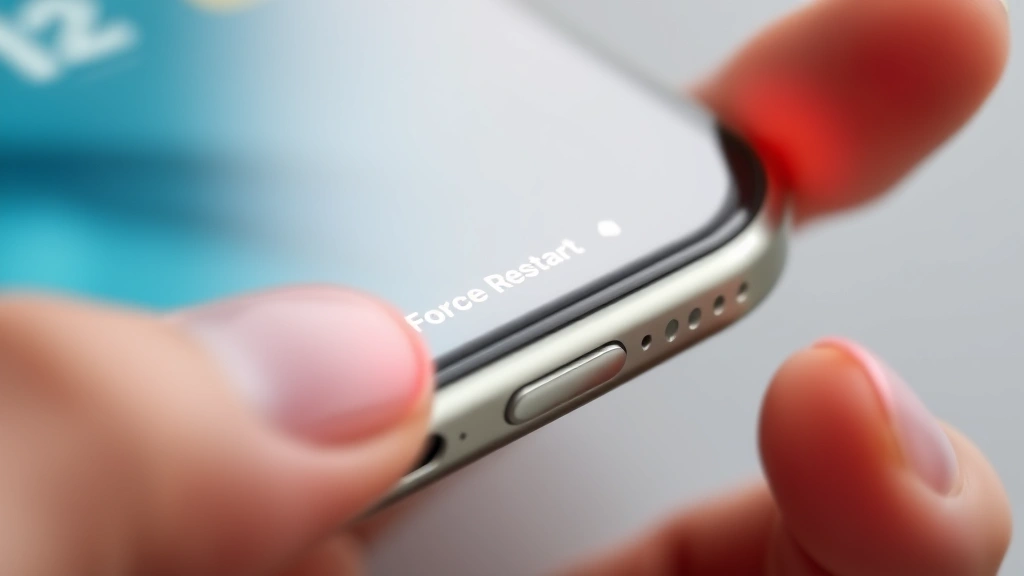
Sometimes a standard restart doesn’t cut it. If your iPhone is frozen, unresponsive, or stuck on a particular screen, you’ll need to perform a force restart. The good news is that this won’t delete any of your data—it simply forces your iPhone to shut down immediately and restart.
For iPhone 8 and Newer Models:
- Quickly press and release the volume up button
- Quickly press and release the volume down button
- Press and hold the side button (power button) until you see the Apple logo appear, typically 10-15 seconds
- Keep holding until the logo disappears and your device restarts
For iPhone 7 and iPhone 7 Plus:
- Press and hold the volume down button and the power button simultaneously
- Keep holding both buttons until the Apple logo appears on screen
- Release the buttons and wait for your device to fully restart
For iPhone 6s and Earlier (including SE 1st generation):
- Press and hold both the home button and the top (or side) power button
- Continue holding until the Apple logo appears
- Release the buttons once the logo is visible and allow the restart to complete
The force restart method bypasses the normal shutdown sequence, making it invaluable when your iPhone is completely frozen or unresponsive. However, use this sparingly—it’s more aggressive than a standard restart and should be reserved for situations where your device truly isn’t responding.
Understanding Hard Reset vs. Soft Reset
You’ve probably heard these terms thrown around, and it’s important to understand the distinction. A soft reset (what we’ve been discussing) is essentially a reboot that clears RAM and restarts the operating system without affecting your data or settings.
A hard reset, on the other hand, is much more drastic. It erases everything on your iPhone and restores it to factory settings. Before performing a hard reset, you should definitely turn off Find My iPhone to avoid activation lock issues. A hard reset should only be considered as a last resort when your iPhone has serious software problems that won’t resolve with a standard reboot.
If you’re considering a hard reset due to persistent performance issues, there are often better intermediate steps first. For instance, clearing app cache on your iPhone can free up significant storage space and improve performance without erasing your data. This targeted approach often resolves issues without the nuclear option of a complete factory reset.
For most people, most of the time, a soft reset (standard or force restart) is exactly what you need. Hard resets should be saved for situations where you’re genuinely trying to start fresh or when your device has corrupted system files that won’t respond to any other troubleshooting method.
Troubleshooting After Your Reboot
After your iPhone has restarted, take a moment to assess whether your issue has been resolved. Most problems—app crashes, slow performance, connectivity issues—should be resolved by a simple reboot. However, if you’re still experiencing problems, here are some next steps:
Check Your Connectivity: Make sure you’re properly connected to WiFi or cellular data. Sometimes a reboot is all you need, but if you’re still having connectivity problems, try toggling airplane mode on and off.
If you’re having trouble with specific calls or contacts, you might want to explore whether forwarding calls on your iPhone is interfering with your service, or check whether you’ve accidentally hidden an app on your iPhone that you need.
Verify Your Device Status: If you recently purchased a used iPhone or received one from someone else, check if your iPhone is unlocked to ensure it’s not carrier-locked or activation-locked.
Update Your Software: Check if there are any available iOS updates. Go to Settings > General > Software Update. Sometimes a reboot combined with a software update resolves persistent issues.
Check Storage Space: If your iPhone is running low on storage, performance can suffer significantly. Go to Settings > General > iPhone Storage to see what’s taking up space. Consider deleting unused apps or photos that are backed up to iCloud.
Review Recent App Changes: If the problem started after installing a new app, try uninstalling it. A buggy app can sometimes cause system-wide issues that a reboot alone won’t fix.
When to Seek Professional Help
While rebooting solves most issues, there are situations where professional help is warranted. If your iPhone continues to have problems after multiple reboot attempts, or if you’re seeing error messages that persist across restarts, it’s time to consult with Apple Support or visit an Apple Store.
Physical damage, water damage, or battery issues often can’t be resolved with software reboots. If your iPhone won’t turn on at all, experiences sudden shutdowns even when the battery is charged, or has visible damage, these are hardware issues requiring professional assessment.
Additionally, if you’re experiencing security concerns—unusual data usage, suspicious account activity, or signs of compromise—professional help can ensure your device is thoroughly checked and cleaned. Apple’s official support resources provide comprehensive guidance and can arrange repairs or replacements if necessary.
For software-related issues that persist after rebooting, reputable third-party resources like iFixit can provide additional troubleshooting steps before you resort to professional service. However, don’t hesitate to reach out to Apple if you’re unsure—they have the expertise to diagnose problems accurately.
Frequently Asked Questions
Will rebooting my iPhone delete my data?
No, absolutely not. A standard restart or even a force restart will not delete any of your data, photos, apps, or settings. Your iPhone will simply power down and restart, much like a computer would. All your information remains safely stored on your device. Only a hard reset (factory reset) would erase data, and that’s a completely different process that requires intentional action on your part.
How often should I reboot my iPhone?
There’s no strict rule, but many tech experts recommend rebooting your iPhone once a week or whenever you notice performance issues. If your iPhone is running smoothly and you’re not experiencing any problems, you don’t necessarily need to reboot regularly. However, a weekly restart is a good preventative maintenance habit that keeps your device running optimally.
What’s the difference between a restart and a hard reset?
A restart (soft reset) simply powers your device off and back on, clearing temporary files and refreshing the operating system without affecting your personal data. A hard reset completely wipes your iPhone and restores it to factory settings, erasing everything including photos, apps, messages, and settings. Hard resets should only be used as a last resort for serious software problems.
How long should I wait between powering off and turning my iPhone back on?
While you can turn your iPhone back on immediately after it shuts down, waiting 10-30 seconds is ideal. This brief pause gives all the internal components time to fully power down and reset, which can be more effective for resolving certain issues. It’s a simple habit that takes minimal extra time and can improve results.
What should I do if my iPhone won’t restart?
If your iPhone won’t restart using the standard method, try a force restart using the appropriate button combination for your model. If it still won’t restart and remains completely unresponsive, your device might have a hardware issue or critically low battery. Try connecting it to a charger for at least 15-30 minutes, then attempt the restart again. If it still doesn’t respond, you’ll need to visit an Apple Store or contact Apple Support.
Can I use my iPhone while it’s restarting?
No, you cannot use your iPhone while it’s in the process of restarting. The device will be completely unresponsive during the shutdown and startup sequence. This is normal and expected. Simply wait for the Apple logo to appear and then disappear, followed by the lock screen, indicating that the restart is complete.
Will force restarting damage my iPhone?
No, force restarting is completely safe for your iPhone. It’s a built-in feature designed specifically for situations where your device is frozen or unresponsive. Apple engineers have designed iPhones to handle force restarts without any damage to hardware or data. That said, it’s more aggressive than a standard restart, so use it only when necessary.

Related Posts

How Long to Boil Lobster Tails: Cooking Guide

How Long to Fly from New York to London? Travel Times
