

Insert Degree Symbol: Easy Keyboard Guide
How to Insert a Degree Symbol: Easy Keyboard Guide for Every Device
The degree symbol (°) appears frequently in home improvement projects, gardening tasks, cooking, and technical documentation. Whether you’re documenting temperature settings for your HVAC system, noting climate conditions for growing cilantro indoors, or recording specifications in a renovation plan, knowing how to quickly insert this symbol saves time and ensures professional-looking documents. Many people struggle with typing the degree symbol because it’s not prominently displayed on standard keyboards, leading them to resort to workarounds like typing the word “degrees” or using incorrect substitutes.
This comprehensive guide walks you through multiple methods to insert the degree symbol across Windows computers, Mac devices, smartphones, and web applications. Each method is straightforward and requires no special software installation. By the end, you’ll have several reliable techniques at your fingertips, allowing you to choose the fastest approach for your specific situation.
Windows Desktop Keyboard Shortcuts
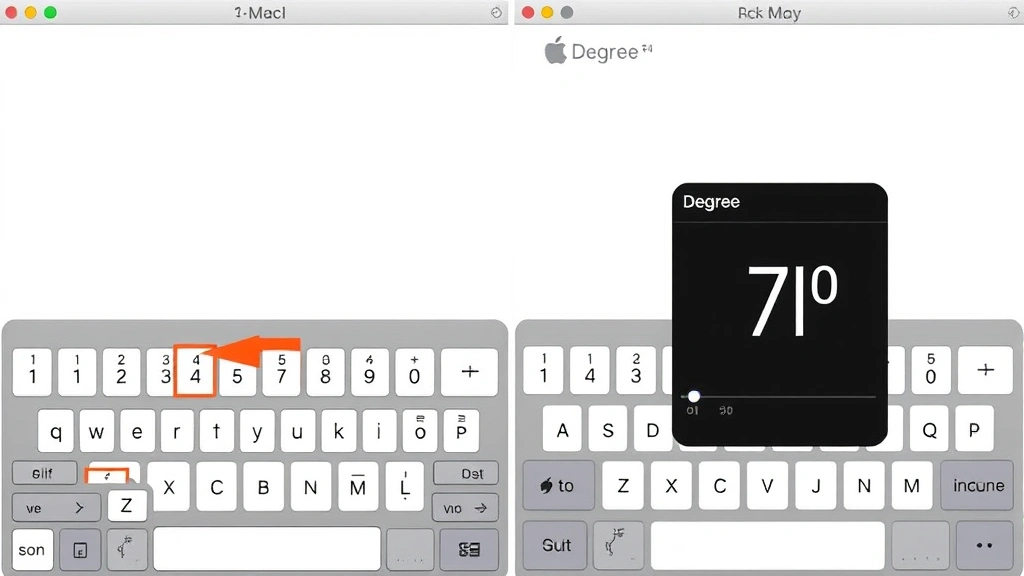
Windows users have several effective methods for inserting the degree symbol. The most reliable approach uses the Alt code system, which works in nearly all Windows applications including Microsoft Word, Google Docs, Notepad, and email clients.
Alt Code Method (Most Universal): Hold down the Alt key on your keyboard while typing 0176 on the numeric keypad. Release the Alt key, and the degree symbol appears instantly. This technique works in virtually every Windows application and requires no menu navigation or special setup. Make sure you use the numeric keypad on the right side of your keyboard, not the number row above the letters, as the number row won’t work for Alt codes.
Important note: If your keyboard doesn’t have a dedicated numeric keypad (common on laptops), you may need to enable Num Lock first. Look for a Num Lock key, usually near the upper right of your keyboard, and press it to activate the numeric keypad function on the letter keys.
Character Map Application: Windows includes a built-in Character Map utility that displays every available symbol. Open the Start menu, search for “Character Map,” and launch the application. In the search field, type “degree” or scroll through the list until you find the degree symbol. Click it, then click “Copy” to add it to your clipboard. Paste the symbol into your document using Ctrl+V. This method works when Alt codes fail and provides a visual reference for the exact symbol you need.
Keyboard Layout Method: If you frequently type special characters, consider installing an alternative keyboard layout. The US-International keyboard layout includes dedicated shortcuts for common symbols. With this layout active, you can type the degree symbol using specific key combinations. Access this through Settings > Time & Language > Language > Add a language and select US-International.
Mac Keyboard Methods
Mac computers offer elegant solutions for inserting the degree symbol that are often faster than Windows equivalents. Apple’s keyboard shortcuts are memorable once you use them a few times.
Standard Mac Shortcut: Press Shift + Option + 8 simultaneously. This is the primary method used by most Mac users and works across all applications including Pages, Microsoft Word, Google Docs, and email. The combination feels natural after a few uses and becomes automatic for frequent users.
Character Viewer Method: For those who prefer visual selection, Mac’s Character Viewer provides an intuitive interface. Press Control + Command + Space to open the Character Viewer panel. Type “degree” in the search box at the top. The degree symbol appears in the results. Double-click it to insert it into your document at the cursor position. This method is particularly helpful when you’re unsure of the exact symbol you need or want to see alternatives.
Emoji & Symbols Panel: In newer macOS versions, you can access symbols through the Emoji & Symbols panel. Click Edit in your application menu, then select Emoji & Symbols. Search for “degree” and select the symbol. This approach integrates seamlessly with modern Mac applications and provides a consistent experience across different programs.
Mobile Device Options
Smartphone and tablet users need quick methods since typing special characters on mobile keyboards presents unique challenges. Both iOS and Android provide straightforward solutions.
iPhone and iPad (iOS): Most iOS keyboards display the degree symbol when you hold down the “0” (zero) key. Press and hold the zero key on your on-screen keyboard, and a popup menu appears showing the degree symbol and other character variants. Tap the degree symbol to insert it. This method works in Notes, Messages, Mail, and most third-party applications. If holding the zero key doesn’t display the degree symbol, try switching to a different keyboard layout through Settings > General > Keyboard > Keyboards.
Android Devices: The process varies slightly depending on your keyboard app. On Google Keyboard (Gboard), tap and hold the “0” key to reveal the degree symbol in the popup menu. Other popular Android keyboards like SwiftKey include similar long-press functionality. If your default keyboard doesn’t show the degree symbol, consider downloading Gboard from the Google Play Store, which provides reliable symbol access across all Android applications.
Copy-Paste Method: The universal mobile workaround involves searching Google for “degree symbol,” copying the result from your search, and pasting it into your document. This method works on any device and any application, though it’s slower than dedicated shortcuts. Save time by keeping a note with the degree symbol for quick access when needed.
Web Browser Solutions
When working in web-based applications like Google Docs, Gmail, or online forms, your device’s native shortcuts usually work perfectly. However, some situations require alternative approaches.
Google Docs and Google Sheets: Use your operating system’s standard shortcut method (Shift+Option+8 on Mac, Alt+0176 on Windows). These applications fully support system-level keyboard shortcuts. Additionally, Google Docs includes an Insert menu with special character options. Click Insert > Special characters, search for “degree,” and select the symbol to insert it into your document.
HTML Entity Code: When creating web content or working in HTML editors, you can use the HTML entity code for the degree symbol. Type ° (without quotes) in your HTML code, and it displays as ° when rendered in a browser. This method is essential for web developers and content creators working directly with HTML. The entity code ensures the symbol displays correctly regardless of the user’s device or browser.
Browser Extensions: Several browser extensions provide quick access to special characters. Extensions like “Special Characters” for Chrome create a toolbar button that opens a character picker panel. While not necessary for basic use, these extensions can streamline workflow for professionals who frequently insert multiple special characters.
Word Processing Programs
Different word processors offer built-in features specifically designed for inserting special characters, making the process intuitive and fast.
Microsoft Word (Windows and Mac): Open the Insert tab in the ribbon menu. Click “Symbol” on the right side, then “More Symbols.” In the dialog box that appears, search for “degree” or scroll through the list. Select the degree symbol and click “Insert.” For faster access, note the symbol’s keyboard shortcut displayed in the dialog box. Word also allows you to create custom shortcuts for frequently used symbols through the AutoCorrect options. Set up a quick replacement like typing “dg” to automatically convert to °.
Google Docs: Click Insert > Special characters. In the search box, type “degree symbol” or simply “degree.” The symbol appears in the results. Click it to insert. Google Docs remembers your recently used special characters, so subsequent insertions become faster. Your custom characters sync across all devices where you use Google Docs, providing consistency whether you’re working on desktop or mobile.
LibreOffice Writer: Navigate to Insert > Special Character. The character dialog opens with a comprehensive symbol library. Search for “degree” or locate it in the Latin-1 Supplement section. Select it and click Insert. LibreOffice also supports Alt codes similar to Windows, making keyboard shortcuts viable in this application.
Common Mistakes to Avoid
Many people inadvertently use incorrect substitutes for the degree symbol, creating documents that appear unprofessional or cause confusion. Understanding these common errors helps you maintain document quality.
The Superscript “O” Mistake: Some people type a regular letter “O” and format it as superscript, creating something that looks vaguely like a degree symbol but isn’t correct. This appears inconsistent in different fonts and sizes, and screen readers interpret it as the letter “O” rather than a degree measurement. Always use the actual degree symbol (°) instead of this workaround.
Asterisk or Other Symbols: Using asterisks (*), circles (◯), or other characters as substitutes for the degree symbol creates confusion and unprofessional-looking documents. These symbols carry different meanings and don’t convey the intended measurement unit. The actual degree symbol takes seconds to insert using the methods outlined above, making substitutes unnecessary.
Spacing Issues: The degree symbol should directly follow the number with no space between them (45°, not 45 °). This maintains proper formatting and prevents line breaks from separating the number from its unit. When following proper style guides, include a space after the degree symbol only if you’re adding text like “Fahrenheit” (45° F).
Copying from Unreliable Sources: While copying and pasting the degree symbol from web searches works, unreliable sources might provide lookalike characters that display differently in various applications. Trust established sources like this guide or your operating system’s built-in character tools rather than random websites.
Alt Code Variations: Windows Alt codes must use the numeric keypad specifically. Attempting Alt codes with the number row above the letters won’t work. Additionally, some applications may require specific settings enabled for Alt codes to function. If Alt+0176 doesn’t work in a particular program, try the Character Map method instead.
When writing about topics like pruning a rose bush or documenting how to prune basil properly, accurate temperature or environmental documentation requires the correct degree symbol. Similarly, when sharing instructions for propagating roses or planting sunflower seeds, precise notation of temperature conditions becomes essential for reader success. Visit the FixWise Hub Blog for more detailed gardening and home improvement guides that often require proper special character usage.
Frequently Asked Questions
What’s the difference between the degree symbol and the ring above?
The degree symbol (°) is specifically designed for measurements like temperature and angles. The ring above (˚) is a diacritical mark used in some languages. While they look similar, they’re technically different characters with different Unicode values. Always use the degree symbol (Unicode U+00B0) for temperature and measurement notations.
Why doesn’t Alt+0176 work on my laptop?
Most laptops don’t have a dedicated numeric keypad. You need to enable Num Lock on your laptop’s integrated numeric pad, usually found on the right side of the letter keys. Look for a Num Lock key (often combined with another key) and press it to activate numeric pad mode. After enabling Num Lock, the Alt+0176 shortcut should work. If it still doesn’t work, use the Character Map application or your keyboard’s symbol menu instead.
Can I use the degree symbol in email addresses or usernames?
No, the degree symbol isn’t valid in email addresses or most usernames because these systems only accept alphanumeric characters and specific punctuation marks. The degree symbol will cause errors or be rejected by the system. Use numeric or letter alternatives in these contexts.
Does the degree symbol work the same way in all programs?
Most programs support the degree symbol through system-level keyboard shortcuts and clipboard operations. However, some specialized applications or older software might have limitations. If your primary method doesn’t work, try the Character Map (Windows) or Character Viewer (Mac) approach, or simply copy-paste the symbol from a reliable source.
What keyboard layout should I use for frequent special character typing?
If you regularly type special characters, consider the US-International keyboard layout on Windows or exploring alternative layouts on Mac. These layouts include dedicated shortcuts for common symbols. However, for occasional degree symbol insertion, your standard keyboard layout works fine with the methods described in this guide.
Is there a voice command or accessibility feature for inserting the degree symbol?
Most voice assistants (Siri on Mac, Cortana on Windows) don’t directly support special character insertion through voice commands. However, accessibility features like dictation can work if you’ve set up text expansion shortcuts for the degree symbol. On Mac, you can create text shortcuts in System Preferences that expand abbreviations into the degree symbol when typed.

Related Posts

Superscript in Google Docs: Expert Tips

Strikethrough in Excel: Easy Steps for Beginners
