
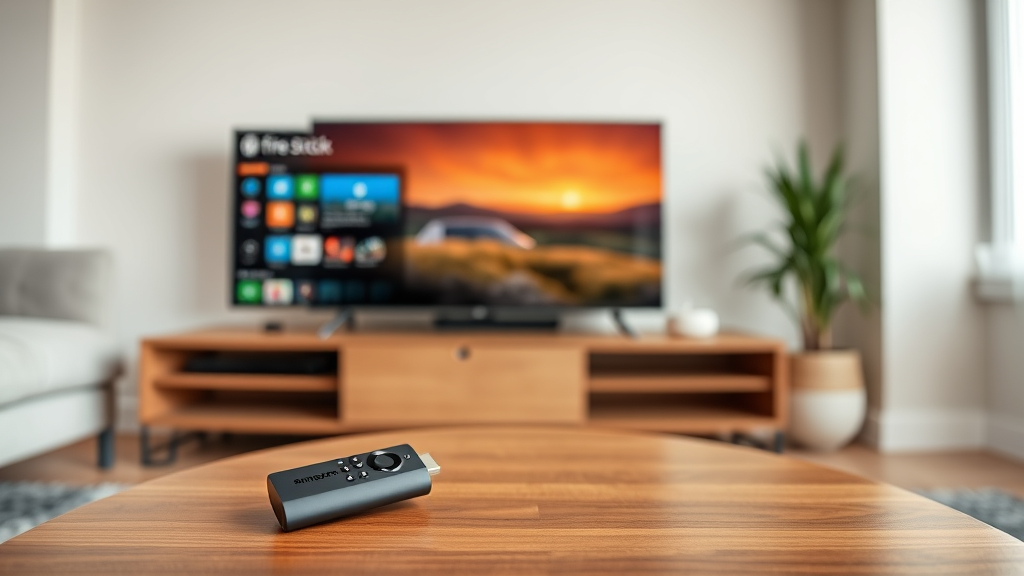
Master Your TV: Effortlessly Pair Your Firestick Remote
The Amazon Fire TV Stick has revolutionized how we consume entertainment, bringing thousands of streaming apps and content directly to our televisions. However, even the most tech-savvy users occasionally face the frustrating experience of a disconnected or unresponsive remote control. Whether you’re setting up a new device, replacing a lost remote, or troubleshooting connectivity issues, knowing how to pair your Firestick remote is an essential skill for any streaming enthusiast.
Remote pairing issues can occur for various reasons, from depleted batteries to software glitches or interference from other devices. Understanding the different methods available for reconnecting your remote can save you time, money, and the inconvenience of being unable to navigate your favorite streaming content. This comprehensive guide will walk you through multiple proven techniques to restore seamless control over your Fire TV Stick experience.
Understanding Firestick Remote Types
Amazon has released several generations of Fire TV Stick remotes, each with distinct features and pairing capabilities. The first-generation remotes primarily used infrared technology, requiring direct line-of-sight to function properly. These older models are less common today but may still be encountered with legacy devices.
Modern Fire TV Stick remotes utilize Bluetooth technology, offering superior range and reliability. The second-generation remotes introduced voice control through the Alexa Voice Remote, while third-generation models added dedicated streaming service buttons and enhanced voice recognition capabilities. Understanding your remote type is crucial because pairing methods can vary slightly between generations.
The latest Alexa Voice Remote Pro includes additional features like remote finder functionality and customizable buttons. Regardless of which remote you’re using, the fundamental pairing principles remain consistent across all Bluetooth-enabled models. Identifying your specific remote type helps ensure you’re following the most appropriate pairing procedure.
The Basic Automatic Pairing Method
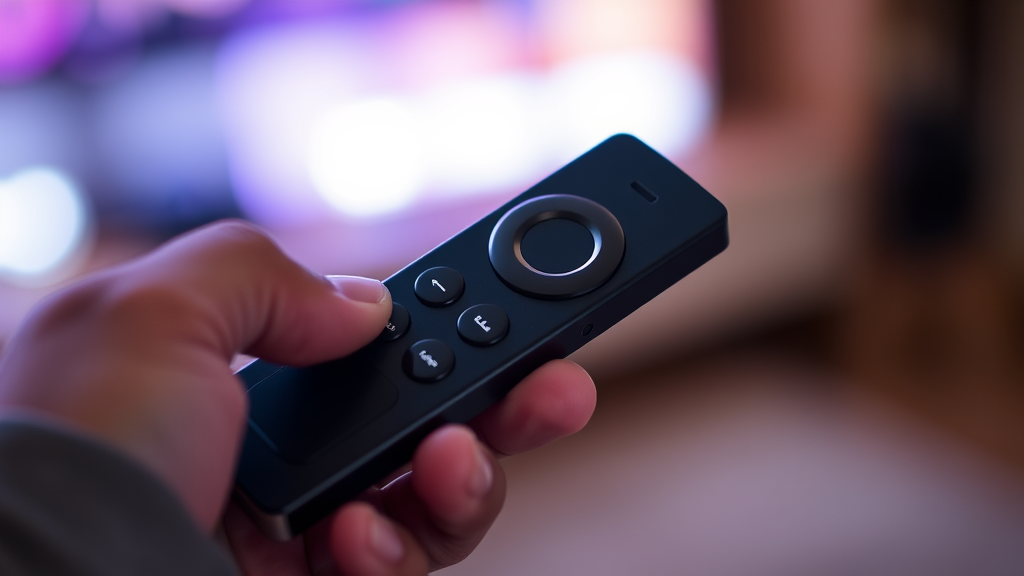
The simplest approach to pair your Firestick remote begins with the automatic detection feature built into most modern Fire TV devices. Start by ensuring your Fire TV Stick is powered on and displaying the home screen. If you’re unable to see the screen due to remote connectivity issues, the device should still be responsive to pairing attempts.
Hold down the Home button on your Alexa Voice Remote for approximately 10-15 seconds. During this process, the remote’s LED indicator should begin flashing, signaling that it’s entered pairing mode. The Fire TV Stick will automatically search for nearby remotes attempting to connect and should establish the connection within 30-60 seconds.
If successful, you’ll see a confirmation message on your television screen, and the remote should immediately become responsive. This method works for most standard pairing scenarios and is particularly effective when setting up a new remote or reconnecting after minor connectivity disruptions. The automatic pairing feature leverages the same Bluetooth protocols used in other smart devices, similar to how you might need to change airtag battery to maintain connectivity with Apple devices.
Manual Pairing Process Step-by-Step
When automatic pairing fails, manual intervention becomes necessary. Begin by accessing your Fire TV settings through alternative means if your current remote is unresponsive. You can download the Amazon Fire TV app on your smartphone, which serves as a temporary remote control solution while you resolve the pairing issue.
Navigate to Settings > Controllers & Bluetooth Devices > Amazon Fire TV Remotes from your Fire TV interface. Select “Add New Remote” from the available options. The system will prompt you to put your physical remote into pairing mode by holding the Home button for 10 seconds until the LED light begins flashing blue.
Once the remote enters pairing mode, your Fire TV device will scan for available connections. Select your remote from the list of detected devices, which typically appears as “Amazon Fire TV Remote” or similar designation. The pairing process should complete within 60 seconds, after which you’ll receive confirmation of successful connection.
Some users find that restarting their Fire TV Stick before attempting manual pairing improves success rates. This process clears temporary software conflicts that might interfere with Bluetooth connectivity, much like how powerwashing a chromebook can resolve system-level issues.
Troubleshooting Common Pairing Issues
Battery-related problems represent the most frequent cause of remote pairing failures. Even when batteries appear functional, low power levels can prevent successful Bluetooth connections. Replace both AAA batteries with fresh, high-quality alternatives, ensuring proper polarity alignment. Allow the remote to sit for 30 seconds after battery installation before attempting to pair.
Interference from other electronic devices can disrupt the pairing process. Wireless routers, cordless phones, baby monitors, and other Bluetooth devices operating in the 2.4GHz frequency range may cause connectivity conflicts. Temporarily disable nearby wireless devices or relocate your Fire TV Stick to minimize interference during the pairing attempt.
Software conflicts occasionally prevent successful remote pairing, particularly after system updates or when multiple remotes have been previously connected. Access your Fire TV settings and remove all existing remote connections before attempting to pair your current remote. This process eliminates potential conflicts from previous pairings that may still be stored in the system memory.
Physical obstructions between your remote and Fire TV Stick can impede Bluetooth signal transmission. Ensure clear line-of-sight between devices and maintain a distance of less than 30 feet during pairing attempts. Metal objects, thick walls, and large furniture pieces can significantly reduce Bluetooth range and reliability.
Alternative Control Methods
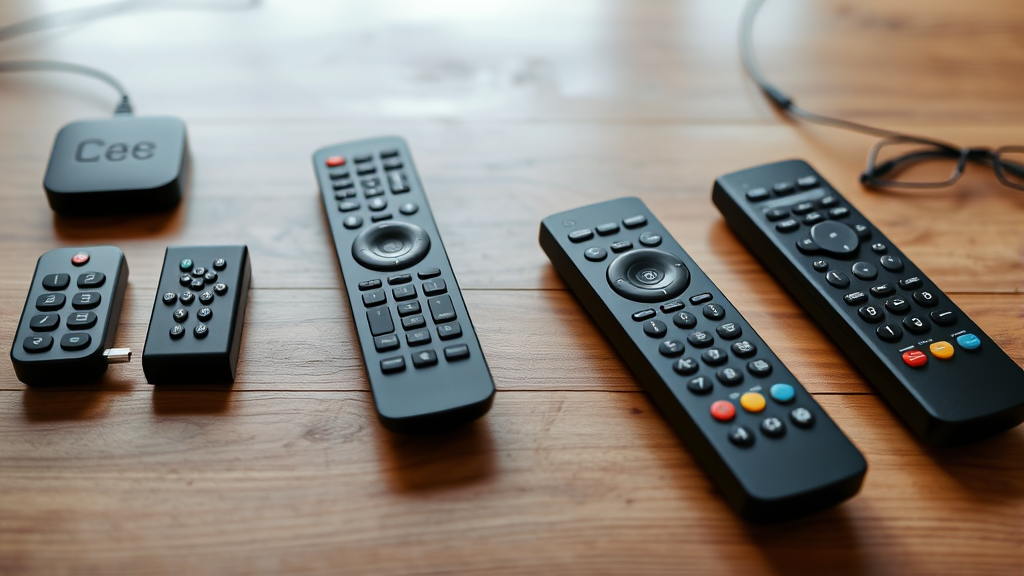
When traditional remote pairing proves unsuccessful, several alternative control methods can restore functionality to your Fire TV Stick. The Amazon Fire TV mobile application, available for both iOS and Android devices, provides comprehensive remote control capabilities through your smartphone’s touchscreen interface. Download the app from your device’s app store and connect to the same Wi-Fi network as your Fire TV Stick.
The mobile app offers additional features beyond basic navigation, including voice search functionality, keyboard input for easier text entry, and the ability to launch specific applications directly. This solution proves particularly valuable when traveling or when your physical remote is temporarily unavailable.
Universal remote controls compatible with Fire TV devices provide another viable alternative. Many modern universal remotes support Amazon Fire TV Stick control through infrared or Bluetooth connections. Consult your universal remote’s manual for specific programming instructions related to Amazon Fire TV devices.
For users with smart home setups, voice control through Amazon Echo devices can provide hands-free Fire TV operation. Enable the Fire TV skill in your Alexa app and link your devices to control playback, volume, and navigation through voice commands. This integration works seamlessly alongside other smart home functions, similar to how you might turn off find my iphone for privacy management.
Maintaining Your Remote Connection
Preventive maintenance helps ensure consistent remote connectivity and reduces the likelihood of future pairing issues. Regularly clean your remote’s battery contacts using a dry cotton swab or soft cloth to remove corrosion or debris that might interfere with power delivery. Replace batteries at the first sign of reduced responsiveness rather than waiting for complete failure.
Keep your Fire TV Stick’s software updated to maintain optimal compatibility with your remote control. Enable automatic updates in your device settings to ensure you receive the latest firmware improvements and bug fixes. These updates often include enhancements to Bluetooth connectivity and remote control functionality.
Monitor your Fire TV Stick’s temperature to prevent overheating, which can affect Bluetooth performance and overall system stability. Ensure adequate ventilation around your device and consider using an HDMI extender if your TV’s HDMI ports are crowded. Overheating issues are common in electronics and require attention, much like monitoring cpu temperature in computer systems.
Establish a designated storage location for your remote to minimize the risk of loss or damage. Consider using a remote caddy or drawer organizer to keep your Fire TV remote easily accessible while protecting it from physical damage or interference from other electronic devices.
When to Consider Remote Replacement
Despite following proper troubleshooting procedures, some remote controls may require replacement due to hardware failures or extensive wear. Physical damage to the remote’s circuit board, button mechanisms, or Bluetooth antenna can render pairing attempts unsuccessful regardless of technique employed.
Age-related deterioration affects remote control components over time, particularly in high-use environments. If your remote is several years old and consistently fails to maintain stable connections despite fresh batteries and proper maintenance, replacement may be more cost-effective than continued troubleshooting efforts.
Amazon offers official replacement remotes through their website and authorized retailers. Third-party alternatives are available, but ensure compatibility with your specific Fire TV Stick model before purchasing. Some third-party remotes may lack advanced features like voice control or dedicated streaming service buttons found on official Amazon remotes.
Consider upgrading to a newer remote model when replacing, as newer generations often include enhanced features and improved reliability. The investment in a quality replacement remote can significantly improve your streaming experience and reduce future connectivity frustrations.
Frequently Asked Questions
How long should I hold the Home button when pairing my Firestick remote?
Hold the Home button for 10-15 seconds until you see the LED light begin flashing blue. This indicates the remote has entered pairing mode and is ready to connect to your Fire TV Stick. If the light doesn’t flash after 15 seconds, try replacing the batteries and repeating the process.
Why won’t my Firestick remote pair even with fresh batteries?
Several factors can prevent successful pairing beyond battery issues. Check for interference from other wireless devices, ensure your Fire TV Stick software is updated, and verify that no other remotes are currently paired to the device. Try clearing existing remote connections in your Fire TV settings before attempting to pair again.
Can I use my smartphone as a permanent replacement for my Firestick remote?
Yes, the Amazon Fire TV mobile app provides full remote control functionality and can serve as a permanent solution. However, a dedicated physical remote often provides better responsiveness and battery life. The mobile app is excellent as a backup option or temporary solution while troubleshooting your physical remote.
How do I know if my Firestick remote is the older infrared model or newer Bluetooth version?
Bluetooth-enabled remotes typically include voice control buttons and don’t require direct line-of-sight to function. If your remote works when pointed away from the Fire TV Stick or includes an Alexa voice button, it’s likely a Bluetooth model. Infrared remotes must be pointed directly at the device and lack voice control capabilities.
What should I do if multiple Fire TV devices in my home keep connecting to the wrong remote?
This common issue occurs when multiple Fire TV devices are within Bluetooth range. Go to Settings > Controllers & Bluetooth Devices on each Fire TV device and remove unwanted remote pairings. Then pair each remote individually while other Fire TV devices are powered off to prevent cross-connections.
Is it normal for my Firestick remote to occasionally lose connection?
Occasional disconnections can occur due to interference, low batteries, or temporary software glitches. However, frequent disconnections indicate a potential hardware problem or environmental interference. Try relocating your Fire TV Stick away from other wireless devices and ensure fresh batteries are installed in your remote.
Can I pair multiple remotes to one Fire TV Stick?
Yes, Fire TV Sticks support multiple remote connections simultaneously. This feature is useful for households with multiple users or when you want to keep a backup remote paired. Access your Bluetooth settings to add additional remotes following the same pairing process described above.

Related Posts

How Long to Boil Lobster Tails: Cooking Guide

How Long to Fly from New York to London? Travel Times
