
How to Pair Beats Headphones: Step-by-Step Guide
How to Pair Beats Headphones: Step-by-Step Guide
There’s nothing quite like the moment you unbox a shiny new pair of Beats headphones—that sleek design, the premium feel, the promise of stellar sound quality. But before you can dive into your favorite playlist, there’s one crucial hurdle: getting them paired with your device. If you’ve never done this before, the process might seem a bit mysterious. Don’t worry; it’s actually straightforward once you know what you’re doing.
Whether you’re pairing Beats with an iPhone, Android device, Mac, or Windows computer, the underlying principles remain consistent. In this guide, we’ll walk you through every scenario so you can get your Beats up and running without frustration. We’ll also tackle common issues and answer questions you might not have even thought to ask yet.
Let’s get started and have your Beats working perfectly in just a few minutes.
Before You Start: Preparation Tips
Before diving into the pairing process, there are a few preparatory steps that will make everything smoother. First, ensure your Beats headphones are fully charged or at least have enough battery to complete the pairing process. Most Beats models require at least 15-20% battery for Bluetooth connectivity to function properly.
Next, make sure your device has Bluetooth enabled. This seems obvious, but it’s easy to overlook. Check your phone, tablet, or computer’s settings and confirm that Bluetooth is switched on. Additionally, keep your device and Beats within 10 feet of each other during the pairing process to ensure a strong connection.
Clear any existing pairings if you’re switching devices. If your Beats were previously paired with another device, they might automatically try to reconnect to that device instead of your new one. We’ll cover how to reset your Beats later in this guide, but knowing this ahead of time helps prevent confusion.
Charging Your Beats Headphones
A properly charged pair of Beats is essential before you even think about pairing. Different Beats models use different charging methods, so let’s cover the main types you’re likely to encounter.
USB-C Charging: Most modern Beats models, including Beats Studio Pro and recent Beats Fit Pro models, use USB-C. Simply connect the included USB-C cable to the charging port on your headphones and plug the other end into a power adapter or computer. You’ll typically see a light indicator showing charging status—red usually means charging, while white or green indicates a full charge.
Lightning Connector: Some older Beats models and certain AirPods-compatible Beats use Apple’s Lightning connector. If your Beats have this port, use the included Lightning cable and any standard Apple power adapter.
Micro-USB: Older Beats models might use micro-USB. Connect using the provided cable and any standard micro-USB power adapter.
Allow your Beats to charge for at least 30 minutes before attempting to pair them. A full charge typically takes 1-2 hours depending on the model and charger used. Most Beats headphones will last 20-40 hours on a single charge, depending on features like active noise cancellation.
Pairing Beats with iPhone and iPad
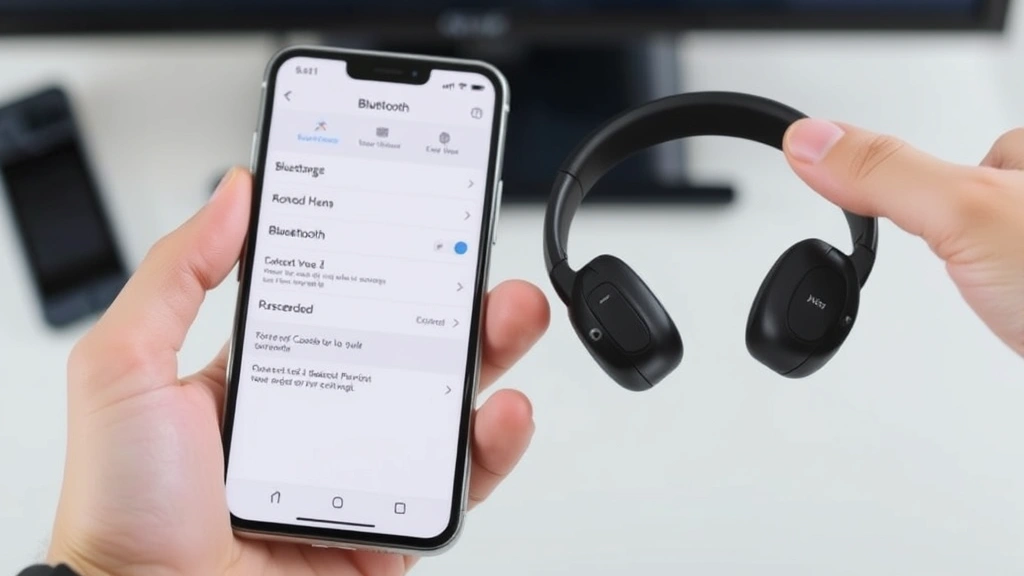
Pairing your Beats with an iPhone or iPad is arguably the easiest method, especially if you own other Apple devices. The process takes just a few minutes and requires minimal technical knowledge.
Step 1: Enable Bluetooth on Your iPhone or iPad
Open your device’s Settings app and navigate to Bluetooth. Toggle the switch to turn Bluetooth on. You should see a list of available devices appear.
Step 2: Put Your Beats in Pairing Mode
Most Beats models enter pairing mode automatically when turned on for the first time. If your Beats are already paired with another device, you’ll need to manually put them in pairing mode. Look for a small button on your headphones—this is typically the power button or a dedicated pairing button. Press and hold this button for about 10-15 seconds until you see the LED light flash white and red alternatively. This indicates your Beats are in pairing mode.
Step 3: Select Your Beats from the Available Devices List
Return to the Bluetooth settings on your iPhone or iPad. Your Beats should now appear in the list of available devices, usually with their model name (like “Beats Studio Pro” or “Beats Solo 3”). Tap on the name to initiate pairing.
Step 4: Confirm the Pairing
Your device might ask you to confirm the pairing or enter a PIN. For most Beats models, the PIN is 0000. Once confirmed, your Beats will connect to your iPhone or iPad. You should see a “Connected” status next to your Beats’ name in the Bluetooth settings.
If you own multiple Apple devices and have iCloud enabled, your Beats should automatically sync across your iPhone, iPad, Mac, and Apple Watch. This seamless integration is one of the major advantages of choosing Beats for Apple ecosystem users.
Pairing Beats with Android Devices
Android users can absolutely pair Beats headphones with their phones and tablets. The process is slightly different from iOS but equally straightforward.
Step 1: Enable Bluetooth on Your Android Device
Open your Android device’s Settings app. Navigate to Connected devices or Bluetooth (the exact menu name varies by manufacturer and Android version). Turn Bluetooth on and wait for your device to scan for available Bluetooth devices.
Step 2: Put Your Beats in Pairing Mode
Just like with iPhones, put your Beats in pairing mode by pressing and holding the power button or pairing button for 10-15 seconds. Watch for the LED to flash white and red, indicating pairing mode is active.
Step 3: Select Your Beats from the Available Devices
In your Android device’s Bluetooth settings, look for your Beats model in the list of available devices. The name should match what’s printed on your headphones or packaging. Tap on it to initiate pairing.
Step 4: Complete the Pairing Process
Your Android device might prompt you to enter a PIN or confirm the pairing. Enter 0000 if requested. Once confirmed, your Beats should show as “Connected” or “Paired” in your Bluetooth settings.
One thing to note: Android devices don’t typically offer the same cross-device synchronization that Apple provides. You might need to manually switch your Beats between different Android devices by going into Bluetooth settings and selecting the device you want to connect to.
Pairing Beats with Mac
Mac users will find the pairing process intuitive, especially if they’re already familiar with other Bluetooth accessories.
Step 1: Access Bluetooth Settings on Your Mac
Click the Apple menu in the top-left corner and select System Settings (or System Preferences on older macOS versions). Look for Bluetooth in the sidebar and click on it.
Step 2: Ensure Bluetooth is Enabled
Make sure Bluetooth is turned on. You should see a list of available devices if Bluetooth is active.
Step 3: Put Your Beats in Pairing Mode
Press and hold the power button on your Beats for 10-15 seconds until the LED flashes white and red. Your headphones are now ready to pair.
Step 4: Select Your Beats and Confirm
Your Beats should appear in the Bluetooth devices list on your Mac. Click on them to initiate pairing. Your Mac might ask for confirmation or a PIN—enter 0000 if needed.
Once paired, your Beats will automatically connect to your Mac whenever both devices are in range and Bluetooth is enabled. If you have an iPhone or iPad paired with the same Beats, your Mac will recognize this and allow easy switching between devices through the Bluetooth menu.
Pairing Beats with Windows PC
Windows PC users can pair Beats headphones just like any other Bluetooth device. The process is nearly identical to Android pairing.
Step 1: Open Bluetooth Settings on Windows
Click the Start button and go to Settings. Navigate to Devices, then Bluetooth & other devices. Make sure Bluetooth is turned on.
Step 2: Put Your Beats in Pairing Mode
Press and hold the power button on your Beats for 10-15 seconds. Watch for the LED to flash white and red, indicating pairing mode.
Step 3: Add a New Bluetooth Device
In the Bluetooth & other devices settings, click “Add device” or “Add Bluetooth or other device.” Select Bluetooth from the options that appear.
Step 4: Select Your Beats from the Available Devices
Your Beats should appear in the list of available devices. Click on your Beats model to pair them with your Windows PC.
Step 5: Complete the Pairing
Windows might prompt you to enter a PIN or confirm the pairing. Use 0000 if requested. Once complete, your Beats will show as connected.
Windows will remember your Beats’ pairing information, so they should automatically connect whenever both devices are in range and Bluetooth is enabled. If you experience connection issues, you might need to update your Windows drivers or reinstall the Bluetooth drivers.
Troubleshooting Common Issues
Your Beats Won’t Enter Pairing Mode
If your Beats refuse to enter pairing mode, try these solutions:
- Ensure your Beats have sufficient battery. Low battery can prevent pairing mode from activating.
- Hold the power button longer—some models require 15-20 seconds instead of 10.
- Reset your Beats completely by holding the power button for 30 seconds, releasing, then holding again for another 10 seconds until you see the LED flash.
Your Device Can’t Find Your Beats
If your device’s Bluetooth isn’t detecting your Beats:
- Confirm both devices have Bluetooth enabled and are within 10 feet of each other.
- Restart both your Beats and your device.
- Check if your Beats are already paired with another device nearby. They might be trying to auto-connect to that device instead.
- Forget the pairing on the other device first, then try again with your current device.
Connection Keeps Dropping
If your Beats repeatedly disconnect from your device:
- Move closer to your device to strengthen the Bluetooth signal.
- Remove any physical obstructions between your Beats and device.
- Unpair and re-pair your Beats with your device from scratch.
- Check for interference from other Bluetooth devices or wireless networks operating on the 2.4GHz frequency.
- Update your device’s operating system and any available Beats firmware updates.
Pairing Succeeded but No Sound
If your Beats are paired but producing no audio:
- Check your device’s volume levels. Sometimes the system volume is muted or very low.
- Ensure your Beats aren’t muted. Many models have a mute button or feature.
- Verify that audio is actually playing on your device and not paused.
- Disconnect and reconnect your Beats to your device.
- Restart your device entirely.
If you’re having trouble with device connectivity in general, you might find it helpful to learn about how to pair other remote devices, which uses similar Bluetooth principles. For Apple device users, understanding how to check AirPod battery levels can help diagnose connectivity issues, as low battery often causes pairing problems. Additionally, if you own other Apple accessories like an AirTag and need to reset it, you’ll use similar menu navigation as pairing Beats.
For those who use multiple device types, learning how to connect Roku to WiFi without a remote teaches similar troubleshooting principles. And if you’re concerned about privacy with your Apple devices, you should know how to turn off Find My iPhone when you’re troubleshooting connectivity issues, as this feature sometimes interferes with Bluetooth pairing.
Frequently Asked Questions
How long does it take to pair Beats headphones?
The actual pairing process typically takes less than a minute once you’ve put your Beats in pairing mode. However, the entire setup—charging, enabling Bluetooth, and confirming the connection—might take 5-10 minutes total.
Can I pair my Beats with multiple devices simultaneously?
Most Beats models can only actively connect to one device at a time. However, they remember pairings with multiple devices and can automatically switch between them. Some newer models support multi-point connectivity, allowing simultaneous connection to two devices, though only one will play audio at a time.
What if I forgot which device my Beats are currently paired with?
Reset your Beats completely by holding the power button for 30 seconds, releasing, then holding for another 10 seconds. This clears all previous pairings. Your Beats will then be in pairing mode and ready to pair with a new device.
Do I need to pair my Beats every time I use them?
No. Once paired, your Beats will automatically reconnect to your device whenever both are turned on and in range. You only need to pair them once (or when switching to a different device).
Why does my device keep asking for a PIN when pairing?
Most Beats use the default PIN 0000. If this doesn’t work, try leaving the PIN field blank and just confirming. If you’ve previously set a custom PIN on your Beats, you’ll need to use that instead.
Can I pair Beats with older devices?
Most Beats models require Bluetooth 4.0 or higher. If your device has an older Bluetooth version, you might experience compatibility issues. Check your device’s specifications to confirm its Bluetooth version.
What should I do if my Beats won’t pair with my new phone?
First, reset your Beats by holding the power button for 30 seconds. Then put them back in pairing mode. On your new phone, forget any previously saved Beats pairings in your Bluetooth settings before attempting to pair again. This fresh start often resolves compatibility issues.
Is it safe to charge Beats while they’re paired with a device?
Yes, absolutely. You can charge your Beats while they’re paired and connected to your device. In fact, many people charge their Beats overnight while they’re paired with their phone or computer without any issues.
How do I know if my Beats are in pairing mode?
The LED light on your Beats will flash white and red alternately when in pairing mode. Some models also produce an audible tone. Consult your specific Beats model’s manual if you’re unsure about the LED indicators.
Can I pair Beats with a smartwatch?
Most smartwatches don’t support direct Beats pairing due to Bluetooth limitations. However, if your smartwatch can control audio from your paired phone, you can control Beats playback through your watch indirectly.

Related Posts

How Long to Boil Lobster Tails: Cooking Guide

How Long to Fly from New York to London? Travel Times
