
How to Pair Beats Headphones: Step-by-Step Guide
How to Pair Beats Headphones: Step-by-Step Guide
There’s something genuinely satisfying about unboxing a fresh pair of Beats headphones—that sleek design, premium build quality, and the promise of pristine audio. But here’s the thing: all that promise means nothing if you can’t figure out how to connect them to your device. Whether you’re holding a pair of Beats Studio Pro, Beats Fit Pro, or any other model in the lineup, the pairing process is surprisingly straightforward once you know what you’re doing.
The good news? Beats headphones use standard Bluetooth technology, which means the pairing experience is consistent across most devices. Whether you’re an Apple ecosystem devotee or a Android enthusiast, we’ve got you covered. In this guide, we’ll walk you through every scenario—from your first pairing to troubleshooting common hiccups that might pop up along the way.
Think of this as your personal tech concierge, minus the stuffy attitude. Let’s get those Beats connected and your music flowing.
Before You Start: What You Need to Know
Before diving into the actual pairing process, let’s establish some ground rules. Your Beats headphones come with a rechargeable battery—typically a lithium-ion cell that Apple engineered to last through your entire workday and beyond. That battery needs juice before you can do anything, so charge your Beats for at least 15-20 minutes using the included charging cable.
Next, familiarize yourself with the physical buttons on your specific Beats model. Most Beats headphones feature a power button (usually located on one earcup or the side of the headband), and some include a dedicated Bluetooth pairing button. The location varies depending on your model, so check the quick-start guide that came in the box or visit Apple’s support site for specifics.
Make sure Bluetooth is enabled on the device you’re planning to pair with. This might sound obvious, but you’d be surprised how many people skip this step. Also, keep your Beats and your device reasonably close together during the initial pairing—within 10 feet is ideal. Bluetooth has decent range, but it works best when devices aren’t separated by walls or significant obstacles.
One more thing: if you’ve used your Beats with another device previously, they might automatically reconnect to that device. You’ll want to unpair them first, which we’ll cover in more detail later. Think of it like clearing your browser cache before installing a fresh browser extension.
Pairing Beats with iPhone, iPad, or Mac
If you’re in the Apple ecosystem, prepare yourself for a surprisingly seamless experience. Apple designed Beats to integrate beautifully with iOS, iPadOS, and macOS because, well, Apple owns Beats. This means you get some nifty features that don’t exist on other platforms.
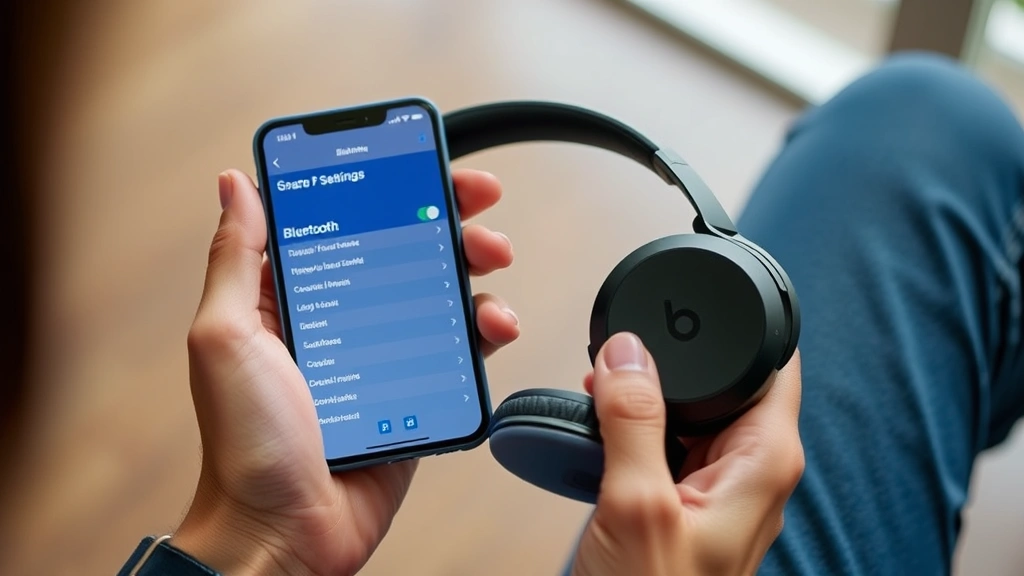
For iPhone and iPad: Start by turning on your Beats headphones. You’ll usually see an LED light flash, indicating the device is in pairing mode. Open Settings on your iPhone or iPad and navigate to Bluetooth. Your Beats should appear in the list of available devices within seconds. Tap the name of your Beats, and that’s it. Your device will connect and display a confirmation message. Some Beats models trigger an automatic pairing screen that walks you through the process visually—even easier.
Here’s where Apple’s ecosystem shines: once you pair your Beats with your primary iPhone, they automatically sync to your other Apple devices that share the same iCloud account. Your iPad, Mac, and Apple Watch all get access to the same Beats without needing individual pairing. It’s like magic, except it’s just smart engineering.
For Mac: The process mirrors iOS. Click the Apple menu, select System Settings (or System Preferences on older macOS versions), then click Bluetooth. Make sure your Beats are in pairing mode—you should see them in the list of available devices. Click “Connect” next to your Beats, and you’re done. Your Mac will remember this connection and reconnect automatically whenever your Beats are nearby and powered on.
If you want to check the battery level of your Beats on any Apple device, you can do so through the Bluetooth menu or by checking the battery widget on your home screen. This is similar to how you’d check AirPod battery status, and it’s incredibly useful for making sure you’ve got enough juice for your day.
Pairing Beats with Android Devices
Android users don’t get the fancy automatic syncing that Apple ecosystem devotees enjoy, but the pairing process is still straightforward. Beats work perfectly fine with Android—you’re just doing things manually instead of having them happen in the background.
Turn on your Beats headphones and put them in pairing mode. Most Beats enter pairing mode automatically when you power them on for the first time, but for subsequent pairings, you might need to hold down the power button or a dedicated pairing button for several seconds until you see the LED flash in a specific pattern. Check your headphones’ manual for the exact sequence.
On your Android device, go to Settings and find Bluetooth (it’s usually under “Connected Devices” or “Connectivity”). Make sure Bluetooth is turned on, then tap “Pair new device” or “Add new device.” Your Beats should appear in the list of available devices. Tap the name and wait for confirmation. Some Android devices might ask for a PIN code, but Beats typically don’t require one—just confirm the pairing on both devices.
One advantage Android offers is flexibility. You can pair the same Beats with multiple Android devices and switch between them relatively easily. Unlike Apple’s automatic switching, you’ll need to manually disconnect from one device and reconnect to another, but it’s still quick and painless.
If you’re having trouble getting your Android device to recognize your Beats, try forgetting the device and re-pairing. Go to Bluetooth settings, find your Beats in the list, and select “Forget” or “Unpair.” Then repeat the pairing process from scratch.
Pairing Beats with Windows Computers
Windows 10 and Windows 11 have made Bluetooth connectivity much more reliable than it used to be. Pairing Beats with a Windows PC follows a similar pattern to Android, with a few Windows-specific quirks to keep in mind.
First, ensure your Windows computer has Bluetooth capability. Most modern laptops do, but older desktop computers might need an external Bluetooth adapter. Once you’ve confirmed Bluetooth is available, turn on your Beats and put them in pairing mode.
On your Windows computer, open Settings (Windows key + I), then go to Devices > Bluetooth & other devices. Make sure the Bluetooth toggle is switched on. Click “Add Bluetooth or other device,” select “Bluetooth,” and wait for your Beats to appear in the list. Click on them and follow any prompts that appear. Windows will typically confirm the connection automatically.
Windows sometimes has a reputation for being finicky with Bluetooth, but in our experience, Beats pair reliably. If you encounter issues, restart both your computer and your Beats, update your Bluetooth drivers, and try again. Windows Update usually handles driver updates automatically, but you can manually check by going to Device Manager and looking for any Bluetooth devices with warning icons.
Connecting to Multiple Devices
Modern Beats headphones are smart enough to remember multiple devices. This is genuinely useful if you’re someone who bounces between your phone, tablet, and computer throughout the day. Here’s how to set it up.
After you’ve paired your Beats with your primary device, pair them again with your secondary device using the same process. Your Beats will now recognize both devices. When you power on your Beats, they’ll typically try to reconnect to whichever device they were last paired with. To switch to a different device, disconnect your Beats from the current device through its Bluetooth settings, then reconnect them to the other device.
Some Beats models support simultaneous connection to two devices, which means they can receive audio from both at the same time. This is particularly useful if you’re working on your computer and your phone rings—your Beats will automatically switch to the phone call. Check your specific Beats model’s specifications to see if it supports this feature.
If you ever need to completely reset your Beats and start fresh, most models have a factory reset procedure. This typically involves holding down specific buttons for 10-15 seconds until the LED flashes in a particular pattern. Consult your manual or Apple’s support documentation for the exact steps for your model. It’s similar to how you might reset an AirTag, though the button sequences differ.
Troubleshooting Connection Issues
Despite their generally reliable performance, Beats headphones occasionally have connection hiccups. Here are the most common issues and how to fix them.
Beats won’t appear in the Bluetooth list: Make sure your Beats are actually in pairing mode. Some models require you to hold the power button for a specific duration—typically 5-10 seconds. If that doesn’t work, charge your Beats fully. A low battery can sometimes prevent proper pairing mode activation. Finally, restart both your Beats and your device.
Beats connect but keep disconnecting: This usually indicates interference or a weak connection. Move closer to your device, away from other wireless devices like microwaves or cordless phones. If you’re at a location with many Bluetooth devices (coffee shops, offices), try moving to a different area. You can also try forgetting and re-pairing your Beats with the device.
Only one earcup works: If you’re using truly wireless Beats (like Beats Fit Pro), make sure both earcups are charged. Sometimes one earcup might have a lower battery than the other. Place both in the charging case and let them charge for at least 30 minutes. If that doesn’t fix it, try resetting your Beats using the factory reset procedure.
Beats connected but no sound: Check your device’s volume settings—sometimes the device itself is muted even though the Beats are connected. Make sure your Beats are the selected audio output device. On some devices, you might need to manually select your Beats from a list of available audio outputs. Also verify that the app or service you’re using is actually trying to play audio.
Pairing works with one device but not another: This often happens when your Beats are trying to reconnect to a previous device. Forget your Beats from all devices, then pair them fresh with the device that’s giving you trouble. You might also want to check if your device’s Bluetooth software is up to date.
For more detailed troubleshooting, check Apple’s official Beats troubleshooting guide, which covers model-specific issues comprehensively.
Keeping Your Beats in Top Shape
Now that you’ve got your Beats paired and working beautifully, let’s talk about keeping them in that condition. Proper maintenance extends the lifespan of your headphones and ensures consistent performance.
Battery care: Lithium-ion batteries, which power your Beats, last longest when they’re not constantly drained to zero. Try to charge your Beats when they reach 20-30% battery rather than letting them die completely. Also, avoid leaving them uncharged for extended periods. If you’re not using your Beats for several weeks, charge them to about 50% and store them in a cool, dry place.
Cleaning: Your Beats accumulate dust, earwax, and sweat over time. Clean the earcups and charging contacts gently with a slightly damp microfiber cloth. For truly wireless models, use a dry cloth or a soft brush to clean the speaker mesh. Never submerge your Beats in water, even if they’re water-resistant.
Storage: Always store your Beats in their carrying case when you’re not using them. This protects them from physical damage and keeps them clean. Avoid storing them in extremely hot or cold environments, as temperature extremes can degrade battery performance.
Software updates: If your Beats support firmware updates (many newer models do through a companion app), keep them current. Updates often include performance improvements and bug fixes that enhance connectivity and audio quality.
If you’re managing multiple Apple devices and want to ensure everything stays in sync, you might also want to review how to turn off Find My iPhone if you’re adjusting privacy settings across your devices.
Frequently Asked Questions
How do I know if my Beats are in pairing mode?
Most Beats headphones display a clear LED indicator when they’re in pairing mode. The light typically flashes in a specific color or pattern—often white or blue. Check your model’s manual for the exact indicator. Additionally, when in pairing mode, your Beats should appear in your device’s Bluetooth settings list within 10-15 seconds.
Can I pair Beats with multiple devices simultaneously?
Beats can be paired with multiple devices, but they typically only actively connect to one device at a time. However, some newer Beats models support dual connection, allowing them to maintain active connections with two devices simultaneously. Check your specific model’s specifications to see if this feature is available.
Why won’t my Beats pair with my Android phone?
Common culprits include Bluetooth not being enabled, your Beats not being in pairing mode, or outdated Bluetooth drivers on your Android device. Try forgetting your Beats from your phone’s Bluetooth settings and re-pairing them. If that doesn’t work, restart both devices and try again. For persistent issues, you might need to clear the Bluetooth cache on your Android device through Settings > Apps > Show system apps > Bluetooth > Storage > Clear Cache.
Do I need to pair my Beats every time I use them?
No. Once you’ve paired your Beats with a device, they’ll automatically reconnect whenever they’re powered on and within range. You only need to manually pair them once per device, unless you factory reset your Beats or forget them from your device’s Bluetooth settings.
How long does the initial pairing process take?
The actual pairing usually takes 30 seconds to 2 minutes from start to finish. However, this can vary depending on your device, how responsive your Bluetooth hardware is, and whether your device is prompting you with additional security or setup screens.
Can I pair my Beats with a gaming console?
Most modern gaming consoles (PlayStation 5, Xbox Series X/S, Nintendo Switch) support Bluetooth headphones. The pairing process is similar to pairing with phones or computers—put your Beats in pairing mode and search for them in your console’s Bluetooth settings. However, some consoles have limited Bluetooth compatibility, so check your console’s documentation first.
What if my Beats keep disconnecting from my device?
Frequent disconnections usually indicate interference or a weak Bluetooth signal. Try moving closer to your device, away from other wireless devices. You can also try forgetting and re-pairing your Beats. If the problem persists, restart your device or try pairing with a different device to determine if the issue is with your Beats or your specific device’s Bluetooth hardware.
Is it safe to pair my Beats with public WiFi networks?
Pairing Beats uses Bluetooth, not WiFi, so public WiFi networks aren’t directly involved. However, if you’re using a companion app to manage your Beats and that app requires an internet connection, be cautious about using public WiFi for sensitive operations. Consider using a VPN if you’re concerned about privacy.

Related Posts

How Long to Boil Lobster Tails: Cooking Guide

How Long to Fly from New York to London? Travel Times
