

Merge Two Excel Cells? Easy Tips & Tricks
How to Merge 2 Cells in Excel: Easy Tips & Tricks
Merging cells in Excel is one of the most common formatting tasks you’ll encounter when creating spreadsheets, whether you’re organizing data, building reports, or designing templates. If you’ve ever wanted to combine two adjacent cells into one larger cell for headers, titles, or cleaner data presentation, you’re in the right place. This guide walks you through every method available, from the simplest ribbon approach to advanced techniques using formulas and VBA.
Whether you’re a beginner just learning Excel basics or someone looking to streamline your workflow, understanding how to merge 2 cells in Excel will save you time and help you create more professional-looking spreadsheets. We’ll cover everything from basic merging to unmerging cells, handling data loss, and exploring alternative solutions when merging isn’t the best option.
What Does Merging Cells Mean?
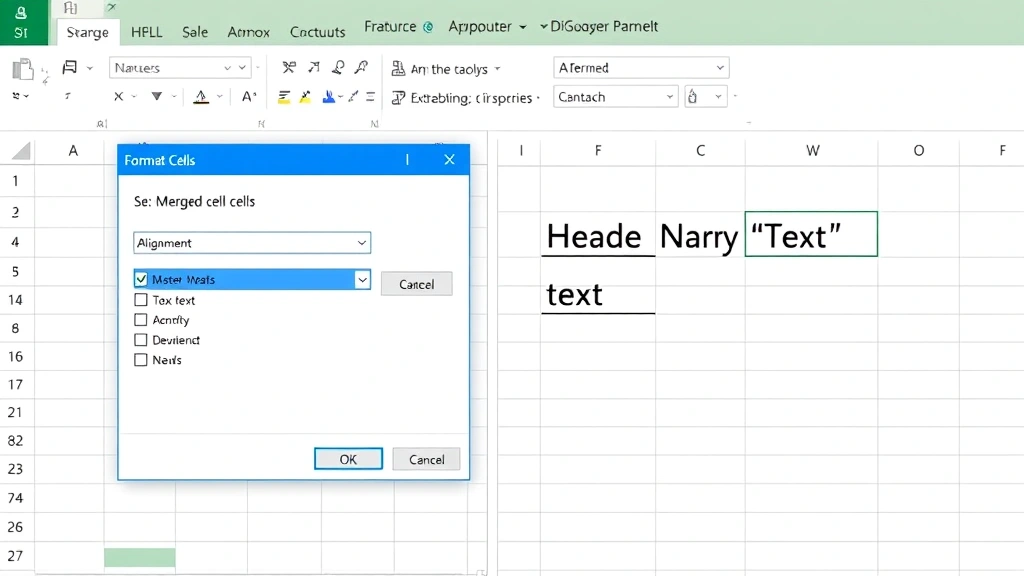
Merging cells combines two or more adjacent cells into a single larger cell. When you merge cells, Excel treats the merged area as one cell, which is useful for creating centered headers, improving layout clarity, and making your spreadsheet visually organized. The merged cell adopts the address of the top-left cell in the selection.
Understanding the mechanics of merging is essential before you start. When you merge cells, Excel only keeps the content from the top-left cell and discards content from other cells being merged. This is why we’ll cover strategies to preserve your data throughout this guide. Additionally, merged cells can sometimes complicate sorting, filtering, and data analysis, so it’s important to know when merging is appropriate and when to use alternatives.
For more foundational Excel knowledge, check out our FixWiseHub Blog for comprehensive how-to guides covering spreadsheet basics and advanced techniques.
Method 1: Using the Merge Cells Button
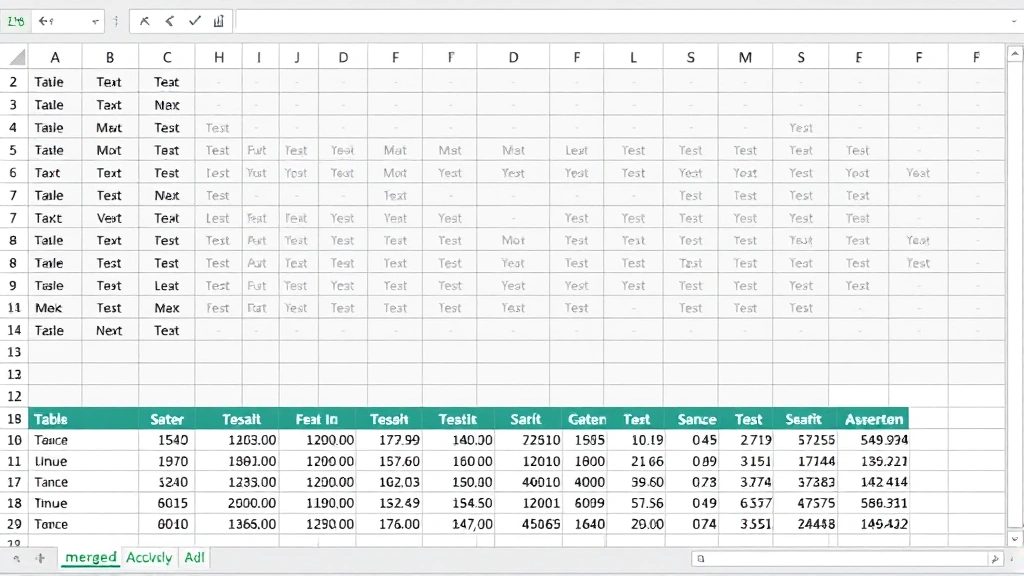
The quickest way to merge two cells in Excel is using the Merge & Center button on the Home ribbon. This method is perfect for creating centered headers and takes just seconds to complete.
Step-by-step process:
- Select the two cells you want to merge by clicking the first cell and dragging to the second cell, or click one cell and hold Shift while clicking the other
- Navigate to the Home tab on the Excel ribbon
- Look for the Merge & Center button in the Alignment group (it shows overlapping rectangles with centered text)
- Click the dropdown arrow next to Merge & Center to see your options
- Choose Merge & Center to merge and center content, or Merge Cells to merge without centering
- Your cells are now merged into one
The Merge & Center option is particularly useful for spreadsheet headers where you want text centered across multiple columns. If you only want to merge without the automatic centering, select the Merge Cells option from the dropdown instead.
Method 2: Merge Cells via Format Menu
If you prefer using menu options instead of ribbon buttons, the Format menu provides another straightforward path to merging cells. This method works the same way across different Excel versions and can feel more intuitive for some users.
Here’s how to do it:
- Select your two cells (or range of cells) that you want to merge
- Click the Format menu at the top of your screen
- Look for the Merge Cells option in the dropdown menu
- You’ll see several merge options available
- Select the merge style you prefer from the submenu
- Click to apply the merge
This method is especially helpful if you’re working on an older version of Excel or prefer keyboard navigation. You can also access merge options by right-clicking your selected cells and choosing Format Cells from the context menu.
Method 3: Using the Format Cells Dialog
The Format Cells dialog gives you the most control over merging options and lets you combine merging with other formatting in one step. This is ideal when you want to merge cells and apply additional formatting simultaneously.
Complete instructions:
- Select the two cells you want to merge
- Press Ctrl+1 (Windows) or Cmd+1 (Mac) to open the Format Cells dialog, or right-click and select Format Cells
- Click the Alignment tab at the top of the dialog
- Look for the Merge cells checkbox in the middle section
- Check the box next to “Merge cells”
- You can also set text alignment options at the same time (Horizontal, Vertical, Text rotation)
- Click OK to apply the merge
This method is particularly powerful because you can adjust alignment, wrapping, and other formatting properties before finalizing the merge. The Format Cells dialog approach works consistently across Windows and Mac versions of Excel.
Merging Cells Without Losing Data
One of the biggest challenges with merging cells is that Excel automatically deletes content from all cells except the top-left cell. If you have important data in the cells you’re merging, you need a strategy to preserve it. Here are several proven approaches:
Method A: Concatenate Before Merging
- Before merging, create a formula in the top-left cell that combines content from both cells:
=A1&" "&B1 - Copy the result and paste it as values back into cell A1
- Delete the content from cell B1
- Now you can safely merge the cells without losing any information
Method B: Copy Data to Notepad First
- Copy the content from the second cell you plan to merge
- Paste it into a text editor temporarily
- Merge your cells normally
- Edit the merged cell to include both pieces of information
- Delete your temporary text file
Method C: Use a Helper Column
- Create a helper column to the right of your data
- Use a formula to combine the content:
=A1&" "&B1 - Copy the formula down for all rows
- Copy the results and paste as values
- Delete the original columns and hide the helper column if needed
For more detailed data manipulation techniques, visit our guide on how to merge 2 cells in Excel for advanced scenarios.
How to Unmerge Cells
Unmerging cells is just as important as knowing how to merge them. Whether you made a mistake or need to reorganize your spreadsheet, unmerging is simple and reversible.
Unmerging steps:
- Click on the merged cell you want to unmerge
- Go to the Home tab on the ribbon
- Click the dropdown arrow next to Merge & Center
- Select Unmerge Cells from the dropdown menu
- The cells will immediately separate back into individual cells
When you unmerge cells, the content that was in the merged cell stays with the top-left cell, and the other cells become empty. This is why it’s crucial to preserve your data before merging if you’re combining information from multiple cells.
You can also unmerge using the Format menu: Format > Merge Cells > Unmerge Cells. Both methods work identically.
Merging Cells Across Rows and Columns
Excel allows you to merge cells in different configurations: horizontally (across columns), vertically (down rows), or both. Understanding these options helps you create the exact layout you need.
Merging across columns (horizontally):
This is the most common merge type, useful for creating wide headers or spanning a title across your data. Select cells from left to right (A1:D1) and merge them. The content from the leftmost cell is preserved.
Merging down rows (vertically):
Select cells going down (A1:A5) and merge them. This is excellent for category labels on the left side of a table. The content from the topmost cell is retained.
Merging across rows and columns simultaneously:
Select a rectangular range like A1:D5 and merge to create a large merged area. This works for title blocks or large centered elements in your spreadsheet.
Best practices for multi-directional merging:
- Always ensure the top-left cell contains the content you want to keep
- Use merge and center for visual headers and titles
- Avoid merging cells within data tables as it complicates sorting and filtering
- Document your merge structure if others will work with the spreadsheet
- Test your spreadsheet’s functionality after extensive merging to ensure formulas still work correctly
Advanced: Merging with Formulas
For users working with dynamic data or complex spreadsheets, combining merging with formulas creates powerful, flexible solutions. This advanced technique keeps your merged cells updated automatically.
Using CONCATENATE or ampersand (&) operator:
Instead of manually merging and losing data, use a formula to combine cell contents:
=A1&" "&B1
This formula joins the content of cells A1 and B1 with a space between them. Place this formula in a new cell, then merge the cells containing your combined data. This approach preserves all original information and makes your spreadsheet more maintainable.
Using TEXTJOIN for multiple cells:
For more complex combinations, Excel’s TEXTJOIN function is powerful:
=TEXTJOIN(" ",TRUE,A1:B1)
This joins all cells in the range A1:B1 with a space delimiter, ignoring empty cells. It’s particularly useful when you might have blank cells in your range.
Conditional merging with IF statements:
You can create smart merged cells that change based on conditions:
=IF(A1="",B1,A1&" - "&B1)
This formula displays only B1 if A1 is empty, otherwise it combines both with a separator.
Linking merged cells to source data:
Keep your merged cells dynamic by referencing original data:
- Maintain your original data in hidden columns or a separate sheet
- Use formulas in your visible, merged cells to pull data from the source
- Update the source data, and your merged cells update automatically
- This approach is especially valuable for reports and dashboards
For additional spreadsheet insights and techniques, check out Family Handyman’s practical guides and This Old House’s resource library for home and organizational projects that benefit from organized spreadsheets.
FAQ
Can I merge cells in Excel Online?
Yes, Excel Online supports merging cells. Use the Format menu or right-click context menu to access merge options. The functionality is slightly simplified compared to desktop Excel but covers all basic merging needs.
What happens to formulas when I merge cells?
If your cells contain formulas, merging will keep only the formula from the top-left cell and discard formulas from other cells. Before merging, consider consolidating your formulas into the top-left cell using concatenation or other formula techniques.
Can I merge cells in a pivot table?
Pivot tables don’t allow traditional cell merging because they’re dynamic structures. However, you can merge cells in the static area around your pivot table or use pivot table formatting options to improve appearance.
Why does my merged cell look misaligned?
Check your alignment settings in Format Cells > Alignment tab. Ensure horizontal and vertical alignment are set to your preference. Also verify that text wrapping is enabled if you have longer content.
How do I merge cells with a keyboard shortcut?
Excel doesn’t have a default keyboard shortcut for merging, but you can create a custom one through File > Options > Quick Access Toolbar. Alternatively, use Alt+H, then M, then M to navigate through the ribbon menu with keyboard commands.
Can I merge cells in Google Sheets the same way?
Google Sheets has similar merge functionality but accessed differently: Format > Merge cells. The process is comparable, though Google Sheets handles merged cells slightly differently in some scenarios like sorting and filtering.
What’s the difference between Merge & Center and Merge Cells?
Merge & Center combines cells and centers the content both horizontally and vertically. Merge Cells combines cells but preserves the original text alignment. Choose based on whether you want automatic centering or manual alignment control.
Is it bad practice to merge cells in Excel?
Merging cells in headers and titles is fine, but avoid merging cells within data ranges as it complicates sorting, filtering, and formulas. Many Excel professionals recommend using formatting alternatives like center-across-selection for headers instead of actual merging.

Related Posts

Superscript in Google Docs: Expert Tips

Strikethrough in Excel: Easy Steps for Beginners
