

Merging Excel Cells: Expert Tips and Tricks
Merging Excel Cells: Expert Tips and Tricks
Excel spreadsheets often require a polished, professional appearance that combines data presentation with visual clarity. One of the most effective formatting techniques is merging cells, which allows you to create unified header sections, combine related data fields, and improve overall spreadsheet readability. Whether you’re creating a budget report, inventory list, or project timeline, knowing how to merge cells efficiently can transform your Excel documents from basic to impressive.
Merging cells involves combining two or more adjacent cells into a single larger cell. This technique is particularly useful when you need to create centered titles that span multiple columns, organize complex data hierarchies, or design professional-looking templates. However, merging cells also comes with important considerations regarding data preservation, formatting consistency, and spreadsheet functionality that every Excel user should understand.
This comprehensive guide covers everything you need to know about merging Excel cells, from basic techniques to advanced strategies that will elevate your spreadsheet skills. We’ll explore the various methods available, best practices for maintaining data integrity, and practical solutions to common challenges you might encounter.

Understanding Cell Merging Basics
Before diving into the mechanics of how to merge 2 cells in Excel, it’s essential to understand what actually happens when you merge cells. When you combine cells, Excel creates a single large cell that spans the rows and columns you’ve selected. The merged cell adopts the address of the top-left cell in your selection, and any content from the other cells is typically discarded—though Excel provides a warning before this occurs.
Cell merging serves several important functions in spreadsheet design. It allows you to create professional headers that span entire data tables, organize information hierarchically, and improve visual organization. Many businesses use merged cells in templates for invoices, reports, and dashboards because they provide a clean, structured appearance that’s easier for viewers to understand at a glance.
However, it’s crucial to recognize that merging cells can complicate sorting, filtering, and formula calculations. When you merge cells, Excel may have difficulty recognizing the structure of your data, particularly if you’re attempting to use advanced features like freezing rows or applying complex conditional formatting. Understanding these limitations will help you make informed decisions about when and where to use merged cells in your spreadsheets.
The most common scenarios for merging cells include creating centered titles across multiple columns, combining cells in the first row to create section headers, merging cells in the leftmost column for category labels, and designing specialized templates for specific business purposes. Each of these applications requires slightly different approaches to ensure your merged cells function properly within your broader spreadsheet design.
Step-by-Step Guide to Merging 2 Cells
Learning how to merge 2 cells in Excel is straightforward once you understand the basic process. Excel offers multiple methods to accomplish this task, and the method you choose may depend on your personal preference, the complexity of your spreadsheet, and whether you need to apply additional formatting simultaneously.
Method 1: Using the Merge Cells Button
The quickest way to merge cells is through the Merge Cells button in the Home ribbon. Start by selecting the two cells you want to merge—click on the first cell and drag to the second, or click the first cell and hold Shift while clicking the second cell. Once your cells are selected, navigate to the Home tab in the ribbon menu. Look for the Merge & Center button in the Alignment group, which typically displays a small icon showing merged cells. Click the dropdown arrow next to this button to reveal your merging options.
You’ll see several options: Merge & Center (which merges and centers content), Merge Across (which merges cells horizontally), Merge Cells (which merges without centering), and Unmerge Cells (which separates previously merged cells). Select your preferred option, and Excel will immediately combine your selected cells. This method is ideal for quick merging tasks and is the most commonly used approach among Excel users.
Method 2: Using the Format Cells Dialog
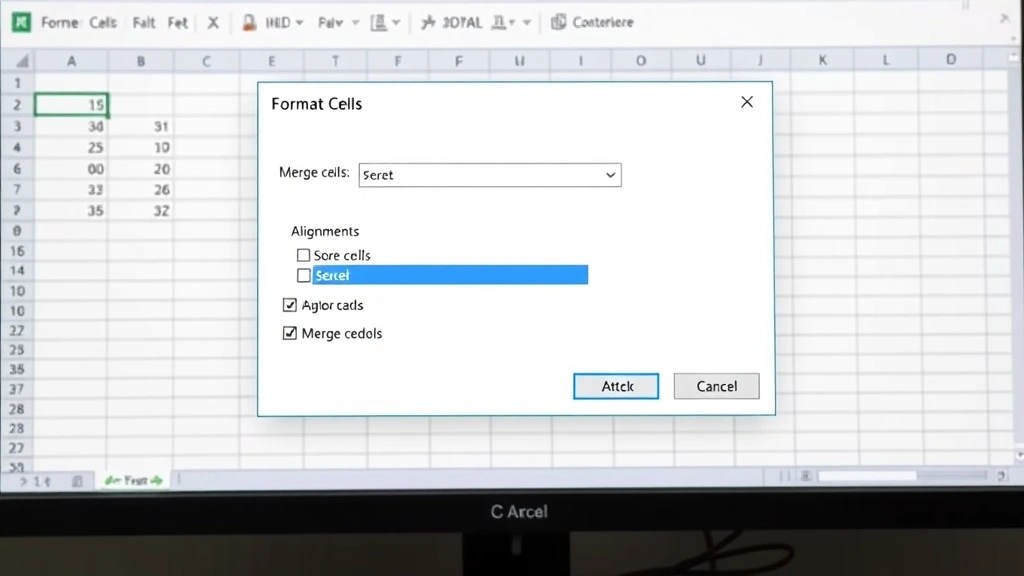
For more control over your merging operation, you can use the Format Cells dialog box. Select your two cells as described above, then right-click to open the context menu. Choose “Format Cells” from the menu, which opens the Format Cells dialog box. Navigate to the Alignment tab, where you’ll find a checkbox labeled “Merge cells” in the lower section of the dialog. Check this box and click OK to merge your cells. This method allows you to simultaneously apply other formatting options like text alignment, font size, and cell borders.
Method 3: Using the Menu Bar
If you prefer menu-based navigation, you can access the merge function through the Format menu. Select your cells first, then click Format in the menu bar and navigate to Cells. This opens the same Format Cells dialog described above, allowing you to merge cells while applying additional formatting if needed. This method works identically to Method 2 but may feel more intuitive to users who prefer traditional menu navigation.
Before confirming any merge operation, Excel will alert you if your selected cells contain data in cells other than the top-left position. The program will ask whether you want to proceed, warning that data in other cells will be lost. Always review this warning carefully, as Excel will permanently delete the content of cells that aren’t in the top-left position of your selection. If you need to preserve data from multiple cells, consider combining cells using formulas instead of merging them.
Advanced Merging Techniques
Once you’ve mastered basic cell merging, you can apply more sophisticated techniques to create professional spreadsheets with complex layouts. These advanced approaches allow you to build multi-level headers, create visually stunning reports, and design templates that serve specific business purposes.
Creating Multi-Row Headers
Professional spreadsheets often feature headers that span multiple rows and columns, creating a hierarchical structure that organizes data logically. To create a multi-row header, start by selecting all the cells in the first row that should be part of your header section. Merge these cells using your preferred method, then select the cells in the second row that should be part of the header. Merge the second row of cells separately. This creates a two-level header structure where the top level is a single merged cell and the second level contains multiple merged cells beneath it. You can extend this pattern to create even more complex header hierarchies if your data structure requires it.
Merging Cells with Formatting
To create visually appealing merged cells, combine merging with formatting options. After merging your cells, apply background colors, borders, and font styles to make your headers stand out. Select your merged cell, then use the Fill Color button to apply a background color that complements your spreadsheet design. Use the Border button to add lines around your merged cell, and adjust the font size and weight to make headers more prominent. These formatting techniques transform simple merged cells into eye-catching design elements that guide readers through your spreadsheet.
Using Merged Cells in Templates
When designing Excel templates that will be used repeatedly, merged cells should be carefully planned. Create a template structure where merged cells are used consistently for headers and labels, while data entry areas remain unmerged to preserve sorting and filtering functionality. This approach allows you to maintain a professional appearance while preserving the analytical capabilities of your spreadsheet. Save your template as an Excel Template file (.xltx) so that users can create new workbooks based on your design without modifying the original template.
Combining Merged Cells with Formulas
You can reference merged cells in formulas just as you would reference regular cells. Use the address of the top-left cell in the merged range to refer to that merged cell in your formulas. For example, if you merge cells A1 through D1, use =A1 in your formulas to reference the merged cell. This allows you to create complex spreadsheets that combine the visual organization of merged cells with the analytical power of formulas. However, remember that combining cell content using formulas may be more appropriate than merging if you need to preserve data from multiple cells.
Unmerging Cells and Recovering Data
There will likely be times when you need to reverse a merge operation. Excel makes this process simple, though recovering lost data requires a different approach. To unmerge cells, select the merged cell you want to separate, click the Merge & Center dropdown in the Home ribbon, and select “Unmerge Cells.” Excel will immediately separate the merged cell back into its original individual cells. The content that was in the merged cell will remain in the top-left cell of the original range, while the other cells will be empty.
If you accidentally merged cells containing data and lost information from non-top-left cells, your best recovery option is to use the Undo function immediately after the merge. Press Ctrl+Z to undo the last action, which will restore your cells to their previous state with all original data intact. If you’ve already performed other actions after the merge, the Undo function may not be able to recover the lost data, so it’s crucial to act quickly.
To prevent data loss in the future, always check what data is contained in cells before merging them. If you need to preserve content from multiple cells, use a formula to concatenate the cell values before merging, or use the split cells function to separate data that’s currently combined in a single cell. Taking these preventive measures will save you from frustrating data recovery situations.
Best Practices for Merged Cells
While merged cells can enhance your spreadsheet’s appearance, using them indiscriminately can create problems with functionality and data management. Following best practices ensures that your spreadsheets remain both beautiful and functional.
Reserve Merging for Headers and Labels
The most appropriate use of merged cells is in header rows and label columns where no data entry or sorting will occur. Use merged cells to create professional-looking titles, section headers, and category labels. Avoid merging cells in data ranges where users might need to sort, filter, or perform calculations, as merged cells can interfere with these operations.
Maintain Consistent Merging Patterns
If you use merged cells in your spreadsheet, apply them consistently throughout the document. If your column headers are merged across three columns, maintain this pattern for all sections of your spreadsheet. Consistent design patterns make spreadsheets easier to understand and more professional in appearance. When creating templates or recurring reports, establish clear merging guidelines that all users will follow.
Document Your Merging Strategy
If you’re creating spreadsheets that other people will use or modify, document where and why you’ve used merged cells. Include instructions about which cells should not be merged (data ranges) and which cells can be merged if the spreadsheet is expanded (header sections). This documentation prevents confusion and ensures that future modifications maintain the integrity of your spreadsheet design.
Test Functionality Before Finalizing
Before finalizing a spreadsheet with merged cells, test all intended functionality. Try sorting and filtering data, applying formulas that reference merged cells, and copying or moving merged cells to ensure everything works as expected. If you encounter problems, consider whether your merged cells are interfering with necessary functions and adjust your design accordingly.
Consider Alternatives for Complex Layouts
For very complex spreadsheet layouts, merged cells might not be the best solution. Consider using hidden columns for organizational purposes, applying cell borders to create visual separation, or using conditional formatting to highlight different data sections. These alternatives often provide better functionality while still achieving professional visual organization.
Troubleshooting Common Merging Issues
Even experienced Excel users encounter challenges when working with merged cells. Understanding how to troubleshoot common issues will help you resolve problems quickly and maintain spreadsheet integrity.
Sorting and Filtering Problems
If you’ve applied sorting or filtering to a range that includes merged cells, Excel may display unexpected results or refuse to complete the operation. To resolve this issue, temporarily unmerge the cells in your data range, perform your sorting or filtering operation, and then reapply merging to header cells if needed. Alternatively, ensure that merged cells are only in header rows that aren’t included in your sort or filter range.
Alignment Issues in Merged Cells
Sometimes text in merged cells doesn’t align as expected, appearing either too high, too low, or off to one side. To fix this, select the merged cell and use the alignment buttons in the Home ribbon to adjust horizontal and vertical alignment. The alignment buttons allow you to center text horizontally and vertically within the merged cell, which typically resolves appearance issues.
Copy and Paste Complications
When you copy a merged cell and paste it into a range of unmerged cells, Excel may create unexpected merged cells in the destination range. To paste only the content without merging, use Paste Special (Ctrl+Shift+V) and select “Values” or “Formatting” only, depending on what you want to paste. This gives you more control over how your content is pasted.
Merged Cells and Formulas
If formulas referencing merged cells produce unexpected results, verify that you’re using the correct cell address. A merged cell uses the address of its top-left cell, so if you’ve merged A1:D1, reference it as A1 in your formulas, not as any other address in the merged range. If you’re having trouble with formulas, double-check your cell references and ensure they point to the correct merged cell addresses.
Printing Issues with Merged Cells
Merged cells sometimes cause unexpected page breaks or formatting changes when printing. To troubleshoot printing issues, use Print Preview to see how your spreadsheet will appear on paper. If merged cells are causing layout problems, consider adjusting page margins, changing the print scaling, or temporarily unmerging cells that are causing issues. You can also use page formatting techniques in related applications to better understand print layout principles.
FAQ
Can I merge more than 2 cells at once?
Yes, you can merge any number of adjacent cells. Select all the cells you want to merge by clicking and dragging across them, then use the Merge Cells button or Format Cells dialog. Excel will combine all selected cells into a single larger cell. This is useful for creating large headers or title areas that span multiple rows and columns.
What happens to data when I merge cells?
When you merge cells, Excel keeps the content from the top-left cell and discards content from all other selected cells. Before confirming a merge, Excel will warn you if other cells contain data. If you need to preserve data from multiple cells, use a formula to combine the content first, or consider using alternative formatting methods instead of merging.
Can I merge cells in different rows and columns?
You can only merge cells that form a rectangular selection. This means you can merge cells that span multiple rows and multiple columns, but the selected range must be continuous and rectangular. You cannot merge non-adjacent cells or cells that don’t form a rectangle.
Does merging cells affect sorting or filtering?
Yes, merged cells can interfere with sorting and filtering operations. Excel may refuse to sort or filter a range that includes merged cells, or it may produce unexpected results. To avoid these issues, use merged cells only in header rows that aren’t included in your sort or filter range, and keep data ranges unmerged.
How do I unmerge cells?
Select the merged cell you want to separate, click the Merge & Center dropdown in the Home ribbon, and select “Unmerge Cells.” Excel will immediately separate the merged cell back into individual cells. The original content will remain in the top-left cell, while other cells will be empty.
Can I merge cells in Excel online?
Yes, Excel online supports cell merging. Click the Merge & Center button in the Home ribbon, just as you would in the desktop version. However, some advanced merging features may be limited in the online version, so if you need to perform complex merging operations, the desktop application may offer more options.
What’s the difference between merging and combining cells?
Merging combines cells into a single larger cell, while combining typically refers to using formulas to join the content of multiple cells into one. Combining cells with formulas preserves the original cell structure and allows for better spreadsheet functionality, while merging creates a visual combination that can affect sorting and filtering.

Related Posts

Superscript in Google Docs: Expert Tips

Strikethrough in Excel: Easy Steps for Beginners
