
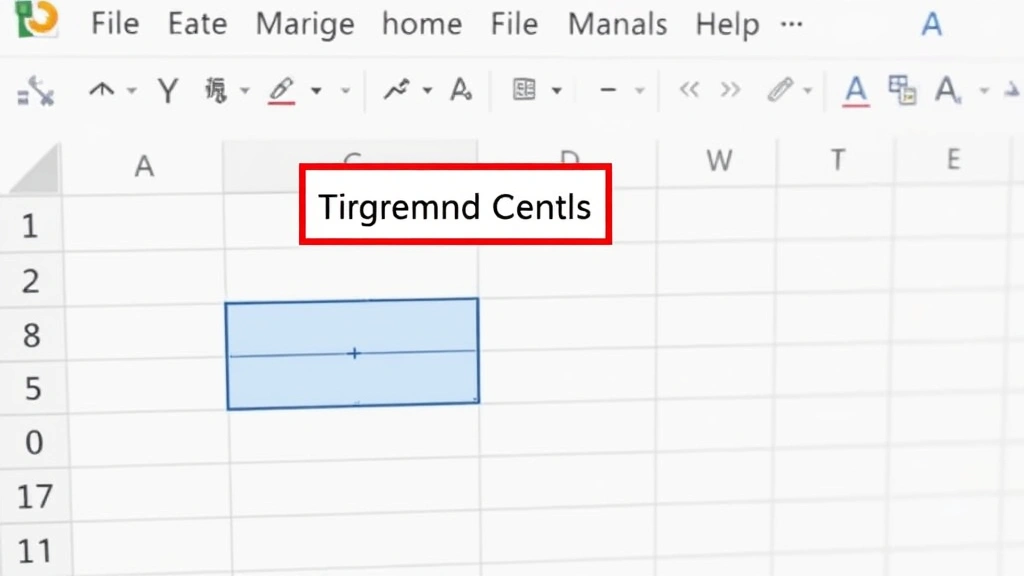
Merge 2 Cells in Excel? Expert Tips Here
How to Merge 2 Cells in Excel? Expert Tips Here
Merging cells in Excel is one of the most practical formatting techniques you’ll use when creating professional spreadsheets, reports, and data presentations. Whether you’re building a title row, creating section headers, or organizing complex data layouts, knowing how to merge cells efficiently can save you considerable time and help your spreadsheets look polished and organized. This comprehensive guide walks you through every method available, from the simplest point-and-click approach to advanced techniques for power users.
Cell merging combines two or more adjacent cells into a single larger cell, which is especially useful when you want to center a title across multiple columns or create visually distinct sections within your worksheet. Understanding the nuances of merging—including what happens to your data, when to use different methods, and how to avoid common pitfalls—will make you a more confident Excel user.
What Does Merging Cells Mean?
Merging cells is a formatting operation that combines multiple adjacent cells into one larger cell. When you merge cells, you’re essentially telling Excel to treat several individual cells as a single unit. The resulting merged cell spans across the original rows and columns, creating a larger space that can contain text, numbers, or formulas. This is particularly valuable when you’re designing spreadsheet layouts that require visual hierarchy or when you need to create centered titles that span multiple columns.
Understanding the mechanics of merging is crucial before you proceed. When Excel merges cells, it retains only the content from the top-left cell and discards any data from the other cells being merged. This is why many users accidentally lose important information when merging—they weren’t aware this behavior existed. The merged cell adopts the formatting (colors, fonts, borders) from the top-left cell as well, unless you’ve applied specific formatting to other cells first.
There are several types of merging you can perform: merging across (combining cells horizontally in the same row), merging down (combining cells vertically in the same column), or merging a rectangular range (combining cells in both directions). Each type serves different purposes depending on your spreadsheet design needs.
Basic Method: Using the Merge Cells Button
The quickest way to merge two cells is using the Merge Cells button in the Home ribbon. This method works in Excel 2010 and all subsequent versions, making it the most universally accessible approach.
Step-by-step process:
- Select the two cells you want to merge by clicking on the first cell and dragging to the second, or by clicking one cell, holding Shift, and clicking the other
- Navigate to the Home tab in the ribbon (it’s typically the default tab when you open Excel)
- Locate the Merge & Center button in the Alignment group—it displays an icon showing cells combining together
- Click the dropdown arrow next to Merge & Center to see your options
- Choose your preferred merge type from the menu that appears
The Merge & Center option is particularly popular because it simultaneously merges your cells and centers the content horizontally, saving you an extra step. If you only want to merge without centering, select “Merge Cells” from the dropdown instead. The “Merge Across” option merges cells within the same row only, while “Merge Down” combines cells in the same column.
This method is ideal for quick formatting tasks and works perfectly when you’re merging cells that don’t contain critical data or when the top-left cell contains the information you want to keep. The visual feedback is immediate, and you can see your merged cell right away.

Merge Cells Dialog Box Approach
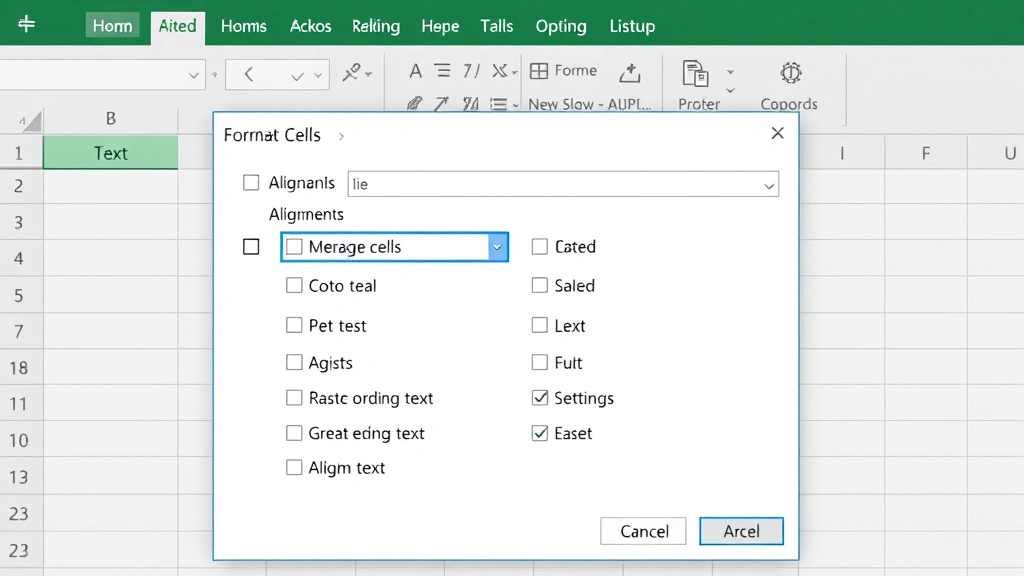
For more control over your merging process, the Format Cells dialog box provides additional options and settings. This method is particularly useful when you want to merge cells and apply formatting simultaneously or when you need more granular control over the process.
Accessing the dialog box method:
- Select the cells you want to merge (select all cells in the range, not just two)
- Right-click on your selection to open the context menu
- Choose “Format Cells” from the menu (or press Ctrl+1 as a keyboard shortcut)
- Click on the “Alignment” tab in the Format Cells dialog
- Check the “Merge cells” checkbox
- Click OK to apply the merge
The dialog box method gives you the advantage of combining multiple formatting changes in one operation. You can adjust text alignment, rotation, and other formatting properties while you’re merging cells, making it efficient for comprehensive spreadsheet design work. This approach also provides a confirmation step, which can help prevent accidental merges.
One significant advantage of using the dialog box is that it allows you to merge cells while maintaining better control over what happens to your data. You can review your selection one more time before committing to the merge, reducing the likelihood of losing important information.
Advanced Merging Techniques
Beyond basic merging, Excel offers several advanced techniques for power users who need to merge cells programmatically or handle complex scenarios. These methods are valuable when you’re working with large spreadsheets, creating templates, or automating repetitive tasks.
Using keyboard shortcuts
While Excel doesn’t have a dedicated keyboard shortcut for merging cells directly, you can create custom shortcuts through the Quick Access Toolbar. Add the Merge Cells button to your Quick Access Toolbar and assign it a keyboard shortcut for faster access. This is particularly valuable if you merge cells frequently in your daily work.
VBA and macro-based merging
For users who need to merge cells as part of automated workflows, VBA (Visual Basic for Applications) provides powerful options. You can write macros that merge cells based on specific conditions, data values, or ranges. A simple macro might look like:
Range("A1:B1").Merge
This line of code merges cells A1 and B1 in a single operation. More complex macros can merge cells conditionally, based on data analysis or user input. Learning VBA opens up possibilities for creating sophisticated spreadsheet automation that would be impractical to do manually.
Merging multiple cell ranges at once
If you have several pairs of cells throughout your spreadsheet that all need merging, you can select all of them simultaneously while holding Ctrl. Select the first pair, hold Ctrl, then select additional pairs. When you apply the merge command, Excel will merge each selected range independently. This is far more efficient than merging cells one pair at a time.
You can also learn about how to combine cells in Excel for more sophisticated data consolidation techniques that go beyond simple merging.
Common Mistakes and How to Avoid Them
Even experienced Excel users occasionally make mistakes when merging cells. Understanding these common pitfalls will help you work more confidently and avoid frustrating data loss or formatting issues.
Data loss from non-top-left cells
The most common mistake occurs when users merge cells containing important data in positions other than the top-left cell. Excel discards this data during the merge process. Always verify that the top-left cell contains the data you want to keep, or manually copy important information from other cells before merging. If you’ve already merged cells and lost data, you can undo the action immediately with Ctrl+Z.
Merging cells in data ranges
Merged cells can cause problems when you’re working with data tables, pivot tables, or sorting and filtering operations. Excel’s sorting, filtering, and data analysis features often don’t work properly with merged cells. Avoid merging cells within your primary data ranges. Instead, reserve merging for headers, titles, and formatting elements outside your main data area.
Unintended formatting changes
When you merge cells, the merged cell adopts formatting from the top-left cell. If that cell has specific formatting you don’t want to keep, your merged result will inherit it. Review the formatting of your source cells before merging, or reapply formatting after merging if necessary.
Alignment and centering issues
Many users merge cells expecting automatic centering, but using Merge Cells without Merge & Center leaves content left-aligned. Always use Merge & Center if you want centered content, or manually adjust alignment afterward using the alignment buttons in the Home ribbon.
Unmerging and Splitting Cells
Merging isn’t permanent—you can always unmerge cells if your spreadsheet needs change. Understanding how to reverse a merge is just as important as knowing how to create one. If you need to learn more about this process, check out our guide on how to split cells in Excel.
Unmerging cells
- Click on the merged cell you want to unmerge
- Go to the Home tab
- Click the Merge & Center dropdown
- Select “Unmerge Cells”
When you unmerge cells, the content remains in the top-left cell, and the other cells become empty. This is important to remember if you’re unmerging cells that previously contained data—you’ll need to re-enter that data manually or restore it from a backup.
Handling merged cells in larger spreadsheets
If you have multiple merged cells and want to unmerge them all at once, select the entire range containing merged cells and use the Unmerge Cells command. Excel will unmerge every merged cell in your selection simultaneously, which is much faster than unmerging individually.
Best Practices for Cell Merging
Professional spreadsheet design requires thoughtful use of cell merging. Following these best practices will help you create spreadsheets that are both visually appealing and functionally sound.
Reserve merging for headers and titles
Use cell merging primarily for creating centered titles that span multiple columns or for designing header sections. This keeps your spreadsheets organized and prevents the data issues that merged cells can cause. Your main data area should remain unmerged to preserve sorting, filtering, and analysis capabilities.
Combine merging with other formatting
Merging works best when combined with other formatting techniques like background colors, borders, and font styling. Use these elements together to create visual hierarchy and guide the reader’s eye through your spreadsheet. A merged cell with a background color and bold text creates much more impact than a merged cell alone.
Document your merging decisions
If you’re creating templates or spreadsheets for others to use, document where merged cells exist and why. This helps other users understand your design choices and prevents them from accidentally unmerging cells or trying to sort data that includes merged cells.
Test spreadsheet functionality
Before finalizing a spreadsheet with merged cells, test all the features you plan to use—sorting, filtering, formulas, and data validation. Verify that merged cells don’t interfere with these functions. If they do, consider alternative formatting approaches that achieve the same visual effect without merging.
For related spreadsheet organization techniques, you might also want to explore how to freeze rows in Excel and how to hide columns in Excel to create more sophisticated worksheet layouts.
FAQ
What happens to data in cells other than the top-left when merging?
When you merge cells, Excel keeps only the content from the top-left cell and permanently deletes any data from the other cells being merged. This is why it’s crucial to verify your data before merging. Always ensure the information you want to keep is in the top-left cell, or copy important data elsewhere before performing the merge.
Can I merge cells in different rows and columns?
Yes, you can merge cells in a rectangular pattern that spans multiple rows and columns simultaneously. Simply select all the cells you want to merge (they must form a continuous rectangular range) and apply the merge command. The merged cell will span the entire selected range.
Will merging cells affect my formulas?
Merging cells can affect formulas that reference those cells. If a formula references a cell that gets merged, it will reference the top-left cell of the merged range. Be careful when merging cells that are part of formula references, as this might alter your calculation results unexpectedly.
Why can’t I sort my data when I have merged cells?
Excel’s sorting feature doesn’t work properly with merged cells because it can’t determine which row each merged cell belongs to. If you need to sort data, avoid merging cells within your data range. Use merging only for headers and titles outside your main data area.
Can I merge cells in Excel Online?
Yes, Excel Online supports cell merging through the Home tab, though the interface is slightly different from desktop Excel. The functionality is essentially the same—select your cells, click Merge & Center, and choose your merge type. However, some advanced merging options available in desktop Excel may not be available in the online version.
Is there a way to merge cells without losing data?
Not directly through the standard merge function, since Excel automatically discards data from non-top-left cells. However, you can manually copy data from other cells before merging, or use a formula-based approach where you consolidate data into the top-left cell before merging. Alternatively, use concatenation formulas to combine data from multiple cells into one cell before merging.
What’s the difference between Merge & Center and Merge Cells?
Merge & Center merges your selected cells and automatically centers the content horizontally. Merge Cells performs the merge but leaves the content left-aligned. Choose Merge & Center for titles and headers where centering looks professional, and choose Merge Cells when you want left-aligned content or plan to adjust alignment manually.

Related Posts

Superscript in Google Docs: Expert Tips

Strikethrough in Excel: Easy Steps for Beginners
