

Merge 2 Cells in Excel: Simple Steps
How to Merge 2 Cells in Excel: Simple Steps
Merging cells in Excel is one of the most useful formatting techniques for creating professional-looking spreadsheets. Whether you’re building a title row, creating headers for reports, or organizing data into logical sections, knowing how to merge cells efficiently can transform your spreadsheet’s appearance and readability. This guide walks you through every method available, from basic merging to advanced techniques that preserve your data.
Cell merging combines two or more adjacent cells into a single larger cell. When you merge cells, Excel combines them horizontally, vertically, or both, creating more visually appealing layouts. Understanding the different merging options and their implications helps you work smarter and avoid common mistakes that could affect your data integrity.

What Does Merging Cells Mean
Merging cells is a formatting operation that combines multiple adjacent cells into one larger cell. When you merge 2 cells in Excel, the program combines them into a single unit that spans the width and height of both original cells. This is particularly useful when creating headers, titles, or organizing complex data structures.
The key thing to understand about merging is that Excel will keep only the content from the top-left cell and discard content from other cells being merged. This is why understanding how to combine cells in Excel properly is important—you need to preserve important data before performing the merge operation.
Merged cells appear as a single unit in your spreadsheet, making it easier to create visually organized layouts. They’re commonly used in financial reports, project timelines, inventory sheets, and any document where you need to group related information together.
Prerequisites Before Merging
Before you begin merging cells, take a moment to prepare your spreadsheet properly. Following these preliminary steps ensures a smooth merging process and prevents data loss.
- Identify which cells to merge: Select the exact cells you want to combine. Make sure they’re adjacent to each other—you can only merge cells that are next to each other horizontally, vertically, or in a rectangular block.
- Check for important data: Review all cells being merged to ensure you’re not losing critical information. Remember that only the top-left cell’s content survives the merge.
- Copy data if needed: If multiple cells contain important information, copy that data to a separate location before merging. This protects your information from being accidentally deleted.
- Consider cell references: If your cells contain formulas that other cells reference, merging might affect those formulas. Check your spreadsheet’s dependencies first.
- Ensure consistent formatting: While not strictly necessary, applying consistent formatting to cells before merging creates a more professional appearance.
Method 1: Using the Merge and Center Button
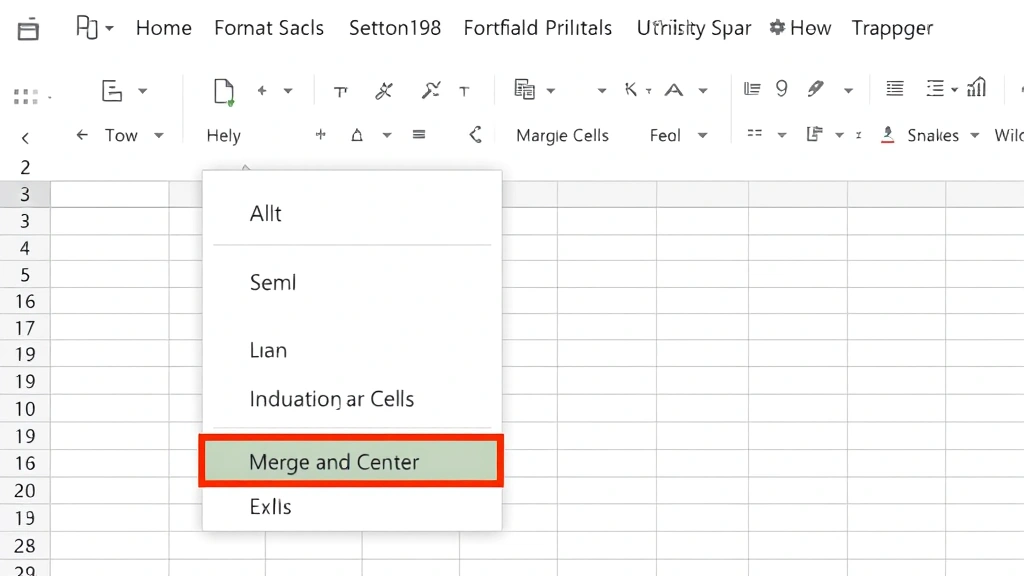
The quickest way to merge 2 cells in Excel is using the Merge and Center button on the Home ribbon. This method is perfect for creating centered headers and titles.
- Select your cells: Click on the first cell you want to merge, then drag to the second cell while holding your mouse button. Both cells should now be highlighted in blue, indicating they’re selected.
- Locate the Merge and Center button: On the Home tab in the ribbon, look for the “Merge and Center” button. It’s typically in the Alignment group, showing an icon that looks like two cells combining into one.
- Click Merge and Center: Click this button once. Excel immediately combines your selected cells and centers any content from the top-left cell within the merged area.
- Verify the merge: Check that your cells have combined properly and your content appears centered. The merged cell should span the width of both original cells.
This method automatically centers your content, which works great for titles and headers. If you need different alignment options, consider using the Format Menu method instead.
Method 2: Using the Format Menu
For more control over how your cells merge, the Format Menu provides additional options beyond basic merging.
- Select your 2 cells: Click the first cell, then hold Shift and click the second cell to select both. Alternatively, click and drag from the first cell to the second.
- Open the Format Menu: Click the “Format” menu in the menu bar at the top of your Excel window.
- Select Merge Cells option: Look for “Merge Cells” or “Merge and Center” in the dropdown menu. Some versions show “Merge & Center” as the primary option.
- Choose your merge style: Excel may offer options like “Merge Across,” “Merge Down,” or “Merge Cells.” Select the option that matches your needs.
- Apply the merge: Click your chosen option, and Excel processes the merge immediately.
The Format Menu approach gives you visibility into different merging options. You can also access this menu by right-clicking your selected cells and choosing format options from the context menu.
Merge Cells Without Losing Data
One of the biggest concerns when merging cells is losing data. Fortunately, there’s a proper way to combine cells without losing information. This technique ensures all your data is preserved even when working with multiple cells containing content.
- Identify all data to preserve: Before merging, examine each cell you plan to merge. Note what content each contains.
- Create a formula to combine content: If you want to keep text from multiple cells, use the CONCATENATE function or the ampersand (&) operator. For example, type =A1&” “&B1 in a temporary cell to combine content from cells A1 and B1 with a space between them.
- Copy the combined result: Once your formula produces the desired text, copy the result and paste it as values into your top-left cell using Paste Special (Ctrl+Shift+V).
- Clear unnecessary cells: Delete content from the other cells you’re about to merge, since that content will be discarded anyway.
- Now merge safely: With all important data consolidated in the top-left cell, you can safely merge your cells without losing any information.
This method takes a few extra steps but guarantees that no data disappears during the merge process. It’s especially important when working with spreadsheets containing critical business information.
Unmerging Cells When Needed
Sometimes you need to reverse a merge operation. Perhaps you want to split cells in Excel to go back to individual cells, or you need to adjust your spreadsheet layout.
- Select the merged cell: Click on the merged cell you want to unmerge. It will be highlighted in blue.
- Access the Format Menu: Click Format in the menu bar, then look for merge options.
- Choose Unmerge Cells: Select the “Unmerge Cells” option. Excel immediately separates the merged cell back into individual cells.
- Verify the result: Your cells are now separate again. Content that was in the merged cell remains in the top-left cell; the other cells will be empty.
Unmerging is straightforward and doesn’t damage your data. The content stays in the original position, and you’re free to work with the cells independently again.
Common Issues and Solutions
Understanding common problems helps you troubleshoot quickly when issues arise during merging operations.
Excel won’t let me merge cells: This typically happens when your cells aren’t arranged in a rectangular pattern. Ensure all cells you’re selecting are adjacent and form a continuous block. Non-adjacent cells cannot be merged.
My content disappeared after merging: If you had content in cells other than the top-left cell, that content was deleted during the merge. This is Excel’s default behavior. Always copy important data from non-top-left cells before merging.
The merged cell looks odd: Merged cells sometimes display strangely if your row heights or column widths are unusual. Adjust your row and column dimensions to make merged cells display properly.
Formulas referencing merged cells are broken: When you merge cells, formulas that referenced individual cells in that range may break. Update your formulas to reference the merged cell instead.
Can’t sort data with merged cells: Excel doesn’t allow sorting ranges that contain merged cells. Move or reorganize your columns so merged cells are separate from your sortable data.
FAQ
Can I merge more than 2 cells at once?
Yes, absolutely. The merging process works the same whether you’re combining 2 cells, 4 cells, or an entire rectangular block. Simply select all the cells you want to merge before clicking the Merge button. You can merge cells horizontally, vertically, or in any rectangular configuration.
What happens to formulas when I merge cells?
When you merge cells, only the content from the top-left cell is retained. If your cells contained formulas, the formula in the top-left cell survives, while formulas in other cells are deleted. Any cells referencing the original individual cells will need their formulas updated to reference the new merged cell.
Is there a keyboard shortcut for merging cells?
Excel doesn’t have a built-in keyboard shortcut for merging cells, but you can create a custom shortcut if you frequently merge. Alternatively, use Alt+H to access the Home tab, then navigate to the merge options. Some users create macros to automate frequent merging tasks.
Can I merge cells in Excel Online?
Yes, Excel Online supports cell merging through the Format Menu. The process is similar to desktop Excel: select your cells, click Format, and choose your merge option. However, some advanced formatting options may be limited in the web version.
How do I center text in a merged cell?
Using the Merge and Center button automatically centers your content. If you’ve already merged cells using a different method, you can center the content by selecting the merged cell, then clicking the Center alignment button in the Home tab’s Alignment group.
Why would I merge cells instead of just using a wider column?
Merging cells serves specific purposes beyond width adjustment. It creates visual hierarchy in your spreadsheet, helps organize complex data structures, makes headers more prominent, and improves the overall professional appearance of your document. Merged cells also help readers understand the logical grouping of information.
Can I merge cells across different worksheets?
No, you cannot merge cells that exist on different worksheets. Merging only works with adjacent cells on the same worksheet. If you need to organize data across multiple worksheets, consider using other formatting techniques or linking cells between sheets.
What’s the difference between merging and centering across cells?
Merging combines cells into one unit, eliminating cell borders between them. Centering across cells keeps cells separate but centers content across the selected range. Centering across is useful when you want to maintain individual cells but create the visual effect of centered content spanning multiple columns.

Related Posts

Superscript in Google Docs: Expert Tips

Strikethrough in Excel: Easy Steps for Beginners
