
How to Forward Text Messages: Expert Tips & Tricks
Forwarding text messages is one of the most practical communication skills in today’s digital world. Whether you need to share important information with colleagues, pass along a funny conversation to friends, or keep family members in the loop, knowing how to forward text messages efficiently can save you time and ensure information reaches the right people. This comprehensive guide walks you through every method available across different devices and platforms.
Text message forwarding has evolved significantly over the years. What once seemed like a simple task now includes multiple options depending on your device type, operating system, and the messaging app you’re using. Understanding these various methods ensures you can forward messages quickly and securely, whether you’re using an iPhone, Android device, or third-party messaging applications.
Understanding Text Message Forwarding Basics
Before diving into the specific steps, it’s important to understand what text message forwarding actually involves. Forwarding a text message means taking a message you’ve received and sending it to another contact or group of contacts. This differs from simply copying and pasting text, as forwarding typically preserves the original sender’s information and the message’s timestamp.
The basic concept remains consistent across platforms: you select a message, choose the forward option, and select your recipient. However, the specific steps and available features vary depending on your device and messaging application. Understanding these differences helps you choose the most efficient method for your needs.
When you forward a message, the recipient sees it as a forwarded communication, which provides context about where the information originated. This transparency is valuable in professional settings and helps recipients understand the message’s source and relevance. Different platforms handle this transparency differently, which we’ll explore in detail.
How to Forward Text Messages on iPhone
iPhone users have several straightforward methods to forward text messages using the native Messages app. The process is intuitive and takes just a few taps.
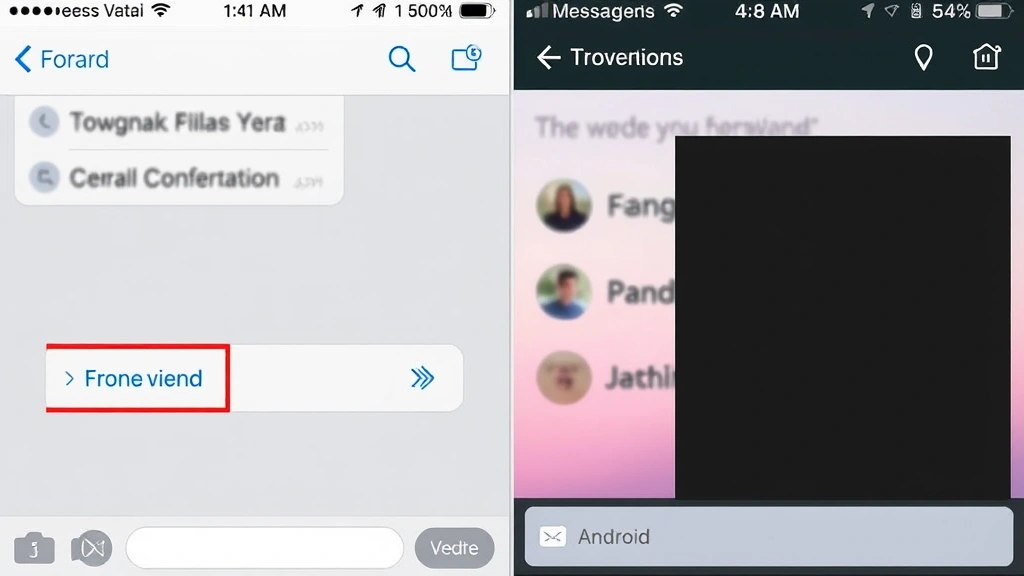
Basic Forwarding Method: Open the Messages app and locate the conversation containing the message you want to forward. Press and hold the specific message you wish to forward until a menu appears. Select “More” if available, or look for the forward icon. If you see “More,” tap it to select additional messages if desired. Once you’ve selected your message(s), tap the forward arrow icon in the bottom right corner. Choose your recipient from your contacts or enter a phone number, then tap “Send.”
Forwarding Multiple Messages: iPhone allows you to forward multiple consecutive messages at once. After pressing and holding the first message, tap “More” to enter selection mode. Tap each additional message you want to include in the forward. Once you’ve selected all desired messages, tap the forward arrow and choose your recipient.
Using iMessage Features: If you’re forwarding to another iPhone user via iMessage, you have additional options. Apple’s iMessage platform allows you to forward messages while preserving formatting, photos, and videos. The process remains the same, but the recipient receives higher-quality content.
iPhone also allows you to forward messages through email or other sharing methods. After selecting your message, you can use the Share Sheet to send it via Mail, Notes, or other compatible apps. This flexibility makes iPhone forwarding particularly versatile for different communication scenarios.
Forwarding Messages on Android Devices
Android devices offer similar forwarding capabilities, though the exact steps vary slightly depending on your phone manufacturer and Android version. The native SMS app on most Android devices provides straightforward forwarding options.
Standard Android Forwarding: Open your default messaging app and find the conversation with the message you want to forward. Long-press the message until it highlights and a menu appears. Look for options like “Forward,” “Share,” or a three-dot menu icon. Select the forward option and choose your recipient from your contacts. You can typically forward to one contact or multiple recipients simultaneously.
Samsung Message Forwarding: Samsung devices running their proprietary messaging interface have slightly different menus. Press and hold the message, then tap the forward icon that appears. Samsung’s interface often displays the forward button more prominently than other Android devices. Select your recipient and send the message.
Google Messages: Google’s native messaging app provides a clean forwarding experience. Long-press the message you want to forward, and the forward arrow appears in the top menu bar. Tap it to select your recipient. Google Messages also allows you to forward messages to multiple contacts in a single action.
Android’s flexibility means you can also use third-party apps to forward messages, giving you additional features and customization options. Many users prefer certain messaging apps for their enhanced forwarding capabilities and organizational features.
Using Third-Party Messaging Apps
Beyond native messaging apps, several third-party applications offer robust forwarding features with additional functionality. WhatsApp, Telegram, and Signal each handle message forwarding differently, providing users with various privacy and feature options.
WhatsApp Forwarding: WhatsApp allows you to forward individual messages or entire conversations. Long-press the message you want to forward and select “Forward” from the menu. You can then choose which contact or group receives the forwarded message. WhatsApp displays “Forwarded” next to forwarded messages, helping recipients understand the message’s origin.
Telegram Features: Telegram offers perhaps the most flexible forwarding options among third-party apps. You can forward messages while preserving or removing the original sender’s name, depending on your privacy preferences. Swipe left on a message (iOS) or long-press it (Android), then select forward and choose your recipient.
Signal Messaging: Signal prioritizes privacy in its forwarding features. The app clearly marks forwarded messages and allows you to forward securely to contacts within your Signal network. This makes Signal ideal for sensitive communications where you want transparency about message origins.
Each third-party app implements forwarding slightly differently, so spending time exploring your preferred app’s features helps you use forwarding most effectively. Many apps also allow you to forward media files alongside text messages, which native SMS apps may not support.
Advanced Forwarding Techniques
Beyond basic forwarding, several advanced techniques can enhance your message-sharing capabilities. Understanding these methods helps you handle complex communication scenarios more efficiently.
Forwarding Conversations: Some messaging apps allow you to forward entire conversation threads rather than individual messages. This proves valuable when you need to share context about an extended discussion. Open the conversation, select “More” or access the menu, and look for “Forward Conversation” or similar options. You can then send the entire thread to another contact or group.
Scheduled Forwarding: Certain apps and email clients allow you to schedule message forwarding for a later time. This feature helps you manage communication timing and ensures messages reach recipients at optimal times. Set up the forward as normal, but look for a “Schedule” or “Send Later” option before confirming.
Automatic Forwarding: Some messaging platforms allow you to set up automatic forwarding rules. You can configure your messaging app to automatically forward messages matching certain criteria to specific contacts. This automation saves time for repetitive forwarding tasks, though you should use it cautiously to avoid forwarding sensitive information unintentionally.
Conditional Forwarding: Advanced users can set up conditional forwarding where messages are automatically forwarded based on sender, keywords, or other parameters. This requires access to your phone’s automation features or third-party apps designed for this purpose. The IFTTT (If This Then That) platform offers powerful automation possibilities for message forwarding across different apps.
Privacy and Security Considerations
Before forwarding any message, consider important privacy and security implications. Forwarding messages without the original sender’s consent can violate their privacy expectations and potentially damage relationships or create legal issues.
Consent and Communication: When possible, ask the original sender before forwarding their message to others. This courtesy respects their privacy and prevents misunderstandings. In professional settings, this practice is particularly important and often expected.
Sensitive Information: Never forward messages containing personal information, financial details, passwords, or confidential business information without explicit authorization. Such forwarding could expose sensitive data and create security vulnerabilities. If you must share this information, consider using encrypted messaging platforms or secure file-sharing services.
Screenshot Alternatives: Instead of forwarding original messages, consider taking screenshots and sharing those with additional context you provide. This approach gives you more control over what information reaches your recipient and allows you to add explanatory notes.
Platform Security: Different messaging platforms offer varying levels of security. Signal and similar end-to-end encrypted platforms provide stronger privacy protections than standard SMS forwarding. For sensitive communications, use these more secure options.
Retention Policies: Understand your messaging app’s data retention policies. Some apps delete messages after forwarding, while others retain copies. Review your app’s settings to ensure messages are handled according to your preferences.
Troubleshooting Common Issues
Despite forwarding’s relative simplicity, several issues can arise. Understanding common problems and their solutions helps you troubleshoot quickly.
Forward Option Not Appearing: If the forward option doesn’t appear when you press and hold a message, ensure your app is updated to the latest version. Older app versions may lack certain features. Restart your phone if the option still doesn’t appear, as this often resolves temporary glitches.
Messages Not Sending: If forwarded messages fail to send, check your internet connection. Ensure WiFi or cellular data is functioning properly. For SMS messages specifically, verify that your carrier plan includes unlimited messaging. If problems persist, try restarting your messaging app or your phone.
Formatting Issues: When forwarding messages with special formatting, photos, or videos, some apps may not preserve the original formatting. This is particularly common when forwarding across different platforms. If formatting is important, consider using a platform-specific app that better preserves message elements.
Media File Problems: If forwarding messages with attached photos or videos fails, the file size may exceed your app’s or carrier’s limits. Try forwarding the text separately from media, or compress media files before forwarding. Some apps offer built-in compression features to handle this.
Recipient Not Receiving: Verify that you’ve selected the correct recipient and that their contact information is current. If the recipient has blocked you or has network issues, they may not receive forwarded messages. Ask them to confirm receipt, and consider alternative contact methods if forwarding consistently fails.
App Crashes During Forwarding: If your messaging app crashes when attempting to forward, force-close the app completely and restart it. Clear the app’s cache through your phone’s settings, or reinstall the app if problems continue. Persistent crashes indicate a deeper issue requiring professional support.
[IMAGE_1]
FAQ
Can I forward text messages to email addresses?
Yes, most smartphones allow you to forward text messages to email through the Share Sheet or by using third-party apps. On iPhone, select a message, tap “Share,” and choose Mail. On Android, use the Share option and select your email app. However, standard SMS forwarding typically only works between phone numbers.
Does the original sender know when I forward their message?
No, standard text message forwarding doesn’t notify the original sender. However, messages forwarded through apps like WhatsApp or Telegram display “Forwarded” labels, and the sender might notice if they see the message elsewhere. Always consider the ethical implications before forwarding.
Can I forward messages anonymously?
Forwarding messages anonymously is difficult with standard SMS, as your phone number typically appears as the sender. Some apps allow you to remove sender information before forwarding, but this may violate app policies or local laws depending on context. Check your app’s terms of service before attempting anonymous forwarding.
What’s the best way to forward a long conversation?
For long conversations, consider forwarding the entire thread if your app supports it, or use the screenshot method. If forwarding individual messages, select and forward them in chronological order to maintain context. Alternatively, you might summarize the conversation in your own words to provide necessary context more concisely.
Can I forward messages from deleted conversations?
Once a conversation is deleted, you cannot forward messages from it. Most messaging apps permanently delete messages when you delete a conversation. If you need to preserve important messages, archive them instead of deleting, or back them up using your phone’s backup features.
Is forwarding secure on public WiFi?
Standard SMS forwarding over cellular networks is relatively secure, but forwarding through apps on public WiFi networks can be risky. Use a VPN when forwarding on public WiFi, and avoid forwarding sensitive information in these circumstances. End-to-end encrypted apps like Signal provide additional security regardless of network type.
How do I forward messages to a group?
Select your message using the standard forward method, then choose a group from your contacts instead of an individual. Most messaging apps allow you to forward to groups, though some may have limitations on group size or message content type.
Can I undo a forwarded message?
Unfortunately, most messaging platforms don’t allow you to unsend forwarded messages after they’ve been sent, unlike some newer apps that offer message recall features. Once sent, you cannot retrieve a forwarded message. Always review messages before forwarding to ensure they’re appropriate.