

How to Force Close on Windows: Step-by-Step Guide
How to Force Close on Windows: Step-by-Step Guide
We’ve all been there—you’re working away on your computer when suddenly an application freezes solid. The cursor won’t move, buttons won’t respond, and you’re left staring at an unresponsive program wondering what to do next. Before you consider restarting your entire system, there are several effective methods to force close a frozen application on Windows without losing all your work or disrupting your workflow.
Force closing an application isn’t something to fear or avoid. It’s actually a fundamental skill that every Windows user should master. Whether you’re dealing with a stubborn program that’s consuming too many resources, an application that’s crashed but won’t exit gracefully, or something that’s simply locked up, knowing how to force close properly can save you time, frustration, and potentially important data.
This comprehensive guide walks you through every method available on Windows, from the quickest keyboard shortcuts to more advanced troubleshooting techniques. We’ll cover what force closing actually does to your system, when it’s appropriate to use it, and how to prevent frozen applications from becoming a recurring headache.
Understanding Force Close and When to Use It
Before diving into the how-to, let’s clarify what force closing actually means. When you force close an application, you’re essentially telling Windows to terminate the program immediately without giving it a chance to save data or clean up after itself. Think of it as the digital equivalent of yanking a power cord—it’s abrupt, but sometimes necessary.
The difference between a normal close and a force close matters significantly. When you normally close an application through its menu or the X button, the program runs shutdown routines. It saves your work, closes temporary files, and communicates with the operating system that it’s shutting down cleanly. Force closing skips all of this, which is why you should only use it when the application is genuinely unresponsive.
You’ll know it’s time for a force close when an application becomes completely unresponsive. The window won’t move, buttons don’t register clicks, and you can’t interact with it in any meaningful way. Sometimes you’ll see a “Not Responding” label in the title bar or the window turns white or gray, indicating the program has crashed internally.
If your system is running slowly due to resource-heavy applications, you might want to check CPU temperature to ensure overheating isn’t contributing to performance issues. Additionally, if you’re using a gaming controller and experiencing problems, understanding how to fix stick drift can help you troubleshoot hardware-related freezing issues.
Method 1: Alt+Tab and Alt+F4 Keyboard Shortcuts
Let’s start with the simplest method—keyboard shortcuts. These are your first line of defense when dealing with a frozen application, and they work surprisingly well in many situations.
Using Alt+Tab to Switch Windows: Press and hold the Alt key, then tap Tab. This opens the window switcher, showing you all open applications. While holding Alt, keep pressing Tab to cycle through your open programs. When you reach the frozen application, release both keys. Sometimes just switching away and back to the application can unstick it. If that doesn’t work, continue holding Alt and Tab multiple times to navigate away from the problematic program.
Using Alt+F4 to Close the Active Window: This is the nuclear option of keyboard shortcuts. Alt+F4 sends a close command to whatever window is currently active. Press Alt and F4 simultaneously. In many cases, even a frozen application will respond to this command. The beauty of Alt+F4 is that it’s faster than reaching for your mouse and it works even when the application’s interface is completely unresponsive.
The reason these shortcuts work so well is that they operate at the operating system level rather than within the application itself. They bypass the frozen interface and communicate directly with Windows, which is why they’re often successful even when nothing else responds.
Method 2: Task Manager Force Close
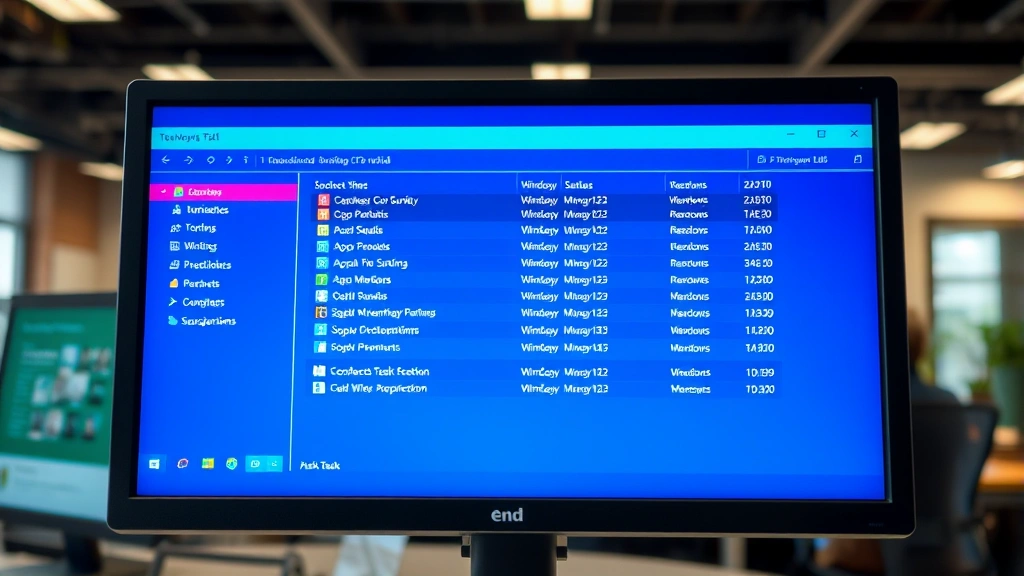
When keyboard shortcuts don’t cut it, Task Manager becomes your most powerful tool. This built-in Windows utility shows you every running process and allows you to terminate them individually.
Opening Task Manager: You have multiple ways to access Task Manager. The most reliable method is pressing Ctrl+Shift+Esc simultaneously—this opens Task Manager immediately without any intermediate screens. Alternatively, you can press Ctrl+Alt+Delete, which opens a security screen, then select “Task Manager” from the options. You can also right-click on the taskbar at the bottom of your screen and select “Task Manager” from the context menu.
Finding and Closing the Frozen Application: Once Task Manager is open, you’ll see a list of running applications in the “Processes” tab. Look for the application you want to close—it might have “Not Responding” written next to its name. Click on it to select it, then click the “End Task” button in the bottom right corner. Task Manager will immediately terminate the application.
Understanding the Details Tab: If you’re having trouble finding your application in the standard view, click the “Details” tab at the top of Task Manager. This shows a more comprehensive list of running processes with additional information like CPU usage and memory consumption. Find your frozen application here and click “End Task.” This tab is particularly useful if you’re trying to identify resource hogs that might be causing system-wide slowdowns.
Pro tip: If you notice certain applications consistently consuming excessive resources, you might benefit from checking PC temps to determine whether thermal issues are contributing to performance problems. High CPU or GPU temperatures can cause applications to become unresponsive.
Method 3: Command Line Solutions
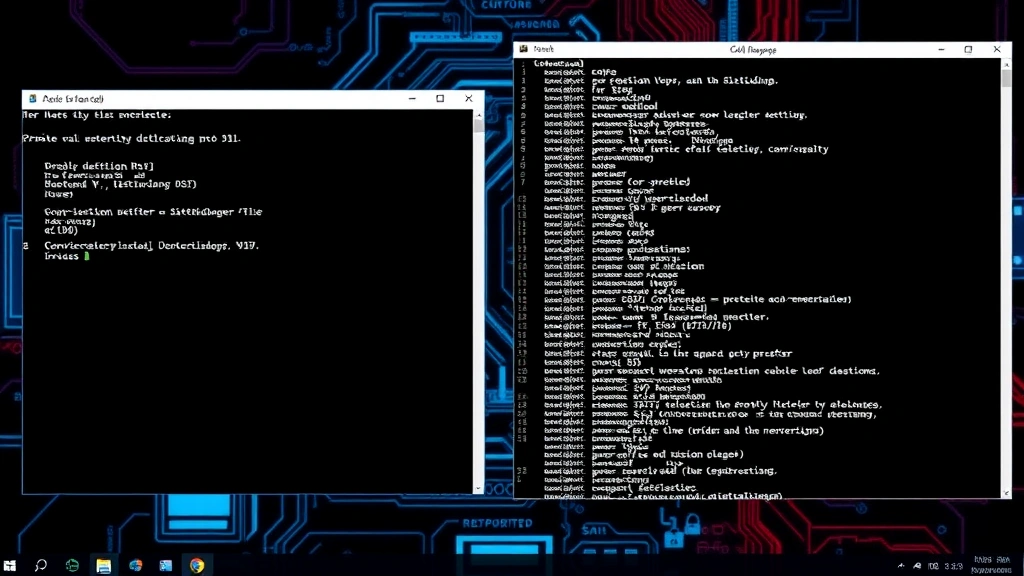
For those comfortable with command line interfaces, Windows offers powerful command-line tools to force close applications. These methods give you more control and can be particularly useful for advanced troubleshooting.
Using Command Prompt: Open Command Prompt by pressing Windows key + R, typing “cmd” and pressing Enter. Once the command prompt window opens, you can use the tasklist command to see all running processes. Type “tasklist” and press Enter to display every currently running application with its Process ID (PID). Once you identify your frozen application, use the command: taskkill /IM applicationname.exe /F where “applicationname.exe” is the exact name of the program you want to close. The “/F” flag forces the termination.
Using PowerShell for Advanced Control: PowerShell is Windows’ more modern command-line interface and offers additional capabilities. Press Windows key + X and select “Windows PowerShell (Admin)” to open it with administrative privileges. Use the command Get-Process to list all running processes, then use Stop-Process -Name applicationname -Force to forcefully terminate a specific application. PowerShell is particularly useful if you need to close multiple applications or perform batch operations.
Finding Process IDs: If you know the Process ID (PID) of the frozen application, you can use that instead of the application name. In Command Prompt, type taskkill /PID [process-id] /F where [process-id] is the numerical ID. This method is more precise because it eliminates any ambiguity about which application you’re targeting.
Method 4: Third-Party Task Killer Tools
Beyond Windows’ built-in utilities, third-party applications offer enhanced functionality for managing and closing processes. These tools can be particularly useful if you frequently deal with frozen applications or need more detailed system monitoring.
Popular Third-Party Options: Applications like Process Explorer provide a visual representation of all running processes and their relationships to each other. Unlike standard Task Manager, Process Explorer shows you which processes are spawning other processes, helping you understand system dependencies. Another option is Advanced Task Manager, which offers a more user-friendly interface with additional sorting and filtering options.
When to Use Third-Party Tools: These tools shine when you need detailed information about what’s running on your system or when you want to monitor application behavior over time. However, for a simple one-off force close, Windows’ built-in Task Manager is usually sufficient and doesn’t require installing additional software.
Caution with System Processes: Whether using built-in tools or third-party applications, be careful not to terminate system processes. Windows relies on numerous background processes to function properly. If you’re unsure whether a process is safe to close, research it online before taking action. A good rule of thumb is to only close applications you recognize and intentionally started.
Preventing Applications from Freezing
The best solution to frozen applications is preventing them from freezing in the first place. By understanding the causes and taking preventive measures, you can reduce how often you need to force close programs.
Keep Your System Updated: Software developers constantly release updates that fix bugs and improve stability. Make sure your Windows operating system is fully updated by going to Settings > Update & Security > Windows Update. Additionally, update individual applications through their built-in update features or their respective app stores. Many application freezes result from outdated software that conflicts with newer system components.
Monitor System Resources: Applications freeze when they run out of available resources. Keep an eye on your CPU and RAM usage through Task Manager. If you consistently see applications consuming excessive resources, you might need to upgrade your hardware or close unnecessary background applications. If you’re experiencing thermal throttling, turning off sticky keys and other accessibility features you don’t use can free up minor system resources, though the primary solution would be addressing the underlying resource constraint.
Manage Startup Programs: Every application that launches at startup consumes system resources from the moment your computer boots. Open Task Manager, navigate to the “Startup” tab, and disable applications you don’t need running in the background. This frees up resources for applications you’re actively using, reducing the likelihood of freezes.
Check for Malware and Viruses: Malicious software often causes system slowdowns and application freezes. Run regular scans using Windows Defender or your preferred antivirus software. Additionally, be cautious about what you download and only install applications from trusted sources.
Disable Unnecessary Accessibility Features: If you’re not using certain Windows accessibility features, disabling them can improve performance. For instance, if you don’t need sticky keys functionality, disabling sticky keys removes a background process. Similarly, evaluate other accessibility features and disable those you don’t actively use.
Reinstall Problematic Applications: If a specific application consistently freezes, try uninstalling and reinstalling it. This process replaces potentially corrupted files with fresh copies from the installation source. Before reinstalling, use a program like CCleaner to remove leftover registry entries and temporary files from the previous installation.
Frequently Asked Questions
Will force closing an application damage my computer?
No, force closing an application won’t damage your computer hardware. However, you may lose unsaved work in that application since the program doesn’t get a chance to save before shutting down. Your operating system and other applications remain unaffected. The only consequence is typically the loss of data within the frozen application itself.
What’s the difference between force closing and restarting my computer?
Force closing terminates only the frozen application while keeping your system and other programs running. Restarting your entire computer shuts down everything and reboots Windows from scratch. Force closing is less disruptive because you maintain your workflow in other applications. Only restart your computer if multiple applications are frozen or if your entire system is unresponsive.
Why does my application keep freezing?
Applications freeze for several reasons: insufficient system resources (RAM or CPU), software bugs or conflicts, outdated drivers, malware infection, or incompatibility with your Windows version. If freezing is persistent, check your system resources, ensure everything is updated, scan for malware, and consider reinstalling the problematic application. If the issue persists, the application might have compatibility issues with your specific system configuration.
Is it safe to use command line to force close applications?
Yes, using command line tools to force close applications is safe as long as you’re targeting the correct application. Always verify the exact name of the process before executing the taskkill command. Accidentally closing the wrong process could cause system instability, particularly if you terminate system processes. When in doubt, use Task Manager’s visual interface instead.
Can I force close multiple applications at once?
Yes, you can close multiple applications through Task Manager by selecting each one (holding Ctrl while clicking) and then clicking “End Task” once. In Command Prompt or PowerShell, you can execute multiple taskkill commands sequentially or use advanced scripting to target multiple processes simultaneously. However, for most users, closing applications one at a time through Task Manager is simpler and safer.
What should I do if Task Manager won’t open?
If Task Manager won’t open, your system might be severely compromised or resource-starved. Try restarting your computer. If that doesn’t work, try opening Command Prompt through the Run dialog (Windows key + R, type “cmd”) and use command line tools to close processes. In extreme cases, you may need to force restart your computer by holding the power button for 10 seconds.

Related Posts

How Long to Boil Lobster Tails: Cooking Guide

How Long to Fly from New York to London? Travel Times
