
How to Flip Screen on Chromebook: Simple Steps
How to Flip Screen on Chromebook: Simple Steps
There are moments when you need to see your Chromebook display from a different angle. Maybe you’re giving a presentation, sharing content with someone sitting beside you, or simply want to work in landscape mode. Whatever the reason, flipping your screen on a Chromebook is easier than you might think, and it doesn’t require any special software or technical expertise.
Unlike traditional laptops where screen rotation can be complicated, Chromebooks offer built-in display rotation features that are accessible through the settings menu. Whether you’re using an older model or the latest Chromebook release, the process remains straightforward and intuitive. This guide walks you through every method available, from keyboard shortcuts to manual settings adjustments.
Understanding how to rotate your display can enhance your productivity and make your Chromebook experience more flexible. Let’s explore the various ways you can flip your screen and discover which method works best for your needs.
Using Keyboard Shortcuts to Rotate Your Display
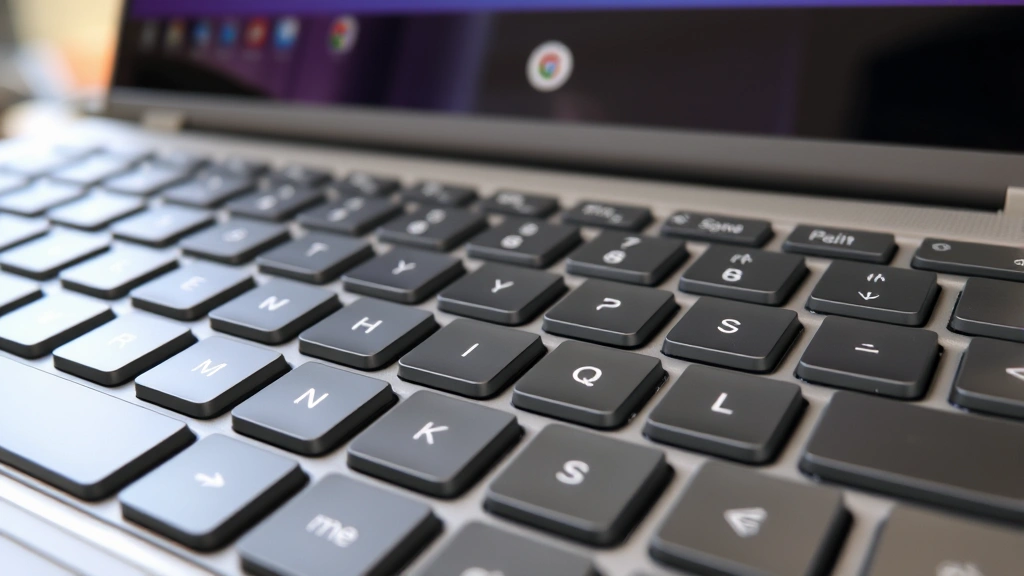
The quickest way to flip your Chromebook screen is using keyboard shortcuts. Chrome OS includes a built-in rotation feature that responds to specific key combinations, making it the most efficient method for users who frequently change their display orientation.
To rotate your display 90 degrees clockwise, press Ctrl + Alt + Right Arrow. If you want to rotate counterclockwise, use Ctrl + Alt + Left Arrow. These shortcuts work on most Chromebooks and provide immediate results without navigating through menus or settings.
One important thing to note: the rotation feature works best on Chromebooks with touchscreen displays or those running Chrome OS version 53 and later. If your keyboard shortcuts aren’t working, your device might need a system update or you may need to explore the settings-based approach instead.
The beauty of keyboard shortcuts is their consistency. Once you memorize the key combination, you can rotate your screen in seconds, making it perfect for presentations or when you need to quickly adjust your viewing angle. Many users find this method so convenient that they rarely need to use other rotation methods.
Accessing Display Settings Manually
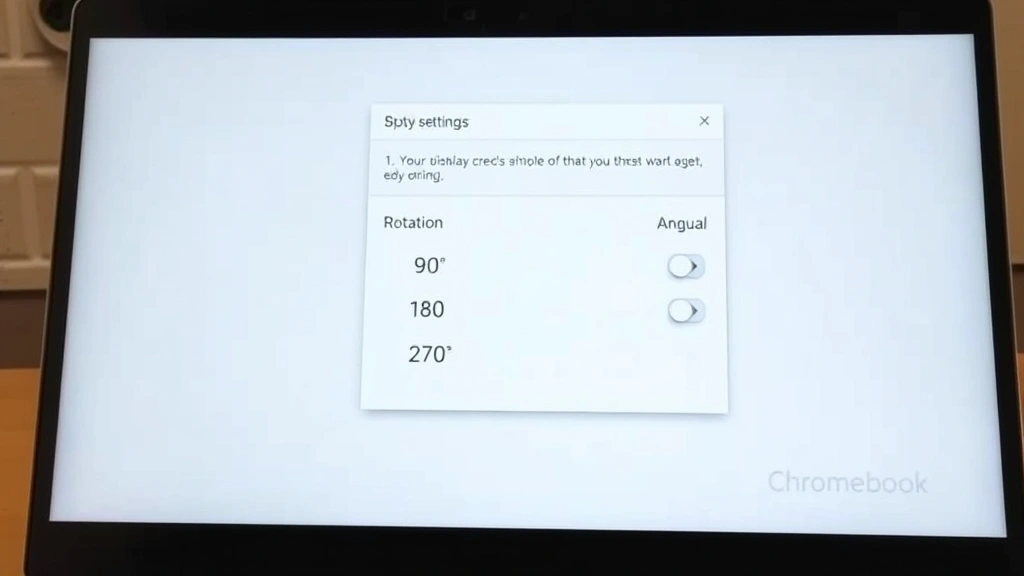
If keyboard shortcuts don’t work on your device, don’t worry. Chrome OS provides a manual method through the display settings menu. This approach gives you more control and allows you to see all available rotation options before making changes.
Start by clicking the system tray in the bottom-right corner of your screen. You’ll see the time, battery indicator, and various system icons. Look for the settings icon (gear symbol) and click it to open the Quick Settings panel. From here, select “Display settings” or look for a display rotation option directly in the quick settings menu.
Once you’re in the display settings, navigate to the “Display” section. You should see rotation options presented as 0°, 90°, 180°, and 270°. Simply click the rotation angle you prefer, and your screen will flip accordingly. The changes take effect immediately, so you’ll see your display rotate as soon as you make your selection.
Some Chromebooks may have the rotation toggle directly in the quick settings panel without requiring you to enter the full settings menu. If you access display settings frequently, you might want to add the display rotation toggle to your quick settings for faster access in the future.
When you’re adjusting display rotation through settings, you might also notice other display-related options like brightness, display size, and color temperature. These settings can be customized alongside rotation to create your ideal viewing experience.
Using Accessibility Features for Display Rotation
Chrome OS includes accessibility features that can assist with display rotation, particularly for users who need adaptive controls or have specific accessibility requirements. These features go beyond simple rotation and offer additional customization options.
To access accessibility settings, open your Chromebook’s Settings app and navigate to the “Accessibility” section. Here you’ll find various options related to display and vision settings. Some Chromebooks offer additional rotation controls within the accessibility menu, particularly on devices with touchscreen capabilities.
The accessibility approach is particularly useful if you’re experiencing issues with standard rotation methods. It provides an alternative pathway to the same functionality and sometimes includes additional display customization options that aren’t available through the regular settings menu.
If you frequently need to adjust your display orientation due to accessibility needs, consider enabling the accessibility shortcut. This allows you to quickly access display settings from your keyboard, making rotation adjustments even faster and more convenient.
Troubleshooting Common Issues
Sometimes screen rotation doesn’t work as expected. Understanding common issues and their solutions can help you get back to your preferred display orientation quickly.
Rotation Feature Not Responding: If your keyboard shortcuts aren’t working, first check your Chrome OS version. Older versions may not support screen rotation. Update your Chromebook by clicking the system tray, selecting “About Chrome OS,” and allowing any available updates to install.
Display Stuck in One Orientation: If your screen seems locked in a particular rotation, you may have accidentally enabled orientation lock. Check your quick settings panel for a “Lock Orientation” toggle and disable it if it’s turned on.
Keyboard Shortcuts Not Recognized: Some Chromebooks with non-standard keyboards may not respond to the standard rotation shortcuts. In these cases, the manual settings method is your best option. Additionally, if you’re using an external keyboard, compatibility issues might prevent shortcuts from working.
Before you troubleshoot further, try restarting your Chromebook. Many display-related issues resolve themselves after a simple restart. Simply click the power icon in the system tray and select “Restart.”
If problems persist, check whether your Chromebook’s hardware actually supports display rotation. While most modern Chromebooks include this feature, some older models or budget-friendly options may not have the necessary hardware support. Consulting your device’s manual or manufacturer specifications can clarify this.
You might also want to review your display settings to ensure no conflicting settings are preventing rotation. Sometimes multiple settings can interact in unexpected ways, and checking the full display settings menu can reveal the culprit.
Device-Specific Considerations
Different Chromebook models may have slight variations in how they handle screen rotation. Understanding your specific device can help you use the rotation feature more effectively.
Touchscreen Chromebooks: If you own a touchscreen Chromebook, you have the added benefit of automatic rotation. Some touchscreen models rotate the display automatically based on the device’s orientation. You can usually disable this auto-rotation in your display settings if you prefer manual control.
Non-Touchscreen Models: Standard Chromebooks without touchscreens still support manual rotation through keyboard shortcuts and settings menus, though they won’t offer automatic orientation detection.
Convertible Chromebooks: Chromebook tablets and convertible models with rotating hinges often include more advanced rotation features. These devices may automatically detect physical rotation and adjust the display accordingly. Learning how to right click on a Chromebook becomes particularly useful on these models when accessing context menus in different orientations.
External Monitor Setup: If you’re using an external monitor with your Chromebook, note that rotation typically only affects the Chromebook’s built-in display, not external monitors. External display rotation usually requires adjusting settings within the monitor’s own menu or through your operating system’s extended display settings.
When troubleshooting device-specific issues, check whether your Chromebook model is known to have display rotation support. Some budget models or enterprise-focused devices may have this feature disabled or unavailable. If you’re experiencing persistent issues, visiting the manufacturer’s support page for your specific model can provide targeted solutions.
If you’re considering purchasing a Chromebook and display rotation is important to you, verify that the model supports this feature before making your purchase. Most modern Chromebooks from major manufacturers include rotation support, but it’s worth confirming.
For users managing multiple Chromebooks or in educational environments, knowing which devices support rotation can help you provide better support to others. Creating a quick reference guide for your organization’s Chromebook models can save time and reduce support tickets.
Frequently Asked Questions
Can I rotate my Chromebook screen 180 degrees?
Yes, most Chromebooks support 180-degree rotation. Use Ctrl + Alt + Down Arrow on your keyboard, or select the 180° option in your display settings. This orientation is useful when presenting to an audience behind you or sharing content with someone across a table.
Will rotating my screen affect my Chromebook’s performance?
No, rotating your display doesn’t impact performance. It’s simply a visual adjustment that Chrome OS handles efficiently. Your Chromebook will run exactly the same whether your screen is in standard or rotated orientation.
Can I set my Chromebook to automatically rotate the display?
Some touchscreen Chromebooks support automatic rotation based on physical device orientation. Check your display settings to see if an “Auto-rotate” option is available. If your device supports this feature, you can enable it to have the display automatically adjust when you rotate your Chromebook.
What should I do if my keyboard shortcuts for rotation don’t work?
First, ensure your Chrome OS is up to date. If shortcuts still don’t work, use the manual settings method by accessing your display settings through the system tray. You might also want to check if you’ve turned off Do Not Disturb mode, as some system features can interfere with keyboard shortcuts.
Does rotating the screen work on external monitors connected to my Chromebook?
Screen rotation typically applies only to your Chromebook’s built-in display. External monitors have their own orientation settings, which are usually controlled through the monitor’s physical buttons or its dedicated software. You’ll need to adjust external monitor rotation separately from your Chromebook’s display.
Can I rotate my screen in specific applications only?
Screen rotation in Chrome OS is a system-wide setting that affects all applications. You cannot rotate the display for individual apps. The rotation applies to your entire desktop and all open windows.
Is there a way to lock my screen rotation?
Yes, Chrome OS includes an orientation lock feature. Look for a “Lock Orientation” toggle in your quick settings panel. When enabled, your display won’t rotate even if you use keyboard shortcuts or change your device’s physical orientation.
Why does my touchscreen Chromebook sometimes rotate automatically?
Touchscreen Chromebooks often have automatic rotation enabled by default. If your screen is rotating unexpectedly, navigate to your display settings and disable the “Auto-rotate” option. This gives you manual control over when your display rotates.

Related Posts

How Long to Boil Lobster Tails: Cooking Guide

How Long to Fly from New York to London? Travel Times
