
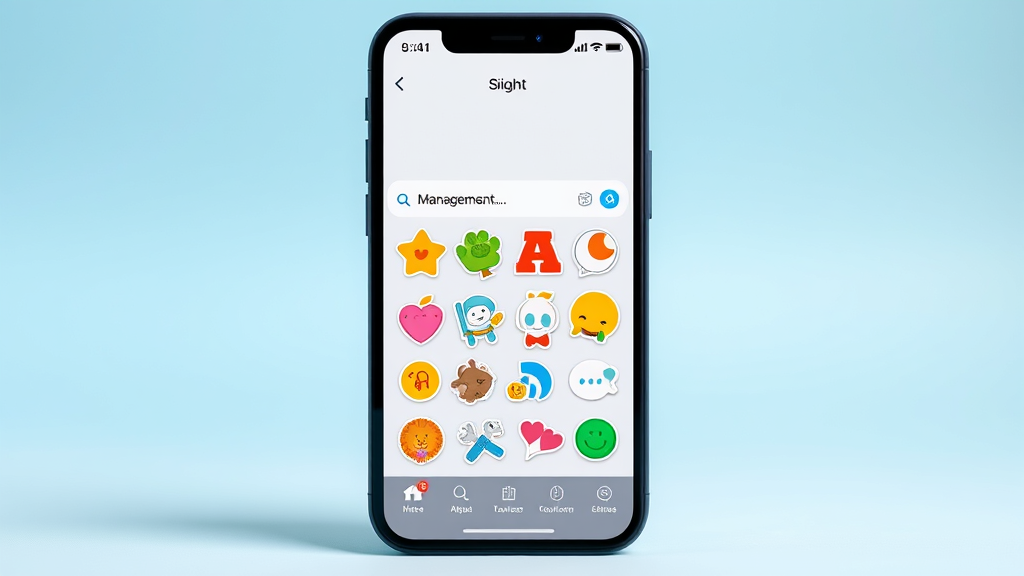
Quickly Remove iPhone Stickers and Free Up Storage Space
iPhone stickers can accumulate quickly in your Messages app, taking up valuable storage space and cluttering your sticker collection. Whether you’ve downloaded too many sticker packs or want to organize your digital assets better, knowing how to delete stickers on iPhone is essential for maintaining optimal device performance.
This comprehensive guide will walk you through multiple methods to remove unwanted stickers from your iPhone, helping you reclaim storage space and streamline your messaging experience. From individual sticker removal to complete pack deletion, we’ll cover everything you need to know about managing your iPhone’s sticker collection efficiently.
Understanding iPhone Stickers and Storage Impact
iPhone stickers are digital graphics that can be sent through the Messages app, adding personality and fun to your conversations. These stickers come in various forms, including animated GIFs, static images, and interactive elements that respond to touch or movement.
Sticker packs are typically downloaded from the App Store as standalone apps or as extensions within messaging applications. Each pack can contain dozens of individual stickers, and over time, multiple packs can consume significant storage space on your device. Understanding how these files are stored and managed is crucial for effective cleanup.
The storage impact varies depending on the complexity and number of stickers in each pack. Animated stickers generally require more space than static ones, while high-resolution graphics consume more memory. Regular maintenance of your sticker collection can help prevent storage issues and keep your iPhone running smoothly.
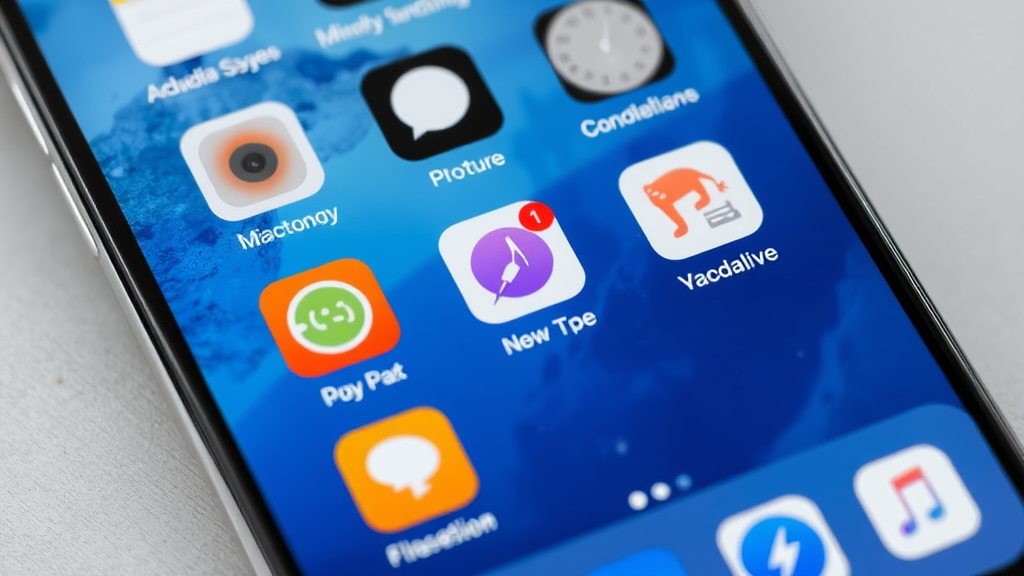
How to Delete Individual Stickers
Removing individual stickers from your iPhone requires accessing the Messages app and navigating to the sticker management interface. Start by opening the Messages app and creating a new message or opening an existing conversation thread.
Tap the App Store icon next to the text input field, which appears as a small “A” with a circle around it. This will open the iMessage app drawer where all your sticker packs are displayed. Look for the sticker pack containing the individual stickers you want to remove.
Once you’ve located the appropriate sticker pack, tap and hold on the specific sticker you want to delete. A menu will appear with various options, including “Delete” or “Remove.” Select this option to permanently remove the individual sticker from your collection.
For users who need help with other iPhone management tasks, learning how to unhide apps can be equally valuable for device organization.
Removing Complete Sticker Packs
Deleting entire sticker packs is often more efficient than removing individual stickers, especially when dealing with large collections. This method completely removes the sticker app and all associated content from your iPhone.
Navigate to your iPhone’s home screen and locate the sticker pack app you want to remove. These apps often have distinctive icons and names that make them easy to identify. Press and hold the app icon until the context menu appears, then select “Remove App” or “Delete App.”
Alternatively, you can access sticker pack management through the Settings app. Go to Settings > General > iPhone Storage, then scroll through the list of apps to find your sticker applications. Tap on any sticker app to see detailed storage information and deletion options.
This method is particularly effective for freeing up substantial amounts of storage space, as complete sticker packs can range from a few megabytes to several hundred megabytes depending on their content and complexity.
Managing Stickers Through Messages App
The Messages app provides built-in tools for managing your sticker collection directly within the messaging interface. This approach is convenient for users who frequently switch between different sticker packs and want quick access to management options.
Open the Messages app and access any conversation thread. Tap the App Store icon in the message composition area, then look for the “More” option, which typically appears as three dots or a grid icon. This will display all your installed iMessage apps and sticker packs.
From this interface, you can rearrange, hide, or delete sticker packs by tapping the “Edit” button. Hiding sticker packs removes them from your active collection without permanently deleting them, while deletion completely removes the content from your device.
Similar to managing other iPhone features like turning off Do Not Disturb, sticker management requires navigating through specific menu systems to access the desired controls.
Using App Store to Remove Sticker Apps
The App Store provides another pathway for managing sticker applications, offering detailed information about installed apps and their storage requirements. This method is particularly useful for users who want to review their entire sticker collection before making deletion decisions.
Open the App Store app and tap on your profile picture in the top-right corner. Select “Purchased” to view all apps you’ve downloaded, including sticker packs. You can filter this list to show only sticker-related applications.
For each sticker app, you can see installation status, file size, and recent updates. Swipe left on any app to reveal the delete option, or tap the app name to access more detailed management options. This interface also allows you to re-download previously deleted sticker packs if needed.
According to Apple’s official support documentation, managing app storage is crucial for maintaining optimal iPhone performance and preventing storage-related issues.
Storage Optimization Tips
Beyond simply deleting stickers, implementing a comprehensive storage optimization strategy can help prevent future storage issues and maintain your iPhone’s performance. Regular maintenance and mindful downloading habits are key components of effective storage management.
Consider implementing a periodic review schedule where you assess your sticker collection monthly or quarterly. During these reviews, remove unused or outdated sticker packs and evaluate whether new downloads are necessary. This proactive approach prevents storage accumulation over time.
Enable automatic offloading for unused apps in Settings > General > iPhone Storage > Offload Unused Apps. While this feature primarily targets regular applications, it can help manage overall storage pressure that might affect sticker performance.
Just as users might need to turn off Find My iPhone for specific troubleshooting scenarios, strategic sticker management requires understanding when and how to remove digital content effectively.
Troubleshooting Common Issues
Sometimes, sticker deletion doesn’t work as expected due to various technical issues or system constraints. Understanding common problems and their solutions can help ensure successful sticker removal and prevent frustration.
If stickers won’t delete through normal methods, try force-closing the Messages app and restarting your iPhone. This can resolve temporary software conflicts that prevent proper sticker management. Additionally, ensure your iOS is updated to the latest version, as older versions may have bugs affecting sticker functionality.
For persistent issues, check if the sticker pack is tied to a subscription service or premium app. Some sticker collections require active subscriptions, and deletion methods may vary. Consult the Apple Developer Documentation for technical details about iMessage app management.
Network connectivity issues can also affect sticker deletion, particularly for cloud-synced content. Ensure you have a stable internet connection when attempting to remove sticker packs, especially those that sync across multiple devices.
Users dealing with multiple iPhone management tasks might also find it helpful to learn about scheduling texts or unblocking contacts for comprehensive device management.
Research from MIT’s Technology Review indicates that regular digital asset management significantly improves mobile device performance and user experience.
Frequently Asked Questions
Will deleting sticker packs affect my existing messages that contain those stickers?
No, deleting sticker packs from your iPhone will not remove stickers that have already been sent in your message conversations. Previously sent stickers will remain visible in your chat history, but you won’t be able to send new stickers from the deleted pack.
Can I recover deleted sticker packs without repurchasing them?
Yes, if you downloaded free sticker packs from the App Store, you can re-download them at no cost by accessing your purchase history in the App Store. For paid sticker packs, you can also re-download them without additional charges as long as they’re still available in the store.
How much storage space do sticker packs typically use?
Sticker pack sizes vary significantly depending on the number of stickers and their complexity. Simple static sticker packs may use 5-20 MB, while elaborate animated collections can consume 50-200 MB or more. You can check specific storage usage in Settings > General > iPhone Storage.
Do stickers sync across all my Apple devices?
Yes, sticker packs downloaded on one device will typically sync to other devices signed into the same Apple ID, assuming you have iCloud syncing enabled for Messages. This means deleting stickers on one device may affect their availability on other devices.
Why can’t I delete some sticker packs using the standard method?
Some sticker packs are integrated into larger messaging apps or may have special permissions that prevent standard deletion. In these cases, you may need to delete the entire parent application or contact the app developer for specific removal instructions.
Will deleting stickers improve my iPhone’s performance?
Removing unused sticker packs can free up storage space and potentially improve performance, especially if your device is running low on available storage. However, the performance impact is typically minimal unless you’re dealing with very large sticker collections.
Can I hide sticker packs instead of deleting them permanently?
Yes, many sticker management interfaces allow you to hide sticker packs rather than delete them completely. This removes them from your active sticker selection while keeping them installed on your device for potential future use.

Related Posts

How Long to Boil Lobster Tails: Cooking Guide

How Long to Fly from New York to London? Travel Times
