
Remove Section Breaks in Word: Expert Tips
How to Delete Section Break in Word: Expert Tips
Section breaks in Microsoft Word can be incredibly useful for formatting different parts of your document with unique page orientations, headers, footers, and margins. However, they can also become problematic when you no longer need them or when they’re causing unexpected formatting issues. Whether you’re working on a professional report, academic paper, or creative document, knowing how to remove section breaks efficiently is an essential skill that will save you considerable time and frustration.
Many users find themselves struggling with section breaks that won’t disappear or that are affecting their document’s layout in unwanted ways. The good news is that removing section breaks in Word is straightforward once you understand the process. This comprehensive guide will walk you through multiple methods to delete section breaks, troubleshoot common issues, and optimize your document formatting.
Understanding Section Breaks in Word
Before you can effectively delete a section break, it’s important to understand what section breaks actually do and why they exist in your document. Section breaks are formatting markers that allow you to divide your document into distinct sections, each with its own formatting properties. This is particularly useful when different parts of your document require different layouts or styles.
There are four types of section breaks available in Microsoft Word: next page, continuous, even page, and odd page breaks. A next page break starts a new section on the following page, which is ideal when you want to change page orientation mid-document. A continuous break allows you to change formatting within the same page, perfect for adjusting columns or margins without forcing a page break. Even page and odd page breaks are specialized options used primarily in professional publishing when you need sections to begin on specific page types.
Understanding these distinctions helps you recognize why section breaks might be present in your document and whether removing them is the right solution. Sometimes what appears to be a problematic section break is actually necessary for your document’s intended formatting. However, if you’ve completed your document revisions or changed your formatting strategy, removing unnecessary section breaks becomes critical for maintaining a clean, professional appearance.
How to Show Section Break Marks
The first step in learning how to delete section breaks is making them visible. By default, section breaks are hidden in Word, which makes them difficult to locate and manage. Revealing these marks is essential for identifying exactly where your section breaks are located and ensuring you’re deleting the correct ones.
To display section breaks in your document, follow these simple steps:
- Open your Word document and navigate to the Home tab in the ribbon menu
- Look for the Paragraph group on the right side of the Home tab
- Click the pilcrow symbol (¶) which represents formatting marks
- Your document will now display all formatting marks, including section breaks, which appear as a double line with the text “Section Break (Next Page)” or similar designation
Alternatively, you can use the keyboard shortcut Ctrl+Shift+8 (or Cmd+Option+8 on Mac) to toggle formatting marks on and off. Once visible, section breaks appear as distinct lines with labels indicating their type. This visualization is crucial for understanding your document’s structure and planning your approach to removing unnecessary breaks.
If you’re working with a long document containing multiple sections, displaying these marks helps you navigate more efficiently. You can use the Find & Replace function to search for specific section break types, which is particularly helpful when you need to remove multiple breaks throughout a lengthy document.
Basic Method to Delete Section Breaks
Once you’ve made section breaks visible, removing them is remarkably simple. The basic method involves selecting the section break and deleting it, which typically causes the following section to adopt the formatting of the preceding section.
Here’s the step-by-step process:
- Ensure formatting marks are visible by enabling the pilcrow symbol as described above
- Locate the section break you want to remove in your document
- Click at the very beginning of the section break line to position your cursor
- Carefully select the entire section break marker by clicking and dragging, or by triple-clicking on the line
- Press the Delete key on your keyboard
- The section break will disappear, and the following section will inherit the formatting from the previous section
This straightforward approach works for most situations. However, it’s important to note that deleting a section break causes the section that follows it to adopt the formatting properties of the section before it. If you had different formatting settings in the deleted section, you may need to reapply those settings to maintain your desired document appearance.
For instance, if you had a section with landscape orientation followed by a portrait section, deleting the section break between them will convert the landscape section to portrait. Understanding this consequence helps you decide whether to proceed with deletion or explore alternative solutions.
Removing Multiple Section Breaks
When dealing with documents containing numerous section breaks, removing them one by one becomes tedious and time-consuming. Fortunately, Word provides efficient methods for handling multiple breaks simultaneously, particularly when you want to remove all instances of a specific break type.
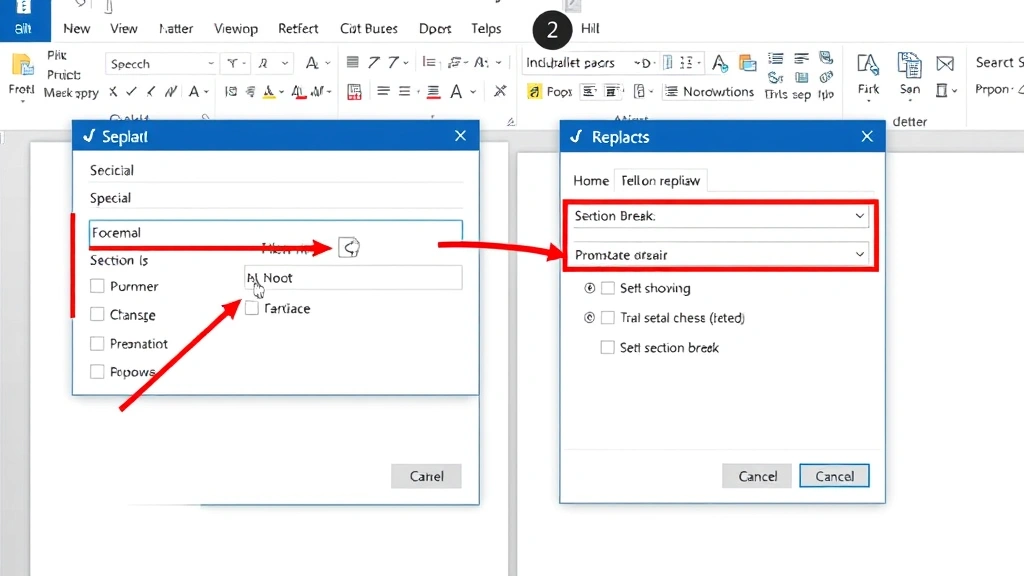
The Find & Replace method is your most powerful tool for this task. Here’s how to use it:
- Press Ctrl+H to open the Find & Replace dialog box
- Click the More button to expand advanced options if it’s not already visible
- Click the Special button and select the type of section break you want to find
- Leave the Replace field empty to replace breaks with nothing (effectively deleting them)
- Click Replace All to remove all instances of that section break type throughout your document
This method is particularly effective when your document contains dozens of unnecessary section breaks. Before clicking “Replace All,” you might want to click “Find Next” a few times to verify you’re targeting the correct break types. This precaution prevents accidentally removing section breaks you actually need.
An alternative approach involves manually selecting multiple section breaks while holding the Ctrl key, then deleting them together. This method works well when section breaks are scattered throughout your document and you want to selectively remove specific ones rather than all instances of a particular type.
When working with complex documents, consider creating a backup before performing bulk deletions. This safety measure ensures you can quickly restore your document if the removal process produces unexpected formatting changes. Like preparing for other home improvement projects, a little preparation prevents major problems down the road.
Troubleshooting Persistent Section Breaks
Sometimes section breaks refuse to cooperate and won’t delete through standard methods. This frustration is more common than you might think, and several solutions can help resolve stubborn breaks that seem permanently embedded in your document.
If a section break won’t delete using the standard deletion method, try these troubleshooting approaches:
- Copy and paste content: Select all content from the problematic section and copy it to a new document, then paste it with formatting options to remove embedded break codes
- Check for protection: Your document might be protected. Go to the Review tab and look for protection options. Unprotect the document if necessary, then attempt deletion again
- Use Find & Replace with wildcards: Advanced users can employ regular expressions in Find & Replace to target specific section break patterns
- Convert to text: Save your document as plain text and then reformat it, though this method removes all formatting so use it only as a last resort
- Restart Word: Sometimes Word’s memory becomes corrupted. Closing and reopening the application can resolve mysterious deletion issues
Another common issue involves section breaks that reappear after deletion. This typically occurs when the break was created by formatting changes rather than explicit user action. In such cases, investigate your document’s page setup and formatting styles to identify the underlying cause. You may need to adjust margin settings or modify paragraph styles rather than simply deleting the break itself.
For documents with complex formatting inherited from templates or previous versions, consider using Word’s Clean Document feature. This tool removes hidden formatting and can resolve issues with persistent section breaks. Access this feature through File > Info > Check for Issues > Inspect Document, though remember this removes all tracked changes and comments permanently.
Preventing Section Break Problems
The best approach to section break issues is prevention. By understanding best practices for creating and managing sections, you can avoid many problems that lead to deletion nightmares later. Developing good habits now saves countless hours of troubleshooting in the future.
Here are key strategies for preventing section break complications:
- Use styles consistently: Instead of creating new sections for formatting changes, apply paragraph and character styles that maintain consistency throughout your document
- Plan your document structure: Before creating section breaks, map out your document’s layout and determine exactly where breaks are necessary
- Document your breaks: Add comments near section breaks explaining why they exist, making future editing easier for you and collaborators
- Minimize break types: Stick with continuous breaks when possible, reserving next-page breaks for situations where page breaks are truly necessary
- Regular cleanup: Periodically review your document for unnecessary breaks and remove them before they cause cascading formatting issues
When collaborating on documents with others, establish clear guidelines about section break usage. Inconsistent break placement across multiple editors creates confusion and formatting problems. Like coordinating a home improvement project with multiple contractors, clear communication prevents costly mistakes.
Consider exploring alternative formatting solutions before resorting to section breaks. Sometimes the same formatting goal can be achieved through paragraph formatting, text boxes, or tables, which offer more flexibility and fewer complications. Understanding the full range of Word’s formatting tools helps you choose the most appropriate solution for each situation.
For long-term document management, maintain a master template that includes only necessary section breaks configured according to your organization’s standards. This approach ensures consistency across all documents and reduces the likelihood of encountering problematic breaks. You can learn more about document management best practices by visiting the FixWiseHub Blog where we cover various productivity topics.
FAQ
What happens when I delete a section break?
When you delete a section break, the section that follows it adopts the formatting properties of the preceding section. This means page orientation, margins, headers, footers, and other formatting settings from the previous section apply to the content that was in the deleted section. Understanding this consequence helps you predict formatting changes before deletion.
Can I undo a deleted section break?
Yes, absolutely. Word maintains an undo history that typically stores your last 100 actions by default. If you delete a section break and immediately realize it was a mistake, simply press Ctrl+Z to undo the deletion. This safety feature allows you to experiment with deletions without permanent consequences.
Why won’t my section break delete?
Section breaks that refuse to delete usually indicate document protection or embedded formatting codes. Check whether your document is protected through the Review tab, and ensure you’re clicking directly on the section break marker itself rather than just the surrounding text. If issues persist, try the Find & Replace method or restart Word.
How do I remove all section breaks from my document?
The most efficient method involves using Find & Replace. Open the dialog with Ctrl+H, click Special, select “Section Break,” leave the replace field empty, and click “Replace All.” This removes all section breaks throughout your document in seconds, though you should verify this is truly your intention before proceeding.
Is there a difference between deleting a section break and removing formatting?
Yes, significant differences exist. Deleting a section break removes the marker itself and causes formatting to merge with the preceding section. Removing formatting, by contrast, keeps the section break in place but strips away its associated formatting properties. Use deletion when you want to eliminate the break entirely, and use formatting removal when you want to keep the break but change its properties.
Can section breaks affect document performance?
While individual section breaks have minimal impact, documents with excessive breaks can experience slight performance degradation, particularly on older computers. More importantly, unnecessary breaks create maintenance headaches and make future editing more difficult. Keeping your document clean by removing unneeded breaks improves both performance and usability.
How do I know if I actually need a section break?
Ask yourself whether different parts of your document require different formatting. If you need different page orientations, margins, headers, footers, or column configurations in different sections, you need section breaks. If all your content follows the same formatting throughout, you likely don’t need any breaks at all.
For more information about organizing and optimizing your digital documents, explore our guides on maintaining productivity and efficiency. Whether you’re managing complex documents or learning practical skills like how to clean a coffee maker for workplace kitchen organization, developing strong fundamentals improves your overall effectiveness.
Understanding how to delete section breaks in Word represents just one component of comprehensive document management skills. As you continue working with Word, you’ll discover that mastering section breaks alongside other formatting tools creates professional, polished documents that communicate your message effectively. Take time to practice these techniques in test documents before applying them to important projects, and don’t hesitate to use the undo function if something doesn’t work as expected.

Related Posts

Superscript in Google Docs: Expert Tips

Strikethrough in Excel: Easy Steps for Beginners
