
Delete Roku Apps Easily: Expert Tips
Delete Roku Apps Easily: Expert Tips
Managing your Roku device’s app library is essential for keeping your streaming experience organized and your device running smoothly. Over time, you may accumulate apps you no longer use, which can clutter your home screen and slow down navigation. Deleting Roku apps is a straightforward process that anyone can master in just a few minutes, whether you’re using a Roku TV, streaming stick, or set-top box.
In this comprehensive guide, we’ll walk you through multiple methods to delete apps on Roku, troubleshoot common issues, and share expert tips to optimize your device. Whether you’re looking to free up storage space or simply want a cleaner interface, we’ve got you covered with step-by-step instructions and practical advice.
Understanding Your Roku Device
Before diving into the deletion process, it’s helpful to understand how Roku handles apps and storage. Roku devices come with varying amounts of internal storage, typically ranging from 256MB to 2GB depending on the model. This storage is shared between the operating system, system apps, and user-downloaded applications.
When you delete an app from Roku, you’re freeing up storage space on your device, which can improve overall performance. However, unlike some other streaming platforms, Roku doesn’t penalize you for having many apps installed—the device is designed to handle a large library. That said, removing unused apps keeps your interface clean and makes it easier to find the content you actually watch.
If you’re unsure which model Roku device you own, you can check your device information by navigating to Settings > About on your Roku. This will display your model number, software version, and available storage space.
Method 1: Delete Apps from Your Home Screen
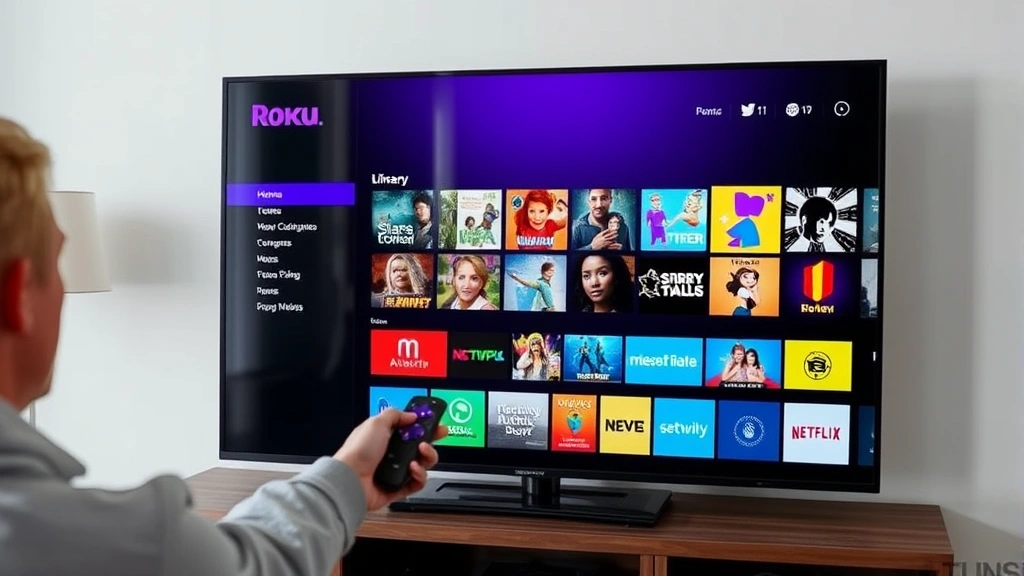
The most direct way to how to delete apps on roku is through your home screen. This method works on all Roku devices and takes less than a minute per app.
- Navigate to the app you want to delete: From your Roku home screen, scroll left or right until you locate the app tile you wish to remove.
- Highlight the app: Use your Roku remote to select the app so it’s highlighted with a border or background color.
- Open the options menu: Press the Options button (the star or menu icon) on your remote. On newer remotes, this may be labeled differently, but look for a button with three dots or lines.
- Select Remove Channel: A context menu will appear with several options. Select Remove Channel or Remove App depending on your Roku model and software version.
- Confirm deletion: Roku will ask for confirmation to ensure you don’t accidentally delete an app. Select Yes or Remove to confirm.
That’s it! The app will be immediately removed from your home screen and uninstalled from your device. If you change your mind later, you can always reinstall the app from the Roku Channel Store.
Method 2: Remove Apps Using the Roku Mobile App
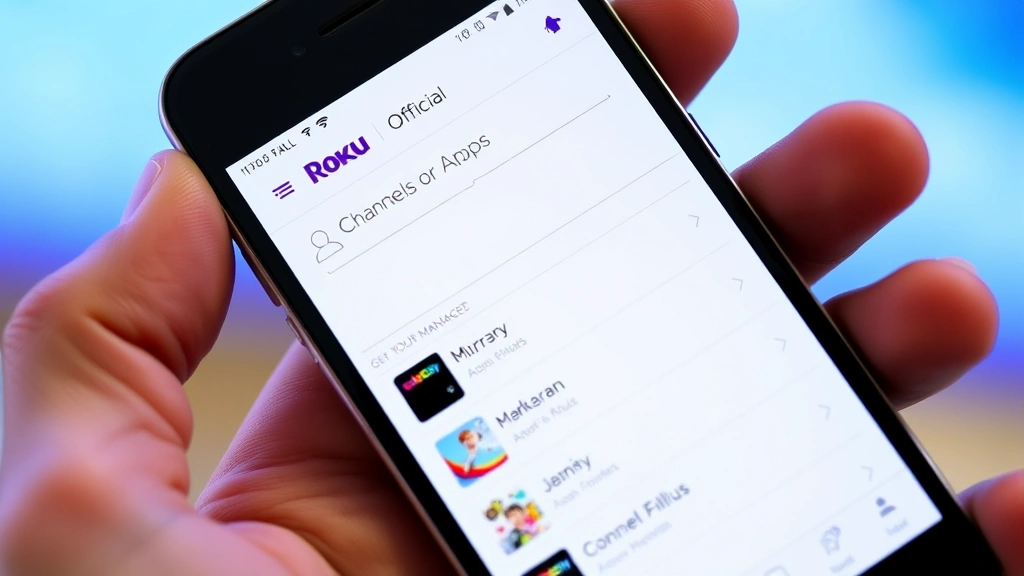
If you prefer using your smartphone instead of the physical remote, the official Roku mobile app offers a convenient alternative. This method is particularly useful if you’ve misplaced your remote or want to manage multiple apps quickly.
- Download the Roku app: If you haven’t already, download the official Roku app from the Apple App Store or Google Play Store. It’s free and works with all Roku devices on the same network.
- Open the app and sign in: Launch the Roku app and sign in with your Roku account credentials. If you don’t have an account, you can create one for free.
- Select your device: The app will display all Roku devices on your network. Tap the device you want to manage.
- Access the remote or streaming options: Look for a menu icon or settings option within the app. Some versions have a dedicated “Channels” or “Apps” section.
- Find the app to delete: Browse through your installed apps until you find the one you want to remove.
- Remove the app: Tap the app and look for a Remove, Delete, or Uninstall option. Confirm your selection when prompted.
The Roku mobile app is an excellent tool for managing your device remotely, and many users find it faster than navigating with a traditional remote. Plus, you can use your phone as a keyboard for searching and typing passwords.
Method 3: Manage Apps Through Settings
For a more comprehensive view of all your installed apps, you can access the app management section through your Roku’s settings menu. This method allows you to see storage information and manage multiple apps at once.
- Go to Settings: From your Roku home screen, scroll up to reveal the menu bar, then navigate to Settings.
- Select Apps: In the Settings menu, look for an Apps, Channels, or Manage Channels option.
- View your app list: You’ll see a complete list of all installed apps on your device, often sorted by most recently used.
- Select the app to remove: Highlight the app you want to delete from the list.
- Choose Remove or Uninstall: Press the Options button or select a delete option that appears on screen.
- Confirm the deletion: When prompted, confirm that you want to remove the app.
This method also displays how much storage space each app uses, which is helpful if you’re trying to free up significant amounts of storage. You can identify the largest apps and prioritize which ones to delete first.
Consider visiting the official Roku support website for additional troubleshooting specific to your device model.
Uninstalling vs. Hiding Apps
Roku offers two ways to remove apps from your view: uninstalling and hiding. Understanding the difference between these options helps you manage your device more effectively.
Uninstalling (Deleting): When you uninstall an app, it’s completely removed from your device’s storage. This frees up memory and storage space, which can improve your device’s overall performance. You can easily reinstall the app later from the Roku Channel Store if needed. Most users choose this option when they no longer want an app.
Hiding Apps: The hide function keeps the app installed on your device but removes it from your home screen. This is useful if you want to keep an app for occasional use but don’t want it cluttering your interface. To hide an app, select the same Options menu but choose Hide Channel instead of Remove Channel. Hidden apps can still be found and launched through your app library or search function.
If you’re concerned about storage space, uninstalling is the better choice. If you just want a cleaner home screen but might use the app occasionally, hiding is the way to go. Many users use a combination of both strategies to keep their Roku organized.
Troubleshooting Common Issues
While deleting Roku apps is generally straightforward, you may occasionally encounter issues. Here are solutions to common problems:
App Won’t Delete: If an app refuses to delete, try restarting your Roku device. Unplug the device from power for 30 seconds, then plug it back in. Once it restarts, attempt to delete the app again. If the problem persists, check for a system update by going to Settings > System > System Update.
Accidental Deletion: Did you accidentally delete an important app? No problem! Simply visit the Roku Channel Store, search for the app, and reinstall it. Your login credentials and preferences are typically saved, so you can pick up where you left off.
For detailed guidance on device management and home automation, consult official documentation.
Storage Still Full After Deletion: If you’ve deleted multiple apps but storage space hasn’t improved significantly, restart your device. Sometimes the system needs to refresh to accurately reflect freed space. You can also check Settings > System > About to see current storage usage.
Can’t See Remove Option: On older Roku models or software versions, the menu options may differ. Try pressing the Back button after highlighting an app, or look for a dedicated app management section in your settings menu. Alternatively, use the Roku mobile app method, which works across all software versions.
Tips for Organizing Your Roku Home Screen
Beyond just deleting apps, here are expert tips to keep your Roku organized and easy to navigate:
Rearrange Your Apps: You don’t have to delete an app if you just want it out of sight. Instead, rearrange your home screen by highlighting an app and pressing the Options button, then selecting Move Channel. Drag frequently used apps to the front and less-used apps toward the back.
Use Collections: Some Roku devices allow you to create custom collections or folders. This groups related apps together, making your home screen less cluttered while keeping apps accessible.
Seasonal Cleanup: Every few months, review your installed apps and remove any you haven’t used. This keeps your device running smoothly and prevents your app library from becoming overwhelming. Similar to how you might clean a coffee maker regularly to maintain performance, regular app maintenance keeps your Roku in top shape.
Keep Essential Apps: Maintain core apps like your primary streaming service, Roku’s built-in search function, and any weather or news apps you regularly check. These form the foundation of your streaming experience.
Check App Updates: Periodically check if your installed apps have updates available. Updated apps often run more efficiently and may include bug fixes. Go to Settings > Apps > Check for App Updates.
Remember that you can always visit the Roku Channel Store to explore and download new apps whenever you want, so don’t be hesitant to delete apps you’re not using. Your Roku device is designed to be flexible and customizable to your streaming preferences.
If you’re looking for more device management tips, check out our guide on FixWiseHub how-to guides and tutorials for comprehensive instructions on various home and tech topics.
FAQ
Can I delete pre-installed Roku apps?
Most pre-installed system apps cannot be deleted, but they can often be hidden. Apps like Roku Search, Home, and Settings are essential to device function and cannot be removed. Third-party apps you downloaded can always be deleted.
Will deleting an app remove my saved data and login information?
When you delete an app, associated data and login information are removed. However, if you reinstall the app, you can log back in with your credentials, and the service will usually remember your preferences and watch history if you’re logged into your account.
How much storage space do apps typically use?
Roku apps vary widely in size. Some lightweight apps use only a few megabytes, while larger apps with more features can use 50-200MB or more. You can check individual app sizes in your Settings menu to identify the biggest storage consumers.
Can I delete apps from the Roku Channel Store?
No, you cannot delete apps directly from the Channel Store. You must delete apps from your device using one of the three methods described above. The Channel Store is only for browsing and downloading new apps.
What should I do if my Roku device is running slowly?
Start by deleting unused apps to free up storage space. Then restart your device, check for system updates, and clear your browsing cache if available. If problems persist, consider a factory reset, though this will remove all apps and settings.
Is there a limit to how many apps I can install on Roku?
While there’s no hard limit, your device’s storage capacity determines how many apps you can have. Most Roku devices can handle 50-100+ apps depending on their size and your device’s storage capacity. If you reach capacity, you’ll need to delete some apps to install new ones.
Can I recover a deleted app?
Yes! You can always reinstall a deleted app by visiting the Roku Channel Store, searching for the app by name, and downloading it again. This process is free and takes just a few moments.

Related Posts

Superscript in Google Docs: Expert Tips

Strikethrough in Excel: Easy Steps for Beginners
