

Connect 2 Monitors to Laptop: Expert’s Guide
How to Connect Two Monitors to a Laptop: Complete Expert Guide
Expanding your laptop’s display real estate by connecting two external monitors transforms your productivity and work experience. Whether you’re a creative professional managing multiple applications, a financial analyst tracking spreadsheets, or a content creator editing videos, dual external monitors provide the workspace you need. This comprehensive guide walks you through every step of the process, from checking compatibility to troubleshooting common issues.
Most modern laptops support multiple external displays through various connection standards. The key to success lies in understanding your laptop’s capabilities, selecting the right cables and adapters, and configuring your display settings correctly. We’ll explore different connection methods, hardware requirements, and optimization techniques that ensure your multi-monitor setup runs smoothly and efficiently.

Check Your Laptop’s Display Capabilities
Before purchasing cables or monitors, you must verify whether your laptop can actually support two external displays. Most modern laptops manufactured in the last five years support multiple external monitors, but older models may have limitations. Your laptop’s graphics processor (GPU) and operating system both play crucial roles in determining multi-monitor support.
Windows laptops typically support multiple external displays through their dedicated or integrated graphics cards. Check your device manager by right-clicking on your desktop and selecting “Display Settings.” Windows 10 and Windows 11 handle dual external monitors seamlessly. MacBook users should note that support varies by model and Thunderbolt port configuration. Older MacBooks may require additional adapters or may not support two external displays simultaneously.
Visit your laptop manufacturer’s website and search for your specific model number along with “display output specifications” or “external monitor support.” Document the number of display outputs available and their types. This information proves invaluable when selecting the correct cables and adapters.
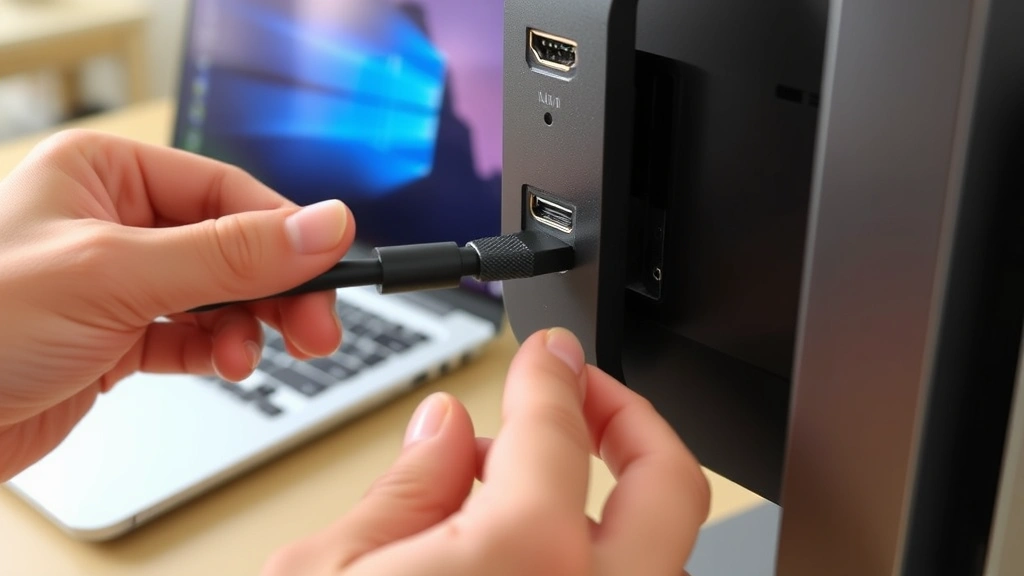
Understanding Display Connection Types
Your laptop likely features one or more of these display connection standards. Understanding each type helps you select appropriate cables and adapters for your setup.
HDMI (High-Definition Multimedia Interface) remains the most common connection type on consumer laptops. HDMI supports both video and audio transmission and works with virtually all modern monitors. Most laptops include at least one HDMI port, making it an excellent starting point for monitor connections.
USB-C/Thunderbolt 3 represents the modern standard, particularly on newer laptops. These ports support video output, data transfer, and power delivery simultaneously. Thunderbolt 3 offers superior bandwidth, enabling higher resolutions and refresh rates compared to older standards. Many premium laptops feature multiple Thunderbolt ports, making them ideal for dual external monitor setups.
DisplayPort provides excellent video quality and bandwidth, though it’s less common on consumer laptops than HDMI. When present, DisplayPort connections deliver exceptional performance for high-resolution displays.
VGA and DVI represent older connection standards found on legacy laptops. While still functional, they lack audio support and deliver lower bandwidth compared to modern alternatives. If your laptop features these ports, consider upgrading to newer monitors with HDMI or USB-C connections.
Hardware and Cables You’ll Need
Assembling the correct hardware ensures your dual monitor setup functions flawlessly. Start by identifying what you already have and what you need to purchase.
Primary requirements include:
- Two external monitors (with compatible input ports)
- Two video cables (HDMI, DisplayPort, USB-C, or appropriate adapters)
- Power outlets for each monitor
- Optional: monitor stand or mounting arms for ergonomic positioning
- Optional: USB hub if you need additional USB ports
When selecting cables, purchase quality products from reputable manufacturers. Cheap HDMI cables sometimes cause signal degradation, particularly over longer distances. For runs exceeding 15 feet, consider active HDMI cables with built-in signal amplification. USB-C to HDMI adapters should support video output specifically—not all USB-C adapters handle display signals.
Monitor selection depends on your budget and use case. Identical monitors simplify setup and provide consistent color reproduction, but mismatched monitors work perfectly fine. Ensure your selected monitors feature the input ports available on your laptop. If your laptop only has HDMI outputs, verify that both monitors include HDMI inputs or purchase appropriate adapters.
Step-by-Step Connection Process
Follow these detailed steps to connect your two monitors to your laptop successfully.
Step 1: Power Down Your Laptop
While most modern systems support hot-swapping (connecting devices while powered on), powering down eliminates potential issues and ensures clean device detection. Shut down your laptop completely and wait 30 seconds before proceeding.
Step 2: Identify Available Ports
Examine your laptop’s sides and rear. Locate all available video output ports. Modern laptops typically feature USB-C, HDMI, or Thunderbolt ports. Some gaming laptops include DisplayPort connections. Document which ports support video output—not all USB-C ports on every laptop support external displays.
Step 3: Connect First Monitor
Plug one video cable into your laptop’s first available video output port. Connect the other end to your first monitor’s input port. Ensure connections are firm—loose cables cause intermittent signal loss and display flickering. Power on the first monitor using its power button.
Step 4: Connect Second Monitor
Using a different video output port on your laptop, connect your second monitor using the same process. If your laptop lacks a second dedicated video output, use a USB-C to HDMI adapter or DisplayPort adapter as needed. Power on the second monitor.
Step 5: Power On Your Laptop
Turn on your laptop. Modern operating systems automatically detect external displays and configure basic settings. You may see a notification asking how you want to use the displays. Select “Extend” to use both monitors as separate workspaces, or “Duplicate” to mirror content across both screens.
Configuring Display Settings
After physical connections are established, proper display configuration maximizes your productivity and ensures optimal visual quality.
Windows Configuration:
Right-click your desktop and select “Display Settings.” You’ll see thumbnails representing each connected monitor. Under “Multiple Displays,” choose “Extend these displays” to use both monitors independently. Scroll down to “Scale and Layout” and adjust resolution for each monitor if needed. Most users prefer matching resolutions for seamless cursor movement between screens.
Click “Identify” to see which physical monitor corresponds to each thumbnail. This helps you arrange displays correctly. Drag monitor thumbnails to reflect your physical setup—if your second monitor sits to the right of the first, arrange the thumbnails accordingly. This arrangement determines how your cursor moves between screens.
macOS Configuration:
Apple systems automatically detect external displays. Open System Preferences and navigate to “Displays.” Adjust resolution and refresh rate for each monitor. Under “Arrangement,” drag monitor representations to match your physical setup. macOS handles dual external displays smoothly on most recent MacBooks, though older models may require additional configuration.
Refresh Rate and Resolution Optimization:
Higher refresh rates (60Hz, 75Hz, or higher) provide smoother visuals, particularly during scrolling or video playback. Higher resolutions (1440p, 2160p) offer more screen real estate but consume more power and may reduce refresh rates. Balance these factors based on your primary use case. Video editors benefit from high resolutions, while gamers prioritize refresh rates.
Optimizing Your Dual Monitor Setup
Beyond basic connection and configuration, several optimization strategies enhance your multi-monitor experience and productivity.
Physical Arrangement:
Position both monitors at eye level to reduce neck strain during extended work sessions. Align monitor tops horizontally whenever possible—misaligned monitors cause eye fatigue as you constantly shift focus vertically. Consider monitor arms or stands that allow height and angle adjustment. Proper ergonomics prevent long-term health issues associated with poor posture.
Application Organization:
Develop a consistent workflow for application placement. For example, dedicate one monitor to communication tools (email, chat) and reserve the other for focused work (writing, coding, design). This separation reduces distractions and maintains mental clarity. Many professionals use productivity guides to optimize their workspace arrangement.
Color Calibration:
If your monitors display different colors, professional color calibration tools help achieve consistency. Free calibration tools exist for basic adjustments, while serious creative professionals invest in hardware calibrators. Consistent color across both monitors proves essential for photo editing, graphic design, and video production.
Power Management:
Configure power settings to turn off external monitors during extended inactivity. This extends monitor lifespan and reduces energy consumption. Windows and macOS both offer built-in power management features accessible through display settings.
Common Problems and Solutions
Even with proper setup, issues occasionally arise. These troubleshooting steps resolve most common multi-monitor problems.
One Monitor Not Detected:
First, verify that both monitors are powered on and that video cables are firmly connected. Try reseating cables—disconnect and reconnect them completely. Update your graphics drivers by visiting your GPU manufacturer’s website (NVIDIA, AMD, or Intel). Outdated drivers frequently cause detection issues. Restart your laptop after driver installation.
Display Flickering:
Flickering usually indicates a loose cable connection or incompatible adapter. Check all connections and ensure cables aren’t damaged. If using an adapter, verify it supports video output specifically. Try different video output ports on your laptop to isolate port-specific issues. Replace cables or adapters that appear damaged.
Low Resolution or Distorted Image:
Right-click your desktop and access Display Settings. Verify that resolution settings match your monitor’s native resolution. If available options seem limited, update graphics drivers. Some monitors require installation of manufacturer drivers for full resolution support. Visit the monitor manufacturer’s website and download drivers specific to your model.
Cursor Gets Stuck Between Monitors:
This occurs when monitor arrangement in display settings doesn’t match physical positioning. Return to Display Settings, verify monitor arrangement matches your physical setup, and save changes. The cursor should now move smoothly between screens.
Second Monitor Stops Working After Sleep:
Windows sometimes fails to redetect displays after sleep mode. Disable sleep mode or adjust power settings to prevent automatic sleep. Alternatively, update graphics drivers, as this issue frequently stems from outdated drivers. Right-click your desktop, access Display Settings, and scroll to “Power and Sleep” to adjust these settings.
Performance Issues or Lag:
Multiple external displays increase graphics processing demands. Close unnecessary applications and background processes. Lower refresh rates or resolutions if performance remains poor. Ensure your laptop has adequate cooling—external monitors generate additional heat. Use a laptop cooling pad if thermal throttling occurs.
Frequently Asked Questions
Can any laptop connect to two external monitors?
Most modern laptops support two external displays, but older models may not. Check your laptop’s specifications or contact the manufacturer to confirm multi-monitor support. Laptops with dedicated graphics cards typically handle dual monitors more effectively than those with integrated graphics.
What’s the difference between extending and duplicating displays?
Extending treats each monitor as separate workspace, allowing different content on each screen. Duplicating mirrors the same content across both monitors, useful for presentations. Extend mode maximizes productivity, while duplicate mode works better for sharing your screen with others.
Do I need a docking station for dual monitors?
Docking stations simplify connections by consolidating all cables into a single dock, but they’re not strictly necessary. If your laptop has sufficient video output ports, you can connect monitors directly. Docking stations prove convenient for frequent connection/disconnection scenarios.
Which connection type offers the best performance?
USB-C and Thunderbolt 3 provide superior bandwidth for high-resolution, high-refresh-rate displays. HDMI works excellently for standard displays. DisplayPort offers excellent performance when available. For most users, HDMI provides sufficient performance at a lower cost.
Can I use monitors with different resolutions?
Absolutely. Mismatched resolutions work perfectly fine. Your operating system handles scaling automatically. However, identical monitors simplify setup and provide consistent visual experience across your workspace.
Will dual external monitors drain my laptop battery quickly?
External monitors consume significant power, particularly high-resolution displays. While plugged in, battery drain isn’t a concern. If running on battery, external monitors will reduce battery life substantially. For portable use, consider disconnecting external monitors or using a high-capacity portable charger.
What monitor size works best for dual setups?
Most professionals prefer 24-27 inch monitors for dual setups. Smaller monitors (21-24 inches) work for basic tasks but provide limited workspace. Larger monitors (30+ inches) consume significant desk space and may require repositioning to maintain comfortable viewing angles. Consider your desk size and primary use case when selecting monitor dimensions.
Do I need special cables for longer distances?
Standard HDMI cables work up to approximately 15 feet without signal degradation. For longer runs, use active HDMI cables with built-in signal amplification. USB-C and Thunderbolt cables typically support shorter distances—check specifications for your specific cables. When in doubt, keep cable runs under 10 feet for optimal performance.

Related Posts

Superscript in Google Docs: Expert Tips

Strikethrough in Excel: Easy Steps for Beginners
