
How to Clear Cache on iPad: A Simple Guide
How to Clear Cache on iPad: A Simple Guide
Your iPad is probably doing more heavy lifting than you realize. Every app you open, every website you browse, and every video you stream leaves behind digital breadcrumbs in the form of cached data. Over time, this accumulated clutter can slow down your device, drain battery life, and consume valuable storage space. If you’ve noticed your iPad feeling sluggish or running out of room, clearing the cache might be exactly what you need to breathe new life into it.
The beauty of cache clearing is that it’s not some mysterious technical process reserved for IT professionals. In fact, most iPad users can accomplish it in just a few minutes using built-in settings or app-specific tools. Whether you’re dealing with Safari’s web cache, app caches from social media platforms, or system-wide temporary files, we’ll walk you through every method available to you.
Think of cache like your iPad’s personal filing cabinet. It stores snippets of information to help apps load faster next time you use them. While this sounds helpful—and it usually is—too much accumulated data can actually work against you. The solution isn’t complicated, and you don’t need any special tools or technical knowledge to get started.
What Is Cache and Why Should You Clear It?
Cache is temporary data that apps and websites store on your iPad to improve performance. When you visit a website, your browser saves images, scripts, and other elements so the page loads faster the next time you visit. Similarly, apps cache user data, thumbnails, and frequently accessed information to speed up their operation. It’s a smart system designed to enhance your user experience.
However, cache accumulation happens gradually and silently. A single app might store anywhere from a few megabytes to several gigabytes of cached data, depending on how frequently you use it and what type of content it handles. Social media apps, streaming services, and news applications are particularly notorious cache hoarders. When you multiply this across dozens of apps, you can easily end up with several gigabytes of wasted storage.
There are several compelling reasons to clear your cache regularly:
- Free up storage space: Cache can consume surprising amounts of storage, especially on older iPad models with limited capacity
- Improve performance: Clearing out old, corrupted, or excessive cache files can noticeably speed up app loading and overall system responsiveness
- Fix app glitches: Sometimes apps behave oddly due to corrupted cached data. A cache clear often resolves these issues without requiring app reinstallation
- Enhance privacy: Cached data can contain browsing history, login information, and personal preferences. Clearing it reduces your digital footprint
- Extend battery life: Less data for your iPad to manage means more efficient power consumption
If you’re interested in similar maintenance tasks, you might also want to explore how to clear app cache on iPhone, which uses a comparable process. Additionally, understanding device maintenance extends to other platforms—for instance, knowing how to powerwash a Chromebook follows similar principles of clearing unnecessary data.
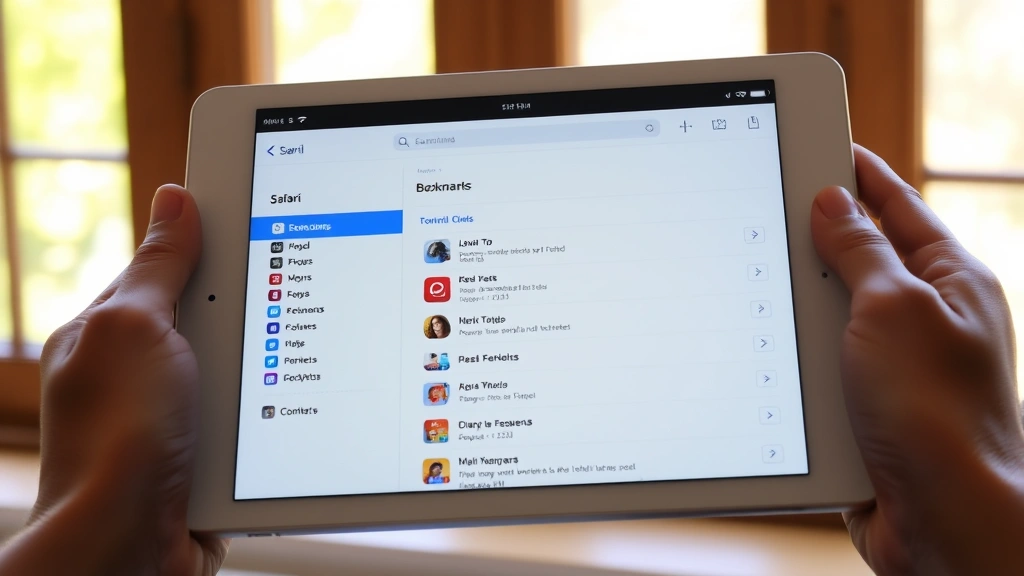
Clearing Safari Cache on iPad
Safari is the default browser on iPad, and it accumulates cache quite rapidly if you browse frequently. Clearing Safari’s cache is straightforward and takes less than a minute. Here’s the step-by-step process:
Method 1: Clear All Safari Data
- Open the Settings app on your iPad
- Scroll down and tap Safari
- Scroll to the bottom and tap Clear History and Website Data
- A confirmation dialog will appear. Tap Clear History and Data to confirm
- Wait a few seconds as your iPad processes the request
This method clears not only cache but also browsing history and cookies. If you want to preserve your browsing history while only clearing cache, use Method 2 instead.
Method 2: Clear Cache Only (Preserve History)
Unfortunately, iPad’s Settings app doesn’t offer a granular option to clear only cache while preserving history. However, you can use Safari’s built-in clearing feature:
- Open the Safari app
- Tap the Bookmarks icon (looks like an open book)
- Tap History at the bottom
- Tap Clear in the bottom right corner
- Select your preferred timeframe: Last Hour, Today, Today and Yesterday, or All Time
This approach clears history but still removes associated cache. For complete privacy control, you might want to check out how to turn off Find My iPhone to understand iPad’s broader privacy settings.

How to Clear App-Specific Cache
Different apps handle cache differently. Some allow you to clear cache directly from within the app, while others require you to use iPad Settings. Here’s how to tackle the most common scenarios:
Clearing Cache from Within Apps
Many apps include a built-in cache-clearing option in their settings menu. Here’s how to find it:
- Open the app you want to clear cache from
- Look for Settings, Preferences, or a gear icon (usually in the top corner or bottom menu)
- Search for options labeled Storage, Cache, Clear Data, or Manage Storage
- Tap the option to clear cache
- Confirm your choice if prompted
Popular apps like Instagram, Facebook, YouTube, and Spotify all offer this feature. The exact location varies, but most follow a similar pattern.
Clearing App Cache Through iPad Settings
If an app doesn’t have its own cache-clearing option, you can offload and reinstall the app, which removes all associated data:
- Open Settings on your iPad
- Tap General
- Tap iPad Storage (or Storage on newer models)
- Find the app you want to clear cache from and tap it
- Tap Offload App (this removes the app but keeps its data)
- Tap Offload to confirm
- Once complete, tap Reinstall App to download a fresh version
Alternatively, you can tap Delete App instead of Offload App, which removes everything including data. You’ll then need to reinstall the app from the App Store.
Understanding app management is part of broader device maintenance. Just as you might need to understand how to format SD card on other devices, managing iPad storage requires similar organizational thinking.
Using iPad Settings to Clear Cache
iPad’s Settings app provides several cache-clearing options that work across multiple apps simultaneously. This is the most efficient method if you want to perform a comprehensive cleanup:
Clear Cache for All Apps at Once
Unfortunately, iPad doesn’t have a single “clear all app cache” button like some Android devices. However, you can accomplish this by:
- Opening Settings
- Tapping General
- Tapping iPad Storage
- Reviewing the list of apps and their storage usage
- Individually offloading or deleting apps that use excessive storage
Clear Photos Cache
The Photos app can accumulate significant cache, especially if you use iCloud Photos:
- Open Settings
- Tap Photos
- Ensure iCloud Photos is enabled (if you want to keep originals in the cloud)
- Toggle off and back on iCloud Photos to refresh
- Go back and tap General, then iPad Storage
- Look for System Data and note its size
Clear Mail Cache
Email apps, particularly Mail, can cache substantial amounts of data:
- Open Settings
- Tap Mail
- Tap Accounts
- Select the email account you want to clean
- Tap Account
- Tap Remove from iPad (this clears cache but keeps settings)
- Add the account back by tapping Mail settings and following the setup wizard
Checking Storage After Clearing Cache
After you’ve cleared cache, you’ll want to verify that you’ve actually freed up space. Here’s how to check your storage status:
- Open Settings on your iPad
- Tap General
- Tap iPad Storage
- Look at the colored bar at the top showing storage breakdown
- Tap individual apps to see their current size (it should be smaller than before)
The storage breakdown shows different categories:
- Apps: The size of installed applications
- Documents and Data: App data and cache
- Photos and Videos: Your media library
- Mail: Downloaded emails and attachments
- System Data: iOS system files and temporary data
If you notice that clearing cache didn’t free up as much space as expected, you might want to consider additional cleanup methods. For instance, understanding how to check if iPhone is unlocked relates to broader device management understanding, though it’s a different device.
Another practical consideration is how to schedule a text on iPhone—while this seems unrelated, it demonstrates how different device maintenance and feature management tasks follow similar logical structures.
Frequently Asked Questions
Will clearing cache delete my personal files or photos?
No, clearing cache will not affect your personal files, photos, documents, or any content you’ve created. Cache only contains temporary data used by apps and browsers to improve performance. Your actual data remains completely safe.
How often should I clear my iPad’s cache?
For most users, clearing cache once a month is sufficient. However, if you browse heavily, use many apps, or notice your iPad slowing down, clearing cache every two weeks can help maintain optimal performance. Users with limited storage might benefit from clearing cache more frequently.
Does clearing cache slow down my apps?
Temporarily, apps might take slightly longer to load after cache clearing since they need to rebuild their cache. However, this is usually imperceptible and happens only the first time you use an app after clearing. Overall, you’ll experience faster performance as the system isn’t burdened by excessive cached data.
Can I clear cache on specific apps without clearing everything?
Yes, absolutely. You can clear cache for individual apps either through their built-in settings or by offloading the app through iPad Settings. This gives you granular control over which apps you want to clean up.
What’s the difference between clearing cache and clearing data?
Cache is temporary data used to speed up performance, while app data includes settings, preferences, login information, and user-created content. Clearing cache is safe and reversible, but clearing app data will reset the app to its default state and log you out of accounts.
Will clearing Safari cache log me out of websites?
Clearing Safari cache will log you out of most websites because login information is typically stored in cookies, which are cleared along with cache. You’ll need to log back in to your accounts, but this is a small price for improved privacy and performance.
Is it safe to clear iPad cache regularly?
Absolutely. Clearing cache is one of the safest maintenance tasks you can perform on your iPad. It’s recommended by Apple and causes no harm to your device or data. Many users clear cache weekly without any issues.
Why is my iPad still slow after clearing cache?
If clearing cache doesn’t improve performance, other factors might be at play. Check for available storage space (your iPad should have at least 10% free), restart your device, update apps and iOS, or check for background app refresh settings. You might also want to explore other optimization techniques specific to your device’s model and iOS version.

Related Posts

How Long to Boil Lobster Tails: Cooking Guide

How Long to Fly from New York to London? Travel Times
