
How to Clear App Cache on iPhone: Easy Steps
How to Clear App Cache on iPhone: Easy Steps to Boost Performance
Your iPhone is running slower than usual, apps are acting sluggish, and you’re wondering what’s going on behind the scenes. The culprit? App cache. Over time, applications accumulate cached data—temporary files, images, and browsing history—that can eat up storage space and drag down your device’s performance. The good news is that clearing app cache on your iPhone is straightforward and can work wonders for your device’s speed and responsiveness.
Think of app cache like the junk drawer in your kitchen. It starts as a convenient place to store things you might need quickly, but eventually, it becomes cluttered and counterproductive. Clearing it out periodically is one of the simplest yet most effective maintenance tasks you can perform on your iPhone. Whether you’re dealing with a bloated social media app or a browser that’s seen better days, we’ll walk you through multiple methods to reclaim your device’s vitality.
The best part? You don’t need to be a tech wizard to do this. We’ve broken down the process into manageable steps that anyone can follow, regardless of their technical expertise. Let’s dive in and get your iPhone running like new again.
Understanding App Cache on iPhone
Before we jump into the how-to, let’s understand what we’re actually dealing with. App cache is temporary data that applications store on your device to improve performance. When you open Instagram, for instance, the app caches images, user data, and feed information so that the next time you open it, everything loads faster. This is actually a smart feature—without cache, your apps would constantly need to re-download everything from the internet.
However, cache has a dark side. As apps accumulate more and more cached data, they consume valuable storage space on your iPhone. This can lead to slower performance, increased battery drain, and apps that crash unexpectedly. Additionally, cached data can sometimes become corrupted, causing apps to malfunction or display outdated information.
It’s worth noting that clearing app cache is different from deleting an app entirely. When you clear cache, you’re removing the temporary files while keeping the app and your personal data intact. This is why it’s a safer, more targeted approach than uninstalling and reinstalling an application.
Method 1: Clear Cache by Offloading Apps
Offloading is Apple’s elegant solution for cache management. When you offload an app, iOS removes the application while preserving your data, documents, and settings. You can then reinstall the app fresh, which clears out all that accumulated cache in one fell swoop.
Here’s how to offload an app:
- Open Settings on your iPhone
- Navigate to General
- Select iPhone Storage
- Scroll through the list and find the app you want to offload
- Tap on the app name
- Select Offload App
- When prompted, confirm by tapping Offload App again
After offloading, you’ll see the app icon still appears on your home screen, but it’s grayed out with a small cloud icon. To reinstall the app fresh, simply tap on the icon and select Reinstall. Your login credentials and saved preferences will remain intact, but all that pesky cache will be gone.
This method is particularly effective for apps you use frequently but that have become sluggish. Social media apps, streaming services, and messaging platforms are prime candidates for offloading since they tend to accumulate large amounts of cache data.
Method 2: Delete and Reinstall Apps
If offloading feels too gentle an approach, you can always go nuclear and delete an app completely, then reinstall it fresh. This is the most thorough way to eliminate cache, though you’ll want to make sure you remember your login credentials for the app in question.
Follow these steps:
- Press and hold the app icon on your home screen
- Select Remove App from the menu
- Choose Delete App
- Confirm deletion by tapping Delete
- Open the App Store
- Search for the app by name
- Tap the cloud icon or Get button to reinstall
The reinstalled app will start completely fresh, with zero accumulated cache. However, be aware that any local data stored only on your device—like offline downloads or unsaved notes—will be lost. Most apps sync important data to the cloud, so this usually isn’t a problem, but it’s worth considering before you delete.
Interestingly, many users find that reinstalling apps this way not only clears cache but also fixes bugs and glitches that might have developed over time. It’s like giving your app a fresh start.

Method 3: Clear Safari Cache and Data
Safari, Apple’s built-in browser, accumulates its own cache separate from individual apps. If you use Safari frequently, clearing its cache can free up a surprising amount of storage space and improve browsing performance. This is especially important if you’re someone who regularly uses your iPhone for browsing.
To clear Safari cache:
- Open Settings
- Scroll down and tap Safari
- Scroll down to the bottom of the Safari settings
- Tap Clear History and Website Data
- Choose your preferred time range: Last Hour, Today, Last Day, Last Week, Last Month, or All Time
- Confirm by tapping Clear History and Data
This action clears browsing history, cookies, and cached website data. It’s a comprehensive cleanup that can significantly improve Safari’s performance. If you want to maintain your browsing history but only clear cache, you have limited options within Safari itself, but the above method is the most effective built-in solution.
For those who prefer third-party browsers, apps like Chrome and Firefox have their own cache-clearing settings buried in their preferences. Most follow a similar pattern: open the app’s settings, find the privacy or data section, and look for an option to clear browsing data or cache.
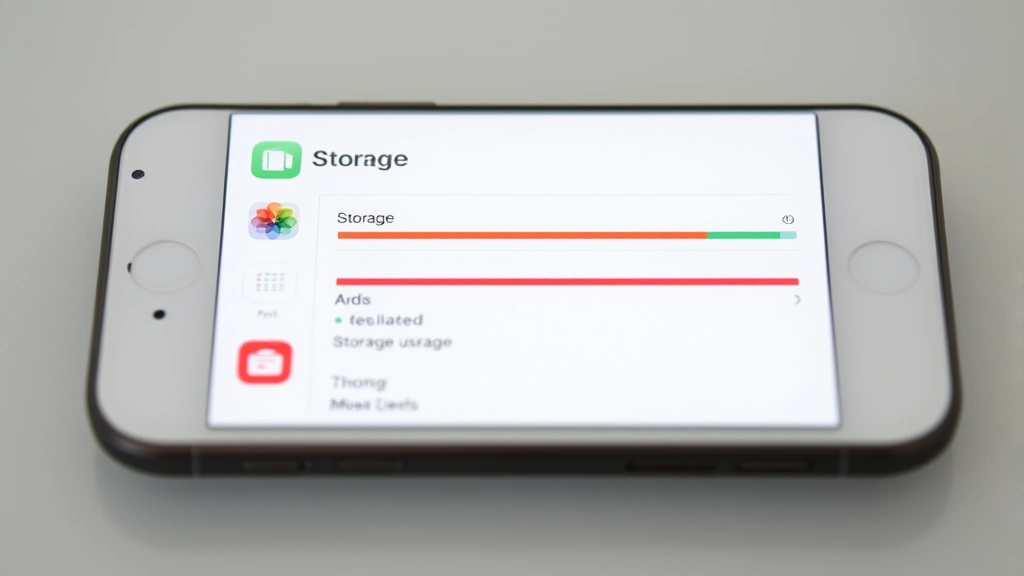
Method 4: Use iPhone Storage Settings
iPhone’s Storage settings provide valuable insights into which apps are consuming the most space and offer a convenient way to manage cache for individual applications. This method is perfect if you want to target specific apps rather than clearing everything at once.
Here’s the process:
- Go to Settings > General > iPhone Storage
- Review the list of apps and their storage usage
- Tap on an app that’s consuming a lot of storage
- Look for options to Offload App or Delete App
- Choose the appropriate option based on your needs
This view is incredibly helpful because it shows you exactly how much space each app is using. Some apps might surprise you with their storage consumption. For instance, a messaging app might have accumulated gigabytes of cached photos and videos without you realizing it. By regularly checking this section, you can stay on top of cache buildup before it becomes problematic.
If you’re looking to understand your iPhone’s storage situation more comprehensively, this Storage section is your command center. It even suggests apps you might want to offload based on usage patterns. Additionally, if you’re curious about other device management features, you might want to learn about how to turn off Find My iPhone or how to check if iPhone is unlocked for comprehensive device control.
Method 5: Factory Reset Your iPhone
When all else fails and your iPhone is drowning in cache and clutter, a factory reset is the ultimate nuclear option. This will wipe your entire device clean, removing all cache, apps, settings, and data. It’s like returning your iPhone to the state it was in when you first unboxed it.
Warning: This is a destructive action, so only proceed if you’ve backed up your important data first. Here’s how to do it safely:
- Back up your iPhone using iCloud or iTunes
- Go to Settings > General
- Scroll down and tap Reset
- Select Erase All Content and Settings
- Enter your Apple ID password and device passcode when prompted
- Confirm the action
- Your iPhone will restart and begin the reset process
After the reset completes, you can restore your backup, and your iPhone will be restored with all your apps and data, but without the accumulated cache and clutter. For detailed guidance on this process, you might want to consult Apple’s official support documentation.
Most users won’t need to go this far. The previous methods are usually sufficient for maintaining optimal iPhone performance. However, if you’ve been neglecting your device’s maintenance for years, a factory reset can be transformative.
Tips to Prevent Excessive Cache Buildup
Now that you know how to clear cache, let’s talk about prevention. The best way to maintain your iPhone’s performance is to avoid letting cache accumulate excessively in the first place.
Regular Offloading Schedule: Set a reminder to offload your most-used apps once a month. This prevents cache from building up to problematic levels. Think of it as preventative maintenance rather than emergency repair.
Monitor Storage Usage: Check your iPhone Storage settings every few weeks. If you notice an app suddenly consuming significantly more space, that’s usually a sign of cache buildup. Address it before it becomes a performance issue.
Clear Safari Regularly: If you use Safari frequently, clear its cache monthly. This is especially important if you visit websites with heavy media content.
Manage Downloads: Streaming apps and browsers often cache downloaded content. Periodically review and delete downloaded content you no longer need. Many apps have settings to automatically delete old downloads.
Update Apps Regularly: Developers often optimize apps with each update, sometimes improving cache management. Keeping your apps updated ensures you benefit from these optimizations. If you’re interested in app management, you might also want to know about how to find hidden apps on iPhone to ensure you’re aware of all applications on your device.
Use iCloud Services: Enabling iCloud Photos, Documents, and other cloud services reduces the amount of data that needs to be cached locally on your device.
For more comprehensive guidance on iPhone optimization, check out Apple’s official support center for detailed articles on device maintenance.
Frequently Asked Questions
Does clearing app cache delete my data?
No, clearing app cache removes only temporary files and doesn’t affect your personal data, login credentials, or saved preferences. Your photos, messages, and other important information remain intact. The app will simply start fresh without the accumulated temporary files.
Will clearing cache improve my iPhone’s performance?
Yes, in most cases, clearing cache can noticeably improve your iPhone’s performance. Excessive cache can slow down apps and drain battery life. However, the improvement depends on how much cache has accumulated. If your iPhone is running smoothly, clearing cache might not produce dramatic results, but it’s still good maintenance.
How often should I clear my app cache?
For most users, clearing cache once a month is sufficient. However, if you’re a heavy app user or notice performance degradation, you might benefit from clearing cache more frequently. Pay attention to your device’s behavior and adjust your maintenance schedule accordingly.
Can I clear cache for all apps at once?
There’s no built-in option to clear cache for all apps simultaneously on iPhone. However, a factory reset will clear all cache, though it’s a drastic measure. The most practical approach is to offload or delete the apps consuming the most storage, which usually accounts for the majority of cached data.
Is it safe to delete and reinstall apps?
Yes, it’s completely safe. When you reinstall an app from the App Store, you’re getting the latest version. Most apps sync important data to the cloud, so your information will be preserved. Just make sure you remember your login credentials for the app.
What’s the difference between cache and data?
Cache consists of temporary files that apps create to improve performance—things like downloaded images or webpage elements. Data refers to your personal information within the app—your messages, photos, settings, and login information. Clearing cache removes the temporary files but preserves your personal data.
Why does Safari cache data?
Safari caches website data to make browsing faster. When you revisit a website, cached elements load instantly instead of being downloaded again. This improves performance but can accumulate over time, especially if you browse heavily. Regularly clearing Safari cache keeps the browser running smoothly.
Can cache clearing fix app crashes?
Sometimes, yes. Corrupted cache can cause apps to crash or behave erratically. Clearing cache often resolves these issues. If an app continues to crash after clearing cache, you might need to delete and reinstall it, or contact the app developer for support.

Related Posts

How Long to Boil Lobster Tails: Cooking Guide

How Long to Fly from New York to London? Travel Times
