

Reverse Computer Changes: How to Quickly Restore Your System
Computer problems can strike at any moment, leaving you frustrated and worried about potential data loss or system instability. Whether you’ve accidentally installed malicious software, made incorrect system settings changes, or experienced hardware driver conflicts, knowing how to reverse computer changes quickly can save you hours of troubleshooting and potentially expensive repair costs.
System restoration is a critical skill that every computer user should master. From simple file recoveries to complete system rollbacks, understanding the various methods available can mean the difference between a minor inconvenience and a major disaster. This comprehensive guide will walk you through multiple approaches to undoing changes made to your computer, explaining how long each method typically takes and when to use specific restoration techniques.
Understanding System Restore Points
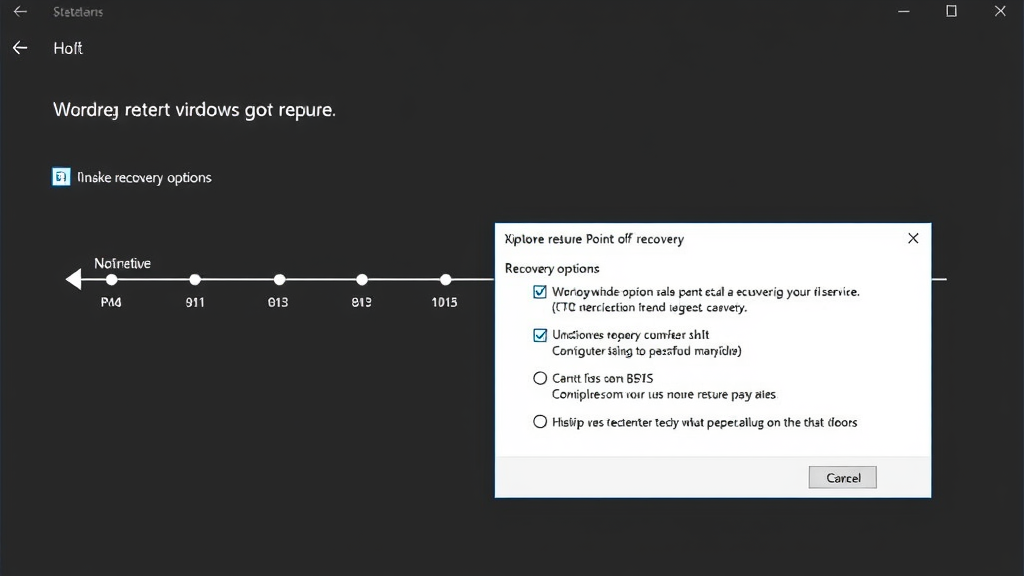
System Restore is Windows’ built-in time machine that creates snapshots of your computer’s system files, installed programs, Windows registry, and system settings at specific points in time. These restore points serve as safety nets, allowing you to roll back your system to a previous state when problems occur.
Windows automatically creates restore points before significant system changes, such as installing new software, drivers, or Windows updates. You can also manually create restore points before making major changes to your system. The process typically stores multiple restore points, with older ones being deleted automatically to save disk space.
The time required for system restoration varies depending on several factors including the amount of data being restored, your hard drive speed, and system specifications. Generally, a system restore takes between 10 to 45 minutes to complete. Modern systems with solid-state drives (SSDs) typically complete the process faster than traditional hard disk drives (HDDs).
To access System Restore in Windows, search for “Create a restore point” in the Start menu, select your system drive, and click “System Restore.” Follow the wizard to choose an appropriate restore point based on the date and description of changes you want to undo.
Windows Recovery Options and Tools
Windows provides several recovery options beyond basic System Restore, each designed for different scenarios and severity levels of system problems. Understanding these tools helps you choose the most appropriate method for your specific situation.
Windows Recovery Environment (WinRE) offers advanced troubleshooting options accessible during startup problems. You can access WinRE by holding Shift while clicking Restart, or by interrupting the boot process three times consecutively. This environment provides startup repair, system image recovery, and command prompt access for advanced users.
Reset This PC is a more comprehensive solution that reinstalls Windows while giving you options to keep or remove personal files. The “Keep my files” option typically takes 1-3 hours, while “Remove everything” can take 2-5 hours depending on drive size and whether you choose to securely erase data.
Windows System Image Recovery allows restoration from complete system backups created using Windows Backup and Restore. This process creates an exact copy of your entire system drive, including the operating system, programs, and personal files. Restoration time depends on image size but typically ranges from 30 minutes to several hours.
For users dealing with email-related issues during system problems, knowing how to retract an email in Outlook can be crucial when system instability affects your communication workflow.
Mac Recovery Methods and Time Machine
Mac computers offer robust recovery options through macOS Recovery and Time Machine backup system. These tools provide comprehensive solutions for various levels of system restoration needs, from simple file recovery to complete system rebuilds.
Time Machine creates incremental backups of your entire system, allowing you to restore individual files, folders, or your complete system to previous states. The initial backup can take several hours depending on data volume, but subsequent backups are much faster as they only save changes since the last backup.
macOS Recovery mode provides access to essential troubleshooting tools including Disk Utility, Safari for online support, and options to reinstall macOS. Access Recovery mode by holding Command + R during startup. From here, you can restore from Time Machine backups, which typically takes 1-4 hours depending on the amount of data being restored.
Migration Assistant helps transfer data from Time Machine backups or other Mac computers. This process can take anywhere from 30 minutes to several hours, depending on the amount of data being migrated and connection speed.
For Mac users, understanding basic operations like how to copy and paste on MacBook and how to right click on a Mac becomes essential during recovery procedures when familiar keyboard shortcuts might not work as expected.
File Recovery Techniques and Data Restoration
File recovery encompasses various methods to retrieve lost, deleted, or corrupted data. Understanding these techniques helps you choose the appropriate approach based on your specific data loss scenario and urgency requirements.
Windows File History automatically backs up files in your Documents, Music, Pictures, Videos, and Desktop folders, as well as files available offline from OneDrive. Recovery from File History is typically quick, taking only a few minutes to restore individual files or folders. Configure File History through Settings > Update & Security > Backup.
Shadow Copy technology creates point-in-time snapshots of files and folders, accessible through the “Previous Versions” tab in file properties. This method works well for recovering accidentally modified or deleted files and usually completes within seconds to minutes.
Third-party data recovery software like Recuva, PhotoRec, or TestDisk can recover files from formatted drives or after system crashes. These tools scan storage devices for recoverable data patterns, with scan times ranging from minutes to hours depending on drive size and damage extent.
Professional data recovery services handle severe cases involving physical drive damage or critical business data. These services can take days to weeks but offer the highest success rates for complex recovery scenarios. According to NIST guidelines, professional recovery is recommended when data is mission-critical and other methods have failed.

Registry Restoration and System File Recovery
The Windows Registry contains critical configuration information for your operating system and installed programs. Registry corruption can cause serious system problems, making registry restoration an essential skill for advanced troubleshooting.
Windows automatically creates registry backups in the System32\config\RegBack folder, though recent Windows versions have reduced the frequency of these automatic backups. Manual registry exports before making changes provide reliable restoration points that can be imported quickly when problems occur.
System File Checker (SFC) scans and repairs corrupted system files using cached copies stored in the component store. Run “sfc /scannow” from an elevated command prompt. The scan typically takes 15-30 minutes and automatically replaces corrupted files with known good versions.
Deployment Image Servicing and Management (DISM) tool can repair the Windows component store itself when SFC cannot fix certain corruptions. Use “DISM /Online /Cleanup-Image /RestoreHealth” which usually takes 10-20 minutes to complete. This tool requires internet connectivity to download replacement files from Windows Update.
Registry Editor’s export and import functions allow manual backup and restoration of specific registry keys or entire registry hives. Importing registry files is nearly instantaneous, but changes may require system restart to take full effect.
Prevention Strategies and Best Practices
Preventing system problems is always preferable to dealing with recovery scenarios. Implementing comprehensive backup strategies and following best practices significantly reduces the likelihood of needing emergency system restoration.
Automated backup solutions ensure regular, consistent data protection without relying on manual processes. Windows Backup and Restore, File History, and third-party solutions like Acronis or Carbonite provide various levels of protection. Schedule backups during low-usage periods to minimize performance impact.
Regular system maintenance including disk cleanup, defragmentation, and software updates prevents many common problems that require system restoration. Windows Update installs security patches and driver updates that often resolve stability issues before they become critical.
Creating restoration media before problems occur ensures access to recovery tools even when your system won’t boot normally. Windows Recovery Drive creation takes 15-30 minutes but provides invaluable troubleshooting access during emergencies. For Chromebook users, understanding how to powerwash a Chromebook provides a quick reset option similar to Windows recovery tools.
Documentation of system changes, installed software, and configuration modifications helps identify potential causes when problems occur. Maintaining change logs allows faster problem resolution and more targeted restoration approaches.
Regular testing of backup and recovery procedures ensures these systems work when needed. According to MIT disaster recovery research, organizations that regularly test recovery procedures have 60% faster restoration times during actual emergencies.
Email management during system problems requires special attention, and knowing how to recall an email in Outlook can prevent communication issues when system instability affects your email client’s normal operation.
Frequently Asked Questions
How long does it typically take to undo changes made to your computer?
The time required to undo computer changes varies significantly based on the restoration method used. System Restore typically takes 10-45 minutes, while file recovery from backups can be completed in minutes. Complete system recovery from image backups may take 1-4 hours depending on data volume and hardware speed.
Can I undo changes if my computer won’t start normally?
Yes, several recovery options work even when Windows won’t boot normally. Windows Recovery Environment (WinRE) provides access to System Restore, startup repair, and other troubleshooting tools. Access WinRE by interrupting the boot process three times or using Windows installation media.
What’s the difference between System Restore and Reset This PC?
System Restore returns your computer to a previous state without affecting personal files, typically completing in 10-45 minutes. Reset This PC reinstalls Windows entirely, offering options to keep or remove personal files, and takes 1-5 hours depending on the chosen option and system specifications.
How far back can I restore my computer using System Restore?
System Restore points are typically available for 7-90 days, depending on available disk space and system configuration. Windows automatically deletes older restore points to free up space, but you can adjust these settings through System Protection properties.
Will undoing system changes affect my personal files?
Most restoration methods preserve personal files. System Restore doesn’t affect documents, pictures, or other personal data. However, recently installed programs after the restore point may need reinstallation. Always verify backup status of important files before performing system restoration.
Can I create my own restore points before making changes?
Yes, you can manually create restore points before installing new software or making system changes. Search for “Create a restore point” in Windows, select your system drive, and click “Create.” This process takes 1-3 minutes and provides a specific recovery point for your changes.
What should I do if System Restore fails to complete?
If System Restore fails, try running it from Windows Recovery Environment or Safe Mode. Alternative options include using Windows Reset This PC with the “Keep my files” option, or restoring from a complete system image backup if available. Professional recovery services may be necessary for severely corrupted systems.

Related Posts

How Long to Boil Lobster Tails: Cooking Guide

How Long to Fly from New York to London? Travel Times
