
Unlock Communication: Unblock Numbers on iPhone Effortlessly
In today’s connected world, communication mishaps happen, and sometimes we find ourselves having blocked important contacts on our iPhone. Whether it was done in a moment of frustration, by accident, or during a temporary disagreement, knowing how to unblock a number on iPhone is essential for maintaining healthy relationships and ensuring you don’t miss important communications.
Fortunately, Apple has made the process of unblocking numbers straightforward and accessible through multiple methods. This comprehensive guide will walk you through every possible way to restore communication with blocked contacts, from using the Settings app to managing blocks directly from your call history and Messages app. Understanding these methods will help you quickly resolve communication barriers and get back to seamless connectivity.
Understanding Blocked Numbers on iPhone
When you block a number on your iPhone, you’re essentially creating a digital barrier that prevents that contact from reaching you through calls, texts, or FaceTime. The blocked contact won’t receive any notification that they’ve been blocked, but their attempts to communicate will be silently filtered out. Understanding this mechanism is crucial because it helps explain why simply deleting a contact doesn’t unblock them – the block exists at the system level, independent of your contacts list.
Blocked numbers are stored in your iPhone’s settings and remain blocked even if you delete the contact from your address book. This means that even unknown numbers can be blocked and will need to be specifically unblocked through the proper channels. The blocking system is comprehensive, affecting not just phone calls but also text messages, iMessages, and FaceTime calls from the blocked number.
It’s worth noting that blocked calls may still appear in your recent calls list, but they’ll be marked differently, and you won’t receive notifications for them. Similarly, blocked text messages are filtered out and don’t generate notifications, though they may be stored in a filtered messages folder depending on your iOS version. This comprehensive blocking system is designed to give you complete control over who can contact you, but it also means you need to be intentional about managing your blocked numbers list.
Method 1: Unblocking Through Settings
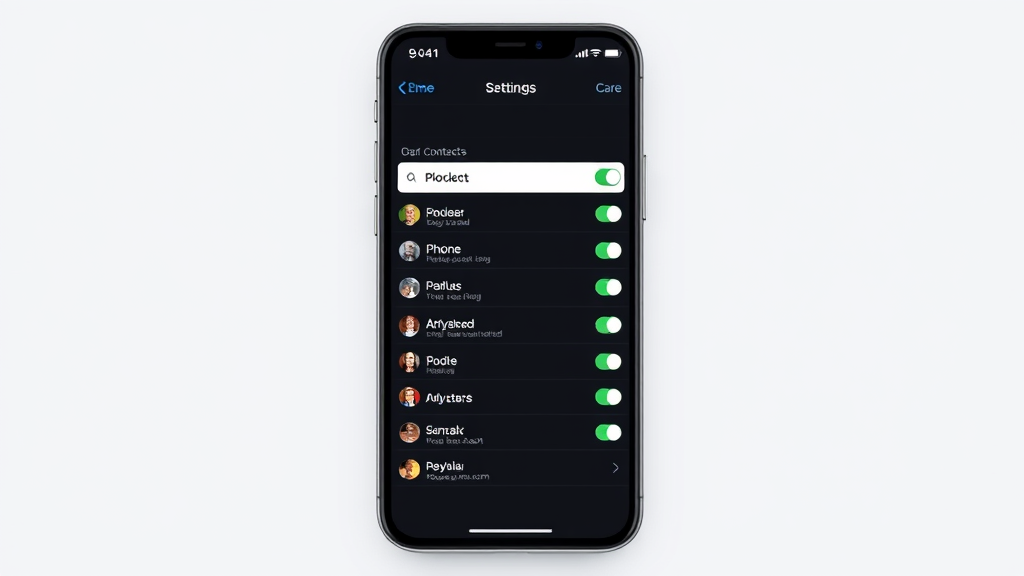
The most comprehensive way to unblock a number on iPhone is through the Settings app, which provides access to your complete blocked contacts list. This method is particularly useful when you need to see all blocked numbers at once or when you’re not sure which specific app was used to block the contact originally.
To begin, open the Settings app on your iPhone and scroll down to find “Phone” in the list of options. Tap on “Phone” to access the phone-specific settings. Within the Phone settings, you’ll see several options, but you’re looking for “Blocked Contacts” or “Call Blocking & Identification” depending on your iOS version. This section contains your master list of all blocked numbers and contacts.
Once you’re in the blocked contacts section, you’ll see a complete list of all numbers and contacts you’ve blocked across all apps – phone calls, messages, and FaceTime. To unblock a specific number, simply swipe left on the contact or number you want to unblock. This will reveal a red “Unblock” button. Tap this button, and the number will be immediately removed from your blocked list, restoring full communication capabilities.
If you prefer using the edit function, you can tap “Edit” in the upper-right corner of the blocked contacts screen. This will show red minus signs next to each blocked contact. Tap the minus sign next to the contact you want to unblock, then tap “Unblock” to confirm the action. This method is particularly useful if you need to unblock multiple contacts at once, as you can select several before confirming the changes.
Method 2: Using the Phone App
The Phone app provides a direct method for unblocking numbers, especially useful when you can see the blocked contact in your recent calls list. This approach is convenient because it allows you to unblock someone immediately after realizing you need to restore communication, without navigating through multiple settings menus.
Open the Phone app and tap on “Recents” at the bottom of the screen. Look through your call history for the number you want to unblock. Blocked numbers may appear in your recents list, often with a special indicator or in a separate section depending on your iOS version. When you find the number, tap the small “i” (information) icon next to it to access the contact details.
In the contact information screen, scroll down until you see “Unblock this Caller” option. This option will only appear if the number is currently blocked. Tap on “Unblock this Caller” and the system will immediately remove the block, allowing the contact to reach you again through calls, texts, and FaceTime. You’ll see a confirmation that the number has been unblocked.
This method is particularly effective because it provides immediate context – you can see when the last attempted contact was made and decide whether unblocking is appropriate. It’s also the fastest method when you’re actively looking at missed calls and realize you need to restore communication with someone who has been trying to reach you.
Method 3: Through the Messages App
The Messages app offers another pathway to unblock contacts, particularly useful when dealing with text message communications. This method is ideal when you remember blocking someone via text messages or when you want to restore SMS and iMessage communication specifically.
Launch the Messages app and look for the conversation thread with the blocked contact. If you can’t find the conversation in your main messages list, it may be in a filtered or blocked messages folder, depending on your iOS version and settings. Some versions of iOS maintain blocked message threads in a separate location that you can access through the message filtering options.
Once you locate the conversation thread, tap on it to open the conversation. At the top of the screen, tap on the contact’s name or number to access their contact information. This will open a contact card or information screen where you can see various options for managing communication with this contact.
Look for the “Unblock” option, which may be displayed prominently if the contact is currently blocked. Tap “Unblock” and confirm the action when prompted. The contact will be immediately unblocked, and you’ll be able to receive their messages and calls normally. This method is particularly useful because it directly addresses message-based communication and ensures that SMS and iMessage blocking is properly removed.
Just like managing other iPhone features such as Do Not Disturb settings, unblocking contacts through Messages requires accessing the right menu options to ensure proper functionality restoration.
Method 4: Via the Contacts App
The Contacts app provides yet another avenue for unblocking numbers, particularly when you want to manage blocking as part of overall contact management. This method is most effective when the blocked number is saved as a contact in your phone, rather than just being an unknown number that was blocked.
Open the Contacts app and search for the contact you want to unblock. You can either scroll through your contacts list or use the search function at the top of the screen to quickly locate the specific contact. Once you find the contact, tap on their name to open their detailed contact information.
Within the contact’s information screen, scroll down to look for blocking-related options. You might see “Unblock this Caller” or similar language if the contact is currently blocked. The exact wording and location of this option can vary depending on your iOS version, but it’s typically found in the lower portion of the contact information screen.
Tap the unblock option and confirm the action when prompted. The contact will be immediately unblocked across all communication methods – phone calls, text messages, and FaceTime. This comprehensive unblocking ensures that all forms of communication are restored simultaneously, which is particularly important for contacts you regularly communicate with through multiple channels.
This method is especially useful for managing your communication preferences alongside other contact management tasks. Similar to how you might manage other iPhone features like Find My iPhone settings, contact-based unblocking provides a centralized approach to communication management.
Troubleshooting Common Issues
Sometimes the unblocking process doesn’t go as smoothly as expected, and understanding common issues can help you resolve problems quickly. One frequent issue is that unblocked contacts don’t immediately appear to be unblocked, particularly in group messages or when using third-party messaging apps that may cache blocked contact information.
If you’ve unblocked a contact but still aren’t receiving their calls or messages, try restarting your iPhone. This forces the system to refresh all communication settings and can resolve temporary glitches that prevent the unblocking from taking full effect. Additionally, make sure you’re running the latest version of iOS, as older versions may have bugs that affect the blocking and unblocking functionality.
Another common issue occurs when you’re trying to unblock a number that was blocked through a carrier service rather than through your iPhone directly. Some wireless carriers offer their own call blocking services, and numbers blocked through carrier services won’t appear in your iPhone’s blocked contacts list. In these cases, you’ll need to contact your wireless carrier directly to remove the block.
If you’re having trouble finding a specific blocked number in your blocked contacts list, remember that the number might be stored differently than you expect. For example, if you blocked a number that called you without the area code displayed, but you’re searching for it with the area code, you might not find it. Try searching for partial numbers or scrolling through your entire blocked contacts list to locate hard-to-find entries.
Network connectivity issues can also affect the unblocking process, particularly for iMessage and FaceTime communications. Ensure you have a stable internet connection when unblocking contacts, and consider toggling your WiFi or cellular data off and on again to refresh your network connection. This is similar to troubleshooting other connectivity-dependent features like scheduled text messaging.
Best Practices for Managing Blocked Numbers
Effective management of blocked numbers involves more than just knowing how to block and unblock contacts. Developing good practices around communication management can help you avoid unnecessary blocking and make the unblocking process more efficient when needed. Consider keeping a mental or written note of why you blocked specific contacts, as this can help you make informed decisions about when to unblock them.
Regular review of your blocked contacts list is a healthy practice that can help you maintain appropriate communication boundaries. Set a reminder to check your blocked contacts quarterly or semi-annually to determine if any blocks are no longer necessary. This prevents your blocked list from becoming cluttered with outdated entries and ensures you’re not inadvertently blocking people you now want to communicate with.
When blocking numbers, be specific about your reasons and consider whether the block is temporary or permanent. For temporary disagreements or cooling-off periods, you might want to set a personal reminder to reconsider the block after a specific time period. For harassment or safety concerns, permanent blocking may be more appropriate, but documenting these decisions can help you manage your blocked contacts more effectively.
Consider using alternative communication management tools alongside blocking when appropriate. Features like Do Not Disturb modes can help you control when you receive communications without permanently blocking contacts. This can be particularly useful for managing work-life balance or reducing interruptions during specific times without cutting off communication entirely.
For business or professional contacts, be especially careful about blocking, as miscommunications can have significant consequences. If you need to temporarily limit communication with professional contacts, consider using email or other communication channels to explain the situation rather than blocking them outright. This maintains professional relationships while addressing immediate communication concerns.
Frequently Asked Questions
Will the person know they’ve been unblocked?
No, just as people don’t receive notifications when they’re blocked, they won’t receive any notification when you unblock them. They’ll simply be able to reach you normally again through calls, texts, and FaceTime without any indication that they were previously blocked.
Can I unblock a number I don’t remember blocking?
Yes, you can view your complete blocked contacts list through Settings > Phone > Blocked Contacts. This shows all numbers you’ve blocked across all apps, even if you don’t remember blocking them. You can unblock any number from this comprehensive list regardless of how or when it was blocked.
Why can’t I find a blocked number in my blocked contacts list?
This could happen for several reasons: the number might be blocked through your wireless carrier rather than your iPhone, the number might be stored in a different format than you’re searching for, or there might be a sync issue with iCloud. Try contacting your carrier and checking for numbers stored without area codes or with different formatting.
Will unblocking restore old messages from that contact?
Unblocking a contact doesn’t restore messages that were blocked while the contact was blocked. However, you’ll receive new messages from that contact normally. Some blocked messages might be stored in filtered message folders depending on your iOS version and settings.
Can I temporarily unblock someone?
While there’s no built-in temporary unblock feature, you can manually unblock and re-block contacts as needed. For temporary communication needs, consider alternative methods like using a different communication platform or asking the person to contact you through a mutual contact.
What happens if I unblock someone by mistake?
If you accidentally unblock someone, you can immediately re-block them using any of the methods described in this guide. The blocking will take effect immediately, and you won’t receive communications from that contact until you choose to unblock them again.
Do blocked contacts get removed when I reset my iPhone?
If you restore your iPhone from a backup that includes your blocked contacts list, the blocked contacts will be restored as well. However, if you set up your iPhone as new or don’t restore communication settings, you’ll need to re-block contacts manually. According to Apple’s official support documentation, blocked contacts are part of your device backup when using iCloud or iTunes backup services.

Related Posts

How Long to Boil Lobster Tails: Cooking Guide

How Long to Fly from New York to London? Travel Times
