

Connecting Beats Headphones: Expert Tips & Tricks
How to Connect Beats Headphones: Expert Tips & Tricks
Beats headphones are known for their premium sound quality and sleek design, but getting them connected properly is the first step to enjoying your audio experience. Whether you’re using Beats Studio Pro, Beats Fit Pro, or any other model in the Beats lineup, the connection process is straightforward once you understand the fundamentals. Many users struggle with initial pairing, reconnection issues, or connecting to multiple devices simultaneously. This guide walks you through every scenario you’ll encounter, from first-time setup to troubleshooting persistent connection problems.
The beauty of Beats headphones lies in their seamless integration with Apple devices and broad compatibility with Android, Windows, and Mac systems. Understanding how Bluetooth technology works with your specific device will help you avoid common pitfalls and maintain a stable connection. We’ll cover everything from enabling Bluetooth on your device to advanced features like automatic device switching and multi-device pairing, ensuring you get the most out of your investment.
Understanding Beats Headphone Models
Beats manufactures several headphone models, each with slightly different connection capabilities and features. The major categories include over-ear models like Beats Studio Pro and Beats Solo 4, true wireless earbuds like Beats Fit Pro and Beats Studio Buds, and on-ear options. Each model uses Bluetooth 5.0 or later technology for wireless connectivity, making them compatible with virtually any modern device that supports Bluetooth audio.
Before you begin connecting, identify your specific Beats model by checking the packaging or visiting the official Beats website. Different models may have slightly different button layouts and control schemes, though the core connection process remains consistent. Some premium models include features like spatial audio and active noise cancellation, which may require additional setup steps after initial pairing.
The charging status and battery level of your Beats headphones directly impact their ability to connect. Always ensure your headphones are charged to at least 20% before attempting to pair them with a new device. Most Beats models include LED indicators that show charging status—typically a red light indicates low battery, while green indicates full charge. A quick glance at these indicators can save you troubleshooting time if connection issues arise.

Initial Setup and First Connection
The first connection is the most critical step in your Beats headphone journey. Unlike some other audio devices, Beats headphones enter pairing mode automatically when turned on for the first time. This default pairing mode remains active for about 15 minutes, giving you a window to connect to your primary device.
Step-by-step initial setup:
- Unbox your Beats headphones and locate the power button (typically on the ear cup or side of the headphones)
- Press and hold the power button for 5-10 seconds until you see an LED light flash or hear an audio cue
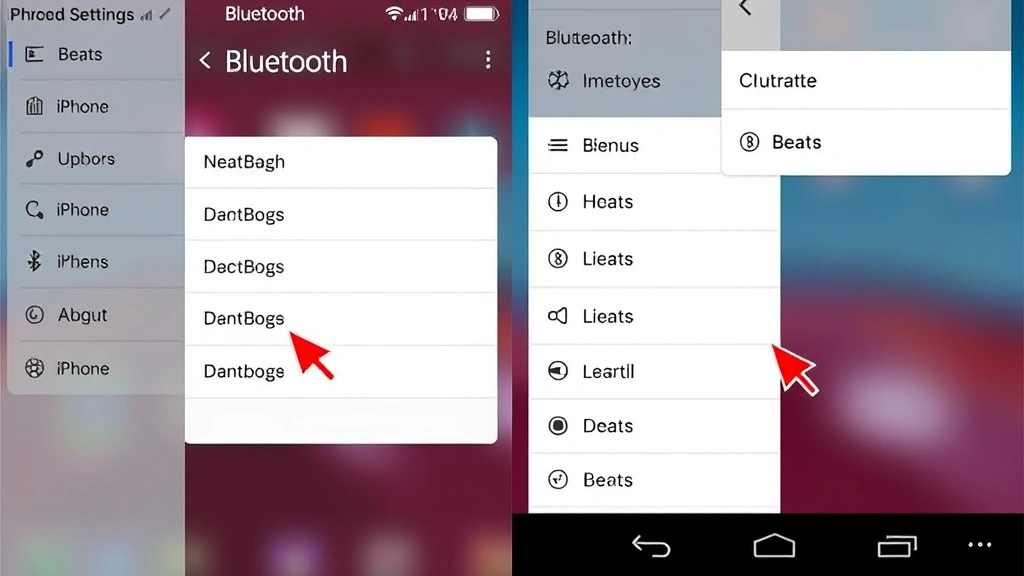
- Enable Bluetooth on your device by going to Settings → Bluetooth (or equivalent on Android/Windows)
- Look for your Beats model name in the available devices list
- Tap or click the device name to initiate pairing
- Wait for confirmation—you should hear a connection sound or see a confirmation message
- Test the connection by playing audio from your device
This process typically takes 30-60 seconds from start to finish. If your device doesn’t appear in the Bluetooth list, ensure you’re within 30 feet of the device and that no other audio devices are currently paired. Sometimes, temporarily disabling Bluetooth and re-enabling it refreshes the available device list.
Connecting to iPhone and iPad
Apple device users benefit from the most seamless Beats experience due to Apple’s acquisition of Beats Electronics and the deep integration into iOS and iPadOS. When you pair Beats headphones with an iPhone or iPad, the connection syncs across your entire Apple ecosystem if you’re signed into the same iCloud account.
iPhone connection process:
- Open Settings on your iPhone
- Navigate to Bluetooth and toggle it on
- Press the power button on your Beats headphones
- When your Beats appear in the list, tap on them
- Follow any on-screen prompts to complete pairing
- You’ll see a confirmation screen showing your headphone’s battery level
One of the most convenient features for iPhone users is automatic connection. After the initial pairing, your Beats will automatically connect to your iPhone whenever Bluetooth is enabled and you’re within range. This eliminates the need to manually select your headphones from the Bluetooth menu each time.
For iPad users, the process is identical. If you use multiple Apple devices, your Beats will intelligently switch between them based on which device is actively using audio. This feature, called automatic device switching, means you can be listening to music on your iPhone and seamlessly transition to watching a video on your iPad without any manual reconnection.
If you experience issues with connection stability on iOS devices, try visiting the FixWiseHub Blog for additional troubleshooting guides or resetting your network settings. Go to Settings → General → Reset → Reset Network Settings to clear all Bluetooth pairings and start fresh if problems persist.
Pairing with Android Devices
Android users have excellent compatibility with Beats headphones, though the experience varies slightly depending on your device manufacturer and Android version. The fundamental pairing process remains consistent across all Android devices, but menu locations and naming conventions may differ.
Android pairing steps:
- Open your Android device’s Settings application
- Look for “Bluetooth” or “Connected Devices” (naming varies by manufacturer)
- Enable Bluetooth by toggling the switch on
- Press and hold the power button on your Beats for 5 seconds until the LED flashes
- Your Beats model should appear in the available devices list
- Tap on the device name to initiate pairing
- Confirm the pairing when prompted
Android users should note that automatic device switching isn’t as seamless as on Apple devices, though newer Android versions with Bluetooth 5.0+ support improved multi-device connectivity. If you have multiple Android devices, you’ll typically need to manually select your Beats from the Bluetooth menu when switching between them.
Some Android manufacturers like Samsung include their own audio management apps that provide additional controls for connected Beats headphones. Samsung users, for example, can access extra settings through the Galaxy Wearable app, which enhances the user experience beyond standard Android Bluetooth controls.
Mac and Windows Connection Guide
Connecting Beats headphones to computers requires slightly different steps depending on whether you’re using a Mac or Windows machine. Both operating systems handle Bluetooth similarly, but the menu structures differ considerably.
Mac connection process:
- Click the Apple menu and select “System Settings”
- Choose “Bluetooth” from the sidebar
- Ensure Bluetooth is enabled (toggle should be on)
- Press the power button on your Beats until the LED flashes
- Your Beats will appear in the available devices list
- Click “Connect” next to your Beats model
- Follow any authentication prompts
Windows connection process:
- Click the Start button and open “Settings”
- Navigate to “Bluetooth & devices”
- Toggle Bluetooth on if it’s not already enabled
- Click “Add device” at the top of the window
- Select “Bluetooth” as the device type
- Put your Beats into pairing mode by pressing the power button
- Select your Beats model from the list when it appears
- Complete any required pairing confirmations
Mac users benefit from deeper integration with Beats, similar to iPhone and iPad. Once paired with your Mac, your Beats will automatically connect when both devices are in proximity. Windows users may need to manually select their Beats from the taskbar audio menu, though once connected, they’ll remain paired for future sessions.
Multiple Device Pairing
One of the most powerful features of modern Beats headphones is the ability to pair with multiple devices simultaneously. This capability allows you to switch between your phone, tablet, and computer without unpairing and re-pairing.
How to pair multiple devices:
- Complete the initial pairing process with your first device as described above
- On your first device, locate your Beats in Bluetooth settings and select “Forget” or “Unpair”
- Put your Beats back into pairing mode by pressing the power button for 5 seconds
- On your second device, go to Bluetooth settings and select your Beats from the available list
- Repeat this process for each additional device you want to pair
- Re-pair with your first device following the same steps
Most Beats models can maintain active connections with up to two devices simultaneously, though they’ll only play audio from one device at a time. The device actively playing audio takes priority, which is why the automatic device switching feature becomes so valuable.
After pairing with multiple devices, your Beats will prioritize connections based on which device is currently in use. If you’re listening to music on your phone and someone calls on your computer, you may need to manually switch the audio output depending on your specific Beats model and device settings.
For users managing household technology and multiple personal devices, this multi-device capability eliminates the frustration of constant re-pairing. Family members can also pair their own devices with shared Beats headphones by following the same pairing process, though only one person can listen at a time.
Troubleshooting Connection Issues
Even with proper setup, connection issues occasionally arise. The most common problems stem from Bluetooth range limitations, interference from other devices, outdated firmware, or corrupted pairing information.
Connection not established:
If your Beats don’t appear in the available Bluetooth devices list, first ensure your headphones are in pairing mode (LED should be flashing) and have sufficient battery. Move closer to your device—Bluetooth typically requires line-of-sight within 30 feet. Restart both your Beats and your device by turning them completely off and back on. If the problem persists, try resetting your Beats to factory settings by holding the power button for 10-15 seconds until you see a specific LED pattern (usually flashing red and white).
Intermittent disconnections:
Dropping connections usually indicate interference or range issues. Keep your device and Beats within 30 feet of each other and away from obstacles like thick walls or metal objects. Microwave ovens, wireless routers, and other Bluetooth devices can cause interference—if you notice disconnections in specific locations, try moving away from potential interference sources. Check that your Beats firmware is current by visiting the Beats support page and downloading any available updates.
One device connects but others won’t:
If your Beats pair successfully with one device but won’t pair with others, the issue likely stems from the first device maintaining an active connection. Go to Bluetooth settings on your primary device and select “Forget This Device” to break the existing connection. Your Beats should then be available for pairing with other devices.
Audio plays from device but Beats remain silent:
This frustrating issue often occurs due to incorrect audio output selection. On phones and tablets, swipe down to access the quick settings panel and ensure your Beats are selected as the audio output device. On computers, check system audio settings to confirm Beats are the active output device. If audio still doesn’t play, try disconnecting and reconnecting the Beats, or restart your device entirely.
For persistent issues that don’t resolve through these steps, comprehensive tech support resources and the official Beats customer service can provide device-specific assistance. Document any error messages or specific behaviors you observe, as this information helps support technicians diagnose problems more efficiently.
Advanced Connection Features
Beyond basic pairing, modern Beats headphones include sophisticated connection features that enhance usability and audio quality. Understanding these features helps you maximize your headphones’ potential.
Spatial Audio and Dolby Atmos:
Some Beats models support spatial audio with Dolby Atmos, which creates a three-dimensional audio experience on compatible devices. This feature works automatically once your Beats are connected to an iPhone, iPad, or Mac running current software. Spatial audio is particularly impressive when watching movies or gaming, as it creates directional audio cues that enhance immersion.
Adaptive Audio:
Newer Beats models include adaptive audio that automatically adjusts noise cancellation and transparency settings based on your environment. This feature works seamlessly in the background after initial connection and requires no manual configuration.
Audio Sharing:
Some Beats models allow two users to listen to the same audio source simultaneously through a feature called audio sharing. This works by pairing a second set of Beats with the same source device, creating a shared listening experience perfect for watching movies together or sharing music.
Find My Integration:
For Apple users, Beats headphones with H1 or H2 chips integrate with the Find My app, allowing you to locate lost headphones through your Apple device network. This feature activates automatically once your Beats are connected to your Apple account and requires no additional setup.
These advanced features represent the cutting edge of wireless audio technology and demonstrate why Beats remain popular among tech-savvy users. Once you’ve mastered basic connection, exploring these features can significantly enhance your audio experience and device integration.
FAQ
How long does it take to pair Beats headphones?
The pairing process typically takes 30-60 seconds from the moment you enter pairing mode until your Beats appear in the Bluetooth settings and successfully connect. After initial pairing, reconnection to the same device usually happens automatically within seconds.
Can I pair Beats headphones with multiple devices at the same time?
Yes, most Beats models support pairing with multiple devices simultaneously. However, they can only play audio from one device at a time. Your Beats will automatically prioritize whichever device is actively playing audio.
What should I do if my Beats headphones won’t connect?
Start by ensuring your Beats have sufficient battery and are in pairing mode (LED should be flashing). Restart both your Beats and your device, then try pairing again. If problems persist, try resetting your Beats to factory settings by holding the power button for 10-15 seconds. For detailed troubleshooting, general electronics resources provide additional context on Bluetooth troubleshooting principles.
Why do my Beats keep disconnecting?
Intermittent disconnections usually result from Bluetooth range limitations (stay within 30 feet), interference from other devices, or outdated firmware. Ensure you’re within range, away from potential interference sources like microwaves or routers, and that your Beats firmware is current.
How do I switch my Beats between devices?
If your Beats are paired with multiple devices, they’ll automatically switch to whichever device is actively playing audio. To manually switch, simply start playing audio on a different device, and your Beats will prioritize that source. Some users prefer manually disconnecting from one device before connecting to another for more control.
Do I need to pair my Beats every time I want to use them?
No. Once you’ve completed initial pairing with a device, your Beats will automatically reconnect whenever they’re powered on and within range of that device. You only need to manually pair again if you forget the device, reset your Beats, or intentionally unpair them.
Can I use Beats headphones with non-Apple devices?
Absolutely. While Beats offer the deepest integration with Apple devices, they work with any device that supports Bluetooth audio, including Android phones, Windows computers, and other brands. The pairing process is identical regardless of device manufacturer, though some features like automatic device switching work best with Apple products.

Related Posts

Superscript in Google Docs: Expert Tips

Strikethrough in Excel: Easy Steps for Beginners
