
Split Cells in Excel: Expert Tips & Tricks
Split Cells in Excel: Expert Tips & Tricks
Excel’s ability to manipulate data is one of its most powerful features, and knowing how to split cells effectively can save you countless hours of manual data entry and formatting. Whether you’re working with full names that need to be separated into first and last names, or address data that needs to be organized into individual components, Excel provides multiple methods to accomplish this task efficiently.
Splitting cells is particularly useful when you import data from external sources, receive spreadsheets from colleagues, or consolidate information from various databases. Rather than manually editing each cell, Excel offers built-in tools and formulas that can handle this operation automatically across hundreds or thousands of rows. Understanding these techniques will transform how you manage and organize your data.
Understanding Text-to-Columns Feature
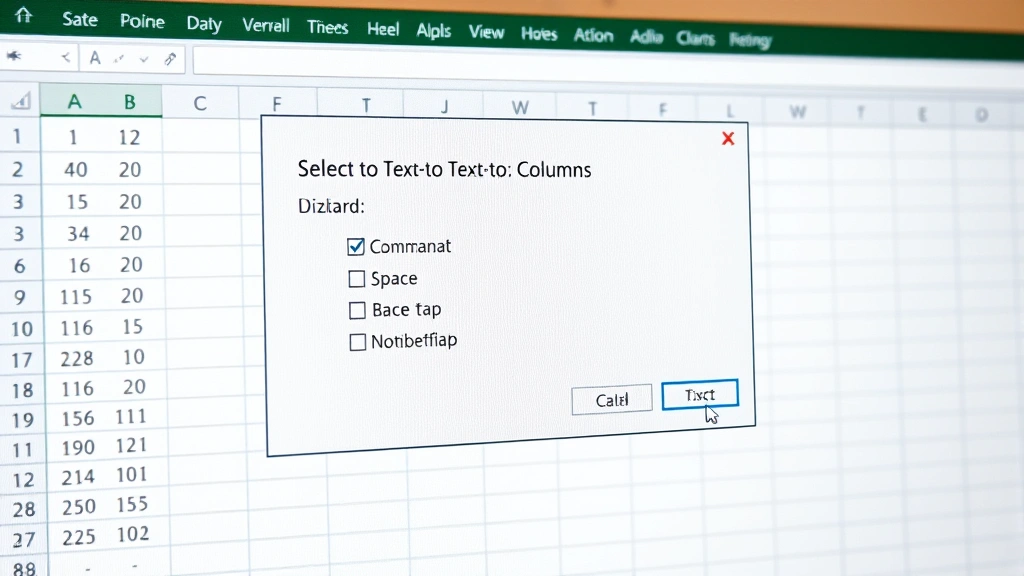
The Text-to-Columns feature is Excel’s most straightforward method for splitting cell data. This powerful tool, found in the Data menu, allows you to divide text based on delimiters like commas, spaces, tabs, or custom characters. To access this feature, first select the column containing the data you want to split.
Once you’ve selected your data range, navigate to the Data tab on the ribbon and click “Text to Columns.” This opens a wizard with three steps. In the first step, you’ll choose between two conversion options: “Delimited” or “Fixed Width.” For most splitting tasks, you’ll select “Delimited” if your data uses separators, or “Fixed Width” if each piece of information occupies a specific character position.
Step-by-step process for Text-to-Columns:
- Select the column containing data to split
- Go to Data tab → Text to Columns
- Choose “Delimited” option (most common)
- Click Next to proceed
- Select your delimiter (comma, space, tab, or custom)
- Preview results in the data preview window
- Click Next again to specify data formats if needed
- Choose destination cell for split data
- Click Finish to complete the operation
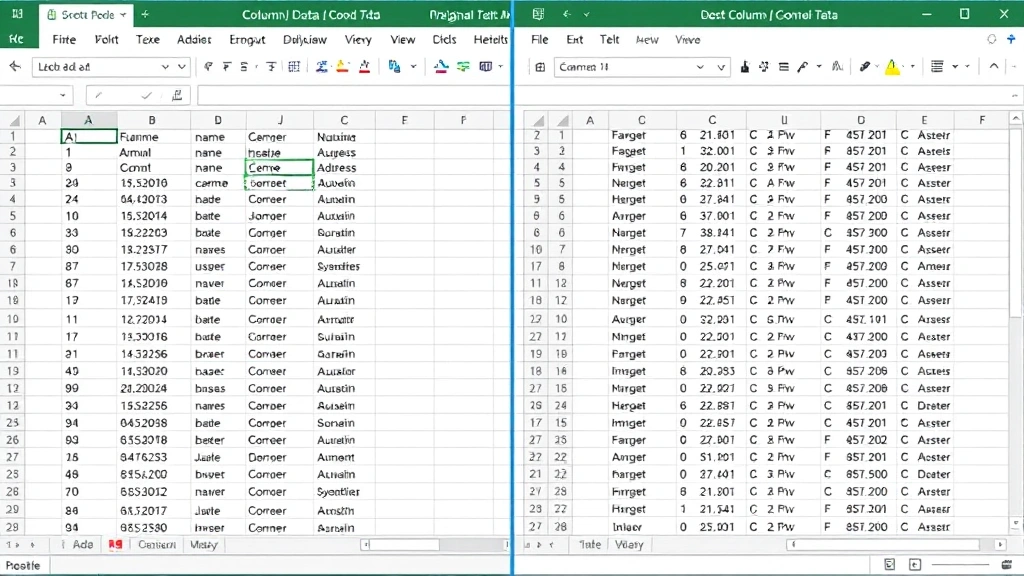
The preview window is crucial because it shows exactly how your data will be split before you commit to the operation. This prevents costly mistakes and allows you to adjust your delimiter selection if needed. If you’re splitting on multiple delimiters, you can select several options simultaneously.
Using Formulas to Split Cell Data
When you need more control over the splitting process or want to preserve your original data, formulas provide an excellent alternative. Excel offers several functions that work together to extract specific portions of text from cells. The most commonly used functions include LEFT, RIGHT, MID, FIND, and SEARCH.
LEFT Function: This function extracts a specified number of characters from the left side of a text string. The syntax is =LEFT(text, num_chars). For example, if you have “John Smith” in cell A1 and want to extract “John,” you would use a formula that counts characters up to the space.
RIGHT Function: Conversely, the RIGHT function extracts characters from the right side of text. Use =RIGHT(text, num_chars) to capture trailing information. This is useful when you need the last name or the domain portion of an email address.
MID Function: For extracting text from the middle of a string, use MID. The formula =MID(text, start_num, num_chars) requires you to specify where to start and how many characters to extract. This function is particularly useful when splitting data with consistent formatting.
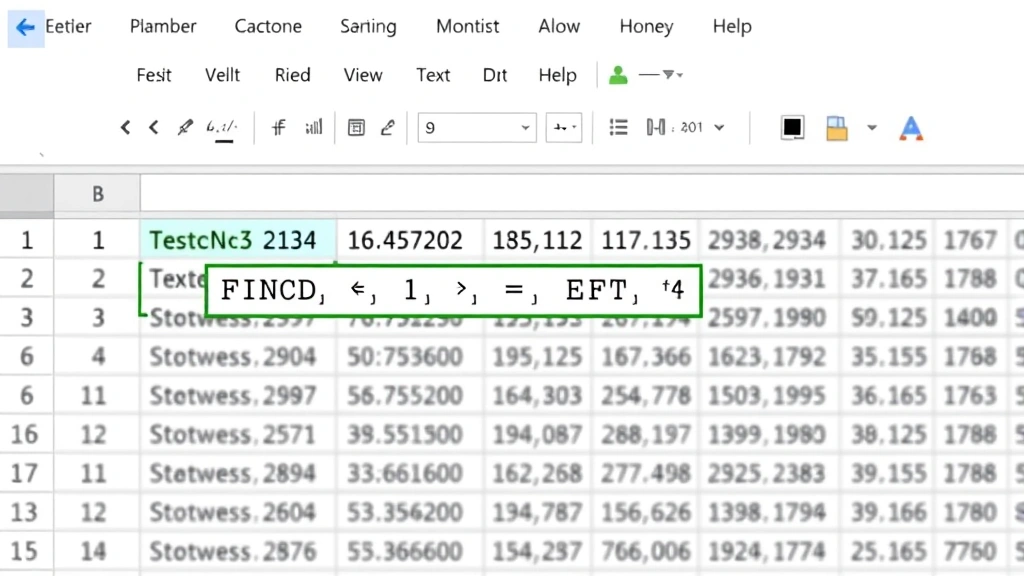
Combining FIND with other functions: To make formulas truly dynamic, combine FIND or SEARCH functions to locate delimiter positions. For instance, =LEFT(A1, FIND(” “, A1)-1) will extract everything before the first space in cell A1, regardless of how many characters that includes.
Here’s a practical example for splitting full names:
- First Name: =LEFT(A1, FIND(” “, A1)-1)
- Last Name: =RIGHT(A1, LEN(A1)-FIND(” “, A1))
- Email Domain: =RIGHT(A1, LEN(A1)-FIND(“@”, A1))
These formulas adapt automatically to different data lengths, making them ideal for large datasets. However, they do require careful syntax and understanding of how each function operates.
Advanced Splitting Techniques
For more complex splitting scenarios, Excel offers additional tools and approaches. Flash Fill, available in Excel 2013 and later, uses artificial intelligence to recognize patterns in your data and automatically fill in the remaining cells.
Using Flash Fill: To use Flash Fill, manually type the desired result in the first cell of your output column. Then type the result for the second cell. Excel will often suggest the pattern automatically. Press Ctrl+E to accept the Flash Fill suggestion, and Excel will complete the entire column based on the pattern you’ve established.
The TEXTSPLIT function, available in newer Excel versions, provides a modern approach to splitting data. Unlike Text-to-Columns, TEXTSPLIT works with formulas and returns results in multiple cells automatically. The syntax is =TEXTSPLIT(text, col_delimiter, [row_delimiter]).
For working with multiple delimiters, consider using a combination of SUBSTITUTE and other text functions. You can replace certain delimiters with others to standardize your data before splitting. For example, =SUBSTITUTE(A1, “-“, ” “) replaces hyphens with spaces.
When dealing with inconsistent data formats, you might need to use nested IF statements combined with text functions to handle various scenarios. While more complex, this approach provides maximum flexibility for real-world data that doesn’t follow perfect patterns.
Common Splitting Scenarios
Splitting Full Names: One of the most common tasks involves separating full names into first, middle, and last names. This requires accounting for variable-length names and multiple spaces. Using a combination of FIND, LEFT, MID, and RIGHT functions allows you to handle these variations accurately.
Splitting Email Addresses: Email addresses contain a predictable structure with the “@” symbol as a delimiter. Extract the username portion with =LEFT(A1, FIND(“@”, A1)-1) and the domain with =RIGHT(A1, LEN(A1)-FIND(“@”, A1)). This is straightforward since email structure is standardized.
Separating Address Components: Addresses often contain street, city, state, and ZIP code separated by commas. Use Text-to-Columns with comma as the delimiter to quickly separate these components. This method works well when addresses follow consistent formatting.
Breaking Down Date/Time Data: If your data contains dates in format “12/25/2023 14:30,” you can split the date and time portions. Use a formula approach combined with FIND to locate the space or other delimiter between date and time components.
Extracting Product Codes: When product codes contain embedded information (like “ABC-123-XYZ”), splitting them reveals individual components. Text-to-Columns with hyphen as the delimiter quickly separates these codes into meaningful parts.
Troubleshooting Split Issues
Sometimes splitting operations don’t work as expected. Understanding common issues and their solutions ensures successful data manipulation.
Delimiter Not Found: If Text-to-Columns doesn’t split your data, verify that your chosen delimiter actually exists in every cell. Some data might use inconsistent separators. Preview the results carefully before finalizing.
Losing Original Data: Text-to-Columns overwrites your original column by default. To preserve original data, copy the column to a new location first, or specify a different destination cell in step 3 of the wizard.
Formula Returns Errors: If formulas return #VALUE! or #NAME? errors, check your syntax carefully. Ensure parentheses are balanced and function names are spelled correctly. Verify that cell references point to the correct data.
Inconsistent Results Across Rows: When formulas work for some rows but not others, your data likely contains inconsistencies. Manually inspect problematic rows to identify variations in formatting or delimiter placement.
Character Encoding Issues: Data imported from external sources sometimes contains special characters or encoding problems that interfere with splitting. Use the CLEAN function to remove invisible characters before splitting.
When working with the FixWiseHub Blog – How-To Guides and Tips, you’ll find additional resources for data management. Understanding how to split cells complements other data organization skills you might be learning.
For precision work similar to measuring ring size, splitting cells requires attention to detail and careful verification of results. Each method has specific use cases, much like different measurement techniques serve different purposes.
External resources like Microsoft’s official Text to Columns guide provides authoritative documentation. Additionally, AbleBits offers comprehensive Excel splitting tutorials that cover advanced scenarios.
FAQ
What’s the difference between Text-to-Columns and formulas?
Text-to-Columns modifies your data in place and is quick for one-time operations. Formulas preserve original data and can be copied across rows automatically. Choose Text-to-Columns for simplicity and formulas for flexibility and preservation of source data.
Can I split cells without losing the original data?
Yes. With Text-to-Columns, specify a different destination cell in step 3 of the wizard. With formulas, place them in new columns, keeping original data intact. Both methods preserve your source information when used correctly.
How do I split data with multiple different delimiters?
In Text-to-Columns, select multiple delimiters in step 2 of the wizard. For formulas, use SUBSTITUTE to replace various delimiters with a single standard delimiter before applying splitting logic.
What if my data has inconsistent formatting?
Formulas are more flexible for inconsistent data. Use nested IF statements and multiple FIND functions to handle variations. Text-to-Columns works best with consistent formatting throughout your dataset.
Can Flash Fill handle complex splitting patterns?
Flash Fill works best with clear, consistent patterns. For complex scenarios, provide multiple examples so Excel can recognize the pattern. If it fails, switch to formulas for more control over the logic.
How do I split cells in older Excel versions?
Older Excel versions don’t have Flash Fill or TEXTSPLIT. Use Text-to-Columns or formula combinations with LEFT, RIGHT, MID, and FIND functions. These methods work in virtually all Excel versions.

Related Posts

Superscript in Google Docs: Expert Tips

Strikethrough in Excel: Easy Steps for Beginners
