
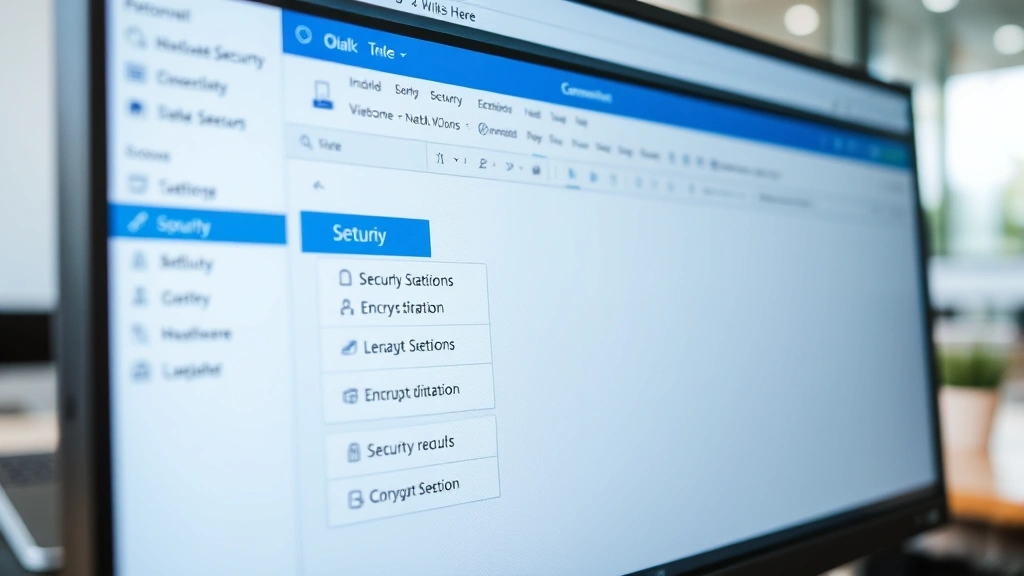
How to Send Encrypted Email in Outlook: Expert Guide
How to Send Encrypted Email in Outlook: Expert Guide
In an era where data breaches and email interception happen faster than you can say “password123,” sending sensitive information through standard email feels about as secure as mailing cash in a postcard. If you’re handling confidential documents, financial information, or anything you’d rather keep private, learning how to send encrypted email in Outlook isn’t just smart—it’s essential.
The good news? Outlook has built-in encryption features that make protecting your messages straightforward, whether you’re using the desktop application, web version, or mobile app. No tech degree required. We’ll walk you through the exact steps, explain your options, and help you understand why encryption matters in the first place.
Think of email encryption as putting your message in a digital safe deposit box. Only the intended recipient has the key to open it. Even if someone intercepts the email, they’ll see nothing but gibberish without that key. That’s the power you’re about to unlock.
Why Email Encryption Matters
Email travels across multiple servers before reaching its destination. Each hop represents a potential vulnerability. Without encryption, your message sits unprotected like a postcard on a conveyor belt—anyone handling it can read the contents.
Consider what happens when you share sensitive data via unencrypted email: financial account numbers, social security information, health records, legal documents, or business strategies. Cybercriminals actively intercept this type of communication. A study by Microsoft on email security revealed that phishing and email-based attacks remain among the top vectors for data breaches.
Encryption transforms your message into an unreadable format using complex algorithms. The recipient receives the scrambled message along with the ability to decrypt it using a key. Without that key, the message remains incomprehensible—even if intercepted by malicious actors. It’s the difference between sending a secret in plain sight versus locking it in a vault.
Organizations handling regulated information—healthcare providers, financial institutions, legal firms—often require encrypted email communication. But encryption benefits everyone. If you’re sharing anything you wouldn’t want displayed on a billboard, encryption deserves consideration.
Understanding Outlook’s Encryption Methods
Outlook offers several encryption approaches, and understanding which one suits your needs prevents confusion down the line.
Office 365 Message Encryption (OME): This is Microsoft’s cloud-based solution for Office 365 users. It works across organizations, allowing you to send encrypted messages to anyone—even if they don’t use Outlook. Recipients access messages through a web portal, making it incredibly flexible. OME handles encryption automatically for designated recipients or when you manually enable it.
S/MIME (Secure/Multipurpose Internet Mail Extensions): This traditional encryption method uses digital certificates. It’s been around for decades and works with virtually all email clients. S/MIME requires you to obtain a digital certificate and configure it in Outlook. Once set up, you can sign and encrypt messages with granular control.
IRM (Information Rights Management): This feature restricts what recipients can do with your message. They can’t forward, copy, print, or screenshot the content. It’s less about encryption and more about access control, but it adds an extra security layer.
For most users, OME provides the sweet spot between ease and effectiveness. S/MIME suits organizations with established PKI infrastructure. Let’s explore how to implement each approach.
Step-by-Step: Encrypting Email in Outlook Desktop
Method 1: Using Office 365 Message Encryption
- Open Outlook and click “New Email” to compose a message
- Click the “Options” tab in the ribbon menu
- Look for the “Encrypt” button—it typically appears in the “More Options” group
- Click “Encrypt” to reveal dropdown options
- Select “Encrypt-Only” or “Do Not Forward” depending on your needs:
- Encrypt-Only: Recipients can read and reply but can’t forward the message
- Do Not Forward: Applies the strictest restrictions
- Complete your email composition normally
- Click “Send”—Outlook handles the encryption automatically
The recipient receives an email with a link to read your encrypted message. They’ll authenticate through their Microsoft account or receive a one-time passcode, then access the message through a secure web portal.
Method 2: Configuring S/MIME for Advanced Users
If your organization uses S/MIME certificates, setup requires a few additional steps:
- Obtain your digital certificate from your organization’s IT department or a certificate authority
- Open Outlook and go to “File” → “Options”
- Select “Trust Center” then “Trust Center Settings”
- Click “Email Security”
- Under “Digital IDs (Certificates),” click “Import/Export”
- Import your certificate by browsing to its location and following the prompts
- Once imported, return to Email Security settings and select your certificate
- When composing, click “Options” → “Security Settings” to access signing and encryption options
- Check “Encrypt message contents and attachments” before sending
S/MIME provides stronger encryption but requires more setup. It’s worth it for organizations handling highly sensitive communications.
Encrypting Email in Outlook Web
Working from a browser? Outlook Web (formerly Outlook.com and Outlook on the Web) includes encryption functionality too.
- Log into your Outlook Web account
- Click “New Message” to start composing
- Type your recipient email address, subject, and message body
- Look for the lock icon in the compose window toolbar—it typically appears near formatting options
- Click the lock icon to reveal encryption choices
- Select “Encrypt” from the dropdown menu
- Choose your encryption level if options appear
- Complete your message and click “Send”
Outlook Web’s interface is intuitive, though the exact button locations may vary slightly depending on your version. If you can’t locate the encryption button, check the “More options” or “…” menu—Microsoft periodically updates interface elements.
Recipients will follow the same process as with desktop encryption: they’ll receive a notification, authenticate their identity, and access the secure message through the web portal.
Mobile Encryption: Outlook Apps
Mobile users shouldn’t feel left out. The Outlook app for iOS and Android includes encryption capabilities, though the interface differs from desktop versions.
iPhone/iPad:
- Open Outlook and tap the “Compose” button
- Add your recipient and compose your message
- Tap the three-dot menu (more options)
- Look for “Encrypt” or “Sensitivity” options
- Select the encryption level desired
- Send your message
Android:
- Open Outlook and tap the pencil icon to compose
- Add recipient details and message content
- Tap the three-dot menu for additional options
- Select “Sensitivity” or “Encrypt”
- Choose your encryption preference
- Send as normal
Mobile encryption works identically to desktop versions from the recipient’s perspective. They’ll receive the same secure link and authentication process regardless of which platform you used to send the message.

Best Practices for Secure Email
Encryption is powerful, but it’s just one piece of the security puzzle. Combine encryption with these practices for maximum protection:
Verify Recipient Addresses: Double-check email addresses before sending encrypted messages. A typo could send sensitive information to the wrong person, and encryption won’t help if the recipient is unintended.
Use Sensitivity Labels: Beyond encryption, Outlook allows you to apply sensitivity labels that communicate the confidentiality level and restrict actions. This complements encryption nicely and provides additional control.
Enable Two-Factor Authentication: Protect your Outlook account itself with two-factor authentication. If someone compromises your account, they can’t send messages under your name without the second authentication factor.
Be Specific About Encryption Needs: Not every email needs encryption. Reserve it for genuinely sensitive communications. Over-encryption creates friction for recipients and can make you seem paranoid. Use your judgment.
Communicate Clearly: When you send encrypted messages, recipients might be confused by the new process. A brief explanation in your message helps them understand what they’re doing and why.
Keep Certificates Updated: If using S/MIME, ensure your digital certificates remain current. Expired certificates prevent encryption from working properly.
Test Before Critical Use: Send a test encrypted email to yourself or a trusted colleague before using encryption for mission-critical communications. This confirms everything works as expected.
Learning how to encrypt email in Outlook is step one. Implementing these practices ensures your encrypted communications actually protect sensitive information.
Common Issues and Solutions
Issue: “Encrypt” button doesn’t appear
Solution: Ensure you’re using a version of Outlook that supports encryption. Office 365 subscribers have access to OME. If using Outlook desktop, verify your subscription is active. For S/MIME users, confirm your certificate is properly imported.
Issue: Recipients can’t access encrypted messages
Solution: Check that recipients have valid email addresses and reliable internet connections. Ensure they’re completing the authentication process correctly. If they’re still having trouble, have them check their spam folder for the encryption notification email.
Issue: S/MIME encryption fails
Solution: Verify your certificate hasn’t expired and is properly configured. Try importing the certificate again. If the recipient’s certificate is missing, you won’t be able to encrypt to them using S/MIME—switch to OME instead.
Issue: Mobile app won’t encrypt
Solution: Update your Outlook app to the latest version. Some older versions have limited encryption support. Ensure your account is an Office 365 account with encryption privileges.
Issue: Encrypted messages appear as attachments
Solution: This sometimes happens with certain email clients or when recipients use older technology. Inform recipients they should open the message through the secure web portal instead of trying to open attachments.
Most encryption issues resolve through simple troubleshooting. Microsoft’s support resources provide additional guidance if problems persist.
If you’re concerned about email security beyond encryption, you might also want to explore how to recall a message in Outlook for situations where you’ve sent something by mistake. While recalling email in Outlook isn’t always reliable, it’s another tool in your security arsenal. Additionally, retracting an email in Outlook can help in emergency situations.
For teams managing large volumes of sensitive communications, setting out of office messages in Outlook becomes relevant too—you can configure auto-replies that reassure senders about response times without compromising security protocols.
Frequently Asked Questions
Can I encrypt emails to non-Outlook users?
Absolutely. Office 365 Message Encryption works with any email client. Recipients receive a link to access your encrypted message through a web browser. They don’t need Outlook installed or an Office 365 subscription.
Is encrypted email slower to send?
Encryption adds minimal delay—usually unnoticeable. The encryption process happens on Microsoft’s servers almost instantaneously. You won’t experience meaningful delays in sending encrypted versus unencrypted messages.
Can recipients forward encrypted messages?
It depends on your encryption settings. With “Encrypt-Only,” recipients can reply but not forward. “Do Not Forward” prevents all forwarding. S/MIME offers granular control through certificate settings. Choose the restriction level matching your security needs.
What happens if I encrypt an email with attachments?
Attachments are encrypted along with the message content. Recipients see attachments within the secure web portal and can download them after authenticating. The entire package—message and attachments—remains protected.
Does encryption work with Outlook rules and filters?
Encryption doesn’t interfere with Outlook’s rules and filters. You can set up rules to automatically encrypt messages sent to specific addresses or with certain keywords. This automates security without requiring manual action for each message.
Can I encrypt messages I’ve already sent?
Not with standard encryption. However, if you’re using Office 365 Message Encryption, you can sometimes recall unsent messages through your Outbox. For already-sent messages, encryption can’t be retroactively applied. Always encrypt before sending.
What’s the difference between encryption and signing?
Encryption makes messages unreadable to unauthorized parties. Signing verifies your identity—it proves the message came from you and hasn’t been tampered with. You can use either feature independently or together for maximum security.
Do I need special training to use encryption?
Not really. The process is straightforward—click encrypt before sending. Recipients don’t need training either; they follow simple prompts to authenticate and access messages. It’s designed to be user-friendly.
Is Outlook encryption compliant with regulations?
Outlook encryption meets standards required by HIPAA, GDPR, and other regulatory frameworks. However, compliance depends on your complete email infrastructure and policies. Consult your compliance officer about specific requirements for your organization.
Can encryption be disabled by IT administrators?
Yes. Organizations can configure policies controlling which users can encrypt, what encryption methods are available, and whether encryption is mandatory for certain message types. IT administrators have granular control over encryption features.

Related Posts

How Long to Boil Lobster Tails: Cooking Guide

How Long to Fly from New York to London? Travel Times
