

How to Add Up a Column in Excel: Simple Steps
How to Add Up a Column in Excel: Simple Steps
Excel is one of those tools that seems intimidating until you actually start using it. Whether you’re managing a personal budget, tracking expenses for a small business, or organizing data for a project, knowing how to add up a column is one of the most fundamental skills you’ll need. The good news? It’s incredibly straightforward, and once you master it, you’ll wonder why you ever worried about it in the first place.
Adding columns in Excel isn’t just about clicking a few cells and hoping for the best. There’s actually a proper way to do it that ensures accuracy and saves you time in the long run. In this guide, we’ll walk you through everything from the basic SUM function to more advanced techniques that’ll make you look like an Excel pro at your next team meeting.
Think of this article as your personal Excel companion. We’re going to break down every step in a way that makes sense, whether you’re a complete beginner or someone who’s been using Excel but never quite figured out the best approach to summing columns.
Understanding the SUM Function
Before we dive into the mechanics of adding up columns, let’s talk about what makes Excel such a powerful tool. At its core, Excel uses functions—these are pre-built formulas that perform specific calculations. The SUM function is the workhorse of column addition, and it’s designed to do one thing exceptionally well: add numbers together.
The SUM function follows a simple syntax: =SUM(range). That’s it. You’re essentially telling Excel, “Hey, take all these numbers in this range and add them up for me.” The beauty of this function is that it’s flexible. You can sum a few cells, an entire column, or even multiple columns at once.
What makes the SUM function particularly useful is that it automatically ignores text and empty cells. So if you have a column with some numbers, some text labels, and a few blank spaces, the SUM function will only add up the actual numbers. This saves you from having to manually clean up your data before calculating.

Basic Method: Summing a Single Column
Let’s start with the most common scenario: you have a column of numbers and you want to add them all up. Here’s exactly how to do it:
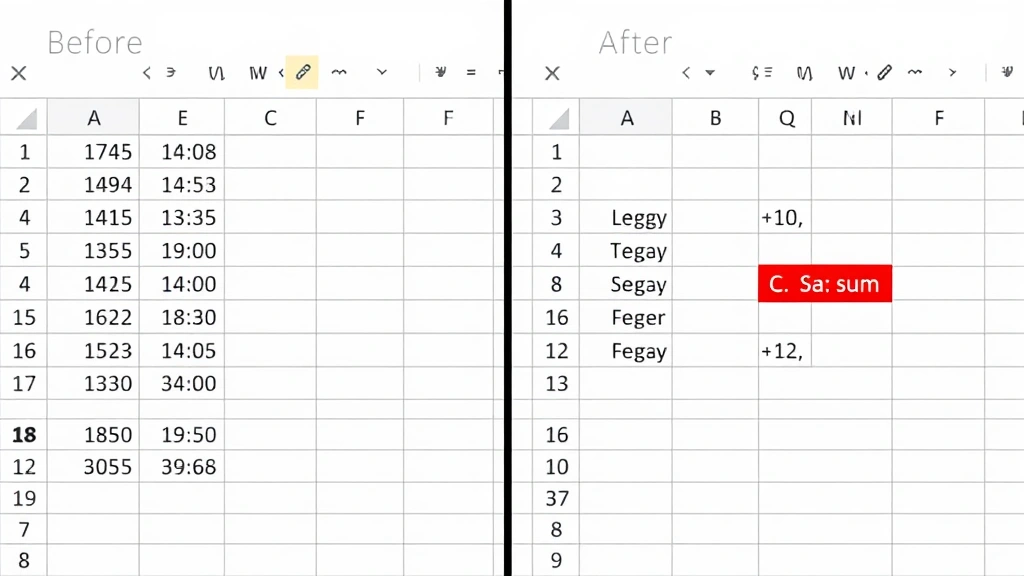
- Click on an empty cell where you want the sum to appear. This is usually right below your column of numbers, but it can be anywhere in your spreadsheet.
- Type the formula: =SUM(A1:A10) — Replace A1:A10 with your actual column range. If your numbers are in column B from rows 3 to 15, you’d type =SUM(B3:B15).
- Press Enter. Excel will instantly calculate the total and display it in your selected cell.
That’s the basic process, and honestly, it’s all you need to know to handle most column addition tasks. But let’s make sure you understand what’s happening here. When you type A1:A10, you’re telling Excel to include every cell from A1 through A10. The colon (:) is the range operator—it’s like saying “from this cell to that cell.”
Here’s a practical tip: instead of manually typing the range, you can click and drag. Type =SUM( and then click on the first cell in your column, hold down your mouse button, and drag to the last cell. Excel will automatically fill in the range for you. Then just type the closing parenthesis and press Enter.
If you need to work with your spreadsheet layout more strategically, you might want to learn how to move columns in Excel to organize your data more effectively before summing.
Advanced Techniques for Column Addition
Once you’re comfortable with basic column addition, there are several advanced techniques that can make your Excel work even more efficient.
Using AutoSum
Excel has a built-in feature called AutoSum that’s incredibly handy. Here’s how it works:
- Select the cell where you want the sum to appear
- Look for the AutoSum button in the toolbar (it looks like a Greek sigma symbol, Σ)
- Click it, and Excel will automatically detect your column range and create a SUM formula
- Press Enter to confirm
AutoSum is particularly useful when you have large columns because it eliminates the need to manually specify the range. Excel is smart enough to figure out where your data starts and ends.
Summing with Conditions
Sometimes you don’t want to sum an entire column—you only want to add numbers that meet certain criteria. This is where SUMIF comes in. The syntax is: =SUMIF(range, criteria, sum_range)
For example, if you have a list of expenses in column A and their categories in column B, and you only want to sum expenses from the “Office Supplies” category, you’d write: =SUMIF(B:B,”Office Supplies”,A:A)
This tells Excel to look through column B, find all cells that say “Office Supplies,” and then add up the corresponding values in column A. It’s a powerful way to segment your data without creating separate sheets.
Creating Dynamic Sums
If you’re frequently adding new data to your spreadsheet, you might want to create a dynamic sum that automatically includes new entries. Instead of specifying a fixed range like A1:A10, you can use an entire column reference: =SUM(A:A). This tells Excel to sum every number in column A, no matter how many rows you add later.
Just be careful with this approach if you have numbers elsewhere in the column that you don’t want included in your sum.
Working with Multiple Columns
What if you need to add up values from more than one column? Excel makes this straightforward. You have a couple of options:
Option 1: Include multiple ranges in one SUM formula
You can add multiple ranges by separating them with commas: =SUM(A1:A10, C1:C10, E1:E10). This will add all numbers from columns A, C, and E.
Option 2: Add separate column sums together
Alternatively, you could create individual sums for each column and then add those sums together: =SUM(A:A)+SUM(B:B)+SUM(C:C)
Both approaches work equally well. The first option is slightly more elegant if you’re dealing with specific ranges, while the second option is clearer if you’re summing entire columns.
When you’re working with complex spreadsheets that have multiple data columns, you might also want to consider how to freeze cells in Excel so your headers remain visible while you scroll through your data.
Summing Non-Contiguous Cells
Sometimes your data isn’t neatly organized in one continuous column. Maybe you have values in A1, A3, A5, and A10—skipping around throughout your spreadsheet. How do you add those up without including the empty cells in between?
The answer is to use semicolons (or commas, depending on your regional settings) to separate individual cells or ranges: =SUM(A1, A3, A5, A10)
This formula tells Excel to add only these specific cells, ignoring everything else. It’s particularly useful when you’re working with data that has irregular spacing or when you want to exclude certain rows for analytical reasons.
If you’re building a complex spreadsheet that requires this level of precision, you might also want to explore how to lock cells in Excel to prevent accidental changes to your formulas.
Troubleshooting Common Issues
Even experienced Excel users run into problems from time to time. Here are the most common issues and how to fix them:
Your Sum Shows as Text Instead of a Number
If your result looks like a formula instead of a calculated number (like “=SUM(A1:A10)” instead of “45”), your cell is probably formatted as text. Right-click the cell, select “Format Cells,” and change the format to “Number.” Then re-enter your formula.
The Sum Isn’t Including All Your Numbers
This usually happens when some of your “numbers” are actually stored as text. Excel won’t include text values in a SUM calculation. Check your data to make sure everything is formatted consistently. You might also need to use a formula like SUMPRODUCT to work around this issue.
Your Formula Returns an Error
Common errors include #NAME? (Excel doesn’t recognize the function name), #VALUE! (your formula contains incompatible data types), or #REF! (your formula references a cell that doesn’t exist). Double-check your formula syntax and make sure all your cell references are correct.
For more detailed troubleshooting and Excel tips, check out Microsoft’s official SUM function documentation.
Understanding how to wrap text in Excel can also help when you’re creating spreadsheets with detailed data that needs clear labeling, making it easier to identify what you’re summing.
Pro Tips for Excel Column Addition
Now that you understand the mechanics, here are some professional practices that’ll make your Excel work cleaner and more efficient:
Label Your Totals: Always add a label next to your sum (like “Total:” in the cell to the left). This makes your spreadsheet easier to understand for anyone else who might view it.
Use Consistent Formatting: Make your total row stand out by using bold text or background color. This draws attention to the important summary information.
Verify Your Results: With small datasets, manually check your sum to ensure accuracy. It only takes a minute and can catch formula errors early.
Document Your Formulas: If you’re using complex formulas, add a comment explaining what they do. Future you (or someone else on your team) will appreciate the clarity.
Consider Using Tables: Excel’s table feature automatically creates dynamic ranges that expand as you add data. This is particularly useful if your dataset changes frequently.
For comprehensive Excel training and additional resources, Family Handyman’s Excel tips guide offers practical advice for everyday users.
Frequently Asked Questions
Can I sum an entire column without specifying cell ranges?
Yes! You can use =SUM(A:A) to sum the entire column A, or =SUM(1:1) to sum an entire row. Excel will ignore text and empty cells, so you don’t have to worry about accidentally including non-numeric data.
What’s the difference between SUM and SUBTOTAL?
SUBTOTAL is useful when you have filtered data. While SUM adds all values in a range, SUBTOTAL only adds visible (non-filtered) cells. If you’re working with filtered datasets, SUBTOTAL is usually the better choice.
Can I sum cells with a formula that references other sheets?
Absolutely. You can reference cells from other sheets by using the syntax: =SUM(Sheet2!A1:A10). This tells Excel to sum cells A1 through A10 from Sheet2.
Why does my SUM formula show #DIV/0! error?
This error usually indicates a division by zero somewhere in your data or formulas. Check if any of your cells contain formulas that might be dividing by zero. The #DIV/0! error typically appears when Excel can’t process your calculation properly.
Can I use SUM with decimal numbers?
Yes, the SUM function works perfectly with decimal numbers. Excel will add them up accurately and display the result with the appropriate decimal places based on your cell formatting.
How do I sum only cells that meet multiple criteria?
Use SUMIFS (note the plural) instead of SUMIF. The syntax is: =SUMIFS(sum_range, criteria_range1, criteria1, criteria_range2, criteria2). This allows you to specify multiple conditions that must be met.
For more advanced Excel techniques and troubleshooting, This Old House’s home office Excel guide provides practical solutions for common scenarios.
Mastering Column Addition in Excel
Adding up a column in Excel is genuinely one of those skills that takes five minutes to learn but pays dividends throughout your entire career. Once you understand the SUM function and its variations, you’ll find yourself reaching for Excel constantly to handle data organization and calculations.
The key takeaway is this: Excel is designed to make your life easier, not harder. The SUM function, AutoSum feature, and conditional summing options are all tools built specifically to save you time and reduce errors. Start with the basic method, practice with your own data, and gradually explore more advanced techniques as you become comfortable.
Whether you’re managing a household budget, tracking business expenses, or organizing any kind of numerical data, knowing how to add up a column in Excel is an essential skill that’ll serve you well. The techniques you’ve learned here will form the foundation for more complex Excel work down the road.
Start practicing today with a simple spreadsheet, and before you know it, you’ll be confidently building complex data analyses and impressing colleagues with your spreadsheet prowess.

Related Posts

How Long to Boil Lobster Tails: Cooking Guide

How Long to Fly from New York to London? Travel Times
